How to Speed Up a Slow Computer (Step-by-Step Guide)
A slow computer turns simple work into a patience test: pages freeze, apps crawl, video calls stutter, and every click feels delayed. This guide shows how to speed up a slow computer with a safe, practical process that starts with diagnosis, moves through cleanup and settings, and ends with smart upgrade decisions only when they actually make sense.
The goal is not to chase random miracle fixes. The goal is to find the bottleneck, remove the drag, protect your files, and keep the machine fast with a routine you can repeat in less than an hour every month.
Featured Snippet Box: The Direct Answer
To speed up a slow computer, restart it, remove unnecessary startup apps, free up storage, uninstall unused programs, update the operating system, scan for malware, reduce browser extensions, check RAM and disk usage, and upgrade to an SSD or more RAM if hardware is the real bottleneck.
Before You Start: Back Up and Diagnose First
The safest way to improve performance is to treat your computer like a workshop project. You would not start tearing out cabinets before measuring the kitchen. Do not start deleting system files before you know what is causing the slowdown.
If you are learning how to speed up a slow computer for the first time, back up anything important before major cleanup. At minimum, copy documents, desktop files, photos, videos, client folders, browser bookmarks, and password manager recovery details to a cloud drive or external disk. If the computer is already behaving strangely, a backup is not optional; it is your safety net.
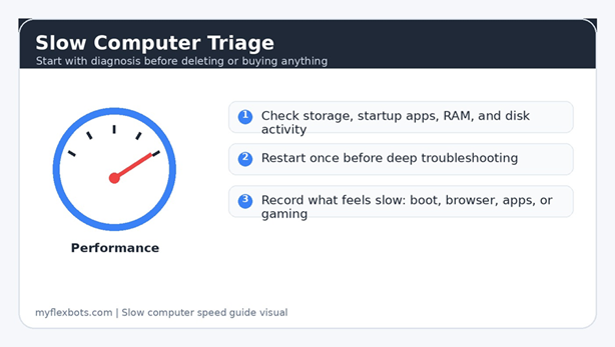
Next, define the symptom. A computer that takes ten minutes to start has a different problem from a browser that freezes when twenty tabs are open. Write down what feels slow, when it started, and whether it happens after boot, while browsing, during video calls, gaming, editing, or file transfers.
Microsoft recommends closing unused apps or browser tabs and restarting as a basic performance step, while Apple notes that lack of free startup disk space can make a Mac run slowly. Those two clues are often enough to solve a surprising number of slowdowns without buying parts.
Essential Tools & Materials Breakdown
You do not need a repair bench to learn how to speed up a slow computer. Most fixes use built-in tools, free utilities, and a little discipline. Paid software should be the last step, not the first click.
| Tool / Material | Purpose | Estimated Cost | Skill Level | When to Use |
| Task Manager / Activity Monitor | Find heavy CPU, memory, disk, and startup usage | Free | Beginner | First diagnostic step |
| Built-in storage cleanup | Remove temp files, cache, old updates, and trash | Free | Beginner | When drive space is low |
| External drive or cloud storage | Move large photos, videos, backups, and archives | $0-$80+ | Beginner | Before deleting or upgrading |
| Security scan | Find malware, unwanted apps, and suspicious browser extensions | Free-$50/year | Beginner | When pop-ups, redirects, or unknown apps appear |
| Compressed air / soft brush | Clean dust from vents and fans | $5-$15 | Beginner | When laptop overheats or fan runs constantly |
| SSD upgrade | Replace a slow hard drive with faster storage | $35-$120+ | Intermediate | Best upgrade for older HDD machines |
| RAM upgrade | Improve multitasking and large-app performance | $25-$100+ | Intermediate | When memory is constantly maxed out |
| Fresh OS reinstall | Reset software clutter after backups | Free | Intermediate | Last software fix before hardware upgrades |
Restart the Right Way and Check the Baseline
Restarting sounds too basic until you see how many computers are never fully restarted. Sleep mode keeps sessions alive. Browser processes, update installers, driver tasks, and memory leaks can pile up for days or weeks.
Shut down or restart once, then open only one or two apps. Give the machine five minutes after logging in so updates and background services can settle. Then test the task that usually feels slow. If the computer suddenly feels normal, your issue is probably startup load, too many open apps, or a runaway background process.
On Windows, open Task Manager with Ctrl + Shift + Esc. On macOS, open Activity Monitor from Applications > Utilities. Sort by CPU, Memory, and Disk. You are not looking for one scary number; you are looking for a pattern. A single app using heavy CPU during a video export is normal. A random unknown process hammering CPU all day is not.
- CPU bottleneck: apps freeze, fans ramp up, video calls lag, and Task Manager shows one process using a high percentage for a long time.
- Memory bottleneck: switching apps feels slow, browser tabs reload, and the system uses swap or compressed memory heavily.
- Disk bottleneck: boot time is painful, apps open slowly, and disk activity stays high even when you are doing very little.
💡 Quick Hack: Take a phone photo of Task Manager or Activity Monitor before and after each fix. It gives you a simple before-and-after record and stops you from guessing whether the change helped.
Free Up Storage Without Deleting the Wrong Files
Storage pressure is one of the most common reasons people search how to speed up a slow computer because a full drive affects updates, cache, and virtual memory. When the main drive is nearly full, the operating system has less room for updates, temporary files, browser cache, virtual memory, app data, and search indexing.
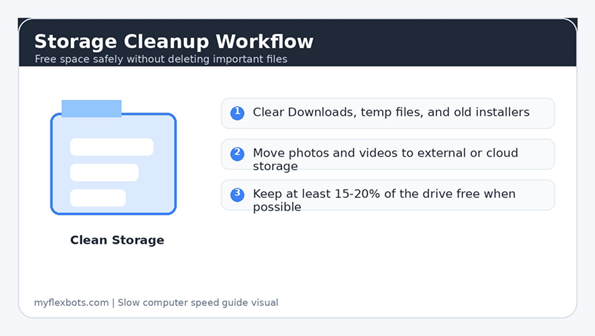
Start with obvious junk, not system folders. Empty the Recycle Bin or Trash. Clear old installers. Review Downloads. Move big videos, screen recordings, exported design files, and old project folders to external storage. Then use the built-in cleanup tools instead of random cleaner apps.
On Windows, use Settings > System > Storage. Open Temporary files and review categories before deleting. On Mac, use System Settings > General > Storage to find recommendations and large-file categories. Apple also provides built-in storage optimization tools for identifying and removing files you no longer need.
Keep perspective: deleting a few icons from the desktop will not fix a full drive. Sort files by size. One forgotten 60 GB video folder matters more than 300 tiny documents.
- Safe to review: Downloads, old ZIP files, duplicate videos, unused app installers, screenshots, exported media, trash/recycle bin, and temporary files from built-in cleanup tools.
- Be careful with: system folders, driver folders, library folders, app support folders, hidden files, and anything you do not recognize.
- Best target: recover enough space that the system has breathing room, especially on smaller 128 GB or 256 GB drives.
Pro-Tip: Create a folder named ‘Move to External Drive’ and drag large files into it first. Do not delete immediately. After one week with no missing-file panic, move the folder to an external drive or cloud storage.
Disable Startup Apps That Do Not Need to Launch
Startup apps are the silent drag on many laptops. A new computer feels fast because very little loads at boot. Six months later, chat apps, launchers, cloud utilities, game platforms, printer tools, updaters, VPNs, note apps, and helper agents all compete for attention before you open your first document.
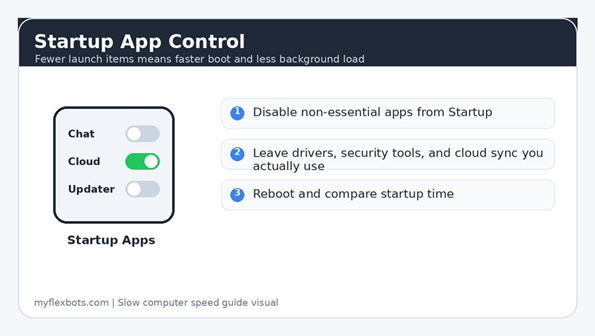
On Windows, open Task Manager > Startup apps, or Settings > Apps > Startup. Disable non-essential items with high startup impact. On macOS, go to System Settings > General > Login Items and remove or disable background items that do not need to run all day.
Do not disable security software, display drivers, audio drivers, input utilities, touchpad software, password managers you actively use, or work-required sync tools. The win is to remove convenience clutter, not break core functionality.
- Disable one group at a time: chat apps, game launchers, update helpers, and rarely used cloud tools.
- Restart and time the boot process from login to usable desktop.
- If something important stops working, re-enable it and move to the next item.
💡 Quick Hack: If you only use apps like Teams, Discord, Steam, Zoom, or design launchers once in a while, stop them from opening at startup and pin them to the taskbar or dock instead. Manual launch beats automatic slowdown.
Uninstall Bloatware and Apps You Do Not Use
Unused apps do more than take space, and removing them is a core part of how to speed up a slow computer safely. Many install background services, scheduled tasks, update agents, browser add-ons, right-click menu extensions, or login items. Removing them can reduce clutter and lower the number of processes running behind the scenes.
Open your installed apps list and sort by size or installation date. Remove trial antivirus tools you no longer use, duplicate PDF tools, old printer packages, expired VPNs, coupon extensions, toolbars, device utilities for hardware you do not own, and game launchers you never open.
Be conservative with anything from your computer manufacturer, graphics vendor, audio driver, touchpad vendor, or workplace IT. If you are not sure, search the exact app name before uninstalling.
This is where many people accidentally create new problems. The goal is not a perfectly empty app list. The goal is a clean system where every installed program has a current purpose.
💡 Quick Hack: Use a 90-day rule. If you have not opened an app in three months and it is easy to reinstall, remove it. Keep licensed software installers or account details before uninstalling paid tools.
Fix Browser Slowdowns Separately
Many people think their computer is slow when the real culprit is the browser. Modern browsers can act like operating systems: tabs, extensions, web apps, notifications, downloads, cached media, password tools, ad scripts, and background sync all pull resources.
Open your browser task manager if available. Chrome and Edge have built-in task managers that show heavy tabs and extensions. Close unused tabs, remove unnecessary extensions, clear cached data selectively, and turn off websites that are allowed to send notifications.
Focus on extensions first. Coupon tools, shopping helpers, PDF converters, video downloaders, unknown search tools, and ‘free security’ extensions can slow browsing or create privacy risks. Keep only the extensions you trust and use weekly.
- Use bookmarks instead of keeping dozens of tabs open indefinitely.
- Create a separate browser profile for work, testing, or social media if your main profile is overloaded.
- Turn off background running where your browser supports it, especially on low-RAM laptops.
- Update the browser before blaming your internet connection.
Pro-Tip: For a quick test, open a private/incognito window with no extensions active and browse the same sites. If it feels fast, your normal browser profile is probably overloaded.
Update Windows, macOS, Drivers, and Apps
Updates can feel annoying, but anyone learning how to speed up a slow computer should treat outdated software as two problems: security risk and compatibility drag. Drivers, browsers, graphics tools, and operating systems often receive fixes that improve stability and reduce crashes.
On Windows, use Settings > Windows Update. Also check optional driver updates carefully if a specific device is misbehaving, but avoid installing every random optional driver unless you know why. On Mac, use System Settings > General > Software Update.
Then update the apps you use most: browser, office suite, creative tools, communication apps, graphics drivers, and security software. Restart after major updates. A system that is halfway through updates can feel worse until the update cycle is complete.
For Windows-specific guidance, link readers to Microsoft’s official resource on tips to improve PC performance in Windows. For Mac readers, include Apple’s official troubleshooting page on if your Mac runs slowly.
Scan for Malware, Adware, and Suspicious Extensions
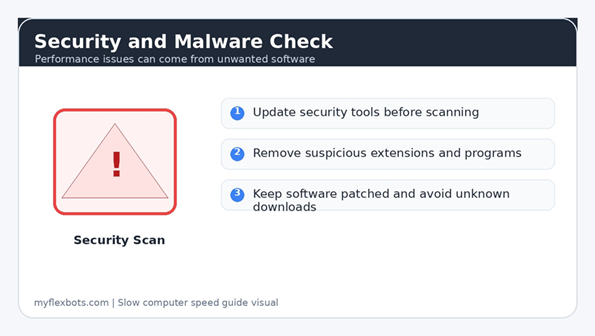
A slow machine is not always infected, but malware and adware can absolutely make a computer feel broken. Warning signs include pop-ups, browser redirects, unknown search engines, new extensions you did not install, security warnings from unfamiliar programs, and heavy network activity when nothing is open.
Update your security tool before scanning. Run a full scan, not only a quick scan, if the symptoms are suspicious. Remove or quarantine anything the tool flags. Then open your browser extension list and remove add-ons you do not recognize.
CISA’s guidance on cybersecurity best practices emphasizes basics such as updating software, using strong passwords, thinking before clicking suspicious links, and turning on multi-factor authentication. Those habits prevent many of the problems that later show up as performance issues.
Do not install five different cleanup or antivirus tools at once. Multiple real-time scanners can fight each other and slow the computer even more. Pick one trusted security solution, update it, scan, and act on the results.
💡 Quick Hack: If every browser search redirects to a strange search page, reset the browser settings after removing suspicious extensions. This often fixes the problem faster than uninstalling and reinstalling the browser.
Reduce Visual Effects and Background Features
Visual effects make modern operating systems feel polished, but older hardware may struggle with transparency, animation, widgets, search indexing, live previews, and background sync. Turning off the right extras can make the system feel more responsive.
On Windows, search for ‘Adjust the appearance and performance of Windows’ and choose a balanced option such as adjusting for best performance or manually disabling animations and transparency. In Settings, review background apps, notifications, widgets, and privacy permissions.
On macOS, open Accessibility settings and enable Reduce motion or Reduce transparency if the interface feels sluggish. Review Login Items and background services. If iCloud Drive or Photos is syncing a huge library, let it finish before judging performance.
- Turn off animations if clicks feel delayed.
- Disable widgets you never check.
- Limit notifications to apps that matter.
- Pause large sync jobs before video calls or design work.
Pro-Tip: Do not turn off everything at once. Change one category, test the computer, then continue. This makes it easier to keep useful features and remove only the friction.
Check Heat, Dust, and Power Settings
A computer can be clean on the inside of the operating system and still run slowly because it is hot. When a CPU or GPU overheats, the system may throttle performance to protect the hardware. The result feels like random slowdown, especially during calls, games, editing, or heavy browser use.
Make sure vents are not blocked. Do not use a laptop on blankets, pillows, or thick fabric. Clean visible dust from vents with short bursts of compressed air while the device is powered off. If you are comfortable opening a desktop case, remove dust from fans and filters carefully.
Power settings matter too. Many laptops run slower on battery saver mode. On Windows, check Settings > System > Power & battery. On macOS, review Battery settings and Low Power Mode. For demanding work, plug in the laptop and select a balanced or performance-friendly mode.
💡 Quick Hack: If your laptop is dramatically faster when plugged in, the problem may be power mode, a weak battery, or thermal throttling. Test plugged in on a hard desk with vents clear before replacing parts.
Upgrade Hardware Only After the Software Fixes
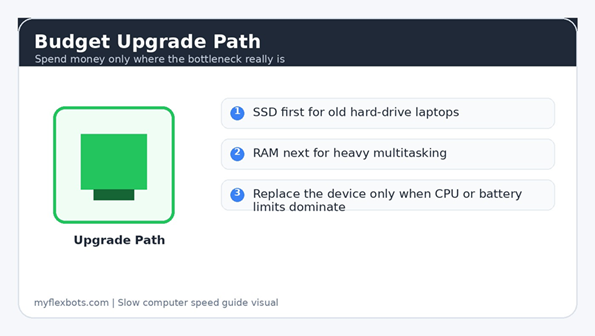
At some point, software cleanup hits a ceiling. The best hardware upgrade depends on the bottleneck, not on generic advice. Buying more RAM will not fix a dying hard drive. Reinstalling Windows will not make a 10-year-old mechanical drive feel like an SSD.
If the computer still uses a traditional hard disk drive, an SSD is usually the biggest real-world speed improvement. Boot time, app launch, search, file copying, and overall responsiveness can improve dramatically because the system no longer waits on slow spinning storage.
RAM matters when multitasking is the issue. If memory is constantly maxed out while you use a browser, video calls, office tools, design software, or virtual machines, adding RAM can reduce swapping and keep apps open smoothly. Check your device model first because many thin laptops have soldered memory that cannot be upgraded.
Battery and CPU limits are different. If the processor is old, the battery is weak, the screen is failing, and upgrades cost close to a replacement machine, save the money. Put the repair budget toward a newer device instead.
- Best first upgrade for old HDD systems: SSD.
- Best upgrade for heavy multitasking: more RAM, if the device supports it.
- Best fix for thermal slowdown: cleaning, airflow, paste service, or fan repair.
- Best move for very old devices: backup, clean reinstall, then decide whether replacement is smarter.
Pro-Tip: Before buying parts, search your exact laptop or motherboard model plus ‘RAM upgrade’ or ‘SSD upgrade’. Compatibility matters more than a discount price.
Common Mistakes to Avoid
Trying to learn how to speed up a slow computer can lead beginners into bad shortcuts. Avoid these five mistakes and you will protect your data, your budget, and your operating system.
Mistake 1: Installing Random Cleaner Apps
Many cleaner apps promise one-click miracles. Some are useful, but many exaggerate problems, push paid upgrades, add startup tasks, or delete browser data you wanted to keep. Use built-in cleanup tools first. If you use a third-party utility, research it carefully and avoid tools that use scare tactics.
Mistake 2: Deleting Files from System Folders
Deleting unknown folders from Windows, Program Files, Library, System, or hidden app data locations can break applications or the operating system. Delete from user folders and built-in cleanup categories, not random system directories.
Mistake 3: Disabling Essential Startup Items
Disabling everything may create new issues. Security tools, driver utilities, work sync tools, trackpad software, graphics helpers, and audio control panels may be necessary. Disable convenience apps first and keep a note of what changed.
Mistake 4: Ignoring the Browser
A browser with 40 tabs and 18 extensions can make a powerful computer feel slow. Test another browser profile or private window before reinstalling the operating system.
Mistake 5: Buying Hardware Before Diagnosing
An SSD, RAM kit, or new laptop can help, but only when it addresses the real issue. Diagnose storage, memory, disk, CPU, heat, and malware first. Spend money after the bottleneck is clear.
Advanced Tips and Next-Level Hacks
Once the main fixes are done, these advanced moves can squeeze more reliability from the computer without turning the process into a risky science experiment.
Create a Clean User Profile
If one user account is slow but another account runs normally, the problem may be profile clutter: login items, extensions, corrupted preferences, or old app settings. Create a new local user profile, test performance, and migrate only the files and settings you need.
Use a Two-Browser System
Use one browser for work and one for testing, social media, or heavy extensions. This keeps business logins, bookmarks, and daily tools cleaner. It also makes troubleshooting easier because you can tell whether the issue follows the browser profile or the computer.
Schedule Maintenance Like an Oil Change
Set a recurring monthly reminder to empty trash, review startup apps, update the system, update the browser, remove unused downloads, and reboot. Ten minutes of maintenance prevents the giant cleanup session that nobody wants to do.
Use Cloud Sync Selectively
Cloud storage can help free space, but syncing everything locally can create disk pressure. Choose selective sync for archives, photo libraries, and team folders you do not need every day.
Benchmark Before and After Major Changes
Use simple real-world benchmarks: time from power button to usable desktop, time to open your main browser, time to launch your work app, and time to join a video call. Numbers make improvement visible.
💡 Quick Hack: Create a ‘Performance Notes’ file and write down changes with dates. If something breaks, you know what to reverse. If the machine gets faster, you know which fix worked.
Troubleshooting and Maintenance Guide
Even after a good cleanup, performance problems can return, so how to speed up a slow computer should become a maintenance routine rather than a one-time rescue mission. Use this guide to match symptoms with fixes instead of starting from zero every time.
Problem: Computer Is Slow Right After Startup
Likely causes include too many startup apps, cloud sync, pending updates, security scans, or a slow hard drive. Disable non-essential startup items, let updates finish, and check disk activity. If an old HDD stays at high usage for several minutes after boot, an SSD upgrade may be the practical fix.
Problem: Browser Freezes but Other Apps Are Fine
Look for overloaded tabs, bad extensions, outdated browser versions, or websites with heavy ads and scripts. Test incognito mode, remove extensions, update the browser, and create a clean profile if needed.
Problem: Fan Runs Loud and Everything Slows Down
Check heat and airflow. Move the laptop to a hard surface, clean vents, close heavy apps, and test while plugged in. If the device is old and hot under light use, it may need internal cleaning or fan service.
Problem: Apps Take Forever to Open
Disk speed is often the cause, especially on old mechanical drives. Check disk usage during app launch. If storage cleanup and updates do not help, upgrading to an SSD may be the best investment.
Problem: Computer Is Slow During Video Calls
Close browser tabs, pause cloud sync, plug in the laptop, use a wired connection if possible, reduce background blur effects, and update camera/audio drivers. Video calls stress CPU, memory, network, and graphics at the same time.
Problem: Performance Improved, Then Got Bad Again
Look for a repeated cause: app re-enabled at startup, browser tabs piling up, cloud sync stuck, storage filling again, or updates pending. This is where monthly maintenance matters.
Maintenance schedule: weekly restart, monthly storage review, monthly updates, quarterly startup audit, quarterly extension review, and yearly hardware health check. That simple routine is the boring secret behind long-term speed.
FAQ: Slow Computer Fixes
1. What is the fastest free way to make a slow computer faster?
The fastest free way to apply how to speed up a slow computer is to restart, disable unnecessary startup apps, close unused browser tabs, remove unused extensions, and free up storage with built-in cleanup tools. These steps cost nothing and often solve everyday sluggishness.
2. Will deleting files speed up my computer?
Deleting files can help if the main drive is nearly full. It will not magically speed up a healthy computer with plenty of free space. Focus on large files, temporary files, and old installers rather than random documents.
3. Does adding RAM always make a computer faster?
No. RAM helps when memory is the bottleneck. If your system already has enough memory for your workload, more RAM may not feel different. If the computer has an old hard drive, an SSD usually creates a bigger speed improvement.
4. Is it better to reset the computer or upgrade hardware?
Resetting is better when software clutter, corrupted settings, or unwanted apps are the main problem. Hardware upgrades are better when diagnostics show a slow disk, too little RAM, overheating, or an old platform that cannot keep up.
5. Why is my computer slow even though the internet is fast?
Fast internet does not fix local problems. A slow browser profile, weak CPU, low RAM, full storage, heavy antivirus scan, or thermal throttling can make pages and apps feel slow even when your connection is fine.
6. How often should I maintain my computer?
Do a small maintenance session once a month. Review downloads, empty trash, update software, check startup apps, remove unused browser extensions, and restart. Deep cleanup is only needed when symptoms return.
Conclusion: Make the Computer Fast, Then Keep It Fast
The best way to fix a sluggish machine is a calm sequence: back up, diagnose, restart, clean storage, reduce startup apps, remove bloatware, fix the browser, update software, scan for threats, check heat, and upgrade only when the data points to hardware.
When readers ask how to speed up a slow computer, they are usually looking for one magic button. The better answer is a repeatable checklist that protects files, saves money, and solves the real bottleneck. Which step made the biggest difference on your computer: storage cleanup, startup apps, browser cleanup, security scan, or hardware upgrade?
editor's pick
latest video
news via inbox
Nulla turp dis cursus. Integer liberos euismod pretium faucibua