

Best Laptops 2026: A Practical Buyer’s Guide for Work
A laptop can look excellent on a product page and still be the wrong machine for your daily routine. The expensive mistakes usually come from buying a headline processor, a beautiful display, or a discounted configuration without checking memory, ports, software compatibility, repair options, and the true cost of accessories.
This guide to the best laptops 2026 turns those confusing specifications into practical buying decisions. You will learn how to match a laptop to your workload, compare the strongest current categories, avoid weak configurations, test a new machine during the return window, and keep it fast for years instead of months.
Prices and configurations change by country and retailer. The model recommendations below use official manufacturer information available in June 2026, while the buying method is designed to remain useful even when a specific sale or configuration disappears.
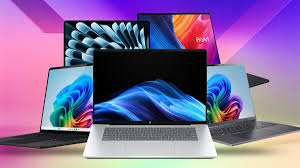
Caption: A practical laptop should disappear into the workflow: a comfortable keyboard, a clear display, reliable wireless connectivity, and enough battery for a full work block.
Photo: Phil Cln on Unsplash

What Is the Best Laptop to Buy in 2026?
| The best laptops 2026 are the models that match your software, portability needs, battery expectations, and upgrade limits. For most people, prioritize 16GB of memory, at least 512GB of storage, a bright 16:10 display, reliable battery life, and the ports required for everyday work. |
How This Guide Chose the Shortlist
Our best laptops 2026 shortlist is based on category fit rather than one artificial winner. We compared official specifications, platform compatibility, display quality, portability, battery claims, repairability, configuration value, and whether each machine solves a clear user problem.
This is not a claim that every model was laboratory-tested by our editorial team. Manufacturer battery figures are useful for comparison, but real runtime changes with brightness, video calls, background apps, wireless conditions, and performance mode. Treat claimed battery life as a ceiling, not a promise.
Essential Laptop-Buying Tools, Materials & Accessory Budget
A laptop purchase is not a construction project, but it still benefits from a toolkit. The table below separates the decision tools from the accessories that commonly appear after checkout, so you can budget the full setup before spending.
| Item | Why It Matters | Estimated Cost | Skill Level |
| Workload and software checklist | Lists the apps, browser tabs, external devices, and tasks the laptop must handle. | $0 | Beginner |
| Budget ceiling with 10–15% reserve | Prevents the laptop purchase from consuming money needed for a hub, sleeve, backup, or warranty. | $0 | Beginner |
| USB-C or Thunderbolt hub | Adds HDMI, USB-A, Ethernet, SD card, or charging when the laptop has limited ports. | $25–$120 | Beginner |
| External SSD, 1TB | Provides affordable project storage, media transfer, and a local backup target. | $60–$160 | Beginner |
| Protective sleeve or case | Reduces cosmetic damage and protects the screen from pressure inside a bag. | $20–$70 | Beginner |
| Laptop stand or riser | Raises the display for better posture when paired with an external keyboard and mouse. | $25–$100 | Beginner |
| Cleaning kit | Microfiber cloth, soft brush, and electronics-safe screen cleaner for routine maintenance. | $10–$25 | Beginner |
| Cloud or local backup plan | Protects documents and photos when the laptop is lost, damaged, or the drive fails. | $0–$120/year | Beginner |
| �� Quick Hack: Buy memory before a small processor upgrade
When choosing between a slightly faster chip with 16GB RAM and a lower chip tier with 24GB or 32GB, the extra memory often delivers a smoother, longer-lasting machine for real multitasking. |
Comprehensive Step-by-Step Laptop Selection Guide
Step 1: Define the Workload Before You Compare Models
Start with tasks, not brands. Write down the five activities that consume the most time or make you money. A person who spends eight hours in Chrome, spreadsheets, and video calls needs a different machine from someone editing 4K footage, compiling large codebases, creating 3D models, or playing modern games.
Next, list the exact applications and peripherals you cannot replace. Include accounting software, VPN clients, printer drivers, audio interfaces, engineering tools, browser extensions, exam software, and any company security agent. This step can eliminate an otherwise attractive laptop before you waste time comparing colors and benchmark charts.
- Everyday use: web browsing, documents, streaming, email, and light photo editing.
- Professional productivity: heavy spreadsheets, many browser tabs, CRM tools, video meetings, and multiple monitors.
- Creative work: Photoshop, Lightroom, music production, 4K video, animation, CAD, or 3D rendering.
- Development: local databases, virtual machines, containers, mobile emulators, and long code builds.
- Gaming: sustained graphics performance, cooling, display refresh rate, keyboard feel, and upgradeable storage.
| �� Quick Hack: Use the student and business stores
Check education, employer, professional-association, and small-business pricing before using a public coupon. Official discounts can include better warranty terms or configurations that retailers do not advertise. |
Step 2: Set a Total Budget, Not Only a Laptop Price
Set two numbers: a comfortable target and an absolute ceiling. Your ceiling should include tax, shipping, essential adapters, a protective sleeve, and any paid warranty you genuinely need. A $1,000 laptop that requires a $100 dock and a $120 external drive is a $1,220 decision.
Do not automatically spend the entire ceiling. The strongest value often sits one processor tier below the flagship, especially when the saved money buys more memory or storage. For normal productivity, 16GB of memory and a 512GB SSD usually improve daily comfort more than moving from a mid-tier CPU to the highest chip in the same family.
Step 3: Choose macOS, Windows, or ChromeOS by Compatibility
Choose the operating system around software and workflow. macOS offers excellent integration with Apple devices, strong battery efficiency, and a mature creative ecosystem. Windows provides the broadest hardware variety, gaming support, business compatibility, and access to both traditional x86 and newer Arm-based laptops. ChromeOS works well for browser-centered users who value simplicity, security, and long battery life.
Arm-based Windows laptops can be efficient and quiet, but buyers with specialized legacy software, uncommon drivers, anti-cheat systems, or professional peripherals should confirm compatibility before ordering. Emulation has improved, yet a single unsupported tool can outweigh every battery-life advantage.
Useful verification link: Windows 11 system requirements
Caption: Students should choose a laptop around course software, exam requirements, battery life, and carrying weight—not only the lowest sale price.
Photo: franco alva on Unsplash

Step 4: Read Processor and Graphics Specifications Correctly
Processor names are designed to look more informative than they are. A chip family tells you the general platform, but laptop cooling, power limits, memory speed, and manufacturer tuning determine how much performance reaches the keyboard. Thin laptops may feel fast in short bursts and slow down during a long export or game session.
For everyday work, prioritize a modern efficient processor and enough memory. For video editing, 3D work, AI development, or gaming, focus on sustained CPU performance, GPU capability, cooling, and power delivery. An NPU can accelerate supported on-device AI features, but it should not replace sufficient RAM, storage, or graphics power.
Step 5: Choose Enough Memory and Storage the First Time
Memory is the specification most likely to create regret because many thin laptops use soldered RAM that cannot be upgraded. In 2026, 16GB is the practical baseline for a new general-purpose laptop. Choose 24GB or 32GB for large creative files, software development, virtual machines, heavy multitasking, or a longer replacement cycle.
A 256GB drive can work for browser-first use, but available space shrinks after the operating system, recovery files, applications, caches, and updates. A 512GB SSD is a safer baseline. Choose 1TB when you store games, RAW photos, video, virtual machines, or client projects locally.
| �� Quick Hack: Use an external SSD to avoid overpriced storage tiers
If the laptop has enough internal space for apps and active projects, a fast external SSD can hold archives and media for much less than a premium internal-storage upgrade. Keep a separate backup; portable storage is not a backup by itself. |
Step 6: Inspect the Display Beyond Resolution
Display quality affects every minute you use the machine. A 16:10 panel provides more vertical workspace than a traditional 16:9 screen. Aim for a bright panel if you work near windows or travel. Creators should verify color-gamut coverage and calibration options rather than trusting words such as vivid or cinematic.
OLED screens deliver deep blacks and excellent contrast, but they can cost more, use more power with bright content, and require sensible care to reduce long-term image retention. A good IPS display remains the practical choice for office work, long documents, and buyers who prioritize consistent battery life.
Step 7: Check Ports, Wireless, Battery, Charger, and Travel Weight
Ports are cheaper to buy with the laptop than to recreate with a bag full of adapters. Count the devices you connect at the same time: charger, external monitor, mouse receiver, storage drive, Ethernet, audio interface, and SD card. A laptop with two USB-C ports may be elegant, but one port can disappear immediately when charging.
Manufacturer battery claims are measured under controlled conditions. For a realistic estimate, look for independent testing later, but also inspect battery capacity, display resolution, processor class, and charger size. A travel laptop should be judged by laptop-plus-charger weight, not the computer alone.
| �� Quick Hack: Price the full travel kit
Put the laptop, charger, hub, sleeve, and any required adapter on a kitchen scale. A light computer with a heavy power brick may be less portable than a slightly heavier laptop with compact USB-C charging. |
The 2026 Shortlist: Best Laptop Picks by Use Case
The best laptops 2026 below are arranged by use case. The target configuration matters as much as the model name, so each recommendation includes the version most buyers should seek and the compromise that deserves attention.
1. Apple MacBook Air 13-inch with M5 — Best Overall for Most People
The MacBook Air with M5 is the easiest recommendation for people who want a fast, quiet, highly portable laptop for writing, research, office work, programming, light creative work, and everyday media. Apple launched the 13-inch model at $1,099 in the United States and doubled the starting storage compared with the previous generation.
For most buyers, the sensible configuration is 16GB or more of unified memory and 512GB of storage. The Air’s fanless design is silent, but sustained heavy rendering is better suited to a cooled workstation. Port selection is also limited, so budget for a hub when your desk uses multiple wired devices.
Why it belongs among the best laptops 2026: it balances speed, battery efficiency, build quality, display consistency, speakers, keyboard comfort, and resale value without forcing most users into a pro-level price.
Best for: Students, writers, remote workers, consultants, developers, and Apple-device users.
Watch-outs: Limited ports, no user-upgradeable memory or storage, and fanless cooling under long heavy loads.
Recommended configuration: 16GB+ memory and 512GB SSD; move to 24GB or more for long ownership or heavier creative work.
Official product information: Apple MacBook Air 13-inch with M5
2. Microsoft Surface Laptop 13-inch — Best Compact Windows Laptop
Microsoft’s 13-inch Surface Laptop pairs a Snapdragon X Plus processor with 16GB of memory, a touchscreen, Wi-Fi 7, and a 2.7-pound chassis. Microsoft lists up to 16 hours of active web use, though real runtime will vary with workload and settings.
It is an appealing choice for Microsoft 365, browser work, meetings, travel, and users who want a clean first-party Windows experience. The two-port USB-C layout is restrictive, and storage tops out below some competing premium laptops, so a hub and external SSD may become part of the ownership cost.
This is one of the best laptops 2026 for portable Windows productivity, provided every critical app, printer, VPN, and peripheral works properly on Windows on Arm.
Best for: Frequent travelers, students, office professionals, and Microsoft 365 users.
Watch-outs: Arm compatibility, only two USB-C ports, no pen support on the 13-inch model, and limited internal storage options.
Recommended configuration: 16GB RAM and 512GB storage when the budget permits.
Official product information: Microsoft Surface Laptop 13-inch
3. Apple MacBook Neo — Best Budget Mac for Basic Work and Study
Apple’s MacBook Neo starts at $599 in the United States and uses an A18 Pro chip, a 13-inch Liquid Retina display, and a lightweight aluminum design. It makes the Mac ecosystem accessible to students, families, and home users who mainly browse, write, stream, attend classes, and manage everyday files.
The base 8GB memory and 256GB storage are the main limitations. It is not the right purchase for demanding video editing, large development environments, heavy multitasking, or users who plan to keep huge media libraries on the internal drive.
Among the best laptops 2026 for entry-level use, the Neo succeeds when expectations are disciplined: buy it for simple computing, not as a discounted MacBook Pro substitute.
Best for: Schoolwork, family use, browser-first tasks, streaming, and light office work.
Watch-outs: 8GB base memory, 256GB storage, fewer performance and expansion options than a MacBook Air.
Recommended configuration: Choose extra storage if available; otherwise pair the base model with cloud storage or an external SSD.
Official product information: Apple MacBook Neo
4. HP OmniBook 5 — Best Flexible Windows Value
The OmniBook 5 family covers 14-inch and 16-inch designs, including conventional clamshells and 2-in-1 models. HP offers configurations with Snapdragon processors, optional OLED displays, and long claimed battery life, giving buyers more flexibility than a single fixed premium design.
The challenge is configuration discipline. Retailers may use the same family name for displays, processors, memory, and storage combinations that feel completely different. Avoid low-brightness panels and 8GB configurations unless the price is exceptionally low and the workload is basic.
It earns a place in the best laptops 2026 guide because the right configuration can deliver a useful mix of portability, touch options, battery efficiency, and price. Compare the exact product number, not only the OmniBook name.
Best for: Home-office users, students, families, and buyers who want touch or convertible options.
Watch-outs: Wide configuration variation, possible port differences, and retailer-specific screens.
Recommended configuration: 16GB RAM, 512GB SSD, and a 300-nit-or-brighter display; choose OLED only when contrast matters more than maximum runtime.
Official product information: HP OmniBook 5
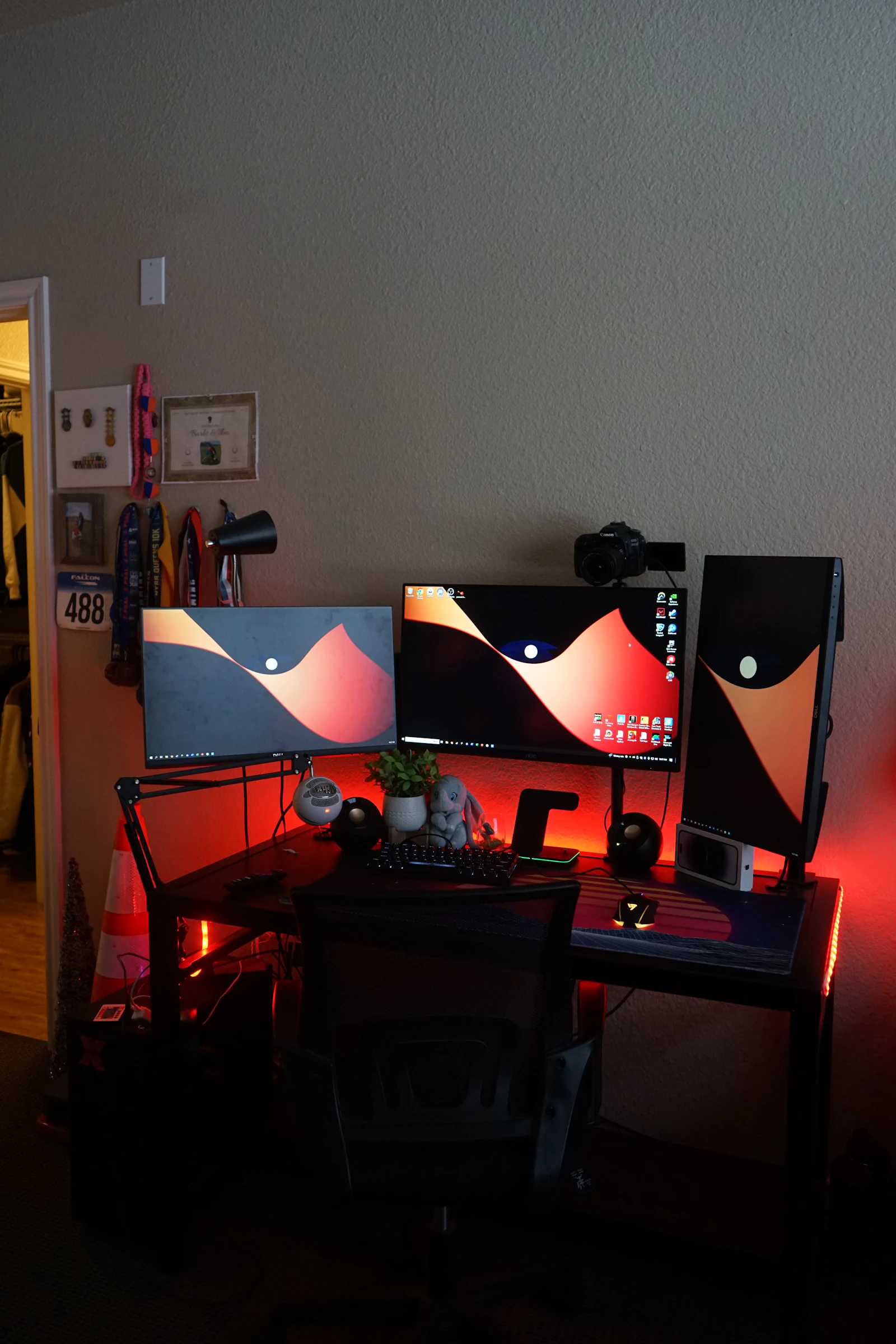
Caption: A docked laptop can become a full workstation, but monitor support, cable bandwidth, port placement, and charger capacity must be verified before purchase.
Photo: Theo on Unsplash
5. Apple MacBook Pro 14-inch with M5 Pro — Best for Creative Professionals
The 14-inch MacBook Pro with M5 Pro is built for workflows that can justify its $2,199 U.S. launch price: high-resolution video, large photo libraries, music production, software development, local AI workloads, and sustained multitasking. Apple starts the M5 Pro model with 1TB of storage and includes Thunderbolt 5, a Liquid Retina XDR display, and broad pro connectivity.
Do not buy the Pro solely because it is the most expensive Mac. A MacBook Air is easier to carry and sufficient for most office work. The Pro becomes valuable when time saved during exports, builds, simulations, or heavy creative sessions offsets the higher purchase price and weight.
Best for: Video editors, photographers, music producers, developers, researchers, and demanding creative teams.
Watch-outs: High cost, expensive memory upgrades, and more weight than an Air.
Recommended configuration: M5 Pro, 24GB or more memory, and 1TB+ storage; increase memory before chasing the highest CPU/GPU tier.
Official product information: Apple MacBook Pro 14-inch with M5 Pro
6. Lenovo ThinkPad X1 Carbon Gen 14 Aura Edition — Best Business Laptop
The ThinkPad X1 Carbon remains a business-first machine: lightweight construction, a productivity-focused keyboard, enterprise options, and a design intended for frequent travel. The Gen 14 Aura Edition adds current Intel hardware and Copilot+ positioning while preserving the ThinkPad approach.
Business buyers should compare warranty terms, on-site service, webcam options, display brightness, mobile broadband availability, and dock compatibility. A cheaper consumer laptop can match benchmark performance but still lose value when support delays interrupt paid work.
For teams evaluating the best laptops 2026, the X1 Carbon is strongest when manageability, keyboard quality, low weight, and service options matter more than gaming performance or the lowest possible price.
Best for: Executives, consultants, enterprise fleets, writers, and frequent business travelers.
Watch-outs: Premium pricing and soldered memory on many thin configurations.
Recommended configuration: 32GB memory for long ownership, 512GB or 1TB SSD, a bright low-power display, and the warranty level your downtime risk requires.
Official product information: Lenovo ThinkPad X1 Carbon Gen 14 Aura Edition
7. Framework Laptop 13 with AMD Ryzen AI 300 — Best Repairable Laptop
Framework designs the Laptop 13 around replaceable ports, upgradeable memory and storage, repair documentation, and mainboard upgrades. That makes it unusually attractive for buyers who dislike discarding an entire computer because one port, battery, keyboard, or processor platform becomes outdated.
The practical benefit is control. You can choose expansion cards for the ports you actually use and replace components with standard tools. The trade-off is that buyers must be comfortable choosing parts, following repair instructions, and accepting that polished retail support may differ from a mass-market brand.
Best for: DIY-minded users, developers, Linux users, repair advocates, and long-term owners.
Watch-outs: Availability by region, configuration complexity, and the need to manage your own upgrades.
Recommended configuration: 16GB or 32GB DDR5, 1TB SSD, and only the expansion cards needed for your desk and travel kit.
Official product information: Framework Laptop 13 with AMD Ryzen AI 300
8. ASUS ROG Zephyrus G14 (2026) — Best Portable Gaming Laptop
The 2026 Zephyrus G14 combines a 14-inch 3K OLED 120Hz display, AMD Ryzen AI processor options, and NVIDIA GeForce RTX laptop graphics in a chassis around 1.5kg. It is designed for buyers who need real gaming or GPU-accelerated creative performance without carrying a bulky desktop replacement.
Gaming laptops demand configuration research. Two machines with the same GPU name can perform differently because of power limits and cooling. Check the exact graphics tier, wattage, memory capacity, fan behavior, charger weight, and whether the RAM or SSD can be upgraded.
It is one of the best laptops 2026 for users who split time between gaming, content creation, and travel, but battery life during games will be short and peak performance requires wall power.
Best for: Gamers, 3D artists, video editors, game developers, and creators who need CUDA or RTX features.
Watch-outs: Fan noise, heat, premium price, OLED care, and reduced performance on battery.
Recommended configuration: RTX 5060 or 5070-class graphics for balanced value, 32GB memory where possible, and at least 1TB storage.
Official product information: ASUS ROG Zephyrus G14 (2026)
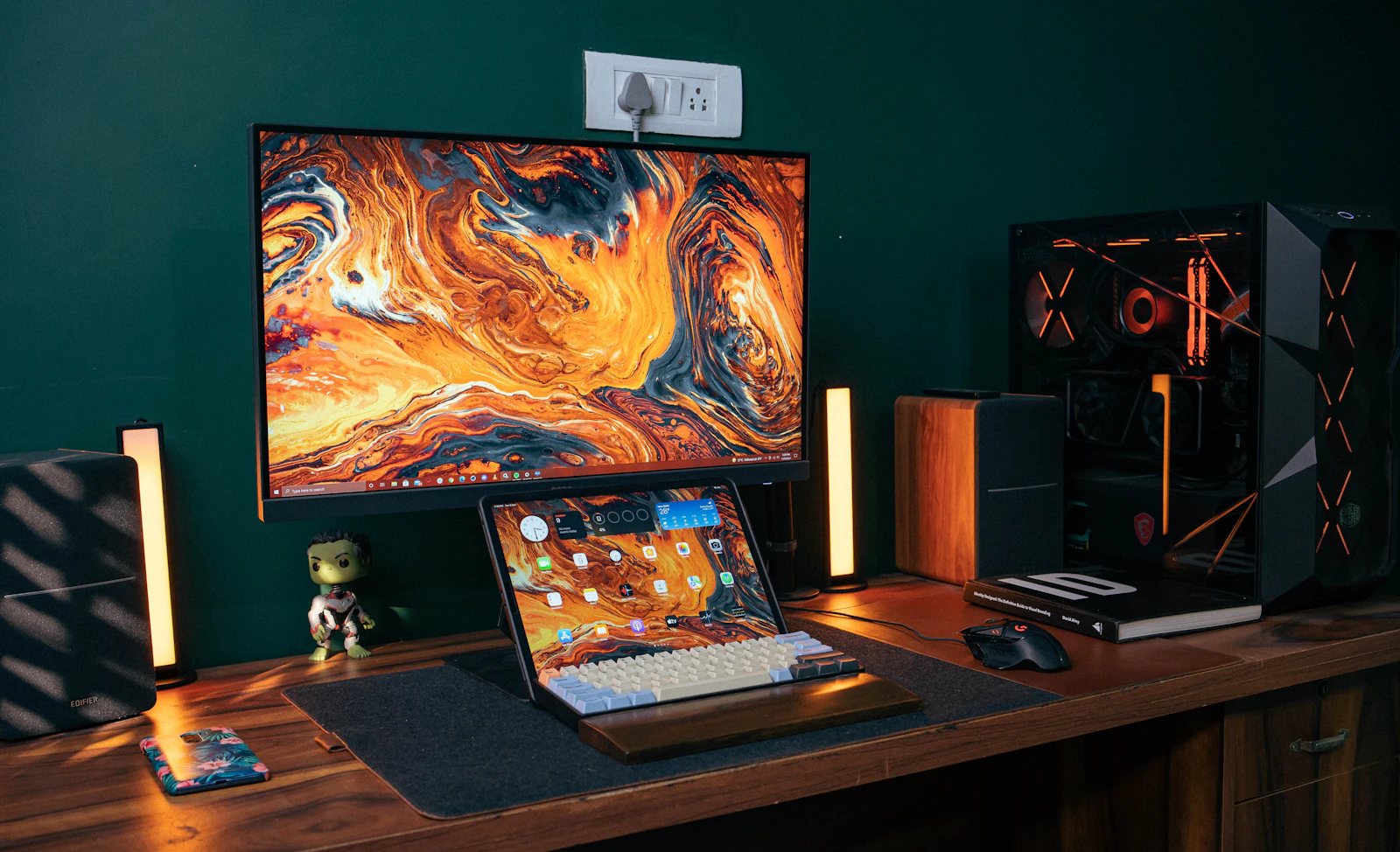
Caption: Gaming and creator laptops need sustained cooling, adequate GPU power, a capable charger, and a display that matches the work—not just an impressive graphics-chip name.
Photo: Sunil kumar on Unsplash
9. Lenovo Chromebook Plus 14 — Best Chromebook
Google lists the Lenovo Chromebook Plus 14 with a MediaTek processor, 16GB of memory, 256GB of storage, a 14-inch 1920×1200 display, and up to 17 hours of claimed battery life. It is a strong fit for users who live in the browser and use Google Workspace, web apps, Android apps, and cloud storage.
Before buying any Chromebook, verify the model’s automatic-update expiration date and confirm that required school or work software runs on ChromeOS. A Chromebook is excellent when it matches the workflow and frustrating when purchased as a cheap Windows replacement for software it cannot run.
Best for: Browser-first students, families, Google Workspace users, and low-maintenance shared computing.
Watch-outs: Limited compatibility with traditional desktop applications and specialized peripherals.
Recommended configuration: 16GB RAM and 256GB storage if pricing is reasonable; confirm update support before checkout.
Official product information: Lenovo Chromebook Plus 14
Quick Comparison Table
| Category | Model | Why It Stands Out | Price Reference | Main Compromise |
| Best overall | MacBook Air 13-inch M5 | Balanced speed, battery efficiency, portability, and build | $1,099 launch price | Ports and non-upgradeable components |
| Compact Windows | Surface Laptop 13-inch | Lightweight touchscreen productivity and long claimed battery | $1,149.99 current starting price | Arm compatibility and only two USB-C ports |
| Budget Mac | MacBook Neo | Low entry price for everyday macOS use | $599 launch price | 8GB/256GB base limits |
| Flexible Windows value | HP OmniBook 5 | Multiple sizes, touch, 2-in-1 and OLED options | Varies by exact configuration | Model-name and screen variation |
| Creative professional | MacBook Pro 14-inch M5 Pro | Sustained performance, XDR display, pro ports | $2,199 launch price | Cost and weight |
| Business | ThinkPad X1 Carbon Gen 14 | Keyboard, travel weight, enterprise service options | Varies by configuration | Premium pricing |
| Repairable | Framework Laptop 13 | Upgradeable ports, memory, storage, and mainboard | Varies by DIY/prebuilt configuration | More ownership involvement |
| Portable gaming | ROG Zephyrus G14 (2026) | OLED display and real GPU performance in a 14-inch chassis | Varies by GPU tier | Heat, noise, charger, battery gaming |
| Chromebook | Lenovo Chromebook Plus 14 | Simple browser-first computing with 16GB RAM | Varies by region | ChromeOS software limits |
Step 8: Compare Exact Configurations and Test the Winner
Once you have two or three finalists, compare exact stock-keeping units. Retailers often reuse a model family name while changing the display, wireless card, battery, keyboard backlight, operating system edition, storage type, and warranty. Copy the full product number into your notes.
During the return window, reproduce your real day instead of admiring the desktop wallpaper. Install required software, connect every peripheral, join a long video call, open your normal browser tabs, test sleep and wake, transfer a large file, and run one demanding project from start to finish.
- Check the panel for dead pixels, uneven backlight, tint, flicker, and comfortable text scaling.
- Type for at least 20 minutes and test the trackpad at the edges and corners.
- Connect every monitor, dock, printer, storage drive, headset, and network adapter.
- Measure battery loss during a realistic two-hour work block at your normal brightness.
- Listen for fan pulsing, coil noise, speaker distortion, and hinge creaks.
- Confirm the charger fits your travel routine and does not block adjacent power outlets.
| �� Quick Hack: Test before migrating everything
Set up required apps and peripherals first, but delay a full data transfer until the laptop passes display, noise, battery, sleep, Wi-Fi, and compatibility tests. Returning a clean machine is much easier. |
Step 9: Set Up the Laptop for Security, Speed, and Easy Recovery
A clean setup prevents many early complaints. Install operating-system and firmware updates first, then update graphics and dock drivers from the manufacturer. Remove trial software you do not need, enable device encryption, set up a password manager, turn on automatic backups, and create recovery options before loading years of files.
Move data in stages. Start with active documents and essential settings, then archive old media to an external drive. This keeps the new machine clean and helps you notice whether a sync problem, corrupted file, or unwanted startup app is causing trouble.
Common Laptop-Buying Mistakes to Avoid
Even many premium models become disappointing when the configuration or workflow match is wrong. These five errors are responsible for a large share of buyer regret in the best laptops 2026 market.
- Buying 8GB because the processor name sounds powerful
A fast processor cannot prevent memory pressure when many apps and browser tabs compete for RAM. Choose 16GB for ordinary long-term use and more for professional workloads.
- Choosing 256GB without calculating real usable space
Operating-system files, applications, caches, cloud sync, and recovery data consume storage. Select 512GB when possible or budget for a dependable external SSD.
- Ignoring ports until the laptop arrives
Adapters add cost, clutter, failure points, and another item to forget. Map the full desk before buying and verify charging, display output, and data speeds.
- Assuming every laptop with the same GPU performs the same
Cooling and power limits matter. Compare the exact GPU wattage, charger, thermal design, and sustained reviews for gaming and creative workloads.
- Keeping a bad fit because returning it feels inconvenient
A laptop is a multi-year tool. Use the return period aggressively and exchange a machine with poor ergonomics, compatibility, battery, noise, or display quality.
Advanced Tips and Next-Level Buying Hacks
When comparing the best laptops 2026, think in terms of bottlenecks. A faster processor does not help when the workflow is limited by memory, storage speed, GPU memory, network latency, or a dim display that forces you to work indoors. Spend on the component that removes the slowest part of your actual process.
For desk-heavy use, a compact laptop plus an external monitor, keyboard, mouse, and dock can outperform a large laptop as an overall workspace. For travel-heavy use, simplicity wins: one compact charger, one cable standard, a light sleeve, and no adapter that can disable your presentation when lost.
The strongest value can be a certified refurbished or open-box premium laptop from the previous generation, especially when it includes a real warranty and a healthy battery. Compare the discount against the cost of replacing a worn battery, missing charger, or damaged display.
| Pro-Tip: Cap battery charging for a docked laptop
Many laptops offer an 80% charge limit or battery-care mode. Enable it when the machine stays plugged in most days, then return to full charge before travel. |
Troubleshooting Guide: Fix Common Laptop Problems
Battery drains faster than expected
- Reduce brightness and keyboard backlighting.
- Check which apps are using energy in system settings.
- Disable unnecessary startup apps and browser extensions.
- Test at the default balanced power mode before blaming the battery.
- Update BIOS/firmware and graphics drivers, then retest with the same workload.
The laptop feels slow after setup
- Let cloud sync, search indexing, and system updates finish.
- Restart after major updates.
- Check free storage; keep at least 15–20% of the SSD available.
- Remove duplicate antivirus tools and trial utilities.
- Use Task Manager or Activity Monitor to identify memory, CPU, or disk pressure.
External monitor does not work correctly
- Confirm the USB-C port supports video output.
- Use a cable rated for the target resolution and refresh rate.
- Connect power to the dock if required.
- Update dock firmware and graphics drivers.
- Test the display directly without the hub to isolate the failure.
Fans are loud or the chassis becomes hot
- Place the laptop on a hard surface with vents clear.
- Use balanced mode for ordinary work.
- Close runaway background processes.
- Clean dust from vents with a soft brush or low-pressure air.
- For gaming, cap frame rate when maximum output is unnecessary.
Wi-Fi or Bluetooth is unreliable
- Install wireless-driver and firmware updates.
- Forget and reconnect to the network or accessory.
- Test on a different router band or location.
- Move USB 3 devices and hubs away from wireless receivers.
- Reset network settings only after simpler steps fail.
Long-Term Maintenance Checklist
A few minutes of routine maintenance can prevent slowdowns, lost files, and avoidable battery wear. Use this checklist monthly or quarterly, depending on how heavily the laptop is used.
- Back up important files automatically and test that you can restore one file.
- Keep vents clear and clean the exterior with electronics-safe materials.
- Install security, firmware, browser, and application updates.
- Avoid storing the laptop for long periods at 0% or 100% charge.
- Use a battery charge limit when the laptop spends most of its life docked.
- Review storage every three months and remove unnecessary downloads and caches.
- Carry the laptop in a sleeve and keep heavy objects away from the display lid.
Energy-efficiency reference: ENERGY STAR-certified computers
Frequently Asked Questions
How much RAM should a laptop have in 2026?
For most buyers, 16GB is the minimum comfortable target. Choose 24GB or 32GB for video editing, large photo libraries, virtual machines, software development, data work, or keeping the laptop for many years. Eight gigabytes is acceptable only for tightly controlled basic use.
Is 256GB of laptop storage enough?
It can be enough for browser-first work and cloud storage, but the margin is small. A 512GB SSD is a better general baseline. Choose 1TB for games, RAW photos, video, local AI models, virtual machines, or large client files.
Should I buy a MacBook or a Windows laptop?
Choose based on required software, peripherals, and team workflow. MacBooks are strong for battery efficiency, Apple integration, and many creative tasks. Windows offers broader hardware choice, enterprise compatibility, gaming, touch devices, and more port and upgrade combinations.
Is an OLED laptop display worth it?
OLED is worth considering for movies, photo work, design, and anyone who values deep blacks and high contrast. A quality IPS panel may be better for long office sessions, lower cost, predictable battery life, and buyers concerned about static interface elements.
Are Snapdragon Windows laptops safe to buy?
They are excellent for many mainstream applications, browser work, Microsoft 365, meetings, and travel. Verify specialized applications, drivers, games, VPNs, printers, and security tools before buying. Compatibility should be proven for your workflow, not assumed from a general app list.
Which of the best laptops 2026 should a student choose?
A MacBook Air M5 suits students who want long battery life and can use macOS. MacBook Neo is a lower-cost option for basic work. Surface Laptop is attractive for portable Windows use, while Chromebook Plus fits browser-based courses. Course software should decide before brand preference.
Conclusion: Buy for the Work You Actually Do
The best laptops 2026 are not simply the machines with the newest chips or the highest prices. A smart purchase starts with software compatibility, then balances memory, storage, display, battery, ports, repairability, and total ownership cost around the way you actually work.
Build a shortlist of two or three exact configurations, test the winner with a real workload during the return period, and keep the packaging until you are certain. Which matters most for your next laptop: battery life, performance, repairability, gaming power, or a lower price? Share your priority in the comments.
editor's pick
latest video
news via inbox
Nulla turp dis cursus. Integer liberos euismod pretium faucibua



[…] For model-specific recommendations after you finish this process, link readers to MyFlexBots’ guide to the best laptops 2026. […]