How to Extend Phone Battery Life: Step-by-Step Guide
Your phone should not feel like a device that needs babysitting every three hours. If you searched for how to extend phone battery life, the real fix is not one magic setting. It is a tight routine: measure the drain, reduce the biggest power users, charge smarter, and stop heat from aging the battery early.
This guide gives you a practical system you can follow on iPhone, Android, Samsung Galaxy, Google Pixel, and most modern smartphones. You will learn what to change first, what not to waste time on, which charging habits matter, and how to troubleshoot a phone that still drains too quickly.
Featured Snippet: Direct Answer
To learn how to extend phone battery life, lower screen brightness, shorten screen timeout, enable Battery Saver or Low Power Mode, restrict background app activity, turn off unused location and wireless features, keep the phone cool, use optimized charging, and replace the battery when health drops enough to affect daily performance.
Why Phone Batteries Drain Faster Than They Should
A smartphone battery is not just powering calls and messages. It feeds a bright display, radios for Wi-Fi and cellular data, Bluetooth, GPS, cameras, app refresh, background sync, notifications, widgets, and high-performance processors.
The trick is to stop treating every feature as equally important. The real answer to how to extend phone battery life is prioritization. Keep the features that make the phone useful and cut the silent energy leaks that give you little value.
Battery life and battery lifespan are also different. Battery life is how long your phone lasts today after a charge. Battery lifespan is how many months or years the battery stays healthy before replacement becomes the smart move. A good routine improves both.
Essential Tools & Materials Breakdown
You do not need a repair bench to make your phone last longer. You need a repeatable checklist, a safe charging setup, and a few low-cost accessories that prevent heat, cable issues, and emergency charging panic.
| Tool or Material | Best Use | Estimated Cost | Skill Level |
| Built-in Battery Usage screen | Find the apps and system features using the most power before changing settings. | Free | Beginner |
| Original or certified charger | Charge safely and avoid slow, unstable, or heat-heavy charging behavior. | $10-$35 if replacing | Beginner |
| Quality USB-C or Lightning cable | Fix intermittent charging, overheating at the connector, and unreliable fast charging. | $8-$25 | Beginner |
| Power bank, 10,000 mAh or higher | Add dependable backup power during travel, delivery work, events, and long commutes. | $20-$60 | Beginner |
| Smart plug or charging timer | Stop overnight charging at a planned time when your phone lacks a built-in charge limit. | $8-$20 | Beginner |
| Microfiber cloth and soft brush | Clean ports and remove pocket lint around the case without scratching the phone. | $3-$10 | Beginner |
| Thin, breathable case | Reduce heat buildup during charging, gaming, GPS use, and hotspot sessions. | $10-$40 | Beginner |
| Phone stand or ventilated surface | Keep airflow around the device when charging or using video calls. | $5-$25 | Beginner |
| Battery health screen or diagnostics app | Check maximum capacity, cycle count, and battery replacement clues. | Free-$5 | Intermediate |
| Cloud backup or computer backup | Protect data before updates, resets, battery service, or factory troubleshooting. | Free-$10/month | Intermediate |
Bottom line: Start with free settings. Buy hardware only when a cable, charger, case, or backup power source is clearly part of the problem.
Audit Your Battery Drain Before Changing Anything
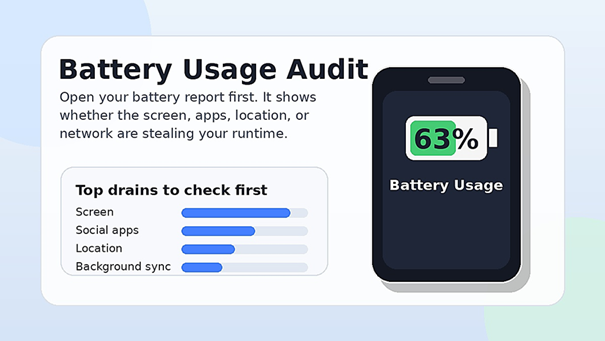
Before you try how to extend phone battery life fixes at random, inspect the battery report. Guessing wastes time because the same symptom can have different causes. A phone that dies by noon may have one bad app, poor signal, a worn battery, high screen time, or heat-heavy charging habits.
On iPhone, go to Settings > Battery. Look at battery usage by app, screen activity, background activity, and any battery suggestions. On many Android phones, go to Settings > Battery > Battery usage. On Samsung Galaxy devices, Settings > Battery or Battery and device care shows app usage and related controls. Google Pixel users can review app battery use and keep apps on optimized settings from the Battery section.
What to Look For in the Battery Report
Use the report like a mechanic reading a diagnostic scan. Look for patterns, not just one scary percentage.
- High screen percentage: Brightness, timeout, always-on display, or refresh rate is the likely first fix.
- One app dominating usage: Restrict, update, reinstall, or replace that app.
- Background activity higher than expected: Reduce app refresh, sync, widgets, notifications, or location access.
- Cellular or mobile network drain: Poor signal, 5G hunting, hotspot use, or constant travel may be the cause.
- Camera, maps, or gaming drain: Heavy workloads are normal, but heat control becomes critical.
Pro-Tip: Take a screenshot of your battery report before making changes. Check again after 24 hours. This gives you proof of what worked instead of relying on memory.
Fix the Display, the Biggest Everyday Power User
Most guides about how to extend phone battery life underplay the display. That is a mistake. The screen is usually the easiest drain to reduce because you can see and feel the change immediately.
Lower Brightness Without Making the Phone Annoying
Do not set brightness so low that you strain your eyes. The goal is the lowest comfortable brightness for the room you are in. Outdoors, brightness will rise. Indoors, most phones can sit much lower than their default behavior.
Turn on adaptive brightness if your phone handles it well. If it keeps over-brightening the screen, manually lower it from the quick settings panel or Control Center. Many users gain meaningful runtime by moving brightness from near maximum to the middle range.
Shorten Screen Timeout
Screen timeout is a simple setting that quietly saves power all day. Set it to 30 seconds for maximum savings or 1 minute if 30 seconds feels too aggressive.
Long timeout settings are common because people hate unlocking the phone repeatedly. The tradeoff is expensive. Every forgotten screen-on moment becomes wasted battery.
Use Dark Mode When It Helps
Dark mode is especially useful on OLED and AMOLED screens because black pixels can use less power. On LCD screens, the benefit is smaller because the backlight still runs, but dark mode can still reduce eye fatigue and may help indirectly if it lets you lower brightness.
Turn Off Always-On Display When You Need Maximum Runtime
Always-on display is convenient, but it is still a display feature. If your phone barely makes it through the day, turn it off for a week and compare results.
On iPhone models that support it, check Settings > Display & Brightness > Always On Display. On Android and Samsung phones, look under Display, Lock screen, or Always On Display depending on the model.
Reduce High Refresh Rate When Battery Matters More Than Smoothness
A 90Hz, 120Hz, or higher refresh rate makes scrolling smoother. It also asks the display and processor to work harder. If your phone offers a standard refresh rate or motion smoothness setting, test the lower option for two days.
You may barely notice the difference during email, browsing, or messaging. Gamers and heavy social media users may care more, so treat it as a mode you switch for long days rather than a permanent sacrifice.
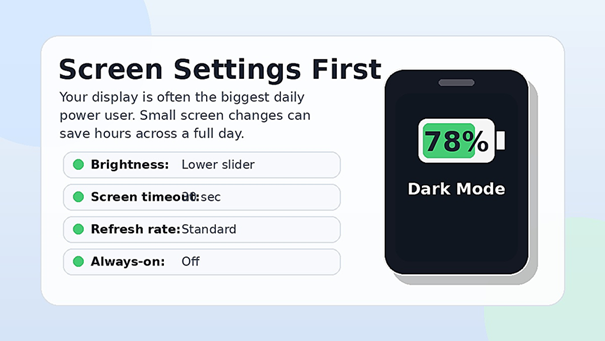
💡 Quick Hack: Create a “Low Battery Day” display profile in your head: brightness under 50 percent, 30-second timeout, dark mode on, always-on display off, and standard refresh rate. Use it on travel days, events, and long work shifts.
Put Background Apps on a Diet
Apps often drain power after you leave them. Some are doing useful work, such as messaging, navigation, email, reminders, and authenticator prompts. Others are syncing, refreshing, tracking location, serving widgets, or waking the phone for no good reason.
The goal is not to kill every background process. The goal is to give priority apps enough freedom and restrict low-value apps.
Start With the Worst Offenders
Open your battery usage screen and find the top five apps. For each one, ask three questions:
- Do I use this app every day?
- Do I need immediate notifications from it?
- Does it need location, Bluetooth, camera, microphone, or background refresh?
If the answer is no, restrict it.
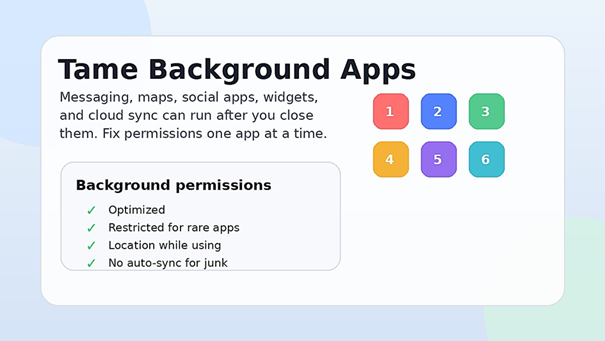
On Android, app battery settings often include Optimized, Restricted, or similar choices. Keep essential apps optimized. Restrict apps that are rarely opened or suspiciously active. On iPhone, review Background App Refresh and turn it off for apps that do not need to update behind the scenes.
Control Notifications
Every notification can wake the screen, trigger vibration, activate data, and tempt you into more screen time. Notification cleanup is battery cleanup.
Turn off promotional alerts, shopping app nudges, news blasts, game reminders, and social app suggestions. Keep calls, banking alerts, delivery updates, calendar reminders, and important work messages.
Clean Up Widgets
Widgets are mini apps. Weather, stock, news, calendar, social, and fitness widgets may refresh repeatedly. Keep the ones you actually look at. Remove the decorative ones.
A home screen with fewer live widgets also feels faster. That is a hidden benefit for older phones.
Pro-Tip: If an app keeps returning to the top of your battery chart after updates and restrictions, uninstall it for 48 hours. If your phone suddenly lasts longer, the app was the problem, not your phone.
Manage Location, Connectivity, and Signal Drain
Wireless features are useful until they start hunting. A phone with poor signal works harder to stay connected. GPS, hotspot, Bluetooth scanning, and constant cloud sync can create heavy drain even when the screen is off.
Fix Location Permissions
Location is one of the most common silent drains. Go through location permissions app by app.
Use this simple rule:
- Always allowed: Only for apps that truly need it, such as safety, family location, or automation apps you trust.
- While using the app: Maps, ride-share, delivery, camera geotagging, weather, and travel apps.
- Ask next time or deny: Shopping, games, social apps, photo editors, and apps with no clear location need.
Also turn off precise location for apps that only need your general area, such as weather or local content apps.
Use Wi-Fi When Signal Is Weak
Weak cellular service drains power because the phone increases effort to maintain a connection. If you are indoors with poor signal, connect to stable Wi-Fi. Wi-Fi calling can also help when supported by your carrier.
If you are in a dead zone with no realistic connection, use Airplane Mode until service returns. This is especially helpful in basements, remote areas, elevators, long commutes, or crowded events.
Be Careful With Hotspot and Navigation
Hotspot, GPS navigation, and video streaming are heavy tasks. They are not broken; they are expensive. If you use your phone for maps or delivery work, plug into a reliable charger, remove a heat-trapping case, and keep the phone out of direct sun.
💡 Quick Hack: When using maps in a car, start the route, then turn the screen off between turns if voice guidance is enough. This single habit can save a surprising amount of charge on long drives.
Use Battery Saver and Low Power Mode at the Right Time
Battery Saver and Low Power Mode are not just emergency buttons. They are planned tools. Enable them before your battery is desperate, especially when you know charging will be delayed.
Apple says Low Power Mode reduces the amount of power an iPhone uses when the battery gets low. Google notes that Android Battery Saver can turn on dark theme and limit or turn off background activity, visual effects, some features, network connections, and app delays. Samsung warns that power saving can affect performance and background notifications.
Use these modes when you are traveling, working away from a charger, using GPS, attending events, or starting the day with less than a full charge. Do not wait until 5 percent.
Suggested Battery Saver Triggers
- Turn it on at 40 percent when you still have half a day ahead.
- Turn it on at 60 percent when traveling, hiking, or attending events.
- Turn it on before a long video call if you cannot plug in.
- Turn it on during poor signal situations if you cannot use Airplane Mode.
Pro-Tip: Add Battery Saver or Low Power Mode to your quick settings panel or Control Center. A feature buried three menus deep is a feature you will forget to use.
Charge for Lifespan, Not Just Today
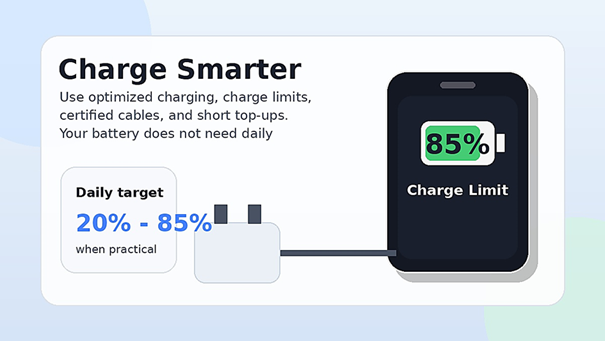
Charging discipline is the part of how to extend phone battery life that protects the battery months from now. Modern lithium-ion batteries do not need daily full discharge cycles. In fact, running the phone from 100 to 0 and back to 100 every day is usually not the ideal routine.
A practical daily target is simple: avoid living at 0 percent and avoid sitting at 100 percent for long periods when you do not need to. Many users do well with short top-ups through the day and a charge limit when supported.
Use Built-In Charging Protection
On newer iPhones, Apple offers Charge Limit options and Optimized Battery Charging. Apple’s support documentation explains that Optimized Battery Charging is designed to reduce battery wear by reducing the time the iPhone spends fully charged.
On Pixel phones that support it, Google’s charging optimization can use Adaptive Charging or limit charging to 80 percent for long-term health. Samsung Galaxy devices with newer One UI versions may offer Basic, Adaptive, and Maximum battery protection, with Maximum limiting charge to 85 percent.
These tools are worth using because they remove the need for perfect habits. Let the phone protect itself when the feature exists.
Choose the Right Charger and Cable
A cheap charger that gets hot, charges slowly, or disconnects randomly is not a bargain. Use the adapter that came with your phone or a reputable certified charger. Replace cables that have frayed ends, loose connectors, or intermittent charging behavior.
Fast charging is useful, but it can create more heat. Use it when you need speed. Use slower overnight or desk charging when time is not an issue.
Overnight Charging: Good, Bad, or Fine?
Overnight charging is common because life is busy. The risk is not that the phone will instantly overcharge and explode. Modern phones have charging management. The bigger issue is time spent warm and full.
If your phone has optimized charging, turn it on. If it has an 80, 85, 90, or 95 percent limit, choose the highest limit that still gets you through the next day. If your phone lacks charge limits, a smart plug or charging timer can stop power after a few hours.
💡 Quick Hack: Put a small, cheap power bank in your work bag instead of forcing every overnight charge to 100 percent. Backup power lets you use a healthier daily charge limit without battery anxiety.
Control Heat Like a Pro
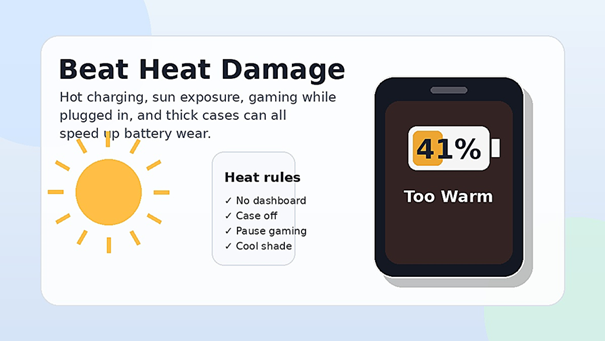
Heat is the enemy of battery health. A hot phone drains faster while you use it and ages faster while it charges. Heat also makes the phone throttle performance, dim the display, stop charging, or shut down features.
Avoid these heat traps:
- Charging under a pillow or blanket.
- Leaving the phone on a car dashboard.
- Gaming while fast charging.
- Using GPS in direct sun.
- Recording long 4K videos in hot weather.
- Charging with a thick case that traps heat.
If the phone gets hot, stop the heavy task, unplug it, remove the case, and place it on a cool, dry, shaded surface. Do not put it in a freezer. Rapid temperature changes can create moisture problems and may damage components.
Pro-Tip: During car navigation, mount the phone near an air vent but not directly against extreme cold air. You want airflow, not condensation.
Update, Restart, and Clean the System
Software bugs can cause battery drain. App updates, operating system updates, indexing after a major update, and corrupted background processes can all create temporary or persistent drain.
Update Apps and the Operating System
Keep your apps updated because developers often fix battery-draining bugs. Keep your operating system current when updates are stable for your device. If you rely on your phone for work, wait a few days after major OS releases and check whether widespread battery complaints appear.
Restart Once a Week
A weekly restart clears stuck background processes and gives the system a fresh start. It is not glamorous, but it works often enough to be worth adding to your routine.
Free Storage Space
A nearly full phone can feel slow and work harder. Delete unused apps, old downloads, duplicate videos, and large offline files. Move photos and videos to cloud storage or a computer if you are comfortable with backups.
For more practical device maintenance content, link this article to the MyFlexBots Technology guides and the step-by-step how-to guides. Readers who care about battery life usually care about speed, storage, app quality, and simple tech fixes too.
Common Mistakes to Avoid
A beginner trying how to extend phone battery life often changes the wrong things first. Avoid these five mistakes and your results will be faster.
Mistake 1: Closing Every App All Day
Force-closing apps constantly can backfire. Some apps use more power reopening from scratch than staying paused in memory. Close an app if it is frozen, misbehaving, or draining battery in the background. Do not turn app closing into a nervous habit.
Mistake 2: Using a Random Ultra-Cheap Charger
The cheapest charger can cost you in heat, slow charging, unstable charging, and cable wear. Use reputable chargers and cables. If a charger becomes hot, buzzes, smells odd, or charges inconsistently, replace it.
Mistake 3: Letting the Phone Hit Zero Every Day
Old battery advice about full discharge cycles does not apply to modern phone habits. Letting the battery reach zero often can create stress and inconvenience. Small top-ups are fine.
Mistake 4: Ignoring Poor Signal
People blame apps while the phone is fighting for a tower signal all day. If your workplace, apartment, or commute has weak reception, manage connectivity. Use Wi-Fi, Wi-Fi calling, Airplane Mode in dead zones, or a lower-power network option if your phone provides one.
Mistake 5: Expecting a Worn Battery to Behave Like New
Settings can improve runtime, but they cannot restore lost chemical capacity. If your phone is several years old, battery health is low, or shutdowns happen under load, replacement may be the best repair.
💡 Quick Hack: If a two-year-old phone suddenly has terrible battery life after installing one new app, do not blame battery age first. Remove the new app, restart, and check the 24-hour battery chart.
Advanced Tips and Next-Level Hacks
Once the basics of how to extend phone battery life are handled, these pro-grade moves help you squeeze out more runtime without making the phone miserable to use.
Build a Travel Battery Profile
Create a travel routine you can activate in two minutes:
- Battery Saver on.
- Brightness manual and moderate.
- Screen timeout at 30 seconds.
- Offline maps downloaded.
- Streaming downloads saved before leaving Wi-Fi.
- Location allowed only for navigation apps.
- Bluetooth off unless using earbuds or smartwatch.
- Power bank charged and packed.
This is better than panicking at the airport with 12 percent battery and no available outlet.
Download Before You Leave Wi-Fi
Streaming music, videos, maps, podcasts, and documents on cellular uses power and data. Download what you need before travel. This also prevents weak-signal drain in trains, buses, rural roads, and crowded buildings.
Use Automation Where Available
Many phones let you automate settings based on time, location, or battery level. You can trigger Low Power Mode at a chosen percentage, switch to dark mode at night, or silence nonessential notifications during work.
For a MyFlexBots-style angle, this is where tech habits become smart systems. Pair this guide with practical app recommendations so readers can build a leaner, more useful phone setup.
Separate Must-Have Notifications From Noise
Make two notification groups: must know now and can check later. Calls, banking, rides, delivery, calendar, and work-critical messages may stay immediate. Sales alerts, game streaks, social suggestions, and content recommendations can wait.
This saves power and attention. That second benefit is bigger than most people expect.
Use a Power Bank Strategically
A power bank is not permission to abuse the phone battery. It is a buffer. Use it to keep the phone between a comfortable charge range during long days. A 10,000 mAh power bank is usually enough for most users; delivery drivers, travelers, and mobile creators may want 20,000 mAh.
Pro-Tip: Charge your power bank on the same day every week. Backup batteries are useless when they live at 6 percent in a backpack.
Troubleshooting and Maintenance Guide
Use this troubleshooting table whenever how to extend phone battery life advice does not work after a day or two. Battery issues are usually diagnosable if you follow the symptom.
| Problem | Likely Cause | What to Do First | When to Escalate |
| Battery drops fast while screen is on | Brightness, refresh rate, video, gaming, camera | Lower brightness, shorten timeout, reduce refresh rate | If it overheats during basic tasks |
| Battery drops fast while screen is off | Background apps, sync, widgets, location | Check battery usage, restrict apps, reduce notifications | If one system process dominates for days |
| Phone gets hot while charging | Fast charger, thick case, bad cable, heavy use | Remove case, stop gaming, test another charger | If heat is extreme or smell/swelling appears |
| Battery percentage jumps suddenly | Aging battery or calibration estimate issue | Restart, update, fully charge occasionally for estimate accuracy | If shutdowns happen above 10 percent |
| Phone dies overnight | Background sync, weak signal, battery wear | Airplane Mode test overnight, then compare | If it still drops heavily in Airplane Mode |
| Charging is slow or intermittent | Cable, port lint, adapter, heat pause | Try certified cable and charger, clean port gently | If port feels loose or phone stops charging |
| Battery health is reduced | Normal chemical aging | Use charge limits and plan service | Replace battery if daily use suffers |
The 24-Hour Battery Test
Do a controlled test before assuming the phone is broken:
- Charge to your normal level.
- Restart the phone.
- Turn on normal Wi-Fi.
- Keep brightness reasonable.
- Use the phone normally for one day.
- Do not install new apps during the test.
- Screenshot battery usage at the end.
If the top drain is obvious, fix it. If drain is spread across normal activities and battery health is low, the battery may simply be worn.
The Overnight Airplane Mode Test
This test separates network/app drain from battery wear.
Charge the phone to around 80 percent before bed. Turn on Airplane Mode and leave Wi-Fi and Bluetooth off. Check the percentage in the morning.
A small drop can be normal. A large drop with radios off suggests system issues, a stuck process, or an aging battery. Restart, update, and retest. If it continues, back up your data and consider professional diagnostics.
When to Replace the Battery
Replace the battery when settings no longer solve the problem. Common signs include:
- Battery health is clearly reduced.
- The phone shuts down under load.
- The phone drops from 30 percent to 5 percent quickly.
- The battery swells or the screen lifts.
- Charging is unreliable after cable and charger tests.
- The device is otherwise good enough to keep.
Do not ignore swelling. Stop using the phone, avoid pressing on it, and take it to a qualified repair provider.
💡 Quick Hack: If a battery replacement costs far less than a new phone and the device still receives security updates, replacement can be the best budget upgrade.
Frequently Asked Questions
What is the easiest way to learn how to extend phone battery life?
The easiest start is to check your battery usage screen, lower brightness, shorten screen timeout, enable Battery Saver or Low Power Mode, and restrict the top app draining battery in the background. These steps do not require accessories or technical skill.
Is it bad to charge my phone overnight?
Overnight charging is not automatically dangerous because modern phones manage charging. The concern is long periods spent warm and fully charged. Use optimized charging, adaptive charging, or a charge limit when your phone supports it. If it does not, a smart plug can reduce unnecessary charging time.
Should I charge my phone to 100 percent every day?
You can charge to 100 percent when you need maximum runtime. For daily battery health, many users are better served by charge limits or unplugging before the phone sits full for hours. The best setting depends on your schedule and whether your phone lasts the day comfortably.
Does dark mode really save battery?
Dark mode can save battery on OLED and AMOLED screens, especially when brightness is moderate or high. It has less direct impact on LCD screens. Even then, dark mode may help you keep brightness lower, which can still save power.
Why does my phone drain battery even when I am not using it?
Background apps, widgets, poor signal, location tracking, cloud sync, Bluetooth scanning, and software bugs can all drain battery while the screen is off. Check battery usage by app, restrict background activity, reduce notifications, test Airplane Mode overnight, and update apps.
Is Battery Saver safe to use all the time?
Battery Saver is safe, but it may delay notifications, reduce background activity, limit performance, and change some network behavior. Use it daily if you value runtime over instant updates. For important messaging, banking, work, or security apps, make sure restrictions do not block alerts you need.
When should I replace my phone instead of the battery?
Replace the phone instead of the battery when the device no longer gets security updates, is physically damaged, lacks storage, feels slow even after cleanup, or needs repairs that cost close to a new device. Replace only the battery when the phone is otherwise fast, supported, and useful.
Conclusion
Now you know how to extend phone battery life with a system that actually holds up: diagnose first, tune the display, restrict background drains, manage location and signal, use power-saving modes early, charge intelligently, and protect the phone from heat.
The best setup is the one you will keep using. Start with the free settings today, test for 24 hours, and then decide whether you need a better cable, a power bank, a thinner case, or a battery replacement.
Which battery drain problem is hurting your phone most right now: screen, apps, charging, signal, heat, or battery age?
editor's pick
latest video
news via inbox
Nulla turp dis cursus. Integer liberos euismod pretium faucibua