How to Reduce Lag While Gaming :Step-by-Step Guide
A match can be running perfectly one moment and feel impossible the next: shots register late, characters jump across the screen, or the frame rate collapses during the most important fight. Learning how to reduce lag while gaming starts with identifying the type of delay you have instead of applying random “boost” settings. This guide gives you a repeatable diagnosis, fast no-cost fixes, smart upgrade priorities, and a maintenance routine that keeps performance stable.
The Direct Answer: What Reduces Gaming Lag Fastest?
| To reduce gaming lag, connect through Ethernet, stop background downloads, select the nearest game server, restart the router, update graphics and network drivers, enable Game Mode, lower GPU-heavy settings, cap unstable frame rates, and test ping, jitter, packet loss, FPS, and temperatures before buying new hardware. |
First, Identify Which Kind of lag you have.
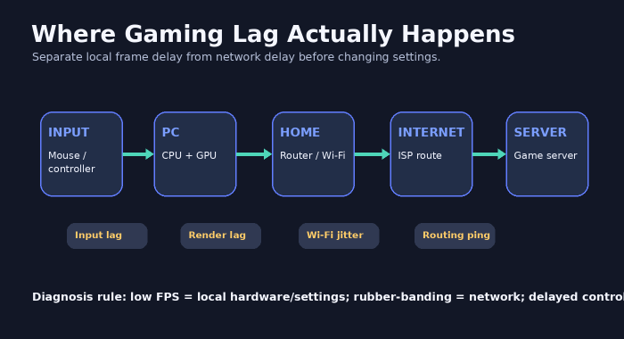
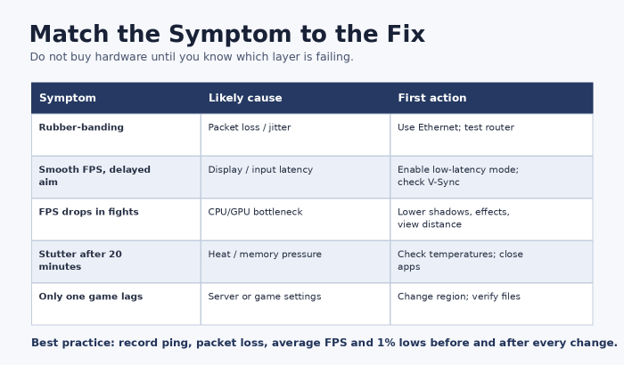
“Lag” is not one problem. It is a catch-all label for several delays that feel similar but require different fixes. A faster internet plan will not repair an overheating GPU, and a new graphics card will not fix packet loss between your router and an overloaded game server. A clear diagnosis is the foundation of how to reduce lag while gaming without wasting time on unrelated fixes.
Network lag: High ping, jitter, or packet loss. You may see rubber-banding, delayed hit registration, teleporting players, or sudden connection warnings.
Frame-rate lag: The game looks choppy because the PC or console cannot render frames consistently. Average FPS may be low, or frame times may spike even when the average seems acceptable.
Input lag: Your mouse, keyboard, or controller action appears late. This can come from display processing, V-Sync, wireless peripherals, a low refresh rate, or an overloaded rendering queue.
Storage or memory stutter: The game freezes briefly while loading assets, compiling shaders, or moving data between storage, RAM, and video memory.
Server-side lag: Only one game, region, or match is affected while other online services work normally. The fault may sit outside your home.
| 💡 Quick Hack: Play one offline game or training map for ten minutes. If it stutters offline, focus on the PC, console, display, or game settings. If offline play is smooth but online matches break, focus on the network and server route. |
Essential Tools, Materials, Costs, and Skill Level
| Tool or upgrade | Purpose | Typical cost | Skill | Priority |
| Built-in game stats / Task Manager | Check FPS, CPU, GPU, RAM, and network use | $0 | Beginner | Essential |
| Cloudflare or ISP speed test | Measure latency, loaded latency, jitter, and loss | $0 | Beginner | Essential |
| Cat5e or Cat6 Ethernet cable | Replace unstable Wi-Fi for the gaming device | $8-$25 | Beginner | Very high |
| Compressed air / soft brush | Remove dust that traps heat | $8-$15 | Beginner | Medium |
| Router firmware update | Fix stability, security, and compatibility issues | $0 | Intermediate | High |
| Wi-Fi 6/6E/7 router or mesh | Improve capacity where wired access is impossible | $100-$400+ | Intermediate | Conditional |
| RAM or SSD upgrade | Reduce memory pressure or asset-loading stalls | $40-$180+ | Intermediate | Conditional |
| GPU / CPU upgrade | Raise local rendering performance | $200-$1,000+ | Advanced | Last resort |
The best value is usually measurement plus a cable, not a flagship router or graphics card. Costs vary by cable length, device class, and regional pricing, so treat the ranges as planning estimates rather than fixed quotes.
Establish a Clean Performance Baseline
Before changing anything, record a baseline in the exact game, mode, map, and server region that causes trouble. Use a repeatable location or training area when possible. Note average FPS, 1% low FPS, ping, packet loss, GPU utilization, CPU utilization, RAM use, video memory use, and temperatures.
Test at least twice: once when the connection is quiet and once during the time of day when lag usually appears. A connection that looks excellent at 9 a.m. may suffer loaded-latency spikes when family members stream video, sync cloud files, or download updates in the evening.
This baseline makes every later decision evidence-based. When you learn how to reduce lag while gaming through controlled testing, you avoid placebo tweaks that merely move the problem or create instability.
Restart the Full Connection Path Correctly
Close the game. Shut down the gaming device, then unplug the modem or fiber terminal and router. Wait about 60 seconds; power the modem or fiber terminal first; allow it to reconnect fully; then power the router and finally the gaming device. This reset is a sensible early step in how to reduce lag while gaming when the problem appeared suddenly.
A full restart clears temporary routing, memory, and connection-state problems. It is not a permanent cure for failing hardware, poor coverage, or an overloaded ISP route, but it is the fastest way to eliminate a temporary fault before deeper troubleshooting.
Move the Gaming Device to Ethernet
Connect the PC or console directly to the router with a Cat5e or Cat6 cable. Avoid damaged connectors, loose wall jacks, very old powerline adapters, and unnecessary switches during the first test. Run the test from the simplest possible path: gaming device to router.
Ethernet does not magically shorten the distance to the game server, but it removes radio contention and many retransmissions inside the home. Intel specifically recommends switching from Wi-Fi to Ethernet as a basic packet-loss troubleshooting step, alongside testing ports and power cycling network equipment.
After connecting, disable Wi-Fi temporarily so the device cannot silently continue using the wireless path. Retest the same server and compare jitter and packet loss, not only download speed.
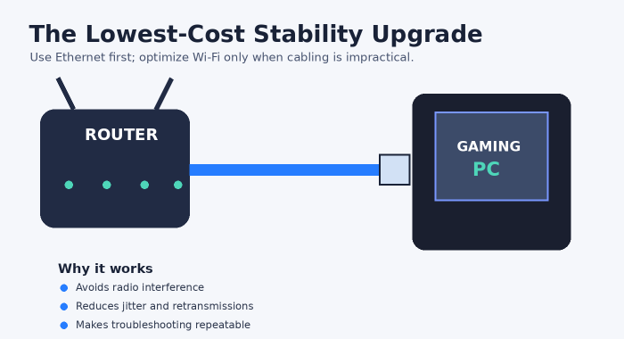
| Pro Tip: A temporary long cable across the floor is a useful diagnostic tool. If the problem disappears, you have proven the Wi-Fi path is responsible before paying for mesh nodes or a new router. |
Optimize Wi-Fi When Ethernet Is Not Practical
Use the 5 GHz or 6 GHz band when you are close enough to the router and the signal remains strong. These bands usually face less congestion and provide more capacity than 2.4 GHz, but they lose strength faster through walls. Use 2.4 GHz only when range matters more than peak responsiveness. For wireless players, careful router placement is a major part of how to reduce lag while gaming consistently.
Place the router in an open, elevated, central location. Keep it away from metal cabinets, thick masonry, cordless-phone bases, microwave ovens, and stacks of electronics. Rotate or reposition the router before assuming you need new equipment.
Choose a clean channel rather than forcing the widest channel width in a crowded apartment building. A narrower, less-contested channel can produce steadier latency than a theoretically faster channel that repeatedly collides with neighboring networks.
Stop Background Traffic and Bufferbloat
Pause game downloads, operating system updates, cloud backups, photo syncing, torrents, high-resolution streaming, and large file transfers on every device in the home. Upload saturation is especially harmful because acknowledgments and game packets must wait behind large outbound queues.
Check Task Manager, Resource Monitor, your console download queue, and the router’s connected-device list. Do not assume an idle-looking browser is harmless; dozens of tabs, video calls, launchers, and cloud-storage clients can generate bursts of traffic.
If your router offers Smart Queue Management, traffic prioritization, or a gaming quality-of-service feature, test it carefully. The useful goal is controlling queues under load, not giving every “gaming” packet a flashy label. Measure loaded latency before and after.
| 💡 Quick Hack: Run a speed test while another device uploads a large file. If latency rises sharply under load, prioritize queue management or limit that upload rather than buying a faster GPU. |
Choose the Closest Stable Game Server
Many games select a region automatically, but automatic selection can be wrong after travel, VPN use, ISP routing changes, or a temporary server issue. Choose the nearest region with consistent ping rather than the lowest single reading. Server choice is central to how to reduce lag while gaming because physical distance and route quality affect response time.
A stable 35 ms connection is often better than a route that jumps between 20 and 90 ms. Jitter—the variation between latency measurements—matters because real-time games need packets to arrive predictably. Cloudflare’s network-quality material explains jitter as variation in latency, which can disrupt real-time communication.
Disable consumer VPNs and proxy services during diagnosis. They may improve a poor route in unusual cases, but most add another network hop. Test without them first, then compare only if your normal ISP route is clearly problematic.
Update the Right Software, Not Everything at Once
Install the current stable graphics driver from NVIDIA, AMD, or Intel, plus the motherboard or device-maker network driver. Update the game, launcher, operating system, controller firmware, and router firmware. Restart after major driver changes. Controlled updates support how to reduce lag while gaming while keeping every change easy to reverse.
Change one category at a time. If you update the BIOS, graphics driver, router firmware, and game settings together, you will not know which change helped or caused a new problem. Keep a simple note with the date, version, and result.
Avoid random registry packs, “ping booster” executables, and copied network-adapter values. Many disable safeguards, create driver conflicts, or alter settings that only apply to specific hardware. Reliable optimization is measured, reversible, and documented.
Configure Windows and Background Apps
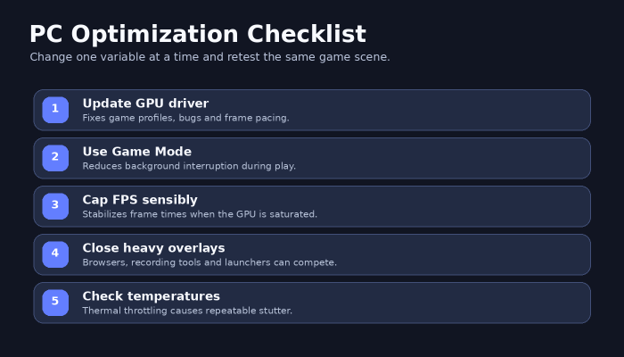
Enable Windows Game Mode, set the laptop or desktop to an appropriate performance power mode while plugged in, and disable unnecessary startup apps. Keep security software active, but schedule scans outside play sessions when possible.
Turn off overlays you do not use, including duplicate recording, chat, hardware-monitoring, and launcher overlays. One lightweight overlay may be harmless; several hooks competing for the same game can cause frame-time spikes or crashes.
Microsoft’s current Wi-Fi guidance notes that modern Windows 11 hardware can use Wi-Fi 6, 6E, or 7 when the adapter, router, drivers, and security configuration all support it. New standards help capacity and efficiency, but they cannot fix a distant server or overloaded ISP route.
Tune Graphics Settings for Stable Frame Times
Start with the game’s recommended preset, then reduce the settings that create the largest load. Shadows, ray tracing, volumetric effects, crowd density, view distance, reflections, and high-resolution ambient occlusion often cost more than texture quality.
Watch GPU utilization. If the GPU sits near 99% and input feels heavy, lower demanding settings or cap the frame rate slightly below the system’s sustainable level. This creates headroom and can improve responsiveness. If GPU use is low while one CPU core is saturated, reduce CPU-heavy settings such as simulation detail, crowd density, and view distance.
Use DLSS, FSR, XeSS, or dynamic resolution when available and visually acceptable. Begin with a quality-oriented mode. Ultra Performance modes can reduce image clarity dramatically and are rarely the right first choice at 1080p.
| 💡 Quick Hack: Lower resolution scale by 10% before dropping every visual setting to Low. A small-scale reduction can free meaningful GPU headroom while preserving texture and geometry quality. |
Fix Display and Input Delay
Set the monitor to its highest supported refresh rate in the operating system and confirm the game is using the same display mode. A 144 Hz monitor left at 60 Hz will not deliver the responsiveness you paid for. Display tuning completes how to reduce lag while gaming when network statistics and FPS already look healthy.
Enable the monitor’s gaming or low-latency mode, but avoid the most aggressive overdrive setting if it creates inverse ghosting. Test V-Sync, adaptive sync, and frame caps as a system. Competitive players often prefer an FPS cap within the adaptive-sync range, while cinematic games may prioritize tear-free consistency.
Connect the mouse or controller directly to the PC or console rather than through a crowded, unpowered USB hub. Increase wireless-controller reliability by reducing distance and interference, or use a cable for diagnosis.
Check Heat, RAM, Storage, and Power
Monitor CPU and GPU temperature during a 20- to 30-minute session. A system that begins smoothly and slows after warming up may be throttling. Clean vents, restore airflow, confirm fans are operating, and avoid blocking a laptop’s intake.
If RAM usage is nearly full, close browsers and creative apps before upgrading. If the game is installed on a nearly full or failing hard drive, move it to a healthy SSD and leave reasonable free space. Shader compilation after a game or driver update can create temporary stutter; allow it to complete before judging performance.
Use the original or correctly rated power adapter for gaming laptops. Battery-saving modes and undersized adapters can reduce CPU and GPU power limits, producing low FPS that looks like software lag.
Common Mistakes to Avoid
- Buying a faster internet package without measuring latency: Online games use relatively modest bandwidth, but they need consistent delivery. More megabits do not guarantee a better route, lower jitter, or less packet loss. Test the connection under load first.
- Changing dozens of advanced adapter settings: Settings such as interrupt moderation, offloads, buffer sizes, roaming aggression, and power management behave differently across adapters and drivers. Random values can lower throughput or create instability.
- Using “unlimited FPS” on a fully loaded GPU: A maxed-out GPU can increase rendering queue delay and create poor frame pacing. A sensible cap may feel more responsive than a higher but unstable counter.
- Blaming the home network for a server outage: If only one title or region fails, check the publisher’s service status and compare another game. Reinstalling Windows will not repair a remote server.
- Optimizing while temperatures are unknown: Heat-related throttling often appears after several minutes. Quick desktop tests may miss it. Measure during a real session before changing hardware.
Advanced Tips and Next-Level Hacks
Once the basic path is stable, advanced users can refine consistency. The aim is not the highest benchmark screenshot; it is repeatable frame delivery and predictable network behavior.
Use per-game frame caps: Cap each title according to the refresh rate and the system’s sustained performance. A demanding open-world game and a lightweight esports title should not share the same limit.
Separate gaming devices from noisy clients: A guest network or dedicated Wi-Fi band can keep cameras, smart-home devices, and old clients from competing with the gaming device.
Test DNS only for connection setup problems: DNS can affect how quickly services are found, but it normally does not shorten the established gameplay route. Change it only when name resolution or launcher access is unreliable.
Compare routes with repeated tests: Use ping and route-tracing tools to compare time periods. A single test is weak evidence; patterns across several evenings are useful evidence for an ISP support case.
Tune mesh placement: Place a wireless mesh node where it still receives a strong signal, not inside the dead zone. Wired backhaul is preferable when available.
Track 1% lows and frame-time graphs: Average FPS can hide severe stutters. A stable 100 FPS often feels better than an average of 140 FPS with regular drops to 40.
| Pro Tip: Create two profiles: “competitive” with restrained visuals and maximum stability and “cinematic” with higher quality and a lower cap. Switching profiles is safer than rebuilding settings before every game. |
| 💡 Quick Hack: Photograph the router labels and cable layout before moving equipment. This makes it easy to restore the known-good configuration after testing. |
Troubleshooting Guide: Fix the Problem That Remains
Ping is high all the time
Confirm the selected region, remove VPNs, test Ethernet, restart network equipment, and compare several nearby test servers. If the first hop is already high on Ethernet, inspect the router and local line. If latency rises later in the route, document it for the ISP.
Ping is fine but the game rubber-bands
Look for packet loss and jitter. Replace the cable, change the router port, update firmware, and test with other household traffic paused. Intel notes that packet loss can occur even on a fast connection and can cause lag spikes and rubber-banding.
FPS is high but aiming feels delayed
Confirm refresh rate, low-latency display mode, V-Sync/adaptive-sync behavior, frame cap, GPU saturation, and peripheral connection. Test fullscreen and borderless modes because game engines handle them differently.
The game stutters every few seconds
Watch disk, RAM, VRAM, CPU, and background processes. Disable unused overlays. Let shader compilation finish. Verify game files and exclude thermal throttling.
Lag appears only at night
Repeat loaded-latency tests at the same time for several days. Pause household traffic. If Ethernet tests remain poor during peak hours, congestion may be outside the home.
Wi-Fi is fast but unstable
Speed is an average; gaming needs consistency. Reduce distance, improve placement, select a cleaner channel, use a modern band, or install wired backhaul. Test jitter and loss, not only Mbps.
Only one game has problems
Change the server region, verify files, reset that game’s network settings, check official service status, and compare community reports. Keep system-wide changes as a last resort.
Long-Term Maintenance Plan
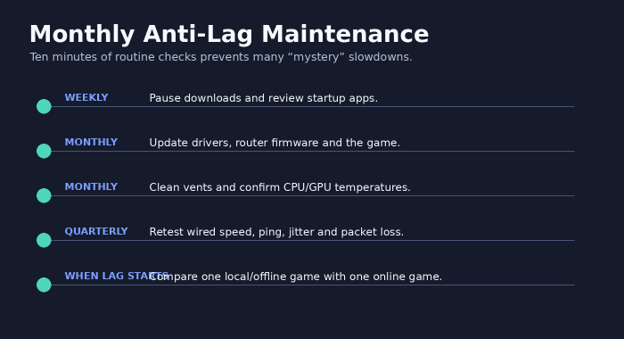
Knowing how to reduce lag while gaming is useful, but keeping the system stable is easier than repeating a full rescue every month. Use the following schedule:
Before competitive play: Restart the game, pause downloads, confirm the right server region, and close unnecessary apps.
Weekly: Review launcher queues, cloud-sync activity, disk space, and new startup apps.
Monthly: Update stable drivers and firmware, clean vents, inspect cables, and record a fresh baseline.
Quarterly: Run a wired network-quality test at quiet and busy times, review router placement, and remove unused software.
After major updates: Expect shader compilation, verify settings, and compare performance before restoring old tweaks.
Frequently Asked Questions
What is a good ping for gaming?
Lower and steadier is better. Many fast competitive games feel excellent below roughly 30 ms, remain playable around 30-60 ms, and become increasingly noticeable above that. Genre, server tick rate, jitter, and packet loss can matter more than a single threshold.
Does faster internet reduce gaming lag?
It helps when the current connection is saturated or unreliable, but extra bandwidth alone does not guarantee lower ping. Route quality, queue management, Wi-Fi interference, packet loss, and server distance still matter.
Is Ethernet always better than Wi-Fi for gaming?
Ethernet is usually the most consistent home connection because it avoids radio interference and contention. High-quality modern Wi-Fi can perform well, but wired testing remains the clearest way to isolate wireless problems.
Should I use a gaming VPN to lower ping?
Start without one. A VPN usually adds distance and processing, but it can occasionally bypass a poor ISP route. Compare multiple sessions and keep it only if measured ping, jitter, and loss improve consistently.
Why do I lag with high FPS?
High FPS does not rule out network lag, input delay, or poor frame pacing. Check ping and packet loss, monitor frame-time spikes, confirm refresh rate, and ensure the GPU is not pinned at full load.
Can changing DNS reduce in-game ping?
DNS mainly helps find the server address during connection setup. Once the session is established, gameplay packets follow a network route that DNS normally does not control. It may fix slow lookups, but it is not a universal ping fix.
Conclusion: Fix the Layer, Not the Symptom
The reliable way to understand how to reduce lag while gaming is to separate network delay, frame-time instability, input delay, heat, and server problems. Start with free measurements, move to Ethernet, remove background load, select the right region, and stabilize frame times before considering expensive upgrades. Once you know how to reduce lag while gaming through repeatable tests, every change becomes easier to judge and reverse. Which symptom causes the most trouble in your setup: high ping, rubber-banding, low FPS, or delayed controls
editor's pick
latest video
news via inbox
Nulla turp dis cursus. Integer liberos euismod pretium faucibua