Best Monitors for Working From Home in 2026
A cramped laptop screen turns ordinary work into a daily fight with tiny text, buried windows, and a stiff neck. The best monitors for working from home give you enough space to think, sharp text you can read all day, and connections that let you sit down and start working instead of rebuilding your desk every morning. This guide explains exactly what to buy, which specifications matter, how to set it up, and how to avoid paying for features you will never use.
What Is the Best Monitor for Working From Home?
| For most remote workers, the best choice is a 27-inch IPS monitor with 2560 × 1440 or 3840 × 2160 resolution, a height-adjustable stand, an anti-glare screen, and USB-C charging. Choose 4K for sharper text, a 32-inch display for more space, or an ultrawide when you constantly compare several windows. |
There is no single winner for every job. A spreadsheet-heavy finance role benefits from different screen space than photo editing, coding, customer support, or video meetings. The smarter approach is to match the display to the tasks that occupy most of your week.
Our 2026 Shortlist: Best Picks by Use Case
| Category | Model | Key strengths | Best for | Official page |
| Best premium all-rounder | Dell UltraSharp U2725QE | 27-inch 4K IPS Black, 120Hz, Thunderbolt 4 hub | Professionals who want excellent text, contrast, connectivity, and a clean one-cable desk | View specifications |
| Best value 4K | LG UltraFine 27UP850K-W | 27-inch 4K IPS, USB-C, 95% DCI-P3, HDR400 | General office work and light creative work without premium pricing | View specifications |
| Best for color-conscious work | ASUS ProArt PA278CV | 27-inch QHD IPS, 100% sRGB/Rec.709, factory calibrated, USB-C | Designers, marketers, and content teams working mainly in web color spaces | View specifications |
| Best comfort-focused QHD | BenQ GW2790QT | 27-inch QHD IPS, 75Hz, ergonomic stand, USB-C | Long office days, writing, coding, and mixed laptop use | View specifications |
| Best budget 4K without a hub | Dell 27 Plus 4K S2725QS | 27-inch 4K IPS, 120Hz, adjustable stand | Desktop users who already own a dock or do not need USB-C | View specifications |
Prices change often, so treat the list as a specification-based shortlist rather than a promise that one model will always be the cheapest. Availability can also vary by country.
Essential Tools and Materials Breakdown
Buying the monitor is only part of the project. A dependable home-office setup also needs the right cable, enough desk depth, stable power, and a way to place the screen at the correct height.
| Item | Typical cost | Skill level | Why it matters |
| Monitor | $140–$900+ | Beginner | The main display; cost depends on size, panel, resolution, ports, and color accuracy. |
| Certified USB-C or Thunderbolt cable | $15–$50 | Beginner | Carries video, data, and charging. Cheap charge-only cables may not support display output. |
| DisplayPort or HDMI cable | $10–$30 | Beginner | A reliable digital connection for desktop PCs, docks, and secondary displays. |
| Monitor arm or riser | $25–$180 | Beginner to intermediate | Creates height adjustment and frees desk space. Check VESA support and weight limits. |
| Laptop dock, if needed | $60–$300 | Intermediate | Adds ports, Ethernet, and multi-monitor support when the laptop has limited connections. |
| Surge protector or UPS | $25–$220 | Beginner | Protects equipment and can keep the setup running through brief power interruptions. |
| Microfiber cloth and distilled water | $5–$15 | Beginner | Safely removes dust and fingerprints without harsh household cleaners. |
| Colorimeter, optional | $150–$300 | Intermediate | Useful for professional photo, video, and print work that requires repeatable color. |
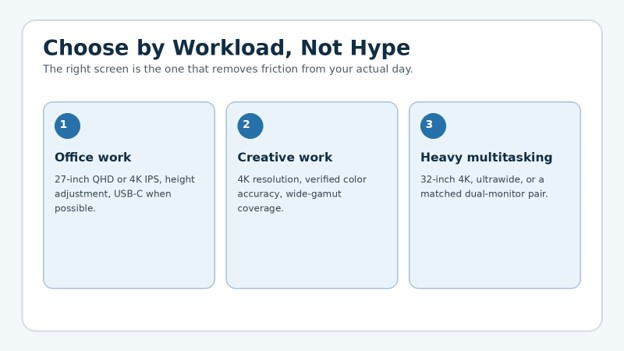
Define Your Real Workload
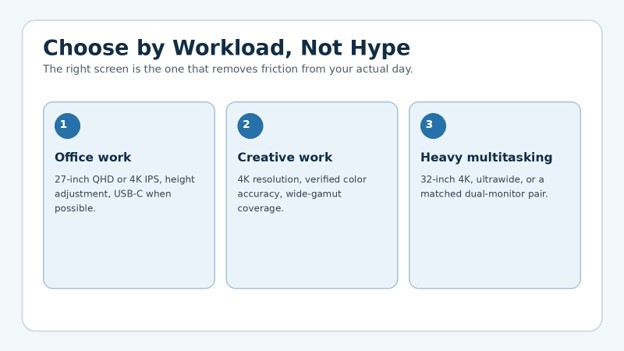
Before comparing products, list the three applications you use most and how you arrange them. The best monitors for working from home are selected around recurring tasks, not a generic “office” label.
Writing, email, and web work: prioritize crisp text, a comfortable stand, and sensible brightness control.
Spreadsheets and dashboards: prioritize horizontal space, 1440p or 4K resolution, and easy window tiling.
Coding: prioritize text clarity, portrait rotation, uniform brightness, and a stand that reaches the correct height.
Photo and design: prioritize accurate sRGB coverage, factory calibration, 4K detail, and hardware calibration when print accuracy matters.
Video editing: prioritize 4K resolution, wide-gamut color, enough ports, and a timeline-friendly ultrawide or second screen.
Customer support and meetings: prioritize an uncluttered dual-window layout, built-in speakers only if acceptable, and a webcam placed near eye level.
💡 Quick Hack: Open your normal workday on the laptop and take a screenshot every time you feel forced to hide, resize, or switch windows. Those screenshots reveal whether you need sharper text, more horizontal room, or a second display.
Choose the Right Size and Resolution
24-inch 1080p: Compact and inexpensive
A 24-inch Full HD display remains useful for small desks, basic documents, browser work, and a secondary screen. Text is reasonably sized at 100% scaling, and inexpensive laptops can drive it easily.
The trade-off is limited workspace. Two large documents side by side feel tight, and the visible pixel structure is more noticeable than on QHD or 4K displays.
27-inch QHD: The practical sweet spot
A 27-inch 2560 × 1440 screen offers noticeably more room than 1080p without demanding aggressive scaling. It is one of the safest choices for mixed office work, programming, marketing, and budget-conscious dual-monitor setups.
27-inch 4K: Best for sharp text and detail
At 27 inches, 4K produces very crisp text and fine image detail. Most people use 125% to 150% scaling, which keeps interface elements readable while preserving more usable space than a lower-resolution panel.
32-inch 4K: Spacious without tiny text
A 32-inch 4K screen is ideal when you want several windows visible but do not want a dual-monitor seam. It needs a deeper desk, and the stand must be able to lower the panel enough so the top edge does not tower above eye level.
34-inch ultrawide: Strong for timelines and comparisons
A 3440 × 1440 ultrawide behaves like a wide 27-inch monitor. It is excellent for video timelines, large spreadsheets, writing beside research, and keeping communications visible. It is less useful when software sharing or screen recording expects standard 16:9 dimensions.
Pro-Tip: Do not buy a 32-inch 1080p monitor for close desk use. The low pixel density makes text look coarse, even though the screen is physically large.
Pick the Panel Type and Refresh Rate
For general work, IPS is the default recommendation because it provides stable viewing angles, consistent color, and broad availability. VA panels usually offer deeper native contrast but may show slower dark transitions. OLED offers excellent contrast and fast response, yet static desktop elements create a long-term burn-in consideration.
60–75Hz: sufficient for documents and ordinary office use.
100–120Hz: visibly smoother scrolling and cursor movement; increasingly useful on premium productivity monitors.
144Hz and above: worthwhile mainly when the same display is also used for gaming or motion-heavy production.
A higher refresh rate does not make a spreadsheet calculate faster, but it can make long scrolling sessions feel calmer and more responsive. Do not sacrifice resolution, stand quality, or connectivity just to chase an extreme refresh-rate number.
Audit Ports Before You Buy
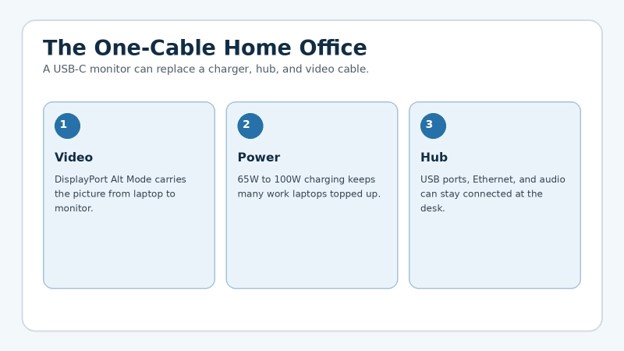
When comparing the best monitors for working from home, the most common purchasing mistake is assuming every USB-C port supports video and charging. Some laptop USB-C ports carry data only; some monitor USB-C ports accept video but deliver too little power for a performance laptop.
Check the laptop manual for DisplayPort Alt Mode, Thunderbolt 3/4/5, or USB4 display support.
Check the monitor’s USB-C power-delivery rating. About 65W suits many thin business laptops; larger workstations may need 90W, 100W, or their original charger.
Confirm whether the monitor has a USB hub, Ethernet, audio output, and downstream USB-C ports if you need them.
For two monitors, confirm that the laptop and dock support the number, resolution, and refresh rate you intend to run.
Choose DisplayPort for many desktop setups and high-refresh configurations; HDMI is broadly compatible with laptops, consoles, and docks.
💡 Quick Hack: Buy the cable only after reading both device manuals. A certified $20 cable is cheaper than troubleshooting a one-cable setup built around a charge-only lead.
Verify Ergonomics and Desk Fit
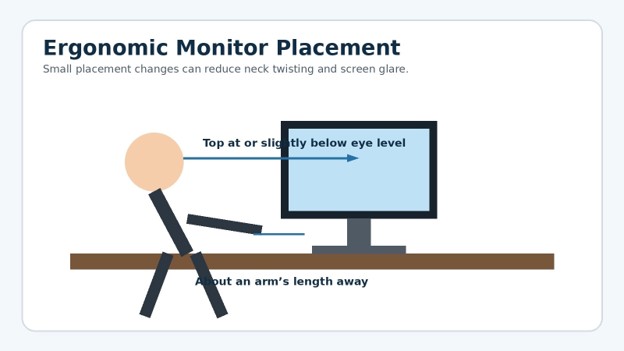
Even the best monitors for working from home can become an expensive neck problem when placed on a fixed, low stand. OSHA advises placing the monitor directly in front of the user, with the top at or slightly below eye level and the center generally below the horizontal line of sight. Review the full OSHA monitor ergonomics guidance before final placement.
OSHA monitor ergonomics guidance
Height adjustment: enough travel to suit your chair and body height.
Tilt: useful for reducing reflections and maintaining a square viewing angle.
Swivel: helpful when sharing the screen or changing posture.
Pivot: valuable for code, long documents, and secondary-monitor use.
VESA mounting: essential when the included stand is poor or the desk is shallow.
Measure desk depth before ordering. A large 32-inch screen can feel overwhelming at 20 inches away, while a 27-inch model usually fits ordinary home-office desks more naturally.
💡 Quick Hack: A sturdy monitor riser made from a shelf board or a stack of large hardcover books can solve height temporarily. Keep the base fully supported and stable; replace the improvisation with a proper stand or arm when possible.
Match Brightness, Glare Control, and Color Needs
The best monitors for working from home do not need extreme HDR brightness for ordinary office tasks. For ordinary work, a matte or low-reflection coating and usable brightness controls matter more than a dramatic peak-brightness claim.
250–300 nits: adequate for controlled rooms away from direct sunlight.
350–400 nits: more flexible in bright rooms and near windows.
Wide-gamut color: useful for video and photography, but ordinary web work still benefits from a correct sRGB mode.
Factory calibration: reassuring for creative work, although calibration quality varies by unit and can drift over time.
Place windows to the side rather than directly behind or in front of the screen. A desk lamp should illuminate the work surface without reflecting in the panel.
Use a Simple Buying Decision Tree
Budget under $200: choose a 24-inch 1080p IPS or discounted 27-inch QHD IPS with a height-adjustable stand if available.
Budget $200–$400: target 27-inch QHD or 4K, good ergonomics, and USB-C if you use a laptop.
Budget $400–$700: prioritize a high-quality 27-inch 4K hub monitor, 32-inch 4K, or a well-equipped ultrawide.
Budget above $700: pay for meaningful gains—Thunderbolt, better contrast, calibrated color, KVM features, 5K resolution, or a specialist creative panel—not branding alone.
The best monitors for working from home usually sit in the middle of the range: clear enough for all-day reading, adjustable enough for comfort, and connected well enough to simplify the desk.
💡 Quick Hack: Search the manufacturer’s outlet and business-store pages for previous-generation UltraSharp, ProArt, and productivity models. A one-generation-old monitor often keeps the same resolution and stand while costing far less.
Install and Configure the Monitor Correctly
Physical setup
Assemble the stand on a soft surface and avoid pressing on the panel.
Place the monitor centered on your main sitting position.
Route power and video cables with enough slack for height and swivel movement.
Connect directly to the laptop or PC first; add the dock only after confirming the display works.
Set the panel height, tilt, and distance before fine-tuning software.
Windows configuration
Open Settings > System > Display.
Select the monitor and choose its native resolution, normally marked Recommended.
Choose a comfortable scaling value; 125% or 150% is common on 27-inch 4K.
Set the highest stable refresh rate supported by the connection.
Use the display arrangement diagram to match the physical position of each screen.
Official instructions: change display resolution and scaling in Windows
macOS configuration
Open System Settings > Displays, select the monitor, and choose a scaled resolution that keeps text comfortable. If text appears unusually soft, test a different cable and connection, then compare the default and “More Space” scaling options.
Pro-Tip: After changing scaling, use the setup for a full workday before deciding. A setting that looks spacious for five minutes may cause squinting by late afternoon.
Build a Dual-Monitor Setup Without Creating Neck Strain
For some workflows, the best monitors for working from home are a matched pair rather than one ultrawide, especially when one screen holds communications or reference material. The main risk is placing both screens symmetrically even though one is used far more often.
Equal use: place the inner bezels directly in front of you and angle both screens inward.
Primary and secondary use: center the main monitor; place the second slightly to the side and rotate your chair rather than twisting only your neck.
Laptop plus monitor: elevate the laptop so its screen is near the external monitor height, then use an external keyboard and mouse.
Portrait secondary screen: useful for documents, code, chat, or vertical dashboards.
The best monitors for working from home in a pair should have similar pixel density, brightness, and height. Mismatched sizes are usable, but cursor movement and text scaling may feel inconsistent.
Common Mistakes to Avoid
Buying by screen size alone: A large low-resolution monitor can show bigger pixels rather than more usable work. Compare size and resolution together.
Ignoring the stand: A fixed stand often forces the screen too low. Budget for a VESA arm or choose a model with height, tilt, swivel, and pivot adjustment.
Assuming USB-C means one-cable operation: USB-C labels do not guarantee video, charging wattage, or a hub. Confirm every function in the specification sheet.
Paying for gaming features that do not improve work: Extreme refresh rates, RGB lighting, and aggressive curves can consume budget better spent on 4K text clarity, ports, or ergonomics.
Using maximum brightness all day: A bright screen in a dim room increases visual discomfort. Match the display to ambient light and control reflections.
Running below native resolution: Lower resolution makes text and icons look soft. Keep native resolution and use operating-system scaling to enlarge content.
Advanced Tips and Next-Level Hacks
Use a KVM for two computers
Among the best monitors for working from home, models with a built-in KVM can share one keyboard, mouse, and sometimes network connection between a work laptop and personal desktop. This reduces duplicate accessories and keeps the desk cleaner.
Daisy-chain compatible monitors
DisplayPort Multi-Stream Transport or Thunderbolt daisy-chaining can connect a second monitor through the first. Support depends on the monitor, computer, operating system, and bandwidth, so verify the complete chain before buying.
Create task-based window zones
Use Windows Snap Layouts, PowerToys FancyZones, or macOS window-management tools to reserve consistent areas for your main task, communication, and reference material. The productivity gain comes from predictable placement, not simply owning more pixels.
💡 Quick Hack: Create two layouts—“deep work” with communication hidden and “operations” with email, chat, and dashboards visible. Switching layouts is faster than dragging six windows every morning.
Calibrate only as far as your work requires
For documents and web work, use the monitor’s sRGB or standard mode, set a comfortable white point, and avoid oversaturated vivid modes. For paid creative work, use a colorimeter and repeat calibration on a schedule.
Choose energy efficiency for long daily use
Monitors run for many hours, so power consumption and automatic sleep settings matter. Compare certified products through the ENERGY STAR product finder rather than relying only on a marketing “eco” mode.
ENERGY STAR certified monitors
Troubleshooting and Maintenance Guide
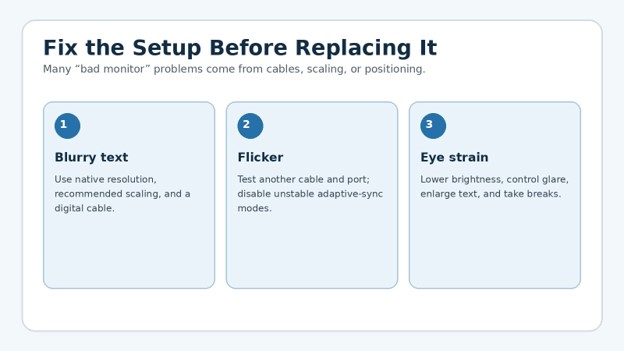
Problem: Blurry or fuzzy text
Confirm the monitor is running at native resolution.
Use the operating system’s recommended scaling instead of lowering resolution.
Replace analog adapters and low-quality cables with a direct digital connection.
Run Windows ClearType tuning when applicable.
Check whether a dock is outputting a reduced resolution because of bandwidth limits.
Problem: The screen flickers or drops out
Reseat both ends of the cable and test another cable.
Try a different port on the computer, dock, and monitor.
Lower the refresh rate temporarily to test bandwidth stability.
Update graphics and dock firmware from the device manufacturers.
Disable adaptive sync if flicker occurs only at certain frame rates.
Problem: USB-C connects but does not charge
Check the monitor’s power-delivery wattage.
Use the full-featured cable supplied with the monitor.
Connect to the monitor’s upstream USB-C port, not a downstream accessory port.
Some high-performance laptops charge slowly or still require their original adapter under heavy load.
Problem: The second monitor is not detected
Power-cycle the dock and displays.
Confirm the laptop supports two external displays in the intended configuration.
On macOS, check model-specific external-display limits.
Test each monitor individually, then add the second.
Use “Detect displays” or reconnect after waking from sleep.
Problem: Colors look wrong
Reset the monitor picture mode.
Select sRGB for standard web and office work.
Disable night-light or blue-light modes while judging color.
Confirm HDR is enabled only for compatible content and workflows.
For professional work, calibrate with a colorimeter and use color-managed applications.
Routine maintenance
Turn off the monitor and let it cool before cleaning.
Use a clean microfiber cloth; lightly dampen it with distilled water when needed.
Never spray liquid directly onto the screen.
Keep vents clear and avoid pressing on the panel.
Inspect cables every few months and replace damaged connectors.
Recheck height and brightness after changing chairs, desks, or room lighting.
The best monitors for working from home should remain comfortable after the novelty wears off. Revisit placement and scaling whenever you notice leaning, squinting, or repeatedly enlarging windows.
Frequently Asked Questions
Is a 27-inch or 32-inch monitor better for working from home?
A 27-inch display fits more desks and works well at normal viewing distance. Choose QHD for value or 4K for sharper text. A 32-inch 4K monitor offers more physical space but needs a deeper desk and careful height adjustment.
Is 4K worth it for office work?
Yes, when you value crisp text, fine detail, and a screen you may keep for years. It is especially useful at 27 and 32 inches. QHD remains a better value when budget, graphics performance, or docking bandwidth is limited.
Do I need USB-C on a work monitor?
USB-C is not essential for a desktop PC, but it is extremely useful for laptops. A properly equipped USB-C monitor can carry video, charge the laptop, and connect accessories through one cable.
Are curved monitors good for home offices?
A gentle curve can make a 34-inch or larger ultrawide feel more natural at close range. Curvature matters less on ordinary 24- or 27-inch screens, and strongly curved gaming displays may distort straight lines for design work.
Is one ultrawide better than two monitors?
An ultrawide removes the center bezel and simplifies cabling. Two monitors offer independent positioning, easier full-screen separation, and often lower replacement cost. Choose based on window habits and desk space.
What refresh rate is best for remote work?
60Hz is adequate, 75Hz is a pleasant small upgrade, and 100–120Hz makes scrolling noticeably smoother. Higher rates are mainly valuable when the same display is also used for gaming or fast-motion work.
How far should I sit from the monitor?
A common starting point is roughly an arm’s length, adjusted for screen size, text scaling, and eyesight. OSHA’s workstation checklist commonly references about 18 to 20 inches while emphasizing a distance that prevents leaning.
Conclusion: Buy the Screen That Makes Work Easier
The best monitors for working from home are not automatically the largest, brightest, or most expensive. A 27-inch QHD IPS monitor is the dependable value choice; 27-inch 4K is the text-clarity upgrade; 32-inch 4K and ultrawide models serve people who genuinely use the extra space; and USB-C is the feature that most often turns a laptop desk into a clean, repeatable workstation.
Start with workload, desk depth, resolution, stand adjustment, and ports. Then configure native resolution, comfortable scaling, sensible brightness, and ergonomic placement. That process delivers a better result than buying from a headline specification alone.
editor's pick
latest video
news via inbox
Nulla turp dis cursus. Integer liberos euismod pretium faucibua