Best Apps for Students: 15 Tools to Study Smarter
School gets harder when your system is scattered across five notebooks, three chat groups, a half-used calendar, and assignments you swear you will remember later. The best apps for students fix that problem by giving each part of student life a clear home: deadlines, notes, revision, research, writing, focus, and study help.
This guide does not tell you to install everything. It shows you which tools are genuinely useful in 2026, what each one is best at, how much you can expect to spend, and how to build a lean student app stack that saves time instead of creating more digital clutter.
Which Student Apps Are Best in 2026?
| Featured Snippet Answer The best apps for students in 2026 include Notion for organization, OneNote for notes, Google Calendar and Tasks for deadlines, Anki and Quizlet for revision, Zotero for research, Grammarly for writing, Forest for focus, Khan Academy and Wolfram|Alpha for learning, and ChatGPT Study Mode for guided explanations. |
Essential Student App Stack: Cost, Purpose, and Learning Curve
Think of this table as your software “materials list.” You do not need every tool. Start with one app in each category you actually use, then add a specialist app only when it solves a recurring problem.
| App | Best For | Useful Free Option? | Typical Student Cost | Skill Level |
| Notion | All-in-one planning and dashboards | Yes | Free; eligible students can get Education Plus | Beginner–Intermediate |
| Microsoft OneNote | Class notes, handwriting, lecture organization | Yes | Free; eligible schools may include Microsoft 365 Education | Beginner |
| Google Calendar + Tasks | Deadlines, classes, reminders | Yes | Free with a Google account | Beginner |
| Quizlet | Flashcards and quick review | Yes | Free tier; optional annual Plus plans | Beginner |
| Anki | Spaced-repetition memorization | Yes | Desktop/web free; mobile pricing varies | Intermediate |
| Zotero | Research, citations, PDFs | Yes | Core app free; paid cloud storage optional | Intermediate |
| Grammarly | Proofreading and writing feedback | Yes | Free tier; Pro optional | Beginner |
| ChatGPT | Guided explanations, practice, brainstorming | Yes | Free tier available | Beginner |
| Khan Academy | Structured lessons and practice | Yes | Free for independent learners | Beginner |
| Wolfram Alpha | Math, science, computations | Limited | Student Pro from about $5/month billed annually | Intermediate |
| Forest | Focus sessions and phone control | Yes | Free to start; platform options vary | Beginner |
| Todoist | Assignment and task management | Yes | Beginner free; Pro optional | Beginner |
| Google Drive | File storage and collaboration | Yes | Free storage with Google account | Beginner |
| Canva | Presentations and visual projects | Yes | Free tier; education access may vary | Beginner |
| Readwise Reader or similar reader | Highlighting and reading workflow | Usually limited | Optional paid plan | Intermediate |
💡 Quick Hack: Before paying for any app, sign in with your school email and check your university’s software portal. Many institutions already provide Microsoft 365, writing tools, cloud storage, citation software, or premium learning services at no additional cost.
Build a Student App System Before You Download More Apps
A common mistake is searching for the best apps for students and installing ten tools on the same day. That usually creates duplicate reminders, scattered notes, and one more thing to maintain.
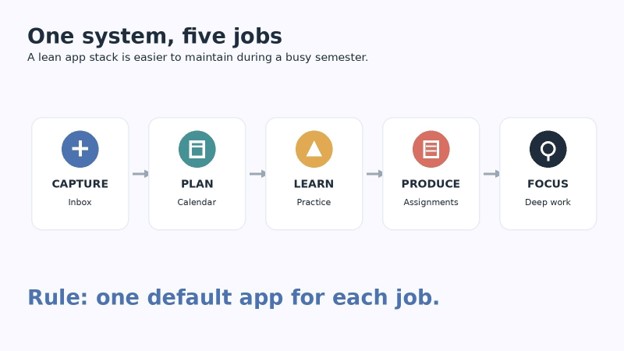
Use a five-job system instead. Every app you keep should have one primary job.
Job 1: Capture
You need one place for information that appears unexpectedly: a deadline mentioned at the end of class, a research idea, a book recommendation, or a question you need to ask your instructor.
Good choices include Google Tasks, Todoist, Notion Inbox, Apple Reminders, or a simple OneNote “Inbox” page. The important part is not the brand—it is having exactly one default capture location.
Job 2: Plan
Your calendar should hold events that happen at a specific time or must be finished by a specific date. Put classes, exams, office hours, submission deadlines, study blocks, and project milestones here.
Google Calendar works well because it can display tasks next to calendar events, while Microsoft users may prefer Outlook Calendar. Either is fine; do not maintain two academic calendars unless your institution forces you to.
Job 3: Learn
This is where practice happens. Anki, Quizlet, Khan Academy, textbooks, problem banks, or course-specific apps belong here.
The key is active retrieval. Rereading notes feels productive, but practice questions, flashcards, worked examples, and self-explanation tell you whether you can actually use the material.
Job 4: Produce
Assignments need a production environment: Word, Google Docs, Notion, Overleaf, coding tools, design software, or whatever your course requires.
Keep final work in a predictable folder structure such as `Semester > Course > Assignment`. You should be able to find a submission file in under 20 seconds.
Job 5: Focus
Focus tools should reduce interruptions rather than become another project. Forest, built-in Focus modes on your phone, or a basic Pomodoro timer can be enough.
Pro-Tip: If an app performs two jobs badly, replace it with two simple tools. A calendar plus a notes app is often more dependable than forcing an all-in-one dashboard to handle every detail of your semester.
Set Up One Master Calendar for the Entire Semester
Among the best apps for students, a calendar is the least exciting and possibly the most valuable. Missed deadlines are rarely caused by a lack of intelligence; they are usually caused by unreliable capture and poor visibility.
Add fixed commitments first
Enter your class schedule, labs, tutorials, commuting blocks, work shifts, recurring meetings, and regular personal commitments. Use recurring events instead of manually creating the same class every week.
Add every known deadline
Open each syllabus and transfer exam dates, quizzes, assignment deadlines, presentations, project checkpoints, and registration dates into your calendar. Do this once at the start of the term instead of trusting yourself to remember later.
Create a “start date” before the actual due date
A deadline tells you when work must end. It does not tell you when to begin.
For a 2,000-word paper due Friday, add a planning block on Monday, research block on Tuesday, drafting block on Wednesday, and revision block on Thursday. The Friday deadline then becomes a submission checkpoint rather than an all-night writing session.
💡 Quick Hack: Put the assignment due time in the event title, such as “BIO Essay — Due 11:59 PM.” That removes the need to open the event when you are checking the week at a glance.
Google’s current Tasks system can create tasks from Workspace products and surface due dates in Calendar, which makes it a strong no-cost option for students already using Gmail and Drive.
Choose a Note-Taking App You Will Actually Review
The best apps for students are not necessarily the apps with the most features. A note system succeeds when it is fast to capture, easy to search, and simple enough that you revisit it before the exam.
Best overall for handwritten and lecture notes: OneNote
OneNote is particularly useful for students who mix typed notes, handwriting, screenshots, diagrams, PDFs, and lecture materials. Its notebook > section > page structure maps naturally to school terms and subjects.
A practical layout is:
Notebook: `2026 Semester 2`
Section: `Calculus`
Pages: `Week 1`, `Week 2`, `Exam Review`, `Formula Sheet`
Microsoft states that supported versions of OneNote are free to use, and eligible students can also receive Office 365 Education through qualifying institutions.
Best for structured dashboards: Notion
Notion works best when you want assignments, reading lists, notes, projects, and reference pages connected in one workspace. Eligible individual students and teachers can currently receive its Education Plus plan at no charge.
Do not begin with a complicated “second brain” template containing 12 databases. Start with three pages: Dashboard, Courses, and Assignments.
Best for speed: Google Docs or Apple Notes
Simple tools are underrated. If your only need is fast searchable text that syncs reliably, a folder of Docs or Notes may outperform a complex knowledge-management system.
💡 Quick Hack: End every lecture note with three lines: What was the main idea? What can I not explain yet? What should I practice? Those prompts turn passive notes into a revision plan.
For a deeper comparison, see MyFlexBots’ guide to best note-taking apps for detailed class notes.
Use Flashcards for Facts, Not Everything
Flashcard tools often appear on lists of the best apps for students, but they are frequently used badly. Turning every sentence from a textbook into a card creates hundreds of low-value prompts and makes review exhausting.
Quizlet: best for fast setup and shared study sets
Quizlet is easy to start, works well for vocabulary and definitions, and is useful when classmates or teachers already share sets. In 2026, Quizlet continues to offer a free experience alongside paid Plus tiers, with annual options priced differently by plan and region.
Use it for:
language vocabulary
anatomy terms
formulas and symbols
historical dates
definitions
quick pre-test review
Anki: best for long-term retention
Anki is stronger when you need controlled spaced repetition over months rather than a few days. It is widely used for medicine, languages, law, technical certifications, and other subjects with a large memory load.
Keep cards atomic. “Explain photosynthesis” is too broad. “What molecule accepts electrons in the light-dependent reactions?” is specific enough to test clearly.
Pro-Tip: If a card takes more than 20–30 seconds to answer, split it. Fast, precise cards are easier to schedule and reveal exactly what you do not know.
Make Research and Citations Almost Automatic with Zotero
For research-heavy courses, Zotero may be the highest-leverage tool on this list. It collects sources, stores metadata, organizes PDFs, and generates citations and bibliographies in common styles.
Zotero describes its core application as free and open source. Its free account includes limited file storage, while additional storage is optional; the software itself remains usable without a paid plan.
A clean Zotero workflow
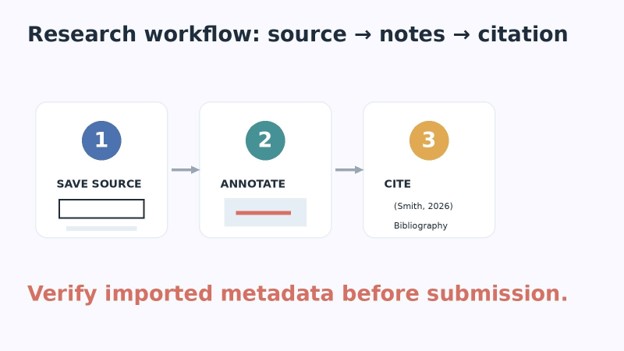
- Install Zotero on your computer.
- Add the browser connector.
- Create one collection per course or major paper.
- Save sources from your browser instead of typing citations manually.
- Check author, title, publication date, DOI, and page information before trusting imported metadata.
- Attach PDFs and annotate only the passages that matter.
- Insert citations from Zotero inside Word or your supported writing environment.
- Generate the bibliography at the end, then proofread it against your required style guide.
Use the official Zotero quick-start guide if you are setting it up for the first time. For formatting edge cases, the Purdue OWL citation style guides are a useful second reference.
Improve Papers Without Outsourcing the Thinking
Writing apps belong among the best apps for students when they help you see weaknesses—not when they replace your own reasoning.
Grammarly: best for final-pass clarity and correctness
Grammarly’s free plan can help catch correctness issues and surface writing feedback across common writing environments. Paid features go further, but many students can get meaningful value from the free tier.
Use it late in the writing process. Draft the argument first, revise structure second, verify evidence third, then run language-level checks.
ChatGPT Study Mode: best for guided explanations and practice
ChatGPT’s Study Mode is designed to work through concepts using interactive questions and step-by-step support rather than simply dumping an answer. OpenAI currently makes Study Mode available across ChatGPT plans, including Free.
Useful prompts include:
“Quiz me on these notes one question at a time. Do not reveal the answer until I attempt it.”
“Explain this concept at first-year university level, then ask me to teach it back.”
“Give me three practice problems that test the same skill but use different numbers.”
“Review my outline for gaps in logic without writing the essay for me.”
OpenAI’s student guide to writing with ChatGPT specifically emphasizes using the tool to develop thinking and writing skills rather than having it produce the assignment in your place.
💡 Quick Hack: When using an AI tutor, paste the relevant rubric or learning objectives and ask it to question you against those criteria. You will get more targeted practice than with a generic “teach me this chapter” prompt.
For more prompt patterns, read how to use ChatGPT effectively for learning.
Use Khan Academy and Wolfram|Alpha for Different Problems
Khan Academy and Wolfram|Alpha solve different academic bottlenecks, so treating them as competitors misses the point.
Khan Academy: best when you need to relearn the concept
Khan Academy remains free for independent learners and covers core academic subjects through lessons, examples, and practice. Use it when the lecture moved too quickly, prerequisite knowledge is rusty, or you want structured practice before attempting harder coursework.
Wolfram|Alpha: best when you need computational depth
Wolfram|Alpha is especially useful in mathematics, physics, chemistry, statistics, engineering, and economics. The student Pro plan currently advertises step-by-step solutions and enhanced computation from about $5 per month when billed annually.
Do not copy a solved equation and move on. Hide the steps, attempt the problem yourself, then use the solution to find the first point where your reasoning diverged.
Protect Focus with Forest or Built-In Focus Modes
A focus app is useful only if it changes behavior. Forest turns focused time into a simple visual commitment, while iOS, Android, macOS, and Windows all include built-in tools that can reduce notifications or block distracting apps.
The best apps for students should reduce friction, so start with built-in features before buying another subscription. Create a “Study” focus profile that allows calls from important contacts, your calendar, your course platform, and your music app—but blocks social media and nonessential notifications.
A practical focus block
- Choose one specific output: “finish problems 1–12,” not “study calculus.”
- Set 25–50 minutes of uninterrupted time.
- Put the phone out of reach or activate an app blocker.
- Work until the timer ends.
- Take a short break.
- Record what remains before starting the next block.
💡 Quick Hack: Use a physical sticky note for your “distraction list.” When you suddenly want to check a message, buy something, or search an unrelated topic, write it down instead. Review the list after the session.
Use Todoist Only If Your Calendar Is Not Enough
Todoist is a strong assignment tracker when you have many tasks that are not tied to fixed calendar times. Its Beginner plan is free, while the current Pro plan adds more advanced project and scheduling features.
A simple student setup needs only these projects:
Inbox
University
Personal
Someday
Inside University, label tasks by course only if the volume justifies it. Do not build 20 labels, four priority systems, and a custom productivity philosophy before you have submitted your first assignment.
For broader options beyond school, see best productivity apps for managing schoolwork.
Build a Weekly Workflow That Uses the Apps Together
The best apps for students become more useful when they form a predictable loop rather than a pile of icons.
Sunday or Monday: 15-minute weekly reset
Open your calendar and task list. Check every course for upcoming deadlines over the next 14 days, not just the next seven.
Move major assignments into smaller actions: choose topic, find five sources, write outline, draft section one, revise, format citations, submit.
After every class: 5-minute capture
Before leaving campus—or immediately after an online lecture—capture new deadlines, files, questions, and follow-up tasks. Rename downloaded files before they disappear into the Downloads folder.
During study sessions: active practice first
Start with a quick attempt from memory. Then use your notes, Anki, Quizlet, Khan Academy, ChatGPT Study Mode, or Wolfram|Alpha to diagnose the gap.
Before submitting work: final quality gate
Use a checklist:
Does the file answer the actual prompt?
Is every required section present?
Are claims supported by sources?
Are citations complete?
Did you run spelling and grammar checks?
Is the correct file attached?
Did you confirm the submission status?
Common Mistakes to Avoid
Even the best apps for students can make schoolwork harder if the setup is poorly designed. These five errors cause most student productivity systems to collapse.
- Installing too many apps
If you have three note apps, two task managers, two calendars, and four AI tools, you create uncertainty every time you need to save something. Pick defaults and remove duplicates.
- Treating a task list like a calendar
“Study chemistry” can sit on a list for five days. A calendar block from 7:00–8:00 PM forces a decision about when the work will happen.
Use tasks for what. Use the calendar for when.
- Building a perfect dashboard instead of studying
Templates can feel productive because they produce visible structure. But a beautiful Notion homepage does not improve recall, solve problem sets, or write papers.
Cap system setup at one hour, then use it for a week before changing anything.
- Letting notifications control your attention
More reminders are not the same as better planning. Keep notifications for time-sensitive items: class changes, deadline warnings, calendar events, and important communication.
Turn off streak alerts, promotional notifications, “come back” messages, and social updates during study hours.
- Trusting AI or imported data without verification
AI can misunderstand a question. Citation tools can import the wrong author. Calendar events can be copied with the wrong timezone. Flashcard sets can contain errors.
Build verification into the workflow, especially for grades, calculations, citations, quotations, and submission requirements.
Pro-Tip: Use the “two-source rule” for anything consequential: check the course material plus an authoritative source, or verify an AI explanation against your textbook, instructor notes, or official documentation.
Advanced Tips: Next-Level Student App Hacks
Once your basic setup is stable, these improvements can save real time without turning productivity into a hobby.
Create a reusable semester template
Keep a blank course folder, note structure, and assignment checklist. At the beginning of a new term, duplicate the structure instead of rebuilding it.
Use consistent file names
A useful pattern is:
`COURSE_Assignment_Topic_YYYY-MM-DD_v01`
Example:
`BIO201_LabReport_Enzymes_2026-09-18_v03.docx`
This makes sorting predictable and reduces the risk of uploading the wrong version.
Separate “reference” from “action”
A 40-page PDF is reference material. “Read pages 1–10 and answer questions 1–4” is an action.
Do not fill your task manager with files. Store the file in Drive, OneDrive, Zotero, or your course folder, then create a task that links to it.
Create an exam mode
Two weeks before exams, temporarily simplify your system. Archive low-priority tasks, pause optional projects, and create one dashboard showing exam dates, topics, weak areas, practice sets, and daily study blocks.
💡 Quick Hack: Color-code the *type of commitment*, not every course. For example, use one color for exams/deadlines, one for classes, and one for deep study. A calendar with 12 course colors becomes hard to scan.
Design an AI verification loop
Use this sequence whenever an AI tool helps with academic content:
- Attempt the problem yourself.
- Ask for a hint, not the final answer.
- Explain your reasoning back in your own words.
- Ask the AI to identify the first weak step.
- Verify the corrected idea against course material or a trusted source.
- Create one practice question that tests the same skill.
This keeps AI in the role of tutor rather than substitute.
Troubleshooting and Long-Term Maintenance
Finding the best apps for students is easy compared with keeping the system usable in week eight, when every course is busy and motivation is lower. Maintenance should be small, scheduled, and boring.
Problem: My tasks are duplicated everywhere
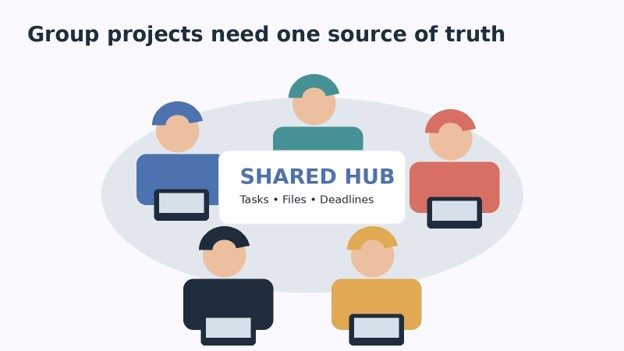
Fix: Choose one task manager as the source of truth. Calendar events can show time blocks, but the underlying action should live in one place.
If your learning platform already creates deadlines automatically, do not manually duplicate every item unless you have a specific reason.
Problem: I keep missing deadlines even with reminders
Fix: Add two reminders with different purposes: an early warning and an action reminder.
For a Friday assignment, an early warning might be Tuesday at 6 PM. The action reminder might be Thursday at 7 PM during your scheduled revision block.
Problem: My notes are too long to review
Fix: Add a one-page exam summary for each major topic. Do not rewrite the whole course. Pull out definitions, formulas, diagrams, common mistakes, and questions you still cannot answer.
Problem: Apps are distracting me
Fix: Remove widgets, streak counters, social feeds, and promotional notifications from study tools. Use full-screen or focus mode during deep work.
If a study app contains a distracting feed, use its web version in a dedicated browser profile with nonessential extensions disabled.
Problem: My files are spread across devices
Fix: Pick one primary cloud storage provider. Create a semester folder, enable sync, and keep active coursework inside it.
Once per month, export or back up critical notes and important project files. Do not assume a sync service is the same as a backup.
Problem: I am paying for apps I barely use
Fix: Review subscriptions every 30 days. If a paid feature did not save time, improve grades, reduce stress, or enable a requirement in the last month, downgrade or cancel it.
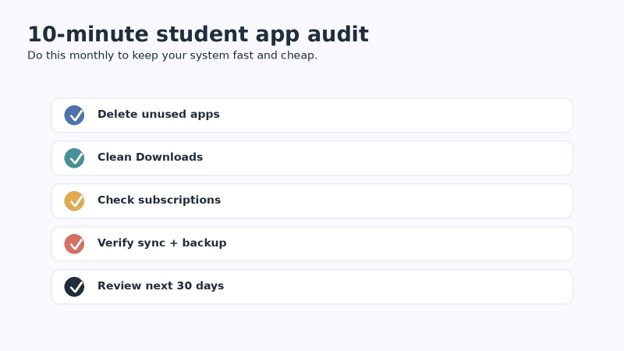
💡 Quick Hack: Create a calendar event called “Student App Audit” on the first weekend of each month. Spend 10 minutes deleting unused apps, cleaning the Downloads folder, checking subscriptions, and reviewing the next four weeks of deadlines.
Problem: AI answers sound confident but may be wrong
Fix: Ask for assumptions, steps, and uncertainty. Then verify important facts, calculations, citations, and quotations against an authoritative source.
Never submit fabricated references or an AI-generated quotation you have not checked in the original source.
Monthly Maintenance Checklist
A sustainable student system needs less maintenance than most people think. Once a month:
- Archive completed courses and projects.
- Delete duplicate downloads and screenshots.
- Review subscriptions and trials.
- Confirm cloud sync on your main devices.
- Back up important notes and assignments.
- Check the next 30 days for exams and major deadlines.
- Update weak-topic lists for each course.
- Remove apps that have not been useful for four weeks.
Frequently Asked Questions
What are the best free apps for students?
The strongest free stack is Google Calendar and Tasks for scheduling, OneNote or Google Docs for notes, Anki for spaced repetition, Zotero for research, Khan Academy for lessons, Grammarly Free for proofreading, and ChatGPT’s free tier for guided study. Availability and free-plan limits can change, so check official pricing pages before relying on a premium feature.
What are the best apps for college students?
For college, prioritize tools that handle long projects and research: Google Calendar or Todoist for deadlines, OneNote or Notion for course organization, Zotero for citations, Anki for memory-heavy subjects, Grammarly for revision, and a cloud drive for reliable file access. STEM students may also benefit from Wolfram|Alpha.
What apps are best for high school students?
High school students usually need fewer tools. A calendar, a note app, a flashcard app, a focus timer, and a reliable cloud folder are enough. Khan Academy is especially useful for filling subject gaps, while Quizlet is convenient for short-term review and vocabulary.
What is the best study timetable app?
Google Calendar is the easiest starting point because it handles recurring classes, deadlines, reminders, and time blocks. If you want a task-first system with more project organization, Todoist can be a better fit. The best choice is the one you check every day.
What is the best note-taking app for students in 2026?
OneNote is excellent for mixed handwritten and typed notes, while Notion is stronger for structured databases and connected course dashboards. Google Docs or Apple Notes are better if you want speed and minimal setup. Choose based on your workflow, not feature count.
Can AI study apps help without encouraging cheating?
Yes—when they are used for explanation, feedback, practice, questioning, and error diagnosis. A good rule is to attempt the work first, use AI to expose gaps, then verify the final understanding against course material. Do not use an AI tool to produce work your course expects you to create independently.
Conclusion: Build a Small System You Can Trust
The best apps for students are not the ones with the longest feature lists. They are the few tools that reliably capture deadlines, organize notes, support active practice, protect focus, simplify research, and make it difficult for important work to disappear.
Start with a calendar, one note system, one study tool, one file-storage location, and one focus method. Add specialist apps only after a recurring problem proves you need them. That approach costs less, takes less maintenance, and gives you a system you can still use when the semester gets busy.
Which student app saves you the most time right now—and which app have you installed but almost never use? Share your setup in the comments.
editor's pick
latest video
news via inbox
Nulla turp dis cursus. Integer liberos euismod pretium faucibua