Best Free Apps for Android in 2026
Your Android phone can be a productivity machine, a creative studio, a private vault, or a noisy drawer full of apps you barely use. The difference is not how many apps you install; it is whether each app solves a real problem without draining your time, battery, storage, or privacy.
This guide to the best free apps for Android shows exactly which apps deserve space on your home screen in 2026, how to choose between similar tools, how to avoid “free” apps that cost you attention, and how to build a clean app stack that actually improves daily life.
Featured Snippet: What Are the Best Free Apps for Android in 2026?
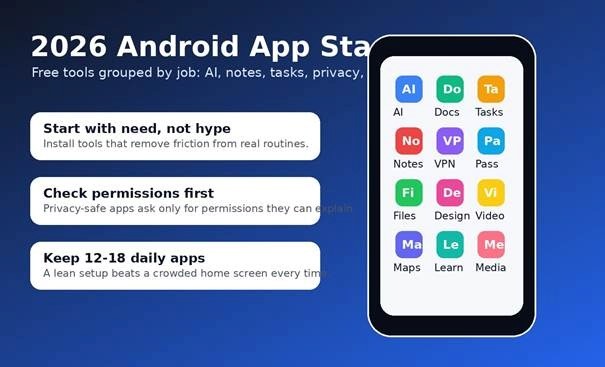
The best free apps for Android in 2026 are the apps that deliver useful core features without forcing upgrades: ChatGPT, Microsoft Copilot, Google Keep, Todoist, Microsoft To Do, Google Docs, Files by Google, Bitwarden, Proton VPN, Canva, CapCut, VLC, Signal, DuckDuckGo, and Duolingo.
Essential Tools & Materials Breakdown
You do not need a paid toolkit to build a powerful Android setup. You need a clean phone, a few reliable accounts, and a simple way to decide which apps stay installed after the first week.
| Tool / Material | Why You Need It | Estimated Cost | Skill Level |
| Google Account / Play Store access | Download official apps, sync settings, use Play Protect | Free | Beginner |
| 10-15 minutes of storage cleanup | Remove old downloads, duplicate media, and unused apps before installing more | Free | Beginner |
| Password manager | Create unique passwords and store passkeys safely | Free / freemium | Beginner |
| Cloud storage app | Back up documents, screenshots, forms, and photos | Free tier available | Beginner |
| Notes and task apps | Capture ideas, lists, reminders, and routines | Free / freemium | Beginner |
| AI assistant app | Summarize, draft, brainstorm, translate, and plan on mobile | Free / freemium | Beginner to intermediate |
| VPN or privacy browser | Add protection on public Wi-Fi and reduce tracking exposure | Free / freemium | Intermediate |
| Photo/video editor | Create social posts, thumbnails, reels, and presentations | Free / freemium | Beginner |
| Monthly app review habit | Stop app clutter, notification overload, and background battery drain | Free | Beginner |
💡 Quick Hack: Before installing anything new, uninstall five apps you have not opened in the last 60 days. This creates a clear baseline so you can judge whether a new app truly earns its space.
How We Chose These Free Android Apps
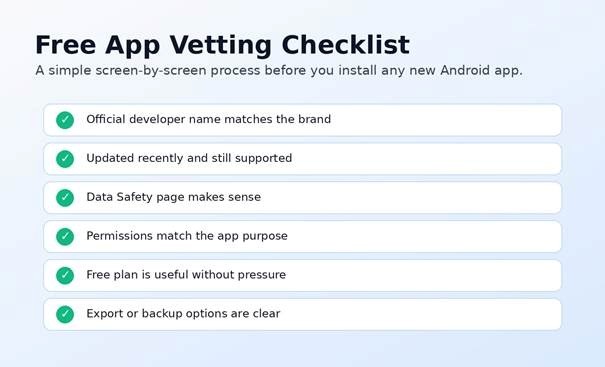
A good free app is not simply an app with a zero-dollar download button. Many apps are free to install but frustrating to use because the real features sit behind a paywall, the ads are aggressive, or the app asks for permissions that do not match its purpose.
For this guide, each recommendation was judged by five practical tests: useful free plan, stable developer reputation, clear daily use case, reasonable permissions, and low friction for beginners. That is why this article favors apps that can become part of a real routine, not apps that look impressive for two minutes and then disappear into your app drawer.
The result is a practical shortlist of the best free apps for Android for people who want a faster phone, cleaner workflows, safer accounts, better content creation, and less subscription pressure.
Clean Your Phone Before Installing New Apps
The biggest mistake beginners make is installing a dozen recommendations at once. That creates notification noise, duplicates tools you already have, and makes it impossible to know which app helped.
Start by opening your Android settings and reviewing storage, battery, and app usage. Delete duplicate file managers, old games, random launchers, one-time QR scanners, and “cleaner” apps that mainly show ads. If your phone already has a capable built-in feature, do not install a third-party replacement unless it clearly improves your workflow.
For file cleanup, Files by Google is a smart first install because it helps you find photos, videos, documents, large files, and downloads faster. Its Google Play listing also highlights Quick Share support for nearby Android and Chromebook transfers, which makes it useful beyond simple cleaning.
Pro-Tip: Create a temporary folder called “Review This Week” and move questionable apps there on your home screen. If you do not use them within seven days, uninstall them. This avoids emotional app hoarding.
Build Your AI and Search Layer
AI apps are no longer a novelty category. On Android, they can turn your phone into a writing assistant, brainstorming partner, translator, learning coach, content planner, and quick explainer. The key is using them for tasks where they reduce friction, not blindly trusting every output.
Start with ChatGPT for Android, because the official app is free to install, syncs history across devices, and gives mobile access to OpenAI tools. Use it to draft emails, summarize notes, create outlines, rewrite captions, explain unfamiliar topics, and turn messy thoughts into structured checklists.
Microsoft Copilot is another strong free AI option, especially if you already use Microsoft services. It works well for everyday questions, planning, simple image ideas, and light productivity support.
The winning move is to give each AI app a role. For example, use ChatGPT for writing and planning, Copilot for quick conversational help, and your browser or search app for verification. When an AI answer includes facts, names, prices, laws, or current app features, verify before publishing or buying.
💡 Quick Hack: Save three reusable prompts in Google Keep: “summarize this,” “turn this into steps,” and “rewrite this for a beginner.” Copy-paste them into any AI app and you will get faster, cleaner outputs without thinking from scratch every time.
Choose One Notes App and One Task App
Most people do not need five productivity apps. They need one fast capture tool and one reliable task system. If your notes, reminders, screenshots, and ideas live in scattered apps, your phone becomes a memory trap instead of a productivity tool.
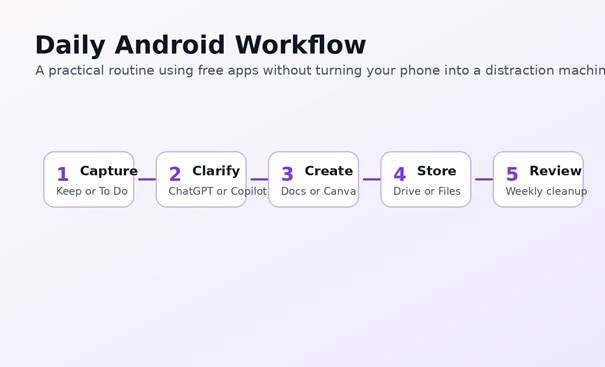
Google Keep is the best lightweight notes app for quick capture. Use it for grocery lists, article ideas, swipe files, quick voice notes, temporary links, and small reminders. It is fast enough to use while standing in a shop or walking into a meeting.
Microsoft To Do is excellent for simple daily lists, reminders, shopping lists, and personal planning. It is less complex than a full project management tool, which makes it easier for beginners to keep using.
Todoist is better if you want labels, recurring tasks, cross-device sync, and a stronger productivity workflow. Its Play Store page describes instant syncing across Android phones, tablets, browsers, email add-ons, and desktops, making it useful for people who work across devices.
Notion deserves a separate mention because it is less of a quick-note app and more of an all-in-one workspace. If you want a dashboard for projects, content calendars, student notes, client plans, or personal knowledge, Notion is powerful. If you only need to remember milk and meeting notes, Keep or To Do will feel faster.
Pro-Tip: Use Keep for capture and Todoist or Microsoft To Do for commitment. A note is something you may need later. A task is something you promise to do.
Install a Document and Cloud Storage Setup
A phone is not just for scrolling. With the right free apps, it can become a pocket office for writing, scanning, editing, commenting, and storing work safely. The trick is to avoid splitting your documents across too many cloud accounts.
Google Docs is the obvious first choice for free writing and collaboration. Its Play Store page highlights document creation, real-time sharing, comments, action items, templates, and offline mode, which makes it useful for students, bloggers, freelancers, and small business owners.
Google Drive is the natural storage partner for Docs. Use folders for IDs, invoices, blog drafts, client images, templates, and backups. Keep one “Inbox” folder for new files and clean it weekly.
For My FlexBots readers who test AI tools, apps, screenshots, and productivity workflows, cloud storage is also useful for documenting results. Save screenshots of app settings, export notes, and keep before-and-after examples. Those small records help you avoid guessing later.
💡 Quick Hack: Create three Drive folders on day one: “Personal,” “Work,” and “Archive.” Inside Work, create “Drafts,” “Screenshots,” and “Exports.” This simple structure prevents your cloud storage from becoming another junk drawer.
Lock Down Passwords, Browsing, and Messaging
Free apps can save money, but unsafe free apps can cost far more than a subscription. Password reuse, fake VPNs, shady file managers, and over-permissioned browsers are common ways users accidentally expose sensitive data.
Bitwarden is one of the strongest free password manager choices because its Play Store listing highlights unlimited passwords and passkeys across unlimited devices without restrictions. That is exactly what beginners need: one safe vault instead of saved passwords scattered across browsers and notes.
Google Password Manager is already built into Android and can be easier for casual users who live inside the Google ecosystem. The Play Store shortcut simply makes it faster to access saved passwords and passkeys.
Proton VPN is a good free VPN pick for privacy-minded users because it offers a legitimate free tier from a known privacy brand. It is best used for public Wi-Fi and basic privacy protection, not as a magic anonymity button.
DuckDuckGo is useful as a privacy-first browser and search app. Its Play Store listing emphasizes private search, browsing protection, optional AI, ad blocking, and reduced tracking.
Signal is the clean recommendation for private messaging. Its Play Store page describes free texts, voice messages, photos, videos, files, and encrypted calls, including group calls.
The goal is not paranoia. The goal is controlled trust. Use mainstream apps for everyday accounts, reduce unnecessary permissions, and keep sensitive passwords out of plain notes.
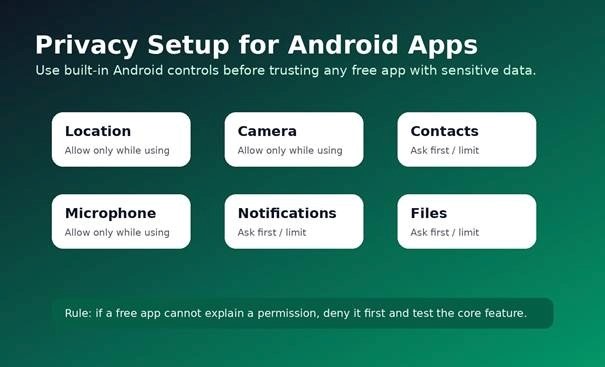
Pro-Tip: If an app asks for contacts, microphone, files, camera, and location before you have used the core feature, deny first. A good app should still explain why each permission matters at the moment it is needed.
Add Creative Apps for Photos, Graphics, and Video
A modern Android phone can handle design tasks that once required a laptop. For creators, small businesses, bloggers, students, and social media managers, free creative apps can cover thumbnails, reels, short videos, photo edits, presentations, flyers, and quick brand assets.
Canva is the easiest free design app for most users. Its Play Store listing positions it as a free photo editor, logo maker, collage maker, video editor, and template-based design tool with built-in AI features. That makes it ideal for social posts, blog graphics, simple ads, resumes, invitations, and content calendars.
CapCut is the strongest free video editor for many social creators because it includes practical tools such as trimming, effects, slow motion, chroma key, stabilization, auto captions, text-to-speech, motion tracking, and background removal.
VLC for Android is the media utility to install when your phone will not play a file. VLC is free and open source, and its Android app can play many video and audio files, network streams, shares, drives, and DVD ISOs.
For My FlexBots, this creative stack pairs naturally with articles about AI tools, productivity, screenshots, and content workflows. You can use AI to draft an idea, Canva to design the graphic, CapCut to turn it into a reel, and Drive to store the final asset.
💡 Quick Hack: Build five reusable Canva templates: blog thumbnail, Instagram square, Pinterest pin, LinkedIn post, and YouTube thumbnail. You can then create consistent graphics on Android in minutes instead of redesigning from zero.
Choose Learning, Reading, and Media Apps That Keep You Consistent
The strongest phone setup is not only about work. It should also help you learn, relax, read, listen, and build better habits without turning every break into endless scrolling.
Duolingo remains a strong free learning app because it turns language practice into short, repeatable lessons. Its Play Store listing says it supports 40+ languages with bite-sized lessons for speaking, reading, listening, and writing.
For reading and listening, choose based on your habits. If you save articles, pick one read-later app and actually review it. If you listen to podcasts, keep one podcast app. If you use YouTube for learning, build playlists intentionally rather than trusting the algorithm to teach you.
The best free apps for Android are the ones you can repeat. A 10-minute language lesson every day beats a complex study app you open twice and abandon.
The 25-App Shortlist: What to Install First
Use this shortlist as a menu, not a command. The best free apps for Android for you will depend on whether your phone is mainly for work, study, content creation, privacy, entertainment, or daily organization.
| Category | Recommended Free App | Best Use Case |
| AI assistant | ChatGPT | Drafting, summaries, brainstorming, explanations |
| AI assistant | Microsoft Copilot | Quick AI help, planning, conversational search |
| Workspace | Notion | Project dashboards, notes, content calendars, databases |
| Quick notes | Google Keep | Fast notes, lists, reminders, voice capture |
| Tasks | Microsoft To Do | Simple lists, reminders, personal planning |
| Tasks | Todoist | Recurring tasks, labels, cross-device productivity |
| Documents | Google Docs | Writing, editing, real-time collaboration |
| Cloud storage | Google Drive | Files, folders, backups, sharing |
| File manager | Files by Google | Storage cleanup, search, Quick Share |
| Passwords | Bitwarden | Password and passkey management |
| Passwords | Google Password Manager | Built-in Android password access |
| VPN | Proton VPN | Public Wi-Fi privacy and encrypted connection |
| Private browser | DuckDuckGo | Private search, browsing protection |
| Private messaging | Signal | Encrypted messaging and calls |
| Design | Canva | Graphics, thumbnails, presentations, templates |
| Video editing | CapCut | Short videos, captions, effects, social reels |
| Media player | VLC | Video and audio file playback |
| Learning | Duolingo | Daily language lessons |
| Maps | Google Maps | Navigation, local discovery, commute planning |
| Gmail or Outlook | Email management and notifications | |
| Calendar | Google Calendar | Events, reminders, scheduling |
| Photos | Google Photos | Photo backup, search, basic editing |
| Payments | Google Wallet or local wallet app | Payments where supported |
| Scanning | Google Drive scan or Microsoft Lens | Scan receipts and documents |
| Authenticator | Bitwarden Authenticator or Google Authenticator | Two-factor login codes |
Common Mistakes to Avoid
The fastest way to ruin a good Android setup is to install too much, trust too quickly, and review too rarely. Avoid these five mistakes and your free app stack will stay useful longer.
Mistake 1: Installing Apps Because They Are Trending
A trending app may be useful, but trend status is not a workflow. Before installing, write the job you expect the app to perform. If you cannot explain it in one sentence, wait.
Better choice: install one app per category and test it for seven days. Replace it only if it fails a real task.
Mistake 2: Ignoring Permissions
A flashlight app should not need contacts. A wallpaper app should not need microphone access. A scanner may need the camera, but it does not always need permanent file access.
Google explains that Android users can manage permissions by opening Settings, going to Security & Privacy, then Privacy, then Permission manager. Use that workflow as part of your monthly cleanup: Android app permission controls.
Mistake 3: Using “Cleaner” Apps Instead of Built-In Controls
Many cleaner apps promise miracle speed. In practice, they often create more notifications, ads, and background activity. Start with Android settings and Files by Google before installing a third-party cleaner.
Better choice: review large files, uninstall unused apps, clear downloads, and restart the phone. Simple maintenance beats suspicious optimization.
Mistake 4: Duplicating Every Tool
You do not need three note apps, two file managers, four AI assistants, and five editors. Duplicate apps create decision fatigue. Decision fatigue kills routines.
Better choice: keep one primary app and one backup only where it matters, such as passwords or cloud storage.
Mistake 5: Never Reviewing the Free Plan Limits
Freemium apps change over time. A free plan that was generous last year may become limited later. Review storage limits, export options, ads, watermark rules, and sync features before relying on an app for serious work.
The safest test is simple: can you export your data? If not, be careful before storing important notes, passwords, documents, or client assets there.
Advanced Tips and Next-Level Hacks
Once you have the basics installed, the next step is making your apps work together. The best free apps for Android become far more powerful when you build a simple routine around them.
Hack 1: Build a Three-Screen Home Setup
Put only daily essentials on your first screen: phone, messages, camera, password manager, notes, tasks, calendar, files, and browser. Put work and creative apps on the second screen. Put entertainment apps on the third screen or inside a folder so they are not the first thing you touch.
💡 Quick Hack: Remove social apps from the bottom dock. The dock should hold tools you choose intentionally, not apps designed to pull you in automatically.
Hack 2: Use App Pairs by Workflow
Pair apps by real-world workflows. For example, ChatGPT + Google Docs for writing, Keep + Todoist for planning, Canva + CapCut for content, Bitwarden + Signal for safer communication, and Files + Drive for storage.
This pairing system is easier than memorizing a long app list. Each pair solves a small problem completely.
Hack 3: Create a Weekly Review Ritual
Set a 15-minute calendar reminder every Sunday. Review recently installed apps, battery usage, notification noise, large files, and permission changes. This tiny ritual keeps your phone fast and your app stack honest.
Pro-Tip: If an app has not helped you save time, money, focus, storage, or stress within two weeks, uninstall it.
Hack 4: Use Offline Mode Before You Need It
Many useful apps support offline work, but users forget to enable it. Download important docs, maps, PDFs, language lessons, and playlists before travel, exams, meetings, or poor-network days.
A free app becomes much more valuable when it still works during a commute, power outage, flight, or weak signal.
Hack 5: Build an “App Stack” Note
Create one note called “My Android App Stack.” List each app, what it does, why you use it, and whether it is free or paid. This becomes your personal app policy.
💡 Quick Hack: Add a line called “Replace if…” under every app. For example: “Replace if it adds watermark to exports,” “Replace if sync fails twice,” or “Replace if ads interrupt core use.”
Troubleshooting and Maintenance Guide
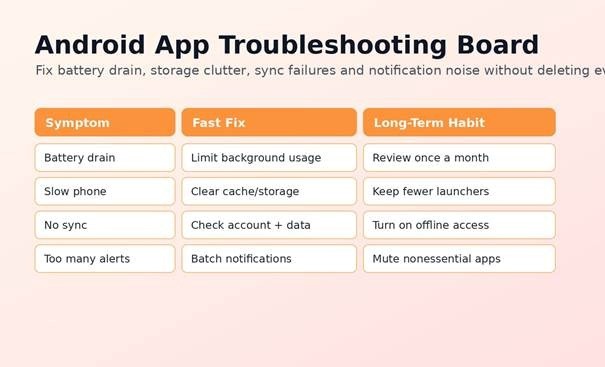
Even good apps can misbehave. A free Android app may drain battery after an update, stop syncing, show too many notifications, or fill storage with cached files. Do not panic and uninstall everything. Diagnose the problem first.
Problem: The Phone Feels Slow After Installing Apps
Start with storage. If the phone is almost full, performance usually suffers. Delete large downloads, old videos, duplicate exports, and unused offline files. Then restart the phone.
Next, check battery and background usage. Apps that constantly sync, scan, upload, or send notifications can create a slow-phone feeling even when storage is fine.
Problem: Battery Is Draining Faster Than Usual
Open battery settings and check which apps used the most power. A navigation app, VPN, video editor, or cloud backup app may use more battery during heavy tasks. That is normal while active, but suspicious if it happens in the background all day.
Fix it by limiting background activity, turning off unnecessary sync, reducing notification frequency, and uninstalling apps that repeatedly misbehave after updates.
Problem: Apps Are Asking for Too Many Permissions
Go to Permission manager and review location, camera, microphone, contacts, files, SMS, and notification access. Downgrade permissions from “allow all the time” to “allow only while using” where possible.
Google Play Protect also checks apps and devices for harmful behavior, including safety checks before downloads and warnings about potentially harmful apps. Keep it enabled and use it alongside your own permission review: Google Play Protect app safety checks.
Problem: Notifications Are Out of Control
Do not silence your whole phone. Instead, silence categories. Keep urgent alerts for calendar, messages, banking, and security. Turn off promotional notifications, streak reminders, “what’s new” alerts, and suggestions from apps that are not mission critical.
A free app that constantly pulls your attention may cost more than a paid app that stays quiet.
Problem: Sync Is Broken Between Phone and Laptop
Check the account first. Make sure the app is signed into the same Google, Microsoft, Notion, or Todoist account on both devices. Then check internet access, battery restrictions, data saver settings, and offline mode.
If sync still fails, export your important data before reinstalling. Never delete a notes, password, or cloud app until you know your data is safely stored elsewhere.
Problem: The Free Plan Becomes Too Limited
This is common with freemium apps. Before paying, ask three questions: Do I use it weekly? Does it save more time than it costs? Can I replace it with a free alternative without losing important data?
If the answer is yes to the first two and no to the third, upgrading may be sensible. If not, export your data and switch before you become locked in.
Frequently Asked Questions
What are the safest free Android apps to install first?
Start with mainstream utilities from known developers: Files by Google, Google Keep, Google Docs, Google Drive, Bitwarden, Signal, Proton VPN, DuckDuckGo, and an official AI app such as ChatGPT or Microsoft Copilot. Then review permissions before adding niche tools.
Are free Android apps really free?
Some are completely free, some are open source, and many are freemium. Freemium means the app has a usable free plan but charges for advanced features, more storage, exports, templates, team tools, or ad-free use. Always check limits before storing important work.
How many apps should I keep on my Android phone?
Most users do best with 12 to 18 daily-use apps and a small number of occasional apps. If you have multiple apps doing the same job, choose the one you actually use and remove the rest.
Do I need antivirus apps on Android?
For most users, safe habits matter more: download from official stores, keep Play Protect enabled, update your phone, avoid suspicious APKs, check permissions, and use strong passwords. Specialized security apps may help advanced users, but they are not a substitute for good behavior.
What is the best free app for Android productivity?
If you want one simple productivity app, Microsoft To Do is easy. If you need a stronger task system, Todoist is better. For notes, Google Keep is fastest. For documents, Google Docs is the most practical free choice. For a workspace, Notion is more flexible.
What is the best way to test free Android apps?
Install one category at a time. Use the app for seven days, check battery and storage impact, review permissions, test export options, and decide whether it saved time or created clutter. Keep only the apps that pass a real-world use test.
Conclusion: Build a Phone That Works for You
A great Android setup is not built by downloading every popular app. It is built by choosing a small set of reliable tools, assigning each app a clear job, reviewing permissions, and removing anything that adds clutter.
The best free apps for Android in 2026 help you think, plan, write, protect accounts, manage files, create content, learn, and communicate without forcing you into unnecessary subscriptions. Start with the categories you need most, test one app at a time, and keep your setup lean.
Which free Android app has saved you the most time this year? Share your pick in the comments so other My FlexBots readers can test it too.
editor's pick
latest video
news via inbox
Nulla turp dis cursus. Integer liberos euismod pretium faucibua