Best Free Photo Editing Apps 2026 to Edit Like pro
Photo editing apps have become far more capable, but “free” can still mean anything from a generous full editor to a demo with watermarked exports. This guide to the Best free photo editing apps 2026 cuts through that confusion and shows what each option is actually good for, where the free version stops, and how to build a workflow without paying for features you do not need.
You will find fast phone editors, browser-based Photoshop alternatives, open-source desktop software, RAW processors and template-first tools for social media. More importantly, you will learn how to choose by task, edit in the right order, avoid common quality mistakes and export files that still look sharp after they reach a website, marketplace or social feed.
What Are the Best Free Photo Editing Apps in 2026?
The Best free photo editing apps 2026 include Snapseed for mobile editing, Photopea for browser-based layers, GIMP for advanced desktop work, Canva and Adobe Express for social graphics, and darktable or RawTherapee for RAW photos. The best choice depends on whether you value speed, layers, templates, RAW control or zero-cost desktop power.
| 💡 Quick Hack: Do not choose one app for everything. A faster free workflow is often a two-tool stack: use Snapseed for phone photos, Canva for text/layout, and Photopea or GIMP only when you need layers or precision selections. |
Essential Tools & Materials Breakdown: 15 Editors Compared
Before installing anything, use this Best free photo editing apps 2026 comparison to narrow the field. “Free” below means the app has a usable no-cost path as of this 2026 review; some vendors also sell optional premium features or AI credits.
| App | Platforms | Best For | Skill | Free-Plan Reality |
| Canva | Web, iOS, Android, desktop | Social graphics + quick edits | Easy | Free editor; some AI tools are Pro |
| Adobe Express | Web, iOS, Android | Fast edits + content design | Easy | Free plan; premium assets/features limited |
| Snapseed | Android / mobile | Phone photography | Easy-Medium | No subscription, ads or watermark per Google listing |
| Photopea | Browser | Layers, PSD-style editing | Medium | Core editor free; browser-based |
| GIMP | Windows, macOS, Linux | Advanced desktop editing | Medium-Hard | Free and open source |
| Pixlr | Web, mobile, desktop | Quick AI + browser edits | Easy | Free access; paid tiers unlock more/AI capacity |
| Picsart | Web, mobile | Creative social edits | Easy | Many tools free; premium/AI limits vary |
| BeFunky | Web | Simple edits + effects | Easy | Free tier; advanced AI/premium assets paid |
| Fotor | Web, mobile, desktop | One-click editing + templates | Easy | Free Basic; watermarked exports listed for some formats/features |
| darktable | Windows, macOS, Linux | RAW workflow | Medium-Hard | Free and open source |
| RawTherapee | Windows, macOS, Linux | High-quality RAW processing | Hard | Free and open source |
| Krita | Windows, macOS, Linux, Android | Painting + compositing | Medium | Free and open source |
| LunaPic | Browser | No-signup quick effects | Easy | Completely free; no signup required |
| Polarr | Mobile / web ecosystem | Filters + selective adjustments | Medium | Free tools; some exports/tools tied to ads or subscription |
| PhotoDirector-style alternative: use built-in Photos editors | Windows/macOS/mobile | Basic crop/light/color | Easy | Included with device; best for basic corrections |
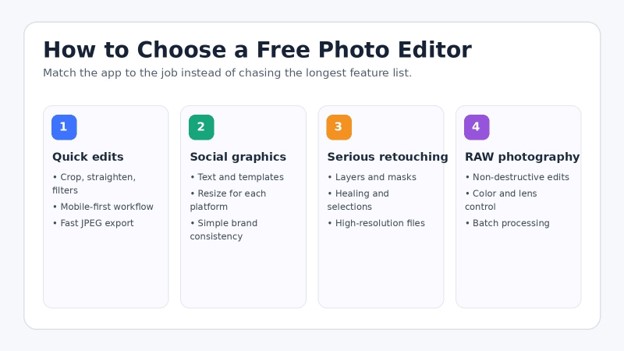
Decide What Kind of Editing You Actually Do
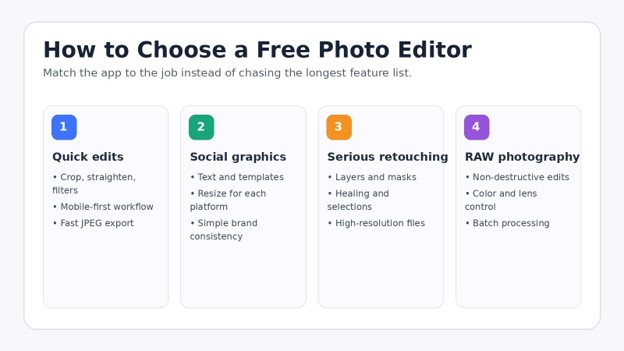
The fastest way to choose among the Best free photo editing apps 2026 is to start with the output, not the feature list. Editing a restaurant photo for Instagram is a different job from developing a 45-megapixel RAW file or retouching a product image with a complex background.
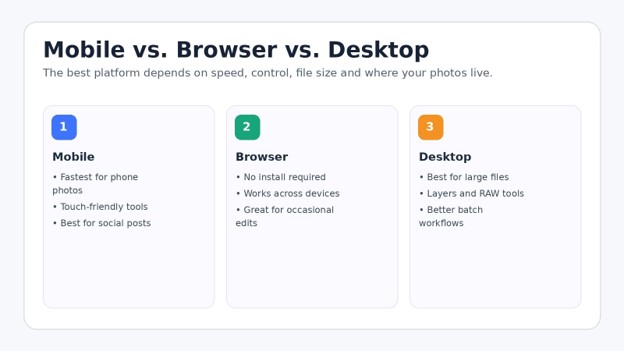
Choose mobile-first if 80% of your photos start and finish on your phone.
Choose browser-first if you move between devices or cannot install software.
Choose desktop-first if you regularly use large files, layers, masks, RAW photos or batches.
Choose template-first if your final image also needs text, logos, price labels or social-media sizing.
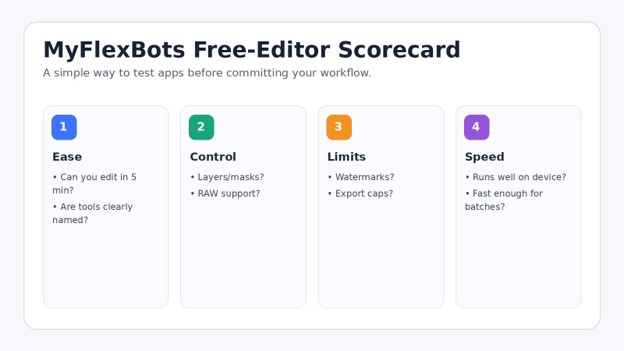
| Pro-Tip: Write down your three most common edits. If an app can do those three comfortably in under five minutes, it is probably a better choice than a “powerful” editor that takes twenty clicks to do the same job. |
Use a Consistent Editing Order
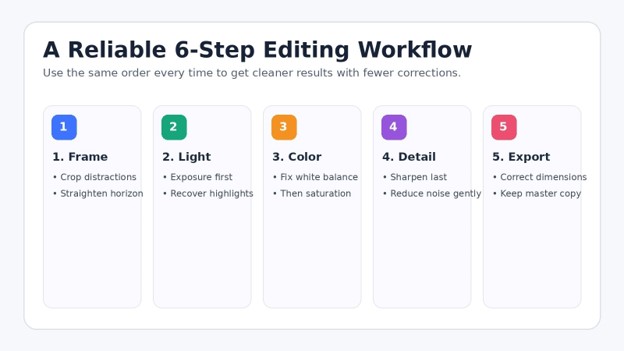
Good editing is less about dramatic filters and more about making decisions in the right sequence. A consistent order reduces the chance that you will fix the same problem twice.
Crop and straighten: Remove empty edges, fix a tilted horizon and choose the final aspect ratio before you spend time fine-tuning details.
Correct exposure: Adjust overall brightness, then recover highlights and open shadows. Avoid pushing every slider to its limit.
Fix white balance: Correct photos that look too blue, yellow, green or magenta. Skin tones and neutral objects are useful references.
Tune contrast and color: Increase contrast carefully, then adjust saturation or vibrance. Color should support the subject rather than overpower it.
Retouch distractions: Remove dust, small blemishes or unwanted objects only after the image’s overall tone is stable.
Sharpen and reduce noise: Do both at 100% zoom. Over-sharpening creates halos; aggressive denoising can make faces look plastic.
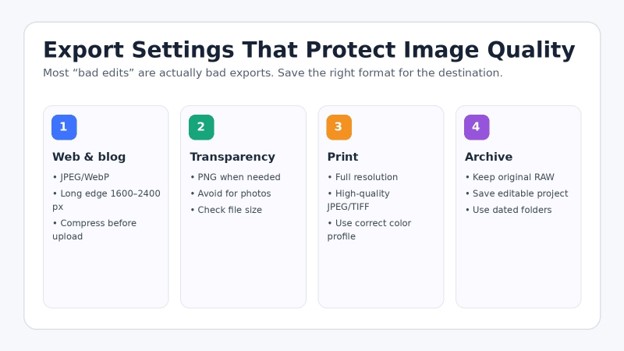
Export for the destination: Web, social, print and archive copies need different dimensions and compression settings.
The 15 Best Free Photo Editing Apps for 2026
- Snapseed – Best Free Mobile Editor for Serious Photo Adjustments
For phone photographers, Snapseed is one of the strongest entries in the Best free photo editing apps 2026 list because it combines a clean interface with unusually deep controls. Google’s current Play listing says the app includes 30+ professional tools and filters, RAW support, non-destructive editing, smart masking and batch editing, with no subscriptions, purchases, ads or watermarks.
Best for: travel photos, portraits, food, everyday phone photography.
Standout tools: selective adjustments, curves, healing, perspective, RAW development and masking.
Watch for: it is an editor, not a template-driven social design suite.
Official resource: Official Snapseed listing
- Photopea – Best Free Browser Alternative to Photoshop
Photopea runs in a browser and is built around the layer-based editing model familiar to Photoshop users. The official site says files are processed locally on your device rather than uploaded, and it supports advanced work such as layers, masks and blending. That makes it useful when you need precise control but cannot install desktop software.
Best for: PSD-style work, thumbnails, cutouts, layered composites and quick client edits.
Standout tools: layers, masks, selections, blending, text and broad format support.
Watch for: the interface is denser than beginner-first mobile apps.
Official resource: Photopea
- GIMP – Best Open-Source Desktop Editor
GIMP remains a heavyweight free desktop editor. In March 2026 the project released GIMP 3.2, adding improvements including new non-destructive layer capabilities and vector-layer support. It is a strong choice when you want a free application you can keep using without subscription pressure.
Best for: detailed retouching, compositing, web graphics and advanced desktop work.
Standout tools: layers, masks, selections, plugins, color tools and extensibility.
Watch for: the learning curve is steeper than Canva, Snapseed or Adobe Express.
Official resource: GIMP
- Canva – Best for Photo Editing Plus Social Design
Canva belongs on a Best free photo editing apps 2026 roundup because many small businesses and creators do not need a pure photo editor; they need an edited photo inside a finished post, flyer, cover or ad. Canva’s official photo-editor page says the free editor supports crop, filters, adjustments and exports without a watermark, while premium features such as Background Remover and Magic Eraser require paid access.
Best for: social posts, thumbnails, promotional graphics and fast resizing.
Standout tools: templates, text, stickers, frames, auto-adjust and easy collaboration.
Watch for: advanced retouching and some AI tools sit behind premium plans.
Official resource: Canva Photo Editor
- Adobe Express – Best for Fast Branded Content
Adobe Express combines basic image editing with templates, stock assets and content creation. Adobe’s July 2026 free-plan documentation lists standard photo, video and document editing tools, 100,000+ static and video templates, 4,000+ fonts and 5 GB of storage on the free plan.
Best for: branded posts, simple marketing visuals and users who like Adobe’s ecosystem.
Standout tools: quick adjustments, collage creation, text, templates and social formats.
Watch for: premium assets and advanced capabilities remain plan-dependent.
Official resource: Adobe Express Free plan
- Pixlr – Best for Quick Browser Editing with AI Extras
Pixlr offers browser, desktop and mobile editing with a broad set of quick adjustments and AI-powered tools. Its current pricing page emphasizes paid tiers for ad-free use, unlimited saves and larger AI-credit allowances, so free users should treat AI capacity and premium assets as limited resources rather than assume everything is unlimited.
Best for: fast browser edits, object removal experiments and occasional design work.
Standout tools: browser editing, AI generation/editing options and familiar adjustment controls.
Watch for: feature availability and AI credits can change across plans.
Official resource: Pixlr
- Picsart – Best for Creative Effects and Social-First Editing
Picsart is designed for creators who want filters, cutouts, effects, text and AI-assisted transformations in one place. Its official editor page states that many photo-editing and AI tools are available free, while premium capabilities and usage limits vary.
Best for: reels covers, stylized portraits, social visuals and quick background work.
Standout tools: effects, stickers, AI-assisted edits, templates and mobile convenience.
Watch for: highly stylized tools can tempt beginners to over-edit.
Official resource: Picsart Photo Editor
- BeFunky – Best for Beginners Who Want Simple Controls
BeFunky is useful when you want obvious tools and a shallow learning curve. Its May 2026 help documentation says you can use BeFunky for free and even access 100+ digital effects without creating an account; premium effects, Background Remover and AI Photo Enhancer require paid tiers.
Best for: quick corrections, casual collages and beginners.
Standout tools: simple adjustments, effects and easy exports.
Watch for: premium AI and advanced features are not part of the free tier.
Official resource: BeFunky pricing
- Fotor – Best for One-Click Improvements and Templates
Fotor’s Basic plan is listed as free forever and includes basic editing tools, basic templates and collage features, limited free credits and 512 MB of cloud storage. Its pricing page also notes limitations around export quality and watermarks for the free tier, so check your final file before building a recurring workflow around it.
Best for: quick enhancements, collages and lightweight marketing graphics.
Standout tools: approachable interface and one-click improvements.
Watch for: export and AI limitations on the free plan.
Official resource: Fotor pricing
- darktable – Best Free Lightroom-Style RAW Workflow
Photographers shooting RAW should not judge the Best free photo editing apps 2026 only by phone filters. darktable is an open-source photography workflow application and RAW developer built around non-destructive editing. The project released darktable 5.6.1 in August 2026, and its feature set is aimed at organizing and developing large collections of digital negatives.
Best for: RAW photographers, large shoots and non-destructive workflows.
Standout tools: RAW development, cataloging, color controls and efficient image pipelines.
Watch for: the interface assumes you are willing to learn photography concepts.
Official resource: darktable
- RawTherapee – Best for Maximum RAW Image Quality Control
RawTherapee is a free, cross-platform RAW processing system. Version 5.13 was released in July 2026, and the project highlights a non-destructive 32-bit floating-point engine, advanced demosaicing, detailed color controls and broad camera support. It is excellent when image quality matters more than speed of learning.
Best for: demanding RAW development and photographers who enjoy technical control.
Standout tools: demosaicing, detail recovery, color tools, lens corrections and batch processing.
Watch for: beginners may need time with RawPedia or tutorials.
Official resource: RawTherapee
- Krita – Best for Painting, Compositing and Photo-Based Artwork
Krita is primarily a professional free and open-source painting program, but it is also useful for photo-based composites, texture work and creative edits when brush control matters. The project continued active releases in 2026, making it a strong companion app for creators who mix photography with illustration.
Best for: digital art, paintovers, thumbnails, concept work and photo composites.
Standout tools: brushes, layers, masks, selections and painting-focused workflows.
Watch for: it is not designed as a dedicated RAW-management tool.
Official resource: Krita
- LunaPic – Best No-Signup Browser Editor
LunaPic is a useful emergency tool when you need a quick edit on a machine where you cannot install software or create an account. The official editor says it is completely free and requires no signup, login or installation, with crop, transparency, text, effects, background removal, object removal and other utilities available in the browser.
Best for: one-off edits, simple transparency jobs and quick effects.
Standout tools: no-signup access and a surprisingly large utility menu.
Watch for: the interface is functional rather than modern.
Official resource: LunaPic
- Polarr – Best for Filters and Selective Mobile Adjustments
Polarr focuses on filters, selective masks, retouching and detailed color work. Its current materials list selective AI objects, brush/radial/gradient masks, HSL, curves, LUTs and retouching. Free access exists, but some exports or premium tools can involve ads, subscriptions or platform-specific rules, so verify the exact behavior on your device.
Best for: color styling, filter creation and selective edits.
Standout tools: masks, HSL, curves, LUT support and retouching.
Watch for: free-plan mechanics can differ by platform and product version.
Official resource: Polarr
- Built-In Photos Editors – Best Zero-Setup Option for Basic Fixes
One option is often ignored in Best free photo editing apps 2026 lists: the editor already on your phone or computer. Apple Photos, Google Photos and Windows Photos can handle many everyday tasks such as crop, rotate, exposure, contrast, color and simple filters without adding another account or app.
Best for: fast corrections when you do not need layers, templates or advanced retouching.
Standout advantage: no extra learning curve and files stay in your existing photo library.
Watch for: advanced selections, layer compositing and pro RAW workflows are limited compared with dedicated editors.
Official resource: Google Photos
| 💡 Quick Hack: For product photos, create one “master edit” with correct exposure, white balance and crop. Duplicate that look across similar photos instead of starting from zero. Consistency usually looks more professional than making every image individually dramatic. |
Which Free Photo Editor Should You Pick?
The most useful way to interpret the Best free photo editing apps 2026 is by scenario. The “best” app changes depending on what you are trying to publish and how much control you need.
For Instagram, Facebook and Pinterest: Start with Snapseed for photo correction, then move the finished image into Canva or Adobe Express for text, logos and platform sizing.
For YouTube thumbnails: Use Canva for speed; use Photopea or GIMP when you need precise cutouts, layered effects or custom compositing.
For e-commerce product photos: Use Photopea or GIMP for careful cutouts and retouching. Use a template-first app only after the product image itself is clean and consistent.
For DSLR or mirrorless RAW files: Choose darktable or RawTherapee. Both preserve a non-destructive workflow and give you much more control than social-media editors.
For editing on a weak laptop: Try browser tools for occasional work, but remember that large files still use your device resources. Snapseed on a capable phone may actually feel faster for simple jobs.
For complete beginners: Start with Snapseed, Canva, Adobe Express or BeFunky. Learn exposure, white balance, crop and export before moving into complex masking.
5 Common Photo Editing Mistakes to Avoid
Even the Best free photo editing apps 2026 cannot rescue a workflow built on bad habits. These five errors cause more quality problems than missing premium features.
Overusing saturation: Bright color can look impressive for two seconds and unnatural for much longer. Increase color slowly, and compare against the original before export.
Sharpening before resizing: A file sharpened aggressively at full size may look crunchy after a social platform downsizes it. Resize first when possible, then apply modest output sharpening.
Editing the wrong brightness: If your display is extremely bright, you may create images that look too dark everywhere else. Keep screen brightness reasonable and check important work on another device.
Saving over the original: Keep an untouched original or RAW file. Free editors are easy to experiment with only when you can return to the source image.
Ignoring export settings: A beautiful edit can be ruined by extreme JPEG compression, the wrong dimensions or repeated re-saving. Export a fresh copy from the master project whenever possible.
Advanced Tips and Next-Level Hacks
| 💡 Quick Hack: Use “reference images.” Keep two or three professionally edited photos in the same niche open beside your work. Compare brightness, skin tone, background cleanliness and contrast. You are not copying the image; you are calibrating your eye. |
| Pro-Tip: Learn masks before buying more software. A mask lets you brighten a face without brightening the sky, cool a background without changing skin tone, or sharpen a product while leaving smooth surfaces alone. Selective editing creates a bigger quality jump than most premium filters. |
| 💡 Quick Hack: Create export presets by destination: one for website images, one for Instagram or other social posts, and one full-resolution archive copy. Naming them clearly prevents last-minute guesswork. |
| Pro-Tip: For brand consistency, save a small style note with your preferred crop ratios, exposure approach, warmth, contrast, font choices and logo spacing. Free tools become much more powerful when the decisions are standardized. |
| 💡 Quick Hack: Use open-source desktop tools for the expensive part of the workflow. GIMP, darktable and RawTherapee can cover tasks that often push users toward subscriptions, while Canva or a built-in phone editor can handle presentation and quick delivery. |
Troubleshooting & Maintenance Guide
When one of the Best free photo editing apps 2026 behaves badly, the problem is often the file, device memory, browser cache, color profile or export choice rather than the editor itself. Use the fixes below before abandoning your workflow.
The app becomes slow or crashes: Close other memory-heavy apps, reduce the number of open layers, work from local storage, and try a smaller proxy copy for design work. Keep the high-resolution master for final export.
The exported photo looks blurry: Check pixel dimensions, make sure you did not enlarge a small source image, and avoid downloading a preview-size file. Social platforms may also recompress uploads.
Colors look different after export: Use a common web color space such as sRGB when the editor offers the choice. Check the file in a second browser or device before assuming the editor changed the image incorrectly.
A free tool adds a watermark: Do not build a long workflow before testing one full export. Free-plan rules change. Export a sample on day one and confirm watermark, resolution and file-format behavior.
Background removal looks rough: Zoom in and refine hair, transparent edges and reflective products manually. One-click AI works best with strong subject/background separation, not every photo.
The browser editor will not open a large file: Try a desktop editor such as GIMP, darktable or RawTherapee, or create a smaller working copy. Browser tools still depend on available RAM and GPU resources.
Edits look too strong the next morning: Use a “cool-off” pass. Save the edit, walk away, then review it later beside the original. Reduce any effect that draws attention to the editing rather than the subject.
How to Maintain a Free Editing Workflow Long Term
Keep originals in a separate, backed-up folder.
Save editable project files for images you may revise later.
Review free-plan limits every few months because AI credits, watermark rules and export caps can change.
Update desktop editors such as GIMP, darktable, RawTherapee and Krita so you receive bug fixes and camera-support improvements.
Archive brand presets, LUTs, templates and export settings in a clearly labeled folder.
Test major app updates on copies of important files before changing your production workflow.
A 30-Minute Beginner Practice Project
If you are new to editing, do not learn by watching tools you never touch. Take one imperfect photo and complete this exercise.
Minutes 0-5: duplicate the original and crop for the final platform.
Minutes 5-10: correct exposure and white balance without touching filters.
Minutes 10-15: adjust contrast, highlights and shadows.
Minutes 15-20: use one local or selective adjustment on the subject.
Minutes 20-25: clean one distraction, then add gentle sharpening.
Minutes 25-30: export a web copy and compare it with the original on another device.
Do this exercise in two of the Best free photo editing apps 2026, then keep the editor that feels faster and more predictable. That small test is more useful than comparing fifty features you may never use.
Frequently Asked Questions
What is the best completely free photo editing app?
For mobile users, Snapseed is unusually generous because Google’s current listing describes 30+ tools, RAW support, non-destructive editing and no subscriptions, purchases, ads or watermarks. For desktop users who want open-source software, GIMP is the stronger general-purpose editor.
What is the best free photo editor without a watermark?
Snapseed is a strong mobile choice, and Canva’s official photo-editor page states that its free photo editor does not add a watermark to edited photos. Always test export behavior because some templates, stock assets or premium features can follow different rules.
Which free editor is closest to Photoshop?
Photopea is the easiest browser-based answer because it uses a layer-and-mask workflow and supports professional-style editing without installation. GIMP is the stronger open-source desktop alternative when you want a full installed application.
What is the best free app for RAW photos?
darktable and RawTherapee are the two strongest free desktop options in this guide. darktable combines catalog/workflow features with RAW development, while RawTherapee emphasizes detailed RAW processing and image-quality control.
Are free AI photo editors really free?
Usually only partly. Many tools allow some AI features or a small number of credits, then require a paid plan for heavier use, high-resolution output or premium models. Check the current pricing page before committing to an AI-heavy workflow.
Can I edit professional product photos with free software?
Yes. Photopea and GIMP can handle layers, masks, cutouts and detailed retouching, while Canva or Adobe Express can finish the image inside a social or advertising layout. Lighting and source-photo quality still matter more than the price of the editor.
Final Verdict: Build a Small Editing Stack, Not a Giant App Collection
The Best free photo editing apps 2026 are good enough for far more than casual filters. A practical stack might be Snapseed for mobile corrections, Canva or Adobe Express for social layouts, Photopea for browser-based layers, and GIMP, darktable or RawTherapee when you need deeper desktop control. Start with the job you do most often, learn one repeatable workflow, and add a second tool only when a real limitation appears.
Which editor are you using now, and what is the one feature you wish it handled better? Share your workflow in the comments – that answer is often more useful to other readers than a generic “best app” ranking.
2026 Verification Notes & Official Sources
Free-plan details can change. The key 2026 claims in this guide were checked against current official product pages and project sites. Re-check these pages before publishing a major update or quoting plan limits in ads or sales material.
editor's pick
latest video
news via inbox
Nulla turp dis cursus. Integer liberos euismod pretium faucibua