How to Choose a Laptop: Step-by-Step Guide
Buying a laptop is easy. Buying the right laptop—one that still feels fast, comfortable, and useful three years from now—is where people lose money. This guide explains how to choose a laptop by working backward from what you actually do, then matching your budget to the processor, memory, storage, screen, battery, ports, and build quality that matter most.
You will leave with a repeatable buying process rather than a list of trendy model names. That matters because product lines change constantly, while the logic behind a smart laptop purchase stays useful for years.
Quick Answer: How Do You Choose the Right Laptop?
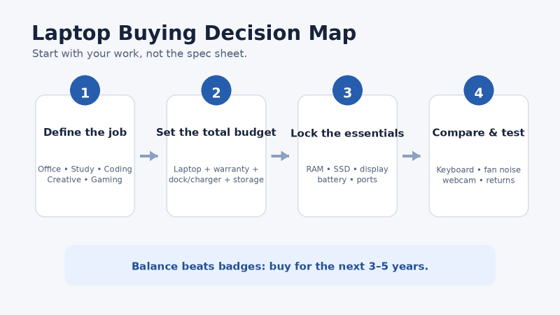
To choose the right laptop, define your heaviest workload, set a total budget, pick an operating system, then prioritize RAM, SSD capacity, display quality, battery life, ports, and build. Compare two or three finalists and test keyboard comfort, fan noise, webcam quality, and return terms before committing.
Essential Tools & Materials Before You Shop
You do not need technical equipment to make a good laptop decision. You need a few simple tools that force you to compare machines on the same terms instead of getting distracted by badges, discounts, and marketing language.
| Tool or material | Why you need it | Estimated cost | Skill level |
| Notes app or spreadsheet | Compare price, RAM, SSD, weight, ports, warranty, and return policy side by side | $0 | Beginner |
| Measuring tape or ruler | Check whether a 14-, 15-, or 16-inch chassis fits your bag and desk | 3–8 | Beginner |
| Your current charger/peripherals | Verify USB-C charging, HDMI, USB-A, headset, mouse, SD card, and dock compatibility | Already owned | Beginner |
| Headphones or wired headset | Test jack placement, audio noise, and conferencing comfort in-store | Already owned | Beginner |
| Browser access to support pages | Confirm upgradeability, driver support, warranty, and operating-system requirements | $0 | Beginner |
| 15-minute return-window checklist | Test keyboard, trackpad, fan noise, battery drain, webcam, sleep/wake, and ports after purchase | $0 | Beginner |
The most important “tool” is a written priority list. If you cannot rank your top five needs before opening a retailer page, every premium feature will start to look essential.
💡 Quick Hack: Write down the three things that annoy you most about your current computer. If it is slow with many tabs, prioritize memory. If the screen is dim, prioritize display quality. If you are always hunting for outlets, prioritize battery and USB-C charging. This converts vague dissatisfaction into buying criteria.
Define What the Laptop Must Actually Do
The first step in how to choose a laptop is to identify the heaviest normal task you expect to perform, not the easiest one. Almost every modern laptop can handle email, web browsing, documents, and streaming. The useful differences appear when you edit video, compile code, run virtual machines, play games, manipulate large spreadsheets, process photos, or keep dozens of browser tabs open.
Create three workload buckets:
Daily tasks: email, browsing, office documents, calls, streaming, research.
Heavy weekly tasks: video editing, coding, gaming, design, data analysis, large file transfers.
Future tasks: anything you realistically expect to add within the next two or three years.
Do not pay for an extreme workload you will never run. A student who occasionally edits a short 1080p video does not need the same machine as a creator exporting 4K projects every day.
Match the laptop class to the workload
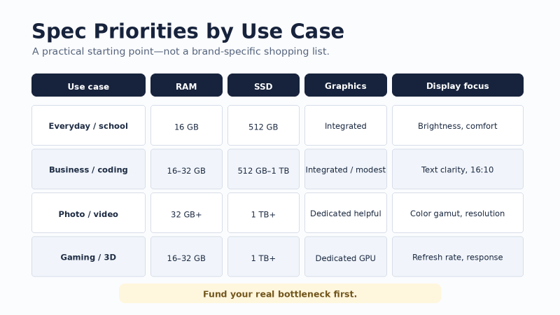
Basic productivity: Look for a balanced thin-and-light laptop with 16 GB of memory, a 512 GB SSD, an efficient current-generation processor, a good 1080p-or-better display, and strong battery life.
Business and coding: Prioritize keyboard quality, 16–32 GB of memory, 512 GB–1 TB of SSD storage, a sharp 16:10 display, dependable Wi-Fi, good webcam/microphone quality, and enough ports for a dock or external monitor.
Creative work: Photo, video, 3D, music, and design workflows benefit from more memory, larger SSDs, color-accurate displays, stronger sustained CPU performance, and—in some applications—a dedicated GPU.
Gaming: GPU performance, cooling, power limits, display refresh rate, and upgradeable storage often matter more than thinness. A fast processor paired with a weak GPU is rarely a smart gaming balance.
💡 Quick Hack: Build your shortlist around your “worst normal Tuesday.” If that day includes a video call, 25 browser tabs, a spreadsheet, music, and photo editing at the same time, shop for that scenario. It is more realistic than buying around a single benchmark score.
Set the Real Budget, Not Just the Sticker Price
A laptop budget should include everything required to use the machine comfortably. A $900 laptop that needs a $90 charger, $120 dock, and $100 storage upgrade may be a worse value than a $1,050 model that already includes the ports and capacity you need.
Divide your budget into four lines:
Laptop: the machine itself.
Immediate accessories: sleeve, mouse, USB-C charger, hub, dock, or external storage.
Protection: extended warranty or accidental-damage coverage if it makes sense for your risk level.
Software: paid office apps, creative subscriptions, antivirus if required by your environment, or specialist tools.
When learning how to choose a laptop, this “total ownership cost” mindset prevents a common trap: spending every dollar on a slightly faster processor and then living with too little storage, a poor screen, or missing ports.
Where to spend first
For most general users, spend in this order:
Enough RAM for your workload.
Enough SSD storage that you are not constantly deleting files.
A display you can comfortably look at for hours.
Battery life and charging convenience.
Keyboard, trackpad, webcam, and build quality.
Extra processor/GPU performance beyond what your work needs.
There are exceptions. Gaming and 3D users should move GPU performance near the top. Travelers may rank weight and battery above storage. The point is to rank your bottlenecks before you compare prices.
Choose the Operating System Before the Hardware
The operating system determines software compatibility, workflow, repair options, device integration, and sometimes the entire hardware shortlist.
Windows
Windows gives you the broadest range of laptop sizes, price points, gaming hardware, business features, ports, and repair options. Before buying an older used or refurbished Windows laptop, confirm that it meets Microsoft’s official Windows 11 system requirements, especially processor support, TPM, memory, storage, and firmware requirements.
Windows is a practical choice for gamers, engineering software, corporate environments, and buyers who want the widest hardware selection.
macOS
A Mac laptop makes sense when you already use Apple devices, prefer macOS-specific creative tools, or value the platform’s tightly integrated hardware and software experience. Pay close attention to memory and SSD capacity at purchase because many modern models are not user-upgradeable.
ChromeOS
Chromebooks are strong for browser-first work, education, cloud apps, and users who prioritize simplicity and battery life. Confirm that your essential software has a web, Android, or Linux-compatible workflow before switching.
Linux
Linux can be excellent for development and technical work, but compatibility varies by Wi-Fi chip, fingerprint reader, graphics hardware, sleep behavior, and vendor support. Buyers who want Linux should check the exact model—not just the product family—against community or manufacturer compatibility information.
Pro-Tip: Make a “must-run software” list before you shop. If one required application only works reliably on one platform, your operating-system decision is already made and you can stop comparing incompatible machines.
Understand the Processor Without Getting Trapped by Badges
Processor names are designed to differentiate products, not to make shopping easy. Generational changes, power limits, core configurations, thermal design, and manufacturer tuning can make two laptops with similarly branded processors behave very differently.
For how to choose a laptop intelligently, focus on four questions:
Is the processor from a reasonably current platform?
Is it designed for efficient thin-and-light use or high-performance sustained workloads?
Does the laptop’s cooling system allow it to sustain performance?
Is the processor fast enough for your software without forcing compromises elsewhere?
Everyday users
Modern midrange processors are usually more than adequate for office work, browsing, streaming, video calls, and light photo editing. You will often notice more benefit from 16 GB of RAM, a better screen, and a fast SSD than from paying for the highest CPU tier.
Creators, developers, and analysts
Sustained performance matters when compiling code, rendering, exporting video, running virtual machines, analyzing large data sets, or applying heavy filters. Look beyond burst benchmark scores and check whether reviews report throttling, loud fan behavior, or major performance drops on battery power.
Gaming and GPU-heavy work
In a gaming laptop, the GPU, cooling system, and power configuration often determine real-world frame rates more than the CPU badge. For 3D, AI, CAD, and certain video workflows, software acceleration support can be as important as raw performance.
Get RAM and Storage Right the First Time
Memory and storage are two of the easiest specifications to understand—and two of the most expensive to regret later.
How much RAM do you need?
For a new mainstream laptop, 16 GB is the practical starting point for most buyers who want comfortable multitasking and useful longevity. Light browser-only users may manage with less, but 8 GB can become restrictive once you combine modern browsers, office apps, messaging, video calls, and background services.
Consider 32 GB or more if you regularly edit high-resolution media, run virtual machines, work with large development environments, use professional creative software, analyze large data sets, or keep exceptionally heavy multitasking sessions open.
The key question is upgradeability. Some laptops have soldered memory, some have one replaceable module, and others have two slots. Check the service manual or manufacturer support page for the exact configuration before assuming you can upgrade later.
How much SSD storage do you need?
A 512 GB SSD is a sensible minimum for many mainstream users. It leaves room for the operating system, apps, updates, local files, and a reasonable media library without constant cleanup.
Choose 1 TB or more if you store games, RAW photos, video projects, virtual machines, large code repositories, or offline media. External SSDs are useful, but they do not replace convenient internal storage for apps and frequently used files.
💡 Quick Hack: If your budget forces a choice between a slightly faster processor and moving from 8 GB to 16 GB RAM or 256 GB to 512 GB SSD, the memory/storage upgrade often produces the more noticeable day-to-day improvement for mainstream workloads.
Choose the Display You Can Live With for Years
People obsess over processors, then spend thousands of hours looking at the screen they barely researched. The display affects comfort, battery life, portability, image quality, and how much information fits on the screen.
When deciding how to choose a laptop, evaluate six display characteristics: size, aspect ratio, resolution, brightness, panel technology, and refresh rate.
Screen size
13–14 inches: Best for mobility, commuting, travel, and compact desks. A 14-inch laptop often provides an excellent balance between usable workspace and portability.
15–16 inches: Better for split-screen work, spreadsheets, editing timelines, and users who rarely carry the laptop all day. The tradeoff is more weight and a larger bag footprint.
17 inches and above: More desktop-like, but usually less convenient for frequent travel.
Aspect ratio
A 16:10 or 3:2 screen gives more vertical space than a traditional 16:9 panel. That extra height is useful for documents, web pages, code, spreadsheets, and editing interfaces.
Resolution
1080p-class resolution is still usable, especially on smaller screens, but higher-resolution panels can improve text sharpness and workspace. The tradeoff is battery consumption and, sometimes, price.
IPS vs OLED
IPS LCD panels can offer excellent brightness, color, and battery efficiency without OLED’s burn-in concerns. Quality varies widely, so “IPS” alone is not a guarantee of a good screen.
OLED delivers deep blacks, high contrast, and vivid color. It is attractive for media and creative work, but may consume more power with bright content and can have different text rendering or flicker characteristics depending on implementation.
Refresh rate
60 Hz is fine for office work. Higher refresh rates make scrolling and motion look smoother and are especially useful for gaming. Do not pay for a 240 Hz panel if you would benefit more from brightness, color accuracy, battery life, or resolution.
Judge the Keyboard, Trackpad, Build, and Portability
A laptop can have perfect specifications and still be unpleasant to use. Another practical part of how to choose a laptop is judging keyboard layout, key travel, trackpad accuracy, palm-rest comfort, hinge stability, chassis flex, surface temperature, and fan behavior as everyday quality-of-life features.
Keyboard checklist
Confirm the arrow-key layout does not bother you.
Check whether you need a numeric keypad.
Test backlight brightness and whether it has multiple levels.
Look for a comfortable key feel rather than chasing a specific travel number.
Confirm function-key behavior matches your workflow.
Trackpad checklist
A good trackpad should click consistently, reject accidental palm input, support smooth gestures, and remain stable at the corners. If you use the laptop without a mouse often, this matters more than a small benchmark difference.
Weight and charger weight
Manufacturers advertise laptop weight, but travelers carry the charger too. A 1.4 kg laptop with a bulky 500 g power brick can feel less portable than a slightly heavier laptop that charges from a compact USB-C adapter.
💡 Quick Hack: Put the laptop dimensions into your bag before buying—literally. Cut a piece of cardboard to the advertised width and depth or measure your existing laptop against your bag. This prevents the common surprise that a “15-inch” machine does not fit a sleeve designed around a different chassis shape.
Treat Battery Life Claims as a Starting Point
Battery-life claims are useful for comparing a manufacturer’s own lineup, but real use changes dramatically with screen brightness, refresh rate, browser load, video calls, background apps, cellular radios, creative work, gaming, and power mode.
For how to choose a laptop around mobility, look for independent tests that resemble your workload. A machine that lasts 15 hours in video playback may last far less during video calls, coding, or high-brightness web work.
Also check charging behavior:
Does the laptop charge over USB-C?
What wattage is required for full-speed charging?
Can it charge from both sides?
Does the included charger use a detachable cable?
Can a monitor or dock provide enough USB Power Delivery wattage?
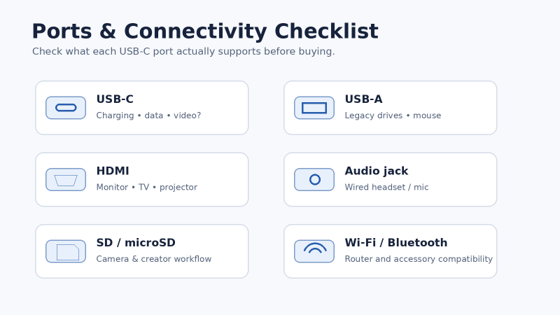
USB-C is a connector shape, not a guarantee that every port supports the same features. The USB Implementers Forum’s USB Type-C cable and connector specification explains the connector standard; laptop manufacturers still need to specify whether an individual port supports charging, video output, and particular data speeds.
If energy efficiency matters, ENERGY STAR certified computers can be another useful comparison point when you are evaluating similar systems.
Check Ports Before You Need Them
Port problems usually appear after the return window closes. You connect a projector and discover there is no HDMI. You buy a USB-C monitor and learn the port does not support video. You import photos and realize the laptop lacks an SD reader.
The best way to understand how to choose a laptop for your setup is to list everything you connect in a normal month:
External monitor or TV
USB-A flash drive or hard drive
USB-C dock
Wired headset
Microphone or audio interface
Camera SD card
Ethernet adapter
Mouse and keyboard receiver
Phone charging cable
External SSD
Wi-Fi and Bluetooth
Newer Wi-Fi standards can improve performance when paired with a compatible router and network conditions, but a newer number alone will not fix weak home coverage or congested internet service. Prioritize a stable wireless implementation and good driver support.
For Bluetooth accessories, check whether your headset, mouse, controller, or hearing device has specific version or codec requirements.
Pro-Tip: If you expect to dock at a desk, price the dock before buying the laptop. A model with two full-featured USB-C ports may save you from an expensive proprietary dock or a pile of adapters.
Evaluate Webcam, Microphones, Speakers, and Security
Remote work turned webcams and microphones from “nice extras” into everyday tools. Look for a webcam that handles typical indoor lighting, microphones that do not sound hollow or aggressively processed, and speakers that remain intelligible at moderate volume.
Useful privacy and security features include:
Physical webcam shutter
Fingerprint reader
Face recognition where supported
TPM/security hardware on Windows systems
Firmware and driver update support
Business-class manageability if required by your organization

A security feature is only valuable if it works reliably. Test the fingerprint reader or face unlock during the return period rather than assuming the presence of a sensor guarantees a good experience.
Shortlist Three Laptops and Compare Them Side by Side
Once you know your needs, how to choose a laptop becomes a comparison exercise instead of endless browsing. Pick three finalists: the value option, the balanced option, and the premium option.
Create a comparison table with these rows:
Final price
Processor platform
RAM amount and upgradeability
SSD capacity and upgradeability
Display size, resolution, brightness, and refresh rate
Weight plus charger weight
Battery test results from reputable reviewers
USB-C capabilities
HDMI/USB-A/SD/audio ports
Webcam resolution and privacy shutter
Keyboard and trackpad notes
Warranty length
Return window
Repairability/service access
Then ask one decisive question: What does the more expensive model solve? If the answer is “a better badge” rather than a real problem—more battery, more memory, better display, quieter cooling, stronger GPU, better keyboard—the upgrade may not be worth it.
For model-specific recommendations after you finish this process, link readers to MyFlexBots’ guide to the best laptops 2026.
Test the Laptop Aggressively During the Return Window
The purchase is not finished when the box arrives. The return period is your real-world test lab.
During the first two days:
Install all operating-system, firmware, and driver updates.
Run your normal browser tab load and office apps.
Join a video call and check webcam, microphone, speakers, and Wi-Fi.
Plug in every accessory you commonly use.
Test sleep, wake, lid close, and external monitor behavior.
Run your heaviest normal workload for 30–60 minutes.
Listen for fan whine and check keyboard/palm-rest heat.
Use it away from the charger long enough to estimate realistic battery drain.
Inspect the display for dead pixels, uneven backlight, or distracting reflections.
Confirm warranty registration and save the receipt.
This is one of the most overlooked parts of how to choose a laptop because people treat a new machine as a commitment rather than a product still being evaluated.
💡 Quick Hack: Do not migrate every file on day one. Install only your critical apps and test the machine first. If it fails your comfort or performance checks, returning it is much easier when you have not spent a weekend fully moving in.
Common Mistakes to Avoid
- Buying the highest processor tier and starving everything else
A premium CPU paired with 8 GB RAM, a tiny SSD, dim display, or weak battery can be a worse everyday laptop than a midrange CPU in a better-balanced machine. Performance should solve a workload, not serve as a trophy specification.
- Assuming every USB-C port does everything
USB-C describes the connector. Charging, display output, data rates, and high-power delivery vary. Read the exact port specifications for the exact model.
- Ignoring upgradeability
Soldered RAM and storage are not automatically bad, but they make the original configuration more important. If neither can be upgraded, buy enough capacity up front for the realistic life of the machine.
- Shopping only from a retailer specification table
Retail listings can omit display brightness, port capabilities, RAM configuration, battery capacity, or exact model suffixes. Cross-check the manufacturer’s support page and service documentation.
- Keeping a laptop you already dislike
A stiff trackpad, noisy fan, uncomfortable keyboard, poor webcam, unstable Wi-Fi, or distracting screen reflection will not become less annoying because the benchmark score is good. Use the return window.
Advanced Tips and Next-Level Laptop Buying Hacks
Once you understand how to choose a laptop at the basic level, these deeper checks can separate a good purchase from a genuinely excellent one.
Check RAM configuration, not just capacity
Two laptops can both advertise 16 GB while using different memory layouts. In some architectures, channel configuration and memory speed affect integrated graphics and system performance. Manufacturer service manuals and serious reviews can reveal the details.
Check sustained performance, not only peak performance
Thin laptops may benchmark well for a short burst and then reduce power as temperatures rise. If your workload runs for 20 minutes or longer, look for sustained test results and fan-noise measurements.
Investigate the exact display panel
The same laptop family can ship with multiple display options. A product page saying “FHD IPS” tells you little about brightness, color gamut, contrast, response time, or power consumption.
Compare replacement charger cost
If you travel frequently, a second charger is useful. Standard USB-C Power Delivery can make replacements cheaper and easier, but high-performance laptops may need higher wattage or proprietary connectors under full load.
Read the service manual before buying
A service manual can reveal whether the SSD is replaceable, whether there is a second storage slot, how difficult battery replacement is, and which wireless card is installed.
💡 Quick Hack: Search the model number plus “service manual PDF” before checkout. Five minutes of reading can answer questions a glossy product page never addresses.
Buy refurbished strategically
A good refurbished laptop can be excellent value when the seller provides a meaningful warranty, return period, clear cosmetic grading, and battery-health policy. Business-class laptops are often attractive used because replacement parts and service documentation can be easier to find.
For a used machine, verify battery health, charger condition, keyboard wear, display defects, USB port function, storage health, firmware password status, and operating-system eligibility before the return period ends.
Troubleshooting After Purchase: What to Fix and What to Return
Even a carefully chosen laptop may need setup work. Knowing how to choose a laptop also means knowing what can be fixed after purchase and what should trigger a return. The key is separating normal configuration issues from signs that the machine is a bad fit or defective.
Problem: The laptop feels slow immediately
Check first: operating-system updates, cloud sync, antivirus scans, search indexing, and vendor utilities. New machines often perform background setup for several hours.
Then open Task Manager, Activity Monitor, or your system’s equivalent and check CPU, memory, and storage pressure. If normal use immediately fills the available memory and you cannot upgrade it, returning for a higher-memory configuration may be smarter than trying to optimize around a permanent limitation.
Problem: Battery life is much worse than expected
Reduce display brightness, check refresh rate, disable unnecessary startup apps, and identify background processes. Video conferencing, browser-heavy work, high-performance mode, and dedicated GPU activity can reduce runtime quickly.
If battery drain remains abnormal after updates and a few charge cycles, compare it with independent reviews. A dramatically worse result can indicate a software issue or defective battery.
Problem: The fan is always loud
Update firmware, check power mode, and inspect background processes. Some laptops prioritize aggressive cooling by design. If fan character—not just volume—is irritating, return it; high-pitched tonal noise is hard to “optimize away.”
Problem: The laptop runs hot
Warm surfaces during charging or heavy work can be normal. Persistent high temperatures at idle are not. Confirm vents are unobstructed, remove unnecessary background apps, update firmware, and avoid soft surfaces that block intake vents.
Problem: Wi-Fi drops or Bluetooth stutters
Update wireless drivers and router firmware, test another network, and separate laptop problems from home-network problems. If the exact laptop repeatedly fails where other devices are stable, document the behavior while you are still within the return window.
Problem: Storage fills faster than expected
Move archives and large media to external storage or cloud storage, but first determine whether your normal workload fundamentally exceeds the internal drive. If a 256 GB SSD is already cramped in week one, that capacity was probably too small.
Before major changes, follow a reliable backup routine. MyFlexBots has a full guide on how to back up your computer.
Long-Term Maintenance: Keep the Laptop Fast and Healthy
A well-chosen laptop can stay pleasant for years if you maintain it deliberately.
Monthly
Install operating-system and browser updates.
Review free storage space.
Remove software you no longer use.
Check backups.
Clean the screen and keyboard with appropriate materials.
Every 3–6 months
Check firmware and driver updates from the manufacturer.
Inspect charging cables for damage.
Clean external vents with the laptop powered off.
Review battery health statistics.
Audit startup apps and browser extensions.
Yearly
Reassess backup capacity.
Replace a worn charger or cable before it becomes unreliable.
Consider a professional internal cleaning if the machine operates in a dusty environment and the design allows service.
Review whether your workflow has changed enough to justify a RAM/SSD upgrade on serviceable models.
If the laptop is mainly for productivity and business, pair good hardware with software that reduces repetitive work. MyFlexBots’ guide to the best AI tools for productivity is a useful next step after setup.
Frequently Asked Questions
How much should I spend on a good laptop?
There is no universal price because requirements vary by region and workload. Instead of starting with a price tier, define the minimum RAM, SSD, display, battery, and performance you need, then compare the cheapest models that meet all of those requirements. Spending more should solve a specific problem.
Is 8 GB RAM enough for a laptop?
It can be enough for light browsing, documents, and simple cloud workflows, but 16 GB is a more comfortable starting point for a new general-purpose laptop if you multitask, keep many browser tabs open, use video calls, or want the machine to age gracefully.
Is 512 GB SSD enough?
For many students, office users, and general home users, 512 GB is a practical baseline. Gamers, photographers, video editors, developers with virtual machines, and users who keep large local media libraries should strongly consider 1 TB or more.
What screen size is best for a laptop?
A 14-inch laptop is a strong balance for commuters and hybrid workers. A 15- or 16-inch model gives more workspace for spreadsheets, editing, and split-screen work. The best size depends on how often you carry the laptop versus how often it stays on a desk.
Should I buy a gaming laptop for normal work because it is more powerful?
Usually not. Gaming laptops trade battery life, weight, charger size, heat, and fan noise for GPU performance. If your normal work does not use the GPU, a quieter thin-and-light laptop may feel better every day.
What is the most important thing to check before buying a laptop?
The most important check is whether the complete configuration fits your real workload. That means enough memory and storage, a display you like, adequate battery, necessary ports, comfortable input devices, and software compatibility—not simply the fastest processor available at your budget.
Final Checklist: How to Choose a Laptop Without Regret
Before checkout, answer yes to these questions:
Does it run every must-have application?
Is the RAM enough for my heaviest normal workload?
Is the SSD large enough for at least the next few years?
Is the screen bright, sharp, and comfortable enough?
Does the keyboard layout suit me?
Can I carry the laptop and charger comfortably?
Does each USB-C port support the features I need?
Are HDMI, USB-A, audio, SD, or Ethernet needs covered?
Is the battery good enough for my real day?
Do I understand which components are upgradeable?
Is the warranty acceptable?
Is the return window long enough to test it properly?
The core lesson in how to choose a laptop is simple: buy for the work you actually do, protect the specifications you cannot upgrade, and test the parts you touch every day. A balanced laptop with the right screen, memory, battery, and ports will usually serve you better than a spec-sheet champion with one obvious weakness.
What matters most in your next laptop—battery life, performance, screen quality,
editor's pick
latest video
news via inbox
Nulla turp dis cursus. Integer liberos euismod pretium faucibua