
How to Back Up Your Computer: Step-by-Step Guide
A failed SSD, stolen laptop, accidental deletion, corrupted update, or ransomware attack can turn years of work into a recovery job you never wanted. Learning how to back up your computer is not about copying a few folders once; it is about building a repeatable system that gives you a clean way back when something goes wrong.
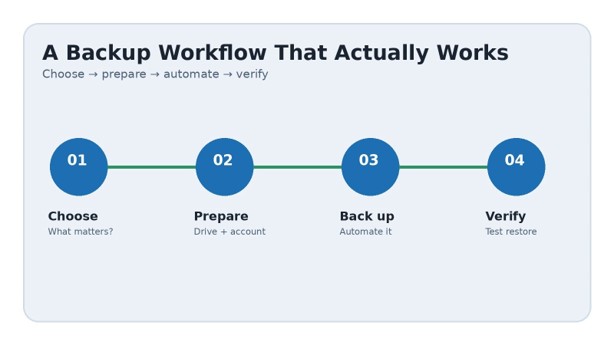
This guide shows you how to choose backup storage, protect Windows and Mac files, combine local and cloud copies, automate the routine, avoid common traps, and test a restore before you actually need it.
How to Back Up Your Computer: The Short Answer
The safest practical approach is to keep three copies of important data, on at least two types of storage, with one copy off-site. Use an external drive for fast local recovery, cloud storage or backup for off-site protection, automate both where possible, encrypt sensitive backups, and periodically restore a test file.
Why Backups Matter More Than You Think
Most people think of backup as protection against a dead hard drive. That is only one failure mode.
Your files can disappear because of:
Accidental deletion or overwriting
SSD or hard-drive failure
Theft or physical damage
Fire, flooding, or other disasters
Malware and ransomware
A failed operating-system update
Corrupted files or a damaged file system
Lost access to a device or account
Sync mistakes that replicate a bad change everywhere
The U.S. Cybersecurity and Infrastructure Security Agency recommends backing up data to a secure external drive or a properly vetted cloud service, and it warns that an external backup should not remain connected unnecessarily because ransomware can potentially reach connected backup media. citeturn2search0
The key distinction is backup versus sync. Sync keeps copies aligned across devices. A backup is designed to give you a recoverable historical copy. If you accidentally delete a synced folder, that deletion may propagate; a properly configured backup can preserve an earlier version.
Essential Tools & Materials for how to back up your computer
You do not need an expensive server to build a strong home backup system. Start with the storage you already have, then add redundancy as your data and risk increase.
| Tool or material | What it does | Typical cost | Skill level |
| External HDD, 2–4 TB | Affordable local backup and archive | $60–$120 | Beginner |
| External SSD, 1–4 TB | Faster, quieter portable backup | $80–$300+ | Beginner |
| Cloud storage | Off-site copy and file access | Free–$15+/month | Beginner |
| Dedicated cloud backup | Automated computer backup | $5–$20+/month | Beginner |
| USB flash drive | Small emergency file transfer | $10–$40 | Beginner |
| NAS | Central backup for several devices | $200–$1,000+ | Intermediate |
| Encryption | Protects backup contents if storage is lost | Often built in | Intermediate |
| UPS | Protects desktop backup jobs from abrupt power loss | $50–$250+ | Beginner |
| Password manager | Stores backup credentials and recovery information | Free–$60/year | Beginner |
Storage sizing rule: aim for a backup drive that is comfortably larger than the data you need to protect. For Mac users, Apple recommends a backup disk with at least twice the Mac’s storage capacity for Time Machine in its current guidance. citeturn0search0
HDD vs SSD for Backup
Choose an HDD when capacity per dollar matters most. A desktop photo archive or several years of documents can consume terabytes quickly, and HDDs remain economical for that job.
Choose an SSD when you frequently carry the backup, need faster transfers, or work with large video projects. SSDs have no moving parts, making them better suited to travel, but capacity can cost more.
Best practical setup: use a large HDD as your inexpensive local archive and an SSD for a smaller, frequently used working backup if your budget allows.
The 3-2-1 Rule: Your Backup Safety Net
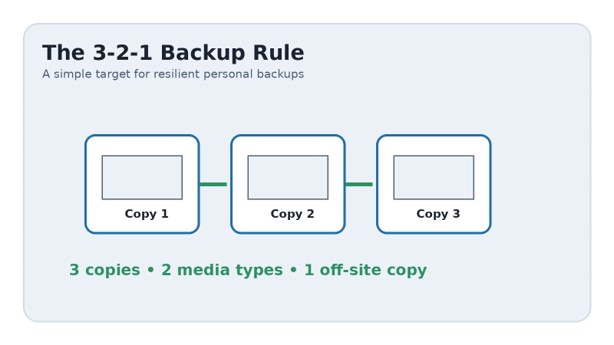
The 3-2-1 backup rule means:
Keep **3 copies** of important data.
Use **2 different storage media or systems**.
Keep **1 copy off-site**.
CISA materials also describe the 3-2-1 approach as three copies, two different media types, and one off-site copy. citeturn2search5turn2search6
For a home user, that could look like this:
Original files on your computer
Local backup on an external HDD
Cloud backup or a second drive stored somewhere else
The rule is a target, not a religion. A student with 40 GB of documents and photos may only need an external SSD plus cloud storage. A photographer with 8 TB of irreplaceable work needs a more deliberate archive.
If you are starting from zero, how to back up your computer can be reduced to one simple weekend project: create a local copy, create an off-site copy, and verify both.
For a family computer, how to back up your computer should protect the photos, documents, and records that would be difficult or impossible to recreate.
For a work computer, how to back up your computer should also account for project files and application-specific data.
The most useful way to think about how to back up your computer is as a recovery plan rather than a storage chore.
Decide What Actually Needs Backing Up
Before buying anything, inventory your data.
Start with the obvious folders:
Documents
Desktop
Pictures
Videos
Music
Downloads that contain important files
Project folders
Work or client files
Browser bookmarks and profiles
Email archives
Game saves if they are not cloud-synced
Tax, legal, financial, and personal records
Then look for data outside the standard folders. Many applications store projects, databases, templates, presets, and configuration files in less obvious locations.
Pro-Tip: Create a simple “Backup Checklist” text file containing the locations that matter. Put that checklist on the backup drive and in your cloud storage. It becomes your recovery map when you are stressed and your computer is unavailable.
Clean Up Before the First Backup
A backup should protect useful data, not years of digital clutter.
Before the initial backup:
Empty obvious junk folders.
Remove duplicate downloads.
Uninstall software you no longer use.
Move old video archives to a dedicated storage location if appropriate.
Empty recycle/trash only after confirming you do not need anything.
Check how much space your important data actually consumes.
Do not delete something merely because it looks old. The goal is to reduce unnecessary data, not create a second data-loss event.
💡 Quick Hack: Sort large folders by file size. A few old video exports or disk images can consume hundreds of gigabytes. Cleaning those files before the first backup can dramatically shorten the initial job.
Choose Your Strategy for how to back up your computer
There are four common approaches.
Option A: External Drive Backup
This is the easiest starting point.
Connect a suitable external HDD or SSD, format it for the operating system when required, and configure your backup software to run automatically.
Advantages:
Fast recovery
No monthly fee
Works without internet
Large capacity
Easy to keep offline between backups
Weaknesses:
The drive can be lost or stolen
It can fail.
It can be damaged by ransomware if permanently connected.
You must physically manage it.
Option B: Cloud Storage
Cloud storage is excellent for important documents and frequently changing folders.
On Windows, Microsoft’s Windows Backup can back up selected folders to OneDrive and can also preserve various settings and preferences. Microsoft notes that consumer Windows Backup uses a personal Microsoft account and OneDrive storage for supported folder backup. citeturn1search0
Cloud storage is convenient, but it should not automatically be treated as a complete disaster-recovery system. Check what the service actually backs up, how long deleted files are retained, and how restoration works.
Option C: Dedicated Cloud Backup
A dedicated backup service is designed around automated recovery rather than simple file access.
This can be useful when you want the computer to back itself up without remembering to connect a drive.
Look for:
Automatic scheduling
Version history
Encryption
Ransomware protections
Large or unlimited storage policies
Clear restore procedures
Support for your operating system
Option: D: Full System Image
A system image captures much more than your documents. Depending on the tool, it can include the operating system, applications, settings, and system partitions.
Use an image when your priority is rapid whole-machine recovery.
Use file-level backup when your priority is recovering individual documents, photos, or previous versions.
A strong setup can use both.
Set Up Windows Backup
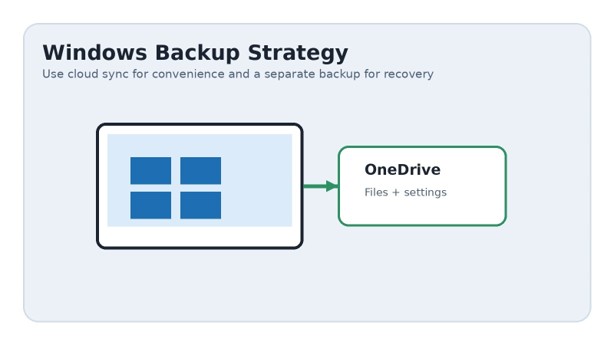
Current Windows includes Windows Backup for consumer devices. Microsoft says it can back up supported folders, settings, Wi-Fi information, and a list of installed apps, with OneDrive used for supported folder backup. citeturn1search0
Windows Backup setup
Open **Start**.
Search for **Windows Backup**.
Sign in with your personal Microsoft account if required.
Review the folders available for OneDrive backup.
Turn on the folders you actually want protected.
Review settings and preferences.
Start the backup.
Wait for synchronization to complete.
Confirm the files are visible from your OneDrive account or another trusted device.
Microsoft’s current documentation also notes that Windows Backup is focused on consumer devices and personal Microsoft accounts; work or school account behavior can differ. citeturn1search0
Add an external backup.
For a second layer, connect an external drive and use an appropriate backup tool such as File History or another trusted backup application.
Microsoft describes File History as a Windows feature that automatically protects personal files by saving copies to an external drive or network location and allowing previous versions to be restored. citeturn1search3turn1search5
Pro-Tip: Do not assume the word “Backup” means “everything on the PC.” Always open the tool’s settings and verify the exact folders, retention policy, and restore scope.
Set Up a Mac Backup with Time Machine
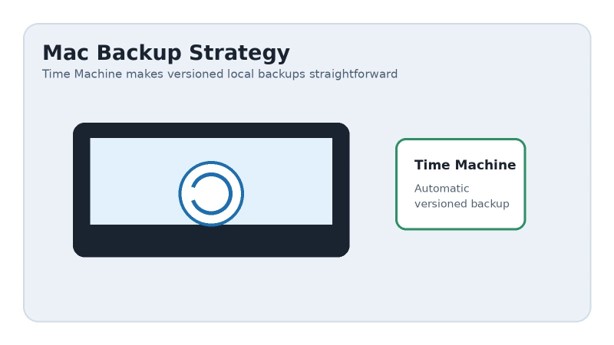
Apple’s Time Machine is built into macOS and can automatically back up files such as documents, photos, music, email, and supported application data to an external storage device. citeturn0search0turn0search7
Time Machine setup
Connect the external drive to your Mac.
Open **System Settings**.
Select **General**.
Select **Time Machine**.
Choose **Add Backup Disk**.
Select the external drive.
Follow the prompts to set it up.
Enable encryption if appropriate.
Allow the initial backup to finish.
Leave the drive connected if you want automatic scheduled backups.
Apple’s current instructions say a Time Machine disk can be an external USB/Thunderbolt drive, a supported network destination, or a compatible NAS. Apple also recommends a backup disk with at least twice the Mac’s capacity for a typical setup. citeturn0search0turn0search8
Time Machine keeps multiple generations of backups, making it useful when a file was changed or deleted days or weeks ago rather than merely lost a few minutes ago. citeturn0search2
Automate Your how-to-backup-your-computer Schedule
The best backup is the one you do not have to remember.
Choose a schedule based on how quickly your data changes.
| Data type | Suggested backup frequency |
| Active work documents | Daily or continuous |
| Family photos | Daily or weekly |
| Financial records | Daily during active work |
| Large media archive | Weekly or after major imports |
| Full system image | Weekly or monthly |
| Rarely changing archive | Monthly, plus an off-site copy |
If losing one day’s work would be painful, back up daily. If losing one hour of work would be expensive, use continuous or near-continuous protection.
💡 Quick Hack: Tie the backup to an existing habit. For example, connect the backup SSD whenever you finish work on Friday. Habits beat complicated schedules.
Encrypt Sensitive Backups
A backup protects data from loss, but it can also create a concentrated copy of your most valuable information.
If someone steals an unencrypted backup drive, they may be able to read the contents.
For sensitive data, consider encryption for:
Financial documents
Identity documents
Client information
Password exports
Private photographs
Business records
Legal documents
CISA recommends encryption for computers, removable media, and relevant files, while also stressing that recovery keys and passwords must be stored safely. citeturn2search0
Critical warning: Do not encrypt a backup and then forget the password or recovery key. A perfectly encrypted backup with a lost key may be indistinguishable from permanent data loss.
Disconnect Your Offline Backup
An external drive that is permanently connected is convenient, but convenience is not the same as resilience.
If ransomware can access the computer and the backup drive is mounted with write access, the attacker may potentially damage the backup too.
For an offline layer:
Run the backup.
Wait for it to finish.
Verify the backup.
Safely eject the drive.
Disconnect it.
Store it somewhere dry, cool, and secure.
CISA specifically advises avoiding leaving an external backup drive connected when it is not actively being used for backup. citeturn2search0
Pro-Tip: Rotate two external drives. Keep Drive A disconnected while Drive B is being updated, then swap them. Store the inactive drive in a separate physical location when possible.
Verify the Backup
This is the step beginners skip most often.
A backup job that says “completed” is not proof that every important file can be restored.
Perform a test restore:
Pick a non-critical document.
Restore it to a different folder.
Open the restored file.
Confirm it is readable.
Check the file date and version.
Test a photo or larger file too.
Record the date of the test.
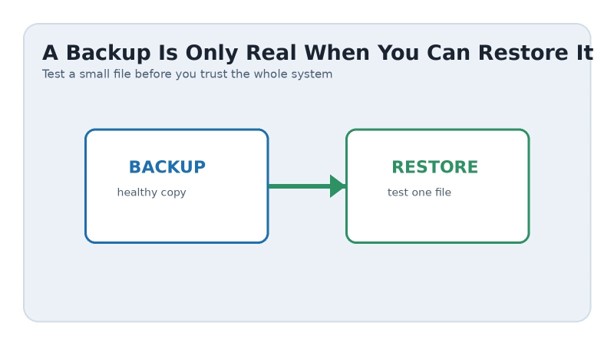
For a more serious setup, perform a full recovery rehearsal periodically. You do not need to wipe your computer to test everything; a spare drive, spare machine, or virtual environment may be enough depending on the backup system.
💡 Quick Hack: Keep a tiny “restore test” folder containing a text file, photo, spreadsheet, and PDF. Restore all four every few months. Different file types can expose different problems.
Common Mistakes to Avoid
- Keeping only one backup
If the computer and backup drive are sitting beside each other, theft, fire, flood, or ransomware can affect both.
Fix: Add an off-site copy.
- Confusing cloud sync with backup
A synchronized folder is useful, but synchronization is not automatically historical backup.
Fix: Confirm whether the service provides version history, deleted-file recovery, retention, and a genuine restore workflow.
- Never test restoration
A backup can fail silently because of permissions, corrupted files, missing folders, expired credentials, or configuration mistakes.
Fix: Test individual files regularly and perform a deeper recovery test periodically.
- Leaving the backup drive connected all the time
Permanent connection increases convenience but can increase exposure to malware and accidental deletion.
Fix: Keep at least one backup copy offline when practical.
- Forgetting application data
Copying Documents and Pictures may not capture everything.
Fix: Identify application-specific folders, project libraries, databases, browser profiles, email archives, and exportable settings.
Advanced Tips and Next-Level Hacks
Use different backup destinations. Do not make every copy dependent on the same technology.
A strong personal setup might be
Internal SSD: working data
External HDD: local backup
Cloud: off-site copy
Optional second HDD: offline rotation
That reduces the chance that one failure wipes out every copy.
Keep backup generations
Do not overwrite yesterday’s only copy with today’s data.
Versioned backups let you recover from:
Accidental edits
Deleted files
Corruption
Malware
“I saved over the wrong file” mistakes
Separate backup credentials.
Use a strong, unique password for your backup/cloud account and enable multi-factor authentication where supported.
If an attacker compromises the same credentials used for your computer and cloud backup, they may be able to target both the source and recovery destination.
Consider immutable or protected backups.
For valuable business data, look for systems that can prevent ordinary user accounts from deleting or altering older backup versions.
This is particularly useful against ransomware and compromised administrator credentials.
Keep a recovery document.
Write down:
Backup locations
Account names
Recovery steps
Encryption/recovery-key location
Drive labels
Backup schedule
Date of last successful restore test
Store a copy digitally and another copy somewhere you can access if the computer is completely dead.
💡 Quick Hack: Print a one-page emergency recovery checklist. In a real failure, you do not want your recovery instructions trapped on the failed machine.
Troubleshooting and Maintenance Guide
Backup is taking too long.
Initial backups can be slow because the system has to process a large amount of data.
Try:
Connecting the drive directly rather than through a cheap hub.
Using a faster USB port.
Removing unnecessary large files before the first backup.
Running the initial backup overnight.
Avoiding heavy video editing or disk-intensive work during the first run.
The external drive is not detected.
Check:
Cable
USB/Thunderbolt port
Another computer
Disk Management on Windows
Disk Utility on Mac
Whether the drive requires external power
Whether the drive appears but needs formatting
Do not format a drive that contains data you still need.
Backup reports errors
Read the exact error instead of repeatedly pressing “try again.”
Common causes include:
Insufficient destination space
Permissions
File system errors
A disconnected network
Corrupt source files
Locked files
Cloud account limits
Incorrect backup configuration
Run the system’s disk-health and file-system tools when appropriate, and review the backup log if the software provides one.
Cloud storage is full.
Do not simply delete files from the cloud until you understand whether the service is synchronizing those deletions back to the computer.
First:
Check storage usage.
Identify large folders.
Review retention and recycle-bin behavior.
Move old archives to a separate storage tier if appropriate.
Upgrade storage if the cost is reasonable.
You accidentally deleted a file.
Stop making unnecessary changes to the affected storage location.
Then check, in order:
Recycle Bin/Trash
Application recovery/version history
Cloud version history
File History or Time Machine
External backup
Offline archive
The more you continue editing the disk after a serious deletion, the more difficult some recovery scenarios can become.
Your backup drive is nearly full.
A full destination is not automatically a disaster. Many backup systems manage retention by deleting older versions when configured to do so.
Before changing anything:
Check which backups are being retained.
Confirm the oldest version you still need.
Review whether the backup drive is large enough for future growth.
Consider moving the archive to a larger drive.
Keep at least one independent copy before deleting an older backup set.
You need to replace your computer.
Do not wipe the old machine immediately.
Instead:
Complete a final backup.
Verify the backup.
Confirm cloud synchronization.
Export anything application-specific.
Record important settings.
Set up the new computer.
Restore a few important files first.
Confirm everything is correct.
Keep the old machine intact until the migration is proven successful.
Backup Maintenance Checklist for how to back up your computer
Use this quick routine:
Weekly
Check the last successful backup.
Confirm cloud sync is healthy.
Restore one small test file if your data is important.
Monthly
Review backup capacity.
Check for failed jobs.
Update the recovery checklist.
Inspect the external drive for physical damage.
Quarterly
Perform a larger restore test.
Review which folders are actually being protected.
Confirm your off-site copy is current.
Review encryption and recovery credentials.
Yearly
Reassess storage capacity.
Replace aging drives when risk or health indicators justify it.
Test a complete recovery plan.
Review whether your 3-2-1 strategy still fits your data.
Frequently Asked Questions
- How often should I back up my computer?
The right frequency depends on how much data you can afford to lose. Daily backups are a strong baseline for ordinary personal computers. If you work on frequently changing files where even an hour of lost work matters, use continuous or very frequent backup.
- Is an external hard drive enough?
An external drive is a good start, but it should not be your only copy. It can fail, be stolen, damaged, or encrypted by malware if connected during an attack. Pairing a local drive with an off-site cloud or rotated drive is much safer.
- Should I use an SSD or HDD for backup?
Use an HDD when low cost per terabyte is the priority. Use an SSD when speed, portability, and resistance to movement matter more. For many households, a large HDD plus a smaller SSD or cloud layer is a practical combination.
- Is OneDrive or iCloud a backup?
They can protect and synchronize selected data, but you should examine exactly what is included and what recovery features are available. Microsoft’s Windows Backup uses OneDrive for supported folder backup, while Apple recommends Time Machine as its built-in Mac backup system. citeturn1search0turn0search7
- How much storage do I need for a computer backup?
Start by checking how much data you actually need to protect. Then allow room for growth and multiple versions. A destination that is only slightly larger than today’s data can become cramped quickly.
- How do I know if my backup works?
Restore files and open them. That is the simplest proof. For valuable data, go further: test different file types, confirm older versions exist, and periodically rehearse a larger recovery.
Remember: how to back up your computer is most valuable when it is automated, separated from the original, and tested.
Remember: how to back up your computer is most valuable when it is automated, separated from the original, and tested.
Remember: how to back up your computer is most valuable when it is automated, separated from the original, and tested.
Conclusion
A reliable backup system is less about buying the biggest drive and more about eliminating single points of failure. Start with the data you cannot replace, add an automated local copy, put another copy somewhere else, protect sensitive backups with encryption, and test restoration before you need it.
editor's pick
latest video
news via inbox
Nulla turp dis cursus. Integer liberos euismod pretium faucibua



[…] a long edit, follow a proper how to back up your computer workflow so the project exists in more than one place. A practical rule is one working copy plus at […]