
AI Tools for Video Editing: The Definitive 2026 Guide
Video editing used to force creators into a bad trade: spend hours trimming silence, hunting for B-roll, cleaning dialogue, and resizing clips, or publish something visibly rushed. The newest ai tools for video editing can remove much of that repetitive labor, but only if you give them the right job instead of handing over the entire creative decision-making process.
This guide shows you how to choose a tool, build a safe and repeatable workflow, edit a project from raw footage to final export, control costs, and troubleshoot the failure points that automated editors rarely explain. The goal is faster editing without the robotic pacing, inaccurate captions, odd generative frames, or subscription sprawl that can erase the time you hoped to save.
What Are the Best ai tools for video editing?
| The best ai tools for video editing speed up repetitive work such as rough cuts, transcript editing, captions, audio cleanup, reframing, clip search, and generative fixes. Choose one that matches your workflow, then keep a human review pass for pacing, accuracy, brand consistency, rights, and final export quality. |
Essential Tools & Materials Breakdown
You do not need a studio full of hardware to use ai tools for video editing effectively. You need reliable storage, decent monitoring, a primary editor that fits your project type, and a backup plan. Spend first on the parts that prevent lost footage and bad audio decisions; add subscriptions only when they remove a measurable bottleneck.
The price ranges below are practical planning numbers in U.S. dollars, not promises. Software pricing, AI-credit limits, and regional taxes change often, so confirm the current plan before committing to an annual subscription.
What to Have Before You Start
| Item | Why You Need It | Typical Cost | Skill |
| Computer you already own | Runs the editor; use proxies before assuming you need an upgrade. | $0 if owned; roughly $800–$1,800 if upgrading | Beginner |
| 1–2 TB external SSD | Fast working media, project transfers, and portable backups. | $70–$160 | Beginner |
| Backup drive / cloud copy | Protects original footage and project files from loss. | $0–$150+ | Beginner |
| Closed-back headphones | Reveals clicks, denoise artifacts, music balance, and bad cuts. | $30–$120 | Beginner |
| Primary editing software | Timeline, transcript editing, captions, effects, and delivery. | $0 to subscription / one-time license | Beginner–Advanced |
| Brand assets + script / transcript | Keeps automated edits aligned with message, names, colors, and CTA. | $0 if prepared | Beginner |
| Pro-Tip: Run the first project with equipment you already own. If the AI workflow saves two or three hours but your computer is only mildly slow, an SSD or proxy workflow often delivers a better return than a new machine. |
2026 Tool Shortlist: What Each Editor Is Actually Good At
The best AI video editing software is not one universal winner. Premiere is strongest when you need a mature professional timeline plus AI search and generative assistance. DaVinci Resolve combines serious editing, color, audio, and a growing AI toolset. Descript shines when spoken words drive the edit. CapCut is fast for social content. Runway is useful when the job crosses from editing into generative visual changes. VEED and Canva make browser-based production easier for teams and non-editors.
| Tool | Best For | Notable AI Assistance | Cost / Learning Curve |
| Adobe Premiere | Professional timelines, client work | Media Intelligence search; Generative Extend; mature editing ecosystem | From about $22.99/mo (annual plan, U.S.) • Medium/Advanced |
| DaVinci Resolve 21 | All-in-one edit, color, audio | AI-assisted search and finishing tools in a deep desktop editor | Free; Studio $295 one-time • Medium/Advanced |
| Descript | Talking head, podcast, tutorial | Text-based editing, Underlord assistance, cleanup and clips | Free tier; paid plans add media/AI capacity • Beginner |
| CapCut | Social and vertical content | Auto captions, filler removal, stabilization, script-to-video tools | Free entry; Pro varies by platform/region • Beginner |
| Runway Edit Studio | Generative changes to footage | Prompt-driven relighting, background/object changes, shot transformation | Free account; advanced editing is credit/paid-plan based • Medium |
| VEED | Browser-based business video | Auto cut/cleanup, captions, B-roll, audio enhancement, text-oriented editing | Free to start; paid tiers unlock more • Beginner |
| Canva | Brand-led simple video | Templates, Magic-style AI features, easy campaign versions | Free editor; paid tiers add more AI/brand tools • Beginner |
If you already pay for a capable editor, start there. Subscription stacking is the hidden cost of AI: one app for captions, another for cleanup, another for B-roll, and another for exports can cost more than a professional NLE while creating extra upload and handoff work.

Define the Job Before You Choose the Software
A good ai tools for video editing workflow begins with a one-page brief, not a download page. Decide what the finished video must do, where it will be watched, and which tasks are genuinely repetitive. A talking-head tutorial, a 15-second product Reel, a wedding film, and a client commercial need completely different automation.
Write a five-line editing brief
- Outcome: one sentence describing what the viewer should understand, feel, or do after watching.
- Primary platform: YouTube, TikTok, Instagram, LinkedIn, a landing page, an internal training portal, or another destination.
- Master format: choose the longest/highest-quality version you need before creating derivatives.
- Non-negotiables: brand colors, logo rules, mandatory product shots, legal wording, speaker names, music restrictions, and prohibited claims.
- Automation targets: identify two to four chores to accelerate, such as transcription, dead-air removal, clip search, captions, reframing, or background cleanup.
Also decide what AI must not change. For an interview, that may include the speaker’s meaning and chronology. For a product demo, it may include the exact appearance of a device. For a regulated client, it may include any visual generation at all.
| Pro-Tip: Give every new editor a 10-minute benchmark. Feed the same 3- to 5-minute sample into two shortlisted tools and time how long it takes to reach a usable rough cut. Compare corrections required, not just the flashy first result. |

Ingest, Back Up, and Organize Footage Before AI Touches It
Automated tools make it easy to start editing before your media is organized. That is exactly when people overwrite source files, lose phone clips, or discover that a cloud-only project cannot be rebuilt after an account or sync problem. Treat source footage as read-only.
Use a simple folder structure
01_SOURCE: original camera, phone, screen-recording, and audio files.
02_PROJECT: NLE project files, transcript exports, proxy files, and autosaves.
03_ASSETS: logos, fonts, licensed music, sound effects, graphics, screenshots, and brand references.
04_EXPORTS: review versions, captions, thumbnails, masters, and platform-specific versions.
05_ARCHIVE: final project package, licenses, release forms, and the approved master.
Before a long edit, follow a proper how to back up your computer workflow so the project exists in more than one place. A practical rule is one working copy plus at least one independent backup; client work deserves an off-device or cloud copy as well.
Normalize the messy inputs
Rename files in capture order, confirm frame rates, and separate camera audio from external audio. If your editor supports proxies, create them before the timeline becomes heavy. AI transcription, search, and captioning work better when audio is intelligible, but the source files should remain untouched so you can always relink or rebuild.
| Pro-Tip: Export a plain-text transcript immediately after ingestion. It becomes a searchable project map, a backup for interview quotes, and a fast way to mark must-keep lines before you begin cutting. |
Build the Rough Cut With AI, Then Take Back Control
This is where ai tools for video editing earn their keep. Use automation for selection and assembly, not final judgment. Transcript-based tools can remove entire sentences by deleting text; timeline-based systems can search spoken words and visuals; auto-editors can create a first sequence from a prompt or a script.
For interviews, podcasts, and tutorials
Start with transcription. Correct names, product terms, acronyms, and numbers before using the transcript to make cuts. Then mark the strongest opening line, the essential explanation, proof/examples, and the closing action. Delete repetition and tangents in text, but listen across every cut to make sure breath, cadence, and meaning still sound natural.
For product, travel, and montage footage
Use visual search, scene detection, or clip descriptions to find categories of shots quickly: wide exterior, close-up hands, smiling customer, product detail, screen recording, or nighttime footage. AI search can save enormous logging time, but you should still rate the final selects for focus, motion, continuity, and whether the shot actually supports the sentence under it.
For short-form social content
Let the tool identify candidate hooks and punchy moments, then rebuild the first three seconds yourself. Auto-clippers tend to favor high-energy statements; they do not always understand what is most surprising to your specific audience. Keep one idea per short, cut setup aggressively, and move supporting context into on-screen text or the caption when it does not need to be spoken.
| Pro-Tip: Save the AI-generated rough cut as Version 01 before you touch it. That makes the time savings measurable and gives you a clean comparison if later manual changes make the edit worse. |
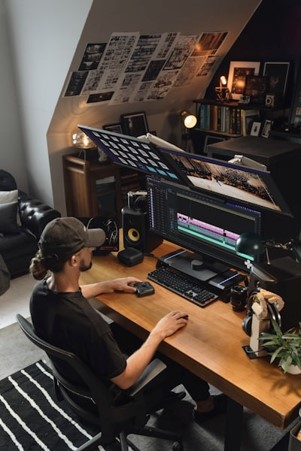
Clean Dialogue Without Making People Sound Artificial
Noise removal, speech enhancement, filler-word detection, and silence shortening are among the safest high-value automations. They are also easy to overdo. When every breath and pause disappears, even a technically clean interview feels nervous and unnatural.
A safer audio-cleanup order
- Fix obvious source problems first: clipped sections, phone buzzes, bumps, and unusable takes.
- Apply light noise reduction or voice enhancement; compare against the untreated track at matched volume.
- Remove filler words only when the edit remains grammatically and emotionally natural.
- Shorten long dead spaces instead of deleting every pause.
- Level dialogue, music, and effects after the picture is mostly stable so you are not remixing constantly.
Listen once on headphones and once on ordinary laptop or phone speakers. AI cleanup can create watery tails, chirps, or metallic consonants that are obvious on one playback device and easy to miss on another.
Use Generative Edits for Repairs, Not Decoration
Generative video editing can extend a shot, remove or replace an object, change a background, relight a scene, or create connective B-roll. Those abilities are useful when they solve a specific production gap. They become distracting when every transition exists to show that the editor owns an AI tool.
Choose the least invasive fix
Need half a second more room for a dissolve? Try a speed adjustment, freeze frame, cutaway, or a generative extension if continuity holds.
Need to hide a jump cut? Use relevant B-roll before generating a fake camera move.
Need a clean background? A conventional mask or AI background removal may be more stable than regenerating the entire frame.
Need missing B-roll? Start with your real archive or licensed stock; generate footage only when it is appropriate for the story and rights requirements.
Need to remove an object? Watch the repaired area frame by frame for warping, shadows, reflections, and duplicated texture.
Premiere’s current AI features include Media Intelligence for finding clips and Generative Extend for creating extra frames around an edit. Runway’s newer Edit Studio/Aleph workflow focuses on prompt-driven changes to real footage. DaVinci Resolve 21 adds AI-assisted capabilities such as IntelliSearch alongside its established editing/color/audio environment. The practical lesson is the same: use the smallest AI intervention that solves the shot.

| Pro-Tip: Put every generatively altered shot on a dedicated labeled track or tag it in your bin. You will find it instantly during client review, rights checks, or a later re-edit. |
Create Captions, Titles, and Multiple Aspect Ratios
Caption generation is fast enough that there is little reason to type subtitles from scratch, but auto-caption does not mean auto-publish. Proper nouns, jargon, accents, prices, dates, percentages, and homophones are common failure points.
Use the W3C guidance on accessible captions for video as a quality baseline: captions should communicate meaningful speech and relevant audio information, not merely decorate the frame. Correct the transcript first, then set line breaks for readability and keep critical words away from platform UI elements.
For vertical, square, and landscape derivatives
Create a clean master sequence before generating alternate aspect ratios. Auto-reframe can track faces and subjects, but review every shot where two people separate, a product enters from the edge, screen text matters, or the camera pans quickly. Reposition graphics manually after reframing; do not assume a 16:9 lower-third will survive a 9:16 crop.
| Pro-Tip: Caption after the rough cut is locked, not before. Every late trim forces the caption timing to ripple and creates another opportunity for words to drift out of sync. |
Do a Human Color, Sound, and Brand Pass
Automatic color matching and audio leveling are good starting points, particularly when you have mixed phone and camera footage. They are not a substitute for a reference shot and a consistent target. Pick one well-exposed skin tone or product shot, match adjacent clips to it, and watch scopes when accuracy matters.
Then check brand details: typeface, logo clearance, title capitalization, color values, safe margins, call-to-action wording, and music licensing. For a company account, build these into a template or brand kit so the next project begins closer to finished.
Step 8: Export a Test, Quality-Control It, Then Render the Master
Do not discover export problems after a 40-minute render. First export a 20- to 30-second section containing dialogue, music, captions, motion, a transition, a graphic, and at least one difficult shot. Play that file outside the editor. The best ai tools for video editing should shorten production without weakening this final quality-control pass.
For YouTube delivery, compare your settings with YouTube recommended upload encoding settings rather than blindly copying an old preset from a tutorial. Keep the project frame rate consistent unless you have a deliberate reason to convert it, and preserve a high-quality master even if social platforms will recompress the upload.
Final QC checklist
Watch the opening 15 seconds with sound and again muted.
Spot-check every generated or repaired shot at full resolution.
Search the transcript for names, numbers, prices, dates, and technical terms.
Check caption timing on a phone-sized preview.
Listen for clicks at cuts, noise-reduction artifacts, and music that masks speech.
Verify links, QR codes, phone numbers, logos, disclaimers, and calls to action.
Open the exported file from beginning to end, not only inside the editor.
| Pro-Tip: Keep one mezzanine-quality master and create platform copies from that master. Re-exporting a compressed social file into another compressed social file compounds artifacts. |
Which Editor Fits Which Workflow?
A useful way to compare ai tools for video editing is to ask what kind of friction you are removing. The sections below focus on job fit instead of feature-count marketing.
Adobe Premiere: Best for professional timeline work with AI assistance
Premiere is the strongest fit when your projects already depend on a conventional multi-track timeline, precise trimming, third-party plugins, motion graphics handoffs, and professional delivery. Its Media Intelligence can help locate shots by describing visual content, while Generative Extend can create extra frames when a shot needs a little more room. Adobe lists Premiere from about $22.99 per month on an annual plan billed monthly in the U.S.; pricing and taxes can vary.
Choose it when AI should accelerate a mature editing process rather than replace the timeline. The learning curve is real, but so is the control.
DaVinci Resolve 21: Best value for an all-in-one serious editor
DaVinci Resolve 21 remains unusually strong for editors who want cutting, color, Fusion effects, Fairlight audio, and delivery in one application. The free edition covers substantial real-world work; Resolve Studio is a one-time paid upgrade listed at $295. Resolve 21 expands AI-assisted functions, including clip-search capabilities such as IntelliSearch.
Use it when long-term control and color/audio depth matter more than the quickest beginner onboarding. It is especially attractive for creators who dislike adding another monthly editing subscription.
Descript: Best for podcasts, interviews, demos, and text-based editing
Descript treats the transcript as an editing interface: delete words and the media edit follows. Its Underlord assistant can help with repetitive jobs such as cleanup, clip creation, and supporting content. Descript has a free tier, while paid plans add more media and AI capacity; its Hobbyist plan has been listed from $16 per month when billed annually.
It is hard to beat when spoken content drives the structure. It is less compelling if your day revolves around intricate multi-camera music edits, advanced color work, or heavy compositing.
CapCut: Best for fast social-first production
CapCut combines familiar short-form editing with automated captions, filler-word removal, stabilization, text-to-speech, and script-to-video style tools. It is a strong choice when speed, templates, mobile access, and vertical delivery matter more than deep finishing control.
The budget advantage is the capable free entry point, but paid features and pricing can vary by platform and region. Build your process around export quality and brand control, not just trending templates.
Runway: Best for generative changes to existing footage
Runway makes sense when the problem is not simply cutting footage but changing what is inside a shot: background, lighting, objects, or other visual elements. Its current Edit Studio/Aleph direction handles prompt-driven edits to video; Runway’s older Video Project Editor was retired in July 2026, so avoid tutorials that depend on that legacy interface.
Treat it as a specialist alongside a primary editor unless your projects are heavily generative. AI credits can disappear quickly when you iterate, so test changes on short segments before committing to long or repeated generations.
VEED: Best browser editor for quick business and social workflows
VEED is useful for teams that want browser-based editing, captions, text-oriented changes, silence/filler cleanup, audio enhancement, and assisted B-roll without managing a heavy desktop project. It can be efficient for marketing clips, internal video, and repurposing.
Choose it when access and collaboration matter more than deep finishing. As with any cloud editor, test upload time and review data-handling requirements before moving confidential client footage into the workflow.
Canva: Best for non-editors who need on-brand video fast
Canva is strongest when the video is one asset inside a broader brand system of presentations, social posts, thumbnails, ads, and simple motion graphics. Its free video editor covers basic production, while paid tiers unlock more AI and brand-management capabilities.
It is an excellent handoff tool for marketers who do not want a professional NLE. For complex narrative editing or precise audio/color work, finish in a deeper editor and use Canva for versions and campaign packaging.
For a broader software stack, pair this guide with MyFlexBots’ best AI tools in 2026 roundup and best new apps in 2026 guide. Those pages are useful when your bottleneck sits outside the timeline—for example research, image generation, writing, or general productivity.
Common Mistakes to Avoid
Most disappointing ai tools for video editing results are workflow failures, not model failures. Beginners tend to hand over too much context too early, then spend longer repairing the automated result than they would have spent making a clean manual edit.
- Accepting the first auto-edit as the final edit
Auto-editors optimize from signals they can detect—speech, pauses, faces, movement, keywords, or a prompt. They do not fully understand your audience, product promise, legal risk, or comedic timing. Treat the first result as an assembly cut that still needs a human story pass.
- Using generative repair when a normal cut would look cleaner
A generated extension or object removal may create flicker, warped hands, unstable reflections, or new background details. If a cutaway, crop, freeze, J-cut, L-cut, or conventional mask solves the problem, the simpler fix is often more reliable and easier to revise.
- Styling captions before picture lock
Creators often spend 20 minutes perfecting animated subtitles, then change the edit and break the timing. Correct the transcript early, but perform final caption timing and styling after the narrative cut is stable.
- Uploading sensitive footage without checking the workflow
Cloud AI features may require media to leave your computer. Client agreements, unreleased products, employee information, legal recordings, medical footage, or children’s content can require stricter handling. Check the vendor’s current privacy, retention, training, and enterprise controls before upload; use local/offline tools where the project requires it.
- Buying overlapping subscriptions before measuring savings
A $10 tool that saves nothing is expensive; a $30 tool that removes five billable hours can be cheap. Track three numbers for the first month: minutes spent on rough cut, minutes spent correcting AI output, and final delivery time. Cancel tools that merely move the work from editing to cleanup.
Advanced Tips and Next-Level Hacks
Once the basic workflow is stable, ai tools for video editing become more valuable when you standardize decisions around them. The aim is not maximum automation. It is predictable quality with fewer repetitive clicks.
Build a “human-lock” workflow
Define the checkpoints that AI cannot pass automatically: approved selects, rough-cut approval, picture lock, caption proof, rights check, and final QC. This prevents a fast auto-editor from carrying an early transcription or storytelling mistake all the way to delivery.
Create prompt recipes instead of rewriting prompts
Save short prompt templates for recurring tasks: find B-roll that proves the speaker’s claim; create three hooks without changing meaning; remove pauses longer than a chosen threshold; generate a neutral background that preserves product geometry. Reusable prompts produce more consistent results and make team handoffs easier.
Use AI for search before generation
Search and retrieval often deliver a bigger quality win than synthetic footage. Before generating a new shot, search your archive, stock library, transcripts, and unused takes. Real footage usually matches lighting, product details, wardrobe, and story continuity better than a fresh generation.
| Pro-Tip: Keep a “golden 30 seconds” project containing hard audio, skin tones, motion, captions, and branded graphics. Use it to test a new editor, update, or AI model before moving a live client job. |
Separate master edits from derivative automation
Finish one clean master first. Then let automation create 9:16, 1:1, 4:5, teaser, subtitle-burned, and no-caption versions. This reduces creative drift and means every derivative traces back to an approved source.
Track AI credits like render time
Credit-based features encourage careless iteration because each generation feels small. Set a per-project ceiling. Generate low-resolution or short previews when the tool allows it, validate the prompt on a difficult 3- to 5-second range, and only then apply it to the full clip.

Troubleshooting and Maintenance Guide
Even strong ai tools for video editing can fail in repeatable ways. The fastest fix is to identify whether the problem came from source media, automation, generative processing, or export—not to keep pressing the same AI button with slightly different wording.
| Problem | Likely Cause | Fastest Fix |
| Jump cuts feel robotic | Too much silence/filler removal | Restore breathing room; use J/L cuts and purposeful B-roll; reduce auto-cut aggressiveness. |
| Lip sync drifts | Frame-rate mismatch, retiming, or transcript sync issue | Confirm sequence/source frame rate; regenerate captions after picture lock; re-sync at a known phrase. |
| Voice sounds metallic | Denoise/enhancement pushed too hard | Reduce processing; avoid stacking cleanup models; compare against the original at matched loudness. |
| Captions contain wrong names/numbers | Speech recognition ambiguity | Correct the transcript dictionary first; search all names, prices, dates, acronyms, and percentages. |
| Generated shot flickers or warps | Too much motion or too large a changed region | Shorten the range, use a stronger reference, isolate the mask, or switch to conventional compositing. |
| Export looks soft | Proxy export, low bitrate, or repeated recompression | Relink originals, check sequence resolution, export a high-quality master, then make platform copies. |
| AI credits disappear too fast | Long tests and repeated full-quality generations | Test 3–5 second ranges; preview low-res first; set a per-project credit ceiling. |
When an auto-cut feels jumpy
Restore a small amount of pre-roll and post-roll around speech. Add a J-cut so the next sentence begins before the picture changes, or cover the cut with purposeful B-roll. If every pause was removed, reintroduce breathing room around emotional or important statements.
When captions keep drifting
Confirm the timeline frame rate, retime operations, and transcript source. Regenerate captions after picture lock rather than trying to repair hundreds of tiny offsets. For long recordings, split by logical sections and re-sync at a known spoken phrase if the drift increases over time.
When voice enhancement sounds metallic
Reduce the processing amount, restore more original room tone, and avoid stacking multiple cleanup algorithms. A light denoise plus manual EQ is often more natural than “maximum” enhancement. Keep a bypassed version on a muted track so you can compare quickly.
When generated video flickers or changes identity
Shorten the generation range, reduce the number of moving elements, use a clearer reference frame, or mask only the region that needs repair. For a branded product, face, logo, or readable text, prefer conventional compositing when exact geometry is required.
When exports look soft
Check whether you accidentally edited or exported a proxy, whether the sequence resolution matches the master, and whether the bitrate is appropriate. Avoid downloading a compressed review file from one cloud tool and using it as the source in another. Relink to originals before the final master.
Monthly maintenance for a fast editing stack
Archive completed projects and remove unnecessary cloud uploads after confirming retention requirements.
Update your transcript dictionary with client names, products, acronyms, and recurring technical terms.
Review AI-credit usage and cancel duplicate services.
Re-test one representative project after major software or model updates.
Back up presets, brand kits, prompt recipes, motion templates, captions, and final masters.
Check whether old tutorials still match the current interface; fast-moving AI products retire features and rename workflows frequently.
Frequently Asked Questions
Can AI edit an entire video automatically?
Yes, an automatic video editor can assemble clips, cut silences, add captions, choose music, reframe footage, and produce a shareable draft. The problem is reliability. For business, client, educational, or monetized work, use automation to reach a first cut quickly and keep a human review for meaning, pacing, rights, brand details, and export quality.
What is the best free AI video editor?
For serious desktop editing, the free edition of DaVinci Resolve is a powerful starting point. CapCut and Canva offer easier free entry points for social and template-driven work, while Descript and Runway provide free access with tighter usage limits. The “best” free choice depends on whether you value timeline depth, text editing, social speed, or generative experimentation.
Which AI editor is best for YouTube?
Long-form YouTube creators usually benefit most from Premiere, DaVinci Resolve, or Descript. Premiere and Resolve provide deeper control for multi-track projects; Descript is exceptionally efficient for talking-head, tutorial, interview, and podcast-style videos. A common workflow is to finish the master in a full editor, then automate captions and short-form derivatives.
Can AI remove filler words and silence without ruining speech?
It can, but default settings can be too aggressive. Remove obvious verbal clutter first, then listen through every affected sentence. Preserve pauses that carry emphasis, emotion, or comprehension. If the speaker starts sounding unnaturally fast, undo some removals or lengthen the gaps rather than adding artificial room tone everywhere.
Will ai tools for video editing replace professional video editors?
They are more likely to replace repetitive editing chores than the editor’s judgment. Clients still need someone to decide what matters, protect accuracy, control brand and legal risk, shape pacing, solve continuity, and approve the final deliverable. Editors who automate logging, cleanup, transcription, versioning, and search can spend more time on those higher-value decisions.
Is AI-generated or AI-edited footage safe for commercial use?
Commercial use depends on the tool’s terms, the source material, the output, your licenses, and the laws that apply to the project. Do not assume “AI-generated” means rights-free. Review vendor terms and your asset licenses, document where generated elements were used, and consult the U.S. Copyright Office’s copyright basics for video creators as a starting point for understanding copyright fundamentals. For high-value or legally sensitive campaigns, obtain qualified legal advice.
Conclusion: Make AI Remove Friction, Not Judgment
The most useful ai tools for video editing do not make every creative decision for you. They compress the boring middle of the job: searching, transcribing, cleaning, reframing, captioning, versioning, and fixing small production gaps. That gives you more time for the choices viewers actually notice—story, clarity, rhythm, credibility, sound, and visual intent.
Start with one recurring project, automate only two bottlenecks, and measure the correction time before adding another tool. Which part of your current video workflow eats the most hours: rough cuts, captions, B-roll, audio cleanup, or making social versions? Share it in the comments.
editor's pick
latest video
news via inbox
Nulla turp dis cursus. Integer liberos euismod pretium faucibua