How to Free Up Disk Space on Windows; Step-by-Step Guide
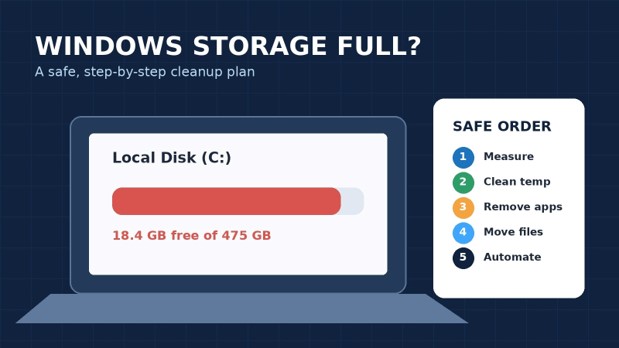
A nearly full Windows drive does more than trigger an annoying red warning bar. It can slow updates, interrupt downloads, crash creative apps, and leave the system without enough working room for temporary files. This guide explains how to free up disk space on windows safely, starting with low-risk built-in tools and moving to advanced options only when the easy wins are exhausted.
You will learn how to identify what is consuming storage, remove temporary and system files, uninstall oversized apps, move personal files, use cloud placeholders, clean Windows update leftovers, and prevent the drive from filling again. The goal is not a one-time purge; it is a repeatable storage system that protects important data.
Featured Snippet: What Is the Fastest Safe Way to Free Up Space?
To how to free up disk space on windows, open Settings > System > Storage > Cleanup recommendations, remove reviewed temporary files, empty the Recycle Bin, uninstall unused large apps, and move videos or archives to cloud or external storage. Then enable Storage Sense so Windows automatically clears safe temporary items before the drive becomes critically full.
Before You Delete Anything: Use the Safety-First Order
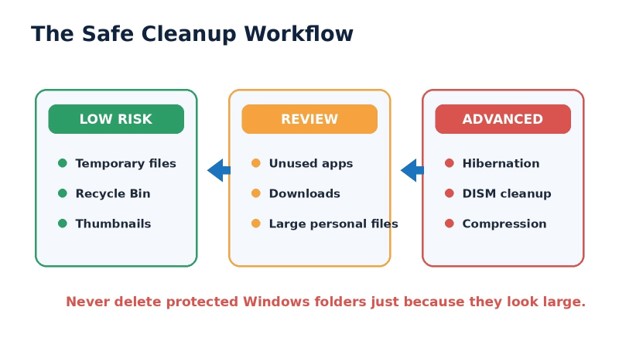
Storage cleanup should follow a simple risk ladder. First remove files Windows identifies as temporary. Next remove programs you recognize but no longer use. Then move personal files you want to keep. Only after those steps should you consider command-line cleanup, hibernation changes, drive compression, or operating-system component maintenance.
Create a backup before deleting irreplaceable photos, client projects, tax records, password exports, or source files. CISA recommends keeping important data backed up to an external drive or a properly vetted cloud service. A backup is especially important before clearing large folders whose names are unfamiliar.
| 💡 Quick Hack: Take a screenshot of the Storage page before and after cleanup. The comparison shows which action produced the biggest result and gives you a baseline for future maintenance. |
Essential Tools and Materials Breakdown
You can complete most of this guide with tools already included in Windows. The optional items help when a small system drive is consistently overloaded.
| Tool or Material | Why You Need It | Estimated Cost | Skill Level |
| Windows Storage settings | Shows usage by apps, temporary files, documents, cloud files, and other categories | $0 | Beginner |
| Cleanup recommendations | Identifies removable temporary files, unused apps, and large or cloud-synced items | $0 | Beginner |
| Storage Sense | Automates recurring cleanup on the Windows system drive | $0 | Beginner |
| Disk Cleanup | Removes legacy temporary files and can scan system files | $0 | Beginner |
| Administrator account | Required for selected system cleanup and command-line steps | $0 | Intermediate |
| External USB drive or SSD | Stores videos, backups, installers, and archive projects off the C drive | $25-$120+ | Beginner |
| Cloud storage account | Makes inactive files online-only while preserving File Explorer access | Free to paid | Beginner |
| 30-60 minutes of uninterrupted time | Allows Windows to scan, calculate, uninstall, and restart safely | $0 | Beginner |
Costs vary by region, capacity, and whether you already own backup storage.
Measure the Drive Before Cleaning It
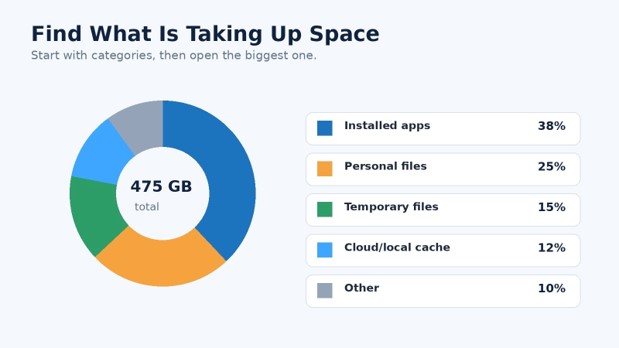
The first step in how to free up disk space on windows is finding the real storage problem. Deleting a few browser files will not help if one game uses 140 GB, a video folder uses 300 GB, or a previous Windows installation occupies a large block of the system drive.
Open the Windows Storage dashboard
- Select Start and open Settings.
- Go to System > Storage.
- Wait for Windows to calculate the categories.
- Select a category to see more detail.
- Record the free-space number before making changes.
Look first at Installed apps, Temporary files, Other, Documents, Pictures, Videos, and cloud content. On a multi-drive desktop, open Advanced storage settings > Storage used on other drives to check non-system drives as well. Storage Sense primarily manages the system drive, normally C:, so a full D: drive requires separate attention.
Decide how much space you need
Do not chase an arbitrary number. Your target depends on the job:
For normal browsing and office work, create enough room for updates, caches, and temporary files.
For gaming, keep extra space for patches that may temporarily need more room than the final installation.
For video editing, 3D work, or large photo catalogs, maintain a dedicated scratch or project drive.
For a Windows feature update, follow the space requirement shown by Windows rather than guessing.
| Pro-Tip: If the storage bar is red, stop downloading large files until cleanup is complete. New downloads can consume the small amount of working space Windows needs to finish deletions and updates. |
Use Cleanup Recommendations First
For most Windows 11 users, Cleanup recommendations is the best starting point because it groups potential savings and shows the estimated amount before removal. This is the safest built-in route for how to free up disk space on windows without searching hidden folders.
- Open Settings > System > Storage.
- Select Cleanup recommendations.
- Review Temporary files, Large or unused files, Files synced to the cloud, and Unused apps.
- Expand every category rather than selecting everything blindly.
- Select only the items you understand.
- Choose Clean up for each reviewed section.
Pay special attention to the Downloads folder. It may contain invoices, installers, exported reports, compressed backups, and files you still need. Windows can identify old downloads, but age does not make a file unimportant.
Microsoft’s official free up drive space in Windows guide confirms that Cleanup recommendations can surface temporary files, large or unused files, cloud-synced files, and unused apps.
| 💡 Quick Hack: Sort the Downloads folder by **Size** before deleting. Removing three forgotten ISO, ZIP, or video files is often faster and safer than reviewing hundreds of tiny items. |
Clear Temporary Files Without Deleting Personal Data
Temporary files are created by Windows, updates, browsers, app installers, thumbnails, delivery optimization, and error reporting. Most can be rebuilt, but the Temporary files screen may also include Downloads and previous Windows installations, which require a deliberate decision.
- Go to Settings > System > Storage > Temporary files.
- Allow the scan to finish.
- Read every category description.
- Select safe categories such as temporary files, thumbnails, DirectX shader cache, delivery optimization files, and error reports when present.
- Leave Downloads unchecked until you have reviewed it in File Explorer.
- Select Remove files.
Thumbnail cache removal is low risk; Windows recreates thumbnails as folders are opened. Shader cache removal can cause games or graphics apps to rebuild cached data during the next launch. That may make the first launch slower but should not remove the game itself.
If a category is unexpectedly large, investigate why. A huge error-reporting or temporary-app category may indicate a failing update, a Store app loop, or software repeatedly generating crash data.
Configure Storage Sense for Automatic Maintenance
A one-time cleanup solves today’s warning. Storage Sense prevents the same problem from returning. When configured carefully, it removes unnecessary temporary files and can empty old Recycle Bin items on a schedule.
To set it up:
- Open Settings > System > Storage.
- Turn Storage Sense on.
- Select Storage Sense to open its settings.
- Choose when it runs: during low disk space, daily, weekly, or monthly, depending on the options shown.
- Choose how long Recycle Bin files should remain before deletion.
- Set Downloads cleanup to Never unless that folder is intentionally used as temporary storage.
- Review cloud-content rules before allowing inactive files to become online-only.
Microsoft notes that Storage Sense works on the system drive and does not manage the Downloads folder or cloud content unless you configure those options. This makes it useful for how to free up disk space on windows while keeping user-controlled folders outside automatic deletion by default.
| 💡 Quick Hack: Use a 30-day Recycle Bin rule and leave Downloads on Never. This gives deleted files a recovery window without letting the bin grow forever. |
Run Disk Cleanup and Include System Files
For users asking how to free up disk space on windows, Disk Cleanup remains useful, particularly on Windows 10 or when you want a second view of system cleanup categories. It can remove temporary files, old update cleanup data, and other system-managed items.
- Search for Disk Cleanup from the taskbar.
- Select the system drive, usually C:.
- Wait for the initial calculation.
- Select Clean up system files.
- Choose C: again if prompted.
- Review the expanded list.
- Select understood categories and choose OK > Delete Files.
Do not remove Previous Windows installation(s) unless you are satisfied with the current Windows version and no longer need the rollback option. Microsoft states that deleting Windows.old removes the ability to return to the previous Windows version.
This step is particularly effective after major updates, but results vary. A well-maintained computer may recover little, while a machine with old update packages can recover several gigabytes.
Uninstall Large Apps, Games, and Optional Features
Installed apps are often the largest controllable category. Games, creative suites, development tools, offline maps, language packs, virtual machines, and duplicated launchers can consume far more storage than temporary files.
Sort apps by size
- Open Settings > Apps > Installed apps.
- Sort by Size.
- Review the largest items first.
- Confirm whether saved projects, game saves, presets, or license keys require backup.
- Use the app’s three-dot menu and choose Uninstall.
- Restart if the uninstaller requests it.
A missing size does not mean the program is small; some desktop installers do not report storage accurately. Check the app’s library folder or launcher when a known large program is absent from the ranking.
Remove optional Windows features you do not use
Search Settings for Optional features. Remove only features you recognize. Language packs, handwriting components, legacy tools, and developer features may be unnecessary on a single-purpose PC, but removing a feature without understanding it can break a workflow.
For broader performance improvements after storage cleanup, link readers to MyFlexBots’ guide to speed up a slow computer.
| Pro-Tip: Before uninstalling a large game, check whether its launcher supports moving the installation to another drive. Moving can save download time and preserve settings. |
Find and Move the Largest Personal Files
Large personal files are the next major opportunity in how to free up disk space on windows. Videos, raw photos, screen recordings, phone backups, virtual machine images, old project exports, and compressed archives can quietly dominate a drive.
Use File Explorer’s built-in sorting
- Open File Explorer > This PC.
- Check Downloads, Videos, Pictures, Documents, Desktop, and project folders.
- Switch to Details view.
- Sort by Size or search with filters such as size:huge.
- Open questionable files before deleting them.
- Move keepers to an external drive, second internal drive, or cloud folder.
Copy important files first, verify the copied version opens, and only then remove the original. For large project folders, compare total folder size and file count before deletion.
Archive cold data intelligently
Cold data is information you must retain but rarely use: completed client projects, old tax years, camera originals, previous website backups, and installer collections. Place it in a clearly named archive structure such as:
Archive > 2025 > Client Name > Final Deliverables
Avoid one giant folder called “Old Files.” A useful archive reduces duplicate copies because people can find the correct version later.
| 💡 Quick Hack: Create a folder named `_Review Before Deleting` on an external drive. Move uncertain large files there, date the folder, and delete it after 60-90 days only if nothing was missed. |
Use OneDrive Files On-Demand Instead of Deleting Cloud Files
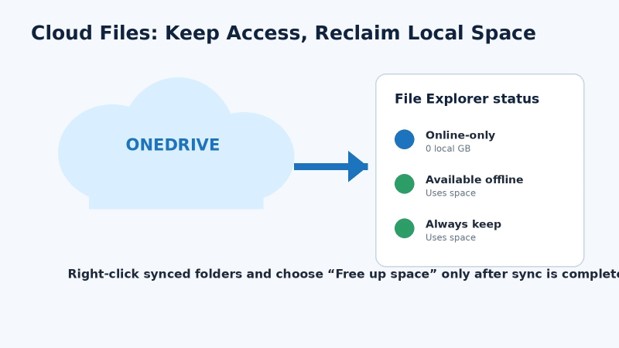
Cloud storage can preserve access without keeping every file physically downloaded. OneDrive Files On-Demand shows files in File Explorer while online-only items consume little local space. This is one of the highest-value methods for how to free up disk space on windows on a small laptop SSD.
- Confirm the files are fully synced to OneDrive.
- Open the OneDrive folder in File Explorer.
- Right-click an inactive file or folder.
- Select Free up space.
- Confirm the icon changes to a blue cloud for online-only content.
- Mark critical offline files with Always keep on this device.
Microsoft explains that online-only files require internet access to open, while files marked always available remain downloaded and consume space. Changing a synced file to online-only does not delete it from OneDrive.
Clean Browsers, Creative Apps, and Communication Caches
Browsers, video editors, photo tools, chat apps, game launchers, and music services may build large caches. Use each application’s own settings whenever possible; manual deletion inside AppData can remove profiles, sessions, or project resources.
Browsers
Clear cached images and files, but preserve passwords, autofill data, and cookies unless you intentionally want to sign out. Browser downloads are separate from browser cache and must be reviewed in the Downloads folder.
Creative applications
Video editors and photo tools may store preview renders, proxy files, conformed audio, autosaves, and camera raw caches. Open the application’s preferences and find its cache-management controls. Deleting a current project’s proxy files can slow the next edit session because the software must rebuild them.
Messaging and meeting apps
Chat tools can retain downloaded images, recordings, and update packages. Use built-in storage management where available. If the app is behaving badly, uninstalling and reinstalling may clear stale packages, but back up unsynced data first.
| Pro-Tip: After clearing a major app cache, launch the app and open an active project before emptying the Recycle Bin. This confirms you did not remove a required local resource. |
Remove Windows.old Only After the Rollback Window
Windows.old can appear after an upgrade and may be large. It exists so the system can restore the previous Windows installation. Remove it only after confirming devices, printers, security software, and essential apps work correctly.
Use Settings > System > Storage > Temporary files or Cleanup recommendations, then select Previous Windows installation(s). Do not delete the folder manually through File Explorer.
Microsoft warns that removing the previous installation cannot be undone and eliminates the rollback option. If the upgrade is recent, wait until you have tested normal work, sleep and wake, VPN access, printing, Bluetooth, and any specialized hardware.
Reclaim Hibernation Space Carefully
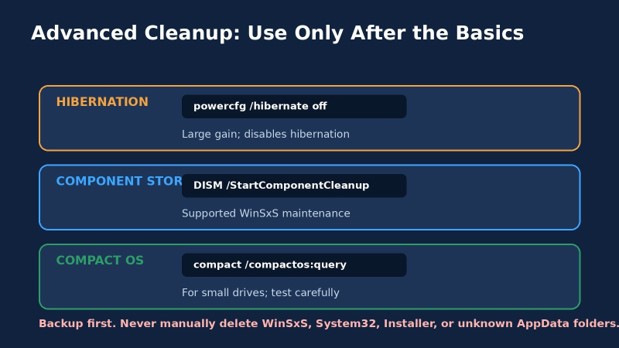
The hidden hiberfil.sys file can be large because Windows uses it for hibernation. Microsoft notes that its size is approximately related to installed memory. Disabling hibernation removes the file, but it also removes hibernation capability and affects hybrid sleep behavior.
Only use this step if you understand the tradeoff:
- Search for Command Prompt.
- Choose Run as administrator.
- Enter:
| powercfg.exe /hibernate off |
- Restart and recheck free space.
To restore hibernation, run:
| powercfg.exe /hibernate on |
See Microsoft’s hibernation enable and disable instructions for the official commands and warning.
| 💡 Quick Hack: Advanced users who want to retain hiberboot can investigate a reduced hibernation file instead of disabling it completely. Use Microsoft’s powercfg documentation and verify supported sleep states before changing power settings. |
Clean the Windows Component Store the Supported Way
The WinSxS component store contains files needed for servicing, updates, optional features, and recovery. Never delete files from this folder manually. Microsoft warns that doing so may prevent Windows from booting or updating.
For advanced maintenance, open an administrator Command Prompt and run:
| Dism.exe /online /Cleanup-Image /StartComponentCleanup |
This starts supported component cleanup. The more aggressive /ResetBase option removes superseded component versions and prevents currently installed update packages from being uninstalled afterward. It should not be treated as a routine beginner command.
Use Microsoft’s WinSxS cleanup guidance and create a backup before using DISM. In most cases, Windows’ scheduled component cleanup and the standard StartComponentCleanup command are sufficient.
Change Where New Content Is Saved
Cleanup will not last if every new video, app, and download returns to C:. Windows can redirect selected content types to another drive.
- Open Settings > System > Storage.
- Open Advanced storage settings.
- Select Where new content is saved.
- Choose another drive for supported categories.
- Change application-specific download and project locations separately.
Also update browser download locations, game launcher libraries, camera import folders, editing-app cache paths, and backup destinations. A second internal SSD is ideal for games and active media; an external drive is better for archives and backups.
Readers buying a replacement device can use the MyFlexBots guide to choose the right laptop storage capacity before selecting a 256 GB, 512 GB, or 1 TB configuration.
Scan for Malware and Runaway Temporary Files
A drive that refills immediately may have a software problem rather than a normal storage problem. Malware, failed Store downloads, looping update packages, crash logs, and broken sync clients can create files continuously.
Run a full scan with Windows Security. Then check Task Manager for unusual disk activity and return to Storage after an hour to see which category grew.
If the Temp folder rapidly fills with Microsoft Store application packages, Microsoft recommends resetting the Store app, running wsreset.exe, using the Windows Store Apps troubleshooter when available, running the Windows Update troubleshooter, and restarting the PC.
This diagnostic phase is essential when how to free up disk space on windows does not produce lasting results. Repeated growth means you must stop the source, not simply delete the symptoms.
Common Mistakes to Avoid
- Deleting unfamiliar system folders manually
Do not manually empty WinSxS, Installer, System32, ProgramData, or random AppData folders. Folder size alone does not indicate that the contents are disposable. Use Windows settings, application uninstallers, and supported commands.
- Selecting Downloads during bulk cleanup
Downloads often contains the only copy of a document or installer. Review it separately, sort by size, and open uncertain files before removal.
- Deleting Windows.old too soon
Removing the previous installation can eliminate the rollback path. Test the upgraded system before deleting it.
- Treating cloud sync as a backup without checking status
A file visible in a sync folder may be unsynced, conflicted, or deleted across devices. Confirm the cloud status and open a sample file from the web before removing the local copy.
- Installing aggressive “one-click” cleaners
Unknown cleaning utilities may remove browser sessions, application databases, restore points, or registry entries while delivering little additional space. Start with Windows’ built-in tools and use third-party software only when its behavior is transparent and its source is trusted.
Advanced Tips and Next-Level Hacks
Use a storage budget by category
The long-term answer to how to free up disk space on windows is to set practical limits for games, active projects, media archives, virtual machines, and downloads. Review the largest category monthly. A storage budget makes growth visible before it becomes urgent.
Keep active and archive storage separate
Use the fastest internal drive for Windows, applications, and current projects. Move completed projects and large media libraries to a secondary drive or cloud archive. This design improves organization as much as capacity.
Compress suitable archive folders
NTFS compression can help with text-heavy documents, logs, source code, and some project folders. It provides little benefit for already compressed video, JPEG images, ZIP archives, and many game assets. Avoid compressing latency-sensitive databases or folders you do not understand.
Consider Compact OS only on very small drives
Windows supports Compact OS, which stores operating-system files in compressed form. This is an advanced option for low-capacity devices, not a routine tweak for a healthy SSD. Check the current state with compact /compactos:query and read Microsoft’s deployment guidance before enabling it.
Measure results after each major action
Reopen Storage after temporary-file cleanup, app removal, file movement, and cloud conversion. This isolates the highest-value action. It also prevents unnecessary advanced changes once enough space has been recovered.
Troubleshooting: What to Do When Space Does Not Return
Temporary files will not delete
Restart Windows and try again before opening other applications. Files currently in use may be locked. Run Windows Update, restart once more, and repeat the Storage scan. Avoid forcing deletion of locked system files.
Cleanup says files were removed, but free space barely changed
Windows may still be calculating, a cloud client may be downloading files again, or the Recycle Bin may contain the deleted data. Empty the Recycle Bin, wait several minutes, then restart and recheck.
The C drive fills again within hours
Compare screenshots of Storage categories. Check active downloads, game updates, video-export folders, virtual machines, cloud sync, Store cache, Windows Update, and crash logs. A rapidly growing category identifies the source.
OneDrive files keep returning to the device
Check whether the folder is marked Always keep on this device, whether an application repeatedly opens the files, or whether Storage Sense cloud rules are disabled. Remember that opening an online-only file downloads it locally.
Windows Update still reports insufficient space
Remove temporary files, uninstall or move one large application, and connect external storage if Windows offers that option. Do not attempt an update with only a few megabytes free; the process needs working room.
The “Other” category is enormous
Other often includes folders Windows cannot classify neatly: virtual machines, development repositories, local backups, archives, app data, and custom project folders. Inspect the largest top-level folders you own. Do not change protected system locations based only on the category name.
Disk Cleanup is missing or returns little
Use Settings > System > Storage > Cleanup recommendations and Temporary files. Modern Windows places more cleanup controls in Settings, and a well-maintained device may legitimately have little removable system data.
An app remains after uninstalling
Restart, check the vendor’s launcher or uninstaller, and inspect only the application’s known data folder. Preserve project files and exported presets. Do not delete shared runtime folders simply because one app used them.
Low space is on D: or another drive
Open Advanced storage settings > Storage used on other drives, then manage that drive manually. Storage Sense focuses on the system drive. Move libraries, delete duplicate backups, or expand/replace the drive where appropriate.
A Simple Maintenance Schedule
Weekly: five minutes
Empty obvious trash from Downloads.
Confirm active cloud sync has completed.
Remove failed installers and duplicate exports.
Check the free-space number.
Monthly: fifteen minutes
Run Cleanup recommendations.
Review the largest installed apps.
Move completed projects to archive storage.
Check Recycle Bin and Storage Sense behavior.
Quarterly: thirty minutes
Verify backups by opening sample files.
Review large personal folders and duplicate archives.
Check where browsers, launchers, and creative apps save new content.
Update the storage plan if work patterns changed.
A good maintenance routine makes how to free up disk space on windows a controlled housekeeping task rather than an emergency repair.
Frequently Asked Questions
How much free disk space should Windows have?
There is no single percentage for every PC. Keep enough room for Windows updates, temporary files, application caches, and your workload. A creator handling large video files needs more headroom than a browser-only user. Treat a red capacity bar and failed updates as immediate warning signs.
Is it safe to delete temporary files in Windows?
Most categories in Windows Storage are designed for safe removal, but review the list. Downloads, previous Windows installations, and app-specific caches may contain files you want. When uncertain, leave the item unchecked and investigate it separately.
Why is my C drive full when I have few personal files?
Installed games, Windows update leftovers, hibernation, restore data, app caches, virtual machines, hidden local backups, and cloud files marked for offline use can consume space. The Storage dashboard helps separate these categories.
Can I delete everything in the Temp folder?
Do not force-delete files that Windows says are in use. Use the Temporary files page first. A manual Temp-folder cleanup may skip locked files, and that is normal. Repeated rapid growth requires troubleshooting the app or service creating the files.
What is the safest method for how to free up disk space on windows without losing files?
Start with Cleanup recommendations and Temporary files, keep Downloads unchecked, uninstall only recognized apps, and move large personal files after verifying a backup. Enable Storage Sense with conservative rules. Avoid manual system-folder deletion and aggressive cleaning utilities.
Does freeing disk space make a computer faster?
It can. Low disk space can interfere with updates, caches, paging, and temporary work files. Cleanup will not fix weak hardware or malware by itself, but restoring working room often improves stability. Continue with MyFlexBots’ guide to build a cleaner digital workflow to reduce future clutter.
Should I securely erase files before selling a PC?
Normal deletion is not the same as sanitizing a storage device. Before selling, donating, or disposing of a drive containing sensitive information, follow current NIST media sanitization guidance and the device manufacturer’s instructions. The correct method depends on the media type and sensitivity of the data.
Conclusion
Learning how to free up disk space on windows is mostly about choosing the right order: measure first, remove safe temporary data, uninstall large unused software, move personal archives, convert suitable cloud files to online-only, and automate conservative maintenance. Advanced commands should solve a confirmed problem, not replace basic review.
After completing the guide, compare the before-and-after free-space number and note which category produced the largest gain. What was the biggest storage culprit on your Windows PC: apps, videos, downloads, update files, or cloud content? Share the result in the comments to help other MyFlexBots readers find the fastest safe fix.
editor's pick
latest video
news via inbox
Nulla turp dis cursus. Integer liberos euismod pretium faucibua