How to Convert PDF to Word (Step-by-Step Guide)
A PDF can look perfect on screen and still become a nightmare when you need to edit one sentence, reuse a table, or update a signed-looking form. This guide shows how to convert PDF to Word with the least cleanup possible, whether your file is a clean digital PDF, a scanned document, a layout-heavy brochure, or a file with tables and images.
The goal is not just “get a DOCX.” The goal is an editable Word file that keeps enough structure to be useful: paragraphs remain paragraphs, tables stay readable, headings can be styled, and the final document does not embarrass you when you send it to a client, teacher, manager, or publisher.
Featured Snippet: The Fast Answer
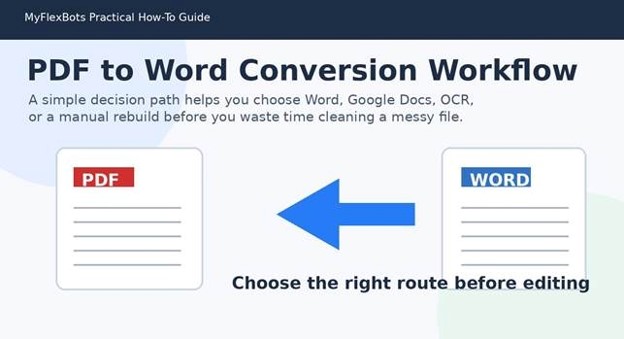
To learn how to convert pdf to word, open the PDF in Microsoft Word for mostly text-based files, use Google Docs OCR for scanned pages, or use a dedicated converter for complex layouts. After conversion, compare the Word file against the PDF, rebuild damaged tables, fix headings, and save a clean DOCX copy.
PDF to Word Conversion Workflow
Essential Tools & Materials Breakdown
The right tool depends on the PDF source. A digitally created report from Word usually converts cleanly. A photographed invoice needs OCR. A design-heavy brochure may need partial extraction plus manual rebuilding.
Use this table before you choose a conversion route for a real project. It prevents the common mistake of throwing every PDF into the same converter and then spending an hour repairing the result.
| Tool / Material | Best For | Estimated Cost | Skill Level | Important Notes |
| Microsoft Word | Mostly text-based PDFs and simple reports | Included with Microsoft 365 or Office license | Beginner | Best for paragraphs, lists, and basic tables. Review formatting after conversion. |
| Google Drive + Google Docs | Scanned PDFs and simple OCR text extraction | Free with Google account | Beginner | Works best with clear scans and readable text. Great for quick OCR. |
| Dedicated PDF converter | Layout-heavy PDFs, forms, brochures, and tables | Free trials to paid plans | Beginner to intermediate | Test a few pages first and avoid uploading sensitive files to unknown tools. |
| OCR software | Image-based documents, old scans, receipts, and printed letters | Free to paid | Intermediate | Accuracy depends on scan quality, language, and text clarity. |
| Word cleanup checklist | Final formatting, styles, links, and tables | Free | Beginner | Prevents sloppy delivery after conversion. |
| Secure storage folder | Protecting originals and final versions | Free | Beginner | Keep source, working, and final files separate. |
Identify the Type of PDF Before You Convert
Before touching a converter, open the file and test whether the text is selectable. Try dragging over a paragraph. If the letters highlight cleanly, the PDF probably contains real text. If the whole page acts like one picture, it is a scanned or image-based PDF.
This one-minute check controls everything. Microsoft Word can reflow text-based PDFs into editable paragraphs, but it struggles with scanned pages because there is no underlying text to rearrange. Google Drive OCR or another OCR tool is better for those pages.
Also check whether the PDF is layout-heavy. Flyers, menus, invoices, legal forms, manuals with columns, and reports with sidebars may convert, but the Word file may not behave like a normal document. Complex layout means you should expect cleanup, not perfection.
The three PDF types you will meet most often
- Text-based PDF: Created from Word, Google Docs, InDesign, or another app. Best candidate for a clean DOCX conversion.
- Scanned PDF: Created from a scanner or phone camera. Needs OCR before it becomes editable.
- Hybrid PDF: Some real text, some images, maybe locked fonts or flattened pages. Requires testing page by page.
Pro-Tip: If only one section of the PDF needs editing, convert only those pages. Smaller files produce fewer errors, upload faster, and are easier to compare against the original.
Convert a Mostly Text PDF with Microsoft Word
Microsoft Word is the simplest answer for many people searching how to convert pdf to word. It is already installed on many computers, it creates a real DOCX file, and it handles paragraphs, headings, lists, and basic tables better than many quick web converters.
Open Word, choose File > Open, select the PDF, and accept the message that Word will convert the file into an editable document. Word uses a process often called PDF Reflow, which pulls content from the fixed-layout PDF and reshapes it as a flowing Word document.
For best results, use this method on reports, essays, proposals, plain contracts, guides, and documents with simple tables. Avoid expecting perfect output from scanned pages, multi-column magazine layouts, complex brochures, or documents that rely heavily on exact graphic positioning.
Clean Microsoft Word workflow
- Make a copy of the original PDF and keep it unchanged.
- Open Microsoft Word first rather than double-clicking the PDF.
- Use File > Open > Browse and select the PDF.
- Allow Word to convert the file into an editable document.
- Save immediately as a new .docx file.
- Compare the new DOCX against the original PDF page by page.
- Fix headings, line breaks, tables, images, and page breaks before sharing.
💡 Quick Hack: After Word converts the PDF, press Ctrl + A, then apply your site or brand’s normal body font and paragraph spacing. This removes many random font-size changes without rewriting the content.
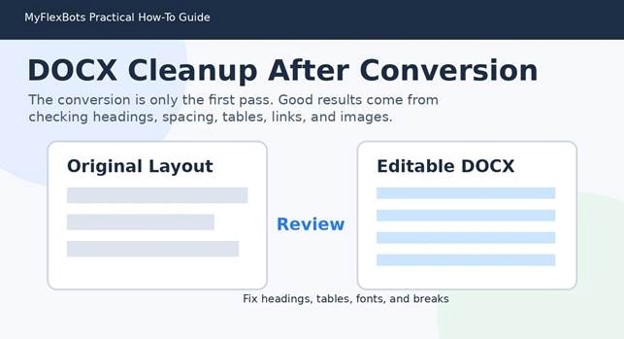
Word Cleanup After Conversion
Use Google Docs OCR for Scanned PDFs
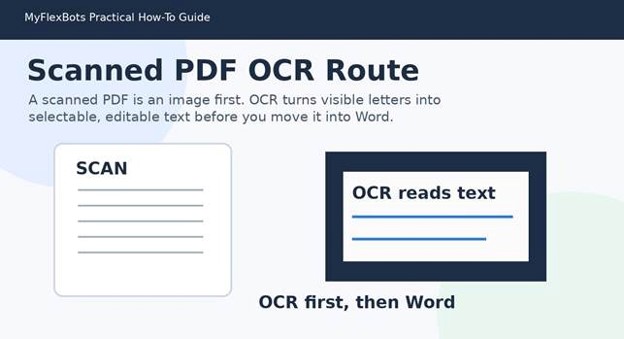
When the file is a scan, how to convert pdf to word starts with OCR. OCR stands for optical character recognition, which means software examines the image of the page and guesses what letters and words appear on it.
Google Drive can convert PDFs and image files to text through Google Docs. This is especially helpful for simple scanned documents, receipts, letters, classroom handouts, printed forms, and short paper records. The better the scan, the better the text.
Upload the PDF to Google Drive, right-click it, choose Open with > Google Docs, then wait for Google to create a document with extracted text. Download the result as a Microsoft Word file by choosing File > Download > Microsoft Word (.docx).
How to improve OCR before uploading
- Rotate pages so they are right-side up.
- Use a clean scan with sharp contrast between text and background.
- Avoid shadows, fingers, folded corners, and skewed pages.
- Crop unnecessary borders if a phone scan includes a desk or table.
- Use a higher-resolution scan for small text, footnotes, labels, and tables.
Pro-Tip: OCR is not proofreading. Names, dates, prices, legal clauses, and account numbers must be checked manually because OCR can confuse similar characters such as 0 and O, 1 and I, or 5 and S.
Scanned PDF OCR Route
Use a Dedicated Converter for Layout-Heavy PDFs
Some PDFs are too visual for Word’s basic conversion path. Product sheets, catalogs, slide-style reports, invoices, restaurant menus, and resumes with side columns may break into floating text boxes, split tables, or images sitting in the wrong place.
For those files, the best route is to test a dedicated converter on a duplicate copy, then decide whether the output is worth cleaning. Dedicated tools can preserve layout better because they are built specifically for PDF structure, fonts, and page geometry.
The trade-off is privacy and cost. Never upload confidential contracts, customer records, passports, tax papers, medical documents, employee files, or private business documents to random online tools. For sensitive files, use local desktop software, a trusted business account, or a controlled internal workflow.
When a converter is worth using
- Use a converter when the PDF has several tables, columns, images, headers, footers, or precise spacing that Word destroys. Convert two or three representative pages first. If the sample output is a mess, do not waste time converting the whole file.
A converter is also useful when you need the content in Word only for light editing, not pixel-perfect reproduction. If the finished document must match the PDF exactly, rebuild it from scratch in Word or use the original source file if available.
💡 Quick Hack: Ask the sender for the original Word, Google Docs, Canva, PowerPoint, or InDesign file before converting. One polite message can save an entire cleanup session.
Fix Formatting After the PDF Becomes a DOCX
The real skill in how to convert pdf to word is not clicking the convert button. The real skill is turning the rough DOCX into something that behaves like a normal Word document.
Start with the structure. Apply proper Heading 1, Heading 2, and Heading 3 styles instead of manually bolding large text. Then rebuild broken bullet lists, remove unnecessary section breaks, and standardize paragraph spacing.
Next, inspect tables. If a table came through as a cluster of text boxes, it may be faster to create a new Word table and paste the cleaned content into it. For tables with numbers, verify every figure against the PDF because small alignment errors can change meaning.
Fast cleanup checklist
Compare page count and major sections against the original PDF.
- Search for random line breaks inside paragraphs and remove them.
- Replace repeated spaces with a single space using Find and Replace.
- Apply consistent body text, heading, and list styles.
- Check headers, footers, page numbers, and footnotes.
- Reinsert images if they became blurry, stretched, or misplaced.
- Test hyperlinks and email links before publishing.
💡 Quick Hack: Use Word’s Show/Hide ¶ button while cleaning. It reveals extra paragraph marks, tabs, spaces, and section breaks that cause most post-conversion formatting headaches.
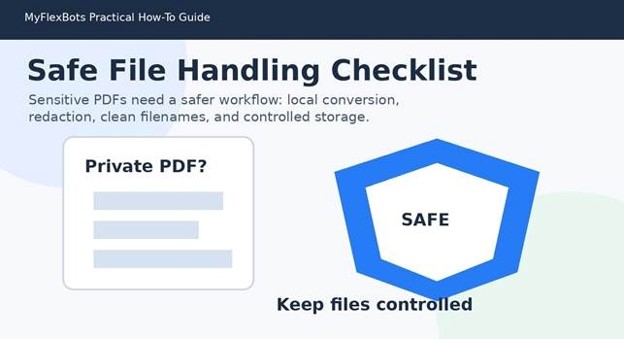
Secure and Organized Conversion Workflow
Handle Tables, Forms, Images, and Signatures Carefully
Tables are the most fragile part of PDF conversion. A simple grid may survive, but nested tables, colored rows, merged cells, and financial statements often break. Do not trust a converted table until you have checked every row, column, and total.
Forms are different. If the PDF was designed to be filled, Word may convert it into editable shapes and text boxes instead of a clean form. If the user needs to fill the PDF, a PDF editor may be better. If the user needs to rewrite the form, rebuild it in Word with tables and form-like sections.
Images and logos may appear as low-resolution copies or separate floating objects. Replace important brand logos and product photos with original image files when possible. Signatures should be treated as sensitive content and removed unless they are required for the final document.
A practical rebuild rule
If fixing a converted object takes longer than rebuilding it cleanly, rebuild it. This applies to tables, sidebars, form fields, headers, and cover pages.
Pro-Tip: Use conversion for extraction, not always for final design. Pull the text out, then rebuild the layout in Word using styles, tables, columns, and page breaks that will remain stable later.
Keep Privacy and File Safety in Mind
Anyone handling PDF-to-Word work should also learn when not to upload a PDF. Free online converters are convenient, but privacy matters more than convenience when the file contains identity documents, contracts, invoices, school records, financial statements, HR files, or private client information.
Use local conversion tools for sensitive material. If you must use a cloud tool, choose a known provider, check account permissions, delete files after conversion, and avoid using public Wi-Fi for confidential uploads.
Also rename files before sharing. A filename like “Client_Settlement_Final_Private.pdf” may reveal more than you intend. Use neutral filenames such as “converted-document-v2.docx” when sending drafts for review.
Safe handling checklist
- Keep the original PDF in a read-only folder.
- Convert a copy, not the only file.
- Remove hidden comments, personal metadata, and tracked changes before sending.
- Avoid uploading sensitive files to unknown conversion websites.
- Delete temporary downloads after the final DOCX is saved.
💡 Quick Hack: Create three folders for every conversion project: Original PDF, Working DOCX, and Final Delivery. This tiny system prevents accidental overwrites and makes client revisions easier.
Common Mistakes to Avoid
Even simple conversions fail when people rush the prep and review steps. Avoid these five mistakes and your final Word file will be cleaner, safer, and easier to edit.
Mistake 1: Expecting a perfect one-click conversion
No method for how to convert pdf to word can guarantee a perfect match for every layout. PDF is a fixed-layout format. Word is a flowing document editor. When you move from one model to the other, the software has to make guesses.
Prevent it by checking the source type first and planning a cleanup pass. For complex files, quote or schedule the job as conversion plus formatting, not simple conversion.
Mistake 2: Ignoring scanned pages
If text is not selectable in the PDF, opening it in Word will not magically create accurate text. You need OCR. Even after OCR, proofreading is mandatory.
Prevent it by testing text selection and zooming in on small print before conversion.
Mistake 3: Uploading private documents to random tools
Free tools can be useful, but not every file belongs on a public converter. The risk is not only data theft; it is also accidental retention, shared access, and unclear deletion policies.
Prevent it by using local software or trusted business accounts for sensitive files.
Mistake 4: Leaving broken styles in the document
A converted file may look acceptable at first glance but still contain dozens of inconsistent fonts, random line breaks, and floating objects. That makes later editing slow.
Prevent it by applying Word styles, cleaning spacing, and using Show/Hide marks before final delivery.
Mistake 5: Not comparing against the original PDF
A converter can drop footnotes, misread symbols, split tables, or change page order. The only reliable check is a page-by-page comparison.
Prevent it by keeping the PDF open beside the DOCX and marking each page as checked.
Troubleshooting PDF to Word Conversion
Advanced Tips and Next-Level Hacks
Once you know how to convert pdf to word for ordinary files, these advanced moves save time on long reports, recurring client work, and messy source documents.
Convert only the pages you need
If you only need pages 6-9 from a 70-page PDF, extract those pages first or print only that range to a new PDF. Smaller source files reduce conversion errors and make cleanup faster.
Pro-Tip: Split a large PDF by section, convert each section separately, then combine the cleaned Word content into one master document. This is often more stable than converting one massive file.
Use OCR plus manual formatting for old documents
For old manuals, photocopies, and scanned books, separate text extraction from design. First get the cleanest OCR text. Then format in Word from scratch using styles, headings, tables, and captions.
This produces a better document than fighting a messy automatic layout where every line is inside a separate text box.
Create a repeatable conversion checklist
If you handle PDFs weekly, make a reusable checklist: identify PDF type, choose conversion method, save as DOCX, run cleanup, compare against original, check links, remove metadata, and archive final files.
💡 Quick Hack: Save a blank Word template with your preferred fonts, heading styles, table style, margins, and footer. After conversion, paste cleaned content into that template instead of trying to repair every style inside the converted file.
Use AI carefully after conversion
AI tools can summarize, rewrite, extract key points, and clean rough text after conversion. They are especially useful for turning OCR output into readable paragraphs or creating summaries of long PDFs.
Do not use AI as the authority for the document. Use it as a helper, then compare important claims against the original PDF. For workflow comparisons, link readers to the MyFlexBots guide on best AI tools for productivity.
Troubleshooting and Maintenance Guide
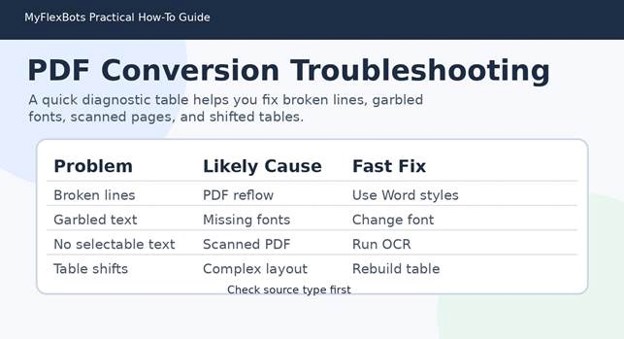
Troubleshooting is part of PDF-to-Word work. The good news is that most problems have a predictable cause. Use the issue, cause, and fix below before you restart the whole job.
Problem: Text appears in broken short lines
Cause: The converter preserved line endings from the PDF instead of rebuilding paragraphs.
Fix: Turn on Show/Hide marks. Remove unnecessary paragraph breaks inside sentences. Use Find and Replace to replace double paragraph marks carefully, then review manually.
Problem: Fonts look wrong or characters are garbled
Cause: The PDF used embedded fonts that Word cannot match, or OCR misread characters.
Fix: Select the affected section and apply a standard font such as Calibri, Aptos, Arial, or Times New Roman. Check symbols, currency signs, accented letters, and math characters manually.
Problem: Tables become scattered text
Cause: The converter could not understand the table structure.
Fix: Recreate the table in Word. Copy cell content manually from the PDF or converted text. Verify row labels, totals, and column headings before finalizing.
Problem: Images are blurry or missing
Cause: The converter compressed images, failed to extract them, or treated them as background objects.
Fix: Use original image files when available. Otherwise, export images from the PDF at high resolution or place clean screenshots only when image quality is acceptable.
Problem: Page numbers, headers, or footers are wrong
Cause: PDF page elements often convert as independent text boxes.
Fix: Delete broken header/footer objects and recreate them using Word’s header and footer tools. Insert real page numbers instead of typed numbers.
Long-term maintenance
- Keep the original PDF, the first converted DOCX, and the final cleaned DOCX. When someone requests changes later, edit the cleaned DOCX rather than converting the PDF again.
For recurring business documents, ask for the source file and build a proper Word template. Conversion is a rescue method, not the best long-term publishing workflow.
Frequently Asked Questions
What is the easiest free way to convert a PDF to Word?
The easiest free method for many users asking how to convert pdf to word is to open the PDF in Microsoft Word if Word is already available, or use Google Docs for simple scanned documents that need OCR. The best choice depends on whether the PDF contains selectable text.
Can I convert a scanned PDF to Word?
Yes, but you need OCR. A scanned PDF is usually an image of text, not real editable text. Google Docs OCR, desktop OCR software, or a trusted PDF editor can extract the text, but you must proofread the result carefully.
Why does formatting break when converting PDF to Word?
Formatting breaks because PDF and Word are built for different jobs. A PDF preserves visual position. Word creates flowing, editable content. When software moves content from fixed pages into editable paragraphs, it must guess how columns, spaces, tables, fonts, and images should behave.
How do I convert PDF to Word without losing formatting?
The safest route for how to convert pdf to word without losing formatting is to start with a text-based PDF, use Microsoft Word or a trusted converter, then manually review headings, tables, images, and page breaks. For layout-heavy files, expect some rebuilding.
Is it safe to use online PDF to Word converters?
It depends on the file and the service. Public converters may be acceptable for low-risk documents, but private, legal, medical, financial, school, or client files should be handled with local software or a trusted business account.
Can I convert PDF to Word on a phone?
Yes, but phone workflows are better for quick text extraction than polished formatting. Use a mobile scanner app with OCR, Google Drive, Microsoft Word, or a trusted PDF app. For important documents, do final cleanup on a desktop or laptop.
Conclusion: Build a Clean Conversion Workflow
Now you know how to convert pdf to word in a way that produces a usable document, not just a file with a new extension. Start by identifying the PDF type, choose the right conversion route, clean the Word structure, compare against the original, and protect sensitive files throughout the process.
For simple text PDFs, Word is usually the fastest path. For scanned documents, OCR comes first. For design-heavy PDFs, test a converter and be ready to rebuild the layout. The best result comes from a disciplined workflow, not blind trust in a button.
What kind of PDF gives you the most trouble: scanned documents, tables, forms, or complex brochure-style layouts? Share your experience in the comments so the guide can help more readers solve the same problem.
editor's pick
latest video
news via inbox
Nulla turp dis cursus. Integer liberos euismod pretium faucibua