How to Recover Deleted Photos From Phone 10 Methods
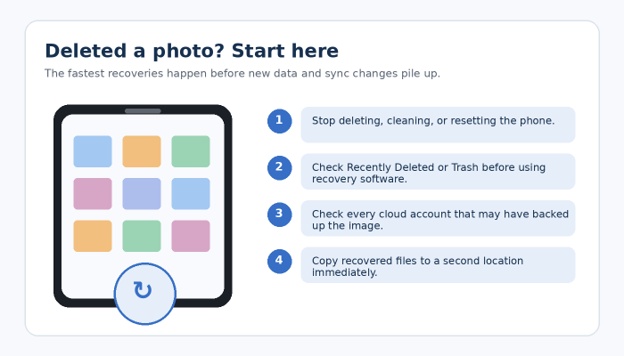
Few phone mistakes feel worse than deleting a photo you actually needed: a family picture, work receipt, product image, travel memory, or screenshot containing information you cannot recreate. The good news is that deletion is often not the end of the story. If you act quickly and follow the right order, you may be able to restore the image without paying for recovery software.
This guide explains how to recover deleted photos from phone devices on both Android and iPhone, starting with the safest built-in options and moving toward backups, computers, removable storage, and professional recovery. The goal is not to promise miracles; it is to help you spend your recovery window wisely and avoid actions that make recovery less likely.
Quick Answer: What Is the Best Way to Recover Deleted Phone Photos?
Start with the phone’s Recently Deleted, Trash, or Recycle Bin, then check Google Photos, iCloud, OneDrive, and other backups. Stop creating new data if the photo is missing everywhere. If it was stored on a removable SD card, scan the card on a computer before reusing it.
💡 Quick Hack: Before doing anything technical, search by date and location in every photo app on the phone. People often think an image was deleted when it was archived, hidden, moved to another album, or displayed under a different date because of imported metadata.
Essential Tools & Recovery Options
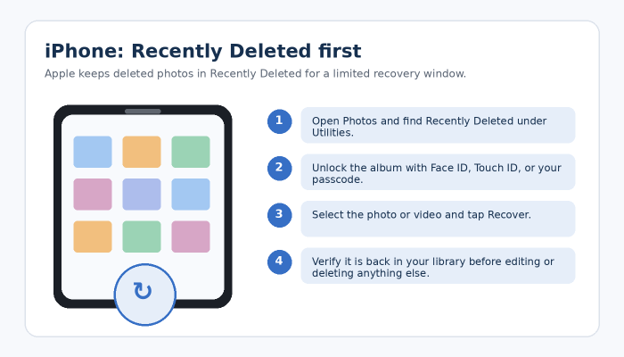
You do not need a toolbox in the traditional sense. For photo recovery, your “tools” are account access, backup services, a computer when necessary, and disciplined handling of the phone or storage card.
| Tool / Option | Purpose | Typical Cost | Skill | Best Use |
| Recently Deleted / Trash | Built into phone | Free | Beginner | First place to check; lowest risk. |
| Google Photos / iCloud | Cloud backup | Free to plan-dependent | Beginner | Best if backup or sync was enabled. |
| OneDrive / Dropbox | Cloud storage | Free to plan-dependent | Beginner | Useful when camera upload was enabled. |
| USB cable + computer | File inspection / copying | $0–$15 | Beginner | Helps locate folders and save recovered copies. |
| SD-card reader | Removable card access | $8–$20 | Beginner | Needed for safe computer-based card recovery. |
| Recovery software | SD cards / selected storage cases | $0–$80+ | Intermediate | Do not install on the storage you are trying to recover. |
| Professional data recovery | Severe hardware/storage failure | $100–$1,000+ | Expert service | Last resort for high-value, irreplaceable data. |
Before Recovery: Do These 5 Things Immediately
- Stop mass-cleaning the phone. Avoid storage cleaner apps, “free up space” tools, factory resets, large app installations, and OS reinstallation until you know where the missing photos were stored.
- Do not keep taking photos and videos. On an SD card or older storage system, new data can overwrite space that previously held a deleted file. Modern encrypted phone storage works differently, but creating less new data is still the safest default while you investigate backups and sync locations.
- Confirm the correct account. Many people have more than one Apple ID, Google account, Samsung account, Microsoft account, or Dropbox login. A photo may be “missing” because the phone is currently showing a different cloud library.
- Note the approximate date and device. Write down when the photo was taken, when it was deleted, which phone captured it, and whether the phone had cloud backup enabled. This saves time when searching multiple services.
- Decide how valuable the photo is. For ordinary images, built-in recovery and backup checks are appropriate. For evidence, legal documents, business-critical media, or irreplaceable family photos, avoid experimental tools that could alter the device before professional advice.
Pro-Tip: If the missing image matters, create a written recovery checklist and mark each location as you inspect it. This prevents you from repeatedly opening the same app while forgetting a second Google account, cloud service, messaging app, or PC backup.
Recover Photos From iPhone Recently Deleted
For iPhone users, the Photos app is the first and most important place to look. Apple states that accidentally deleted photos and videos can be recovered from the Recently Deleted album within 30 days. After that period, Apple says they are permanently deleted from that album.
To use this method when learning how to recover deleted photos from phone on iOS:
Open the Photos app.
Scroll to the Utilities area and open Recently Deleted.
Unlock the album with Face ID, Touch ID, or your passcode if prompted.
Open a single photo and choose Recover, or select multiple items and recover them together.
Return to your main library and verify that the images are present.
Official reference: Apple’s Recently Deleted photo recovery guide
💡 Quick Hack: If you cannot see Recently Deleted, use the Photos search field for the month, city, person, or object first. The image may still exist but be buried in the library or a shared album.
Restore Photos From Google Photos Trash
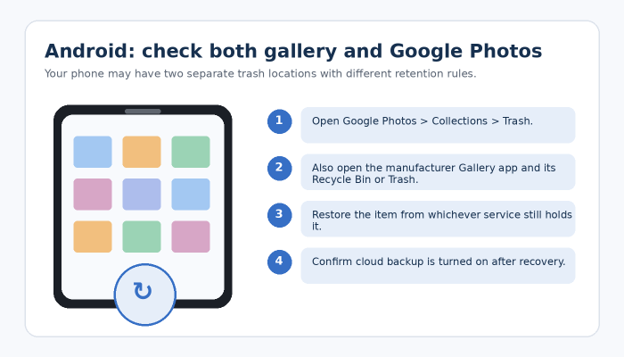
Android phones often store pictures locally while also backing them up to Google Photos. This means a missing image can exist in Google Photos even if it is no longer visible in the phone manufacturer’s Gallery app. Google’s current help guidance says items can only be restored while they remain in Trash, so checking early matters.
A safe sequence is:
Open Google Photos.
Tap Collections and open Trash.
Press and hold the photo or video you want.
Tap Restore.
Check the Google Photos library and your phone gallery afterward.
When you search how to recover deleted photos from phone on Android, remember that Google Photos and the device Gallery may maintain separate trash areas. Check both.
Official reference: Google Photos restore deleted photos
Check Samsung Gallery, Files, and Manufacturer Recycle Bins
Samsung, Xiaomi, OnePlus, Oppo, Vivo, Motorola, and other Android brands may offer their own Gallery, File Manager, cloud, or recycle-bin features. Menu names vary by model and software version, but the principle is the same: look for Trash, Recycle Bin, Recently Deleted, or Deleted Items inside the app that originally managed the photo.
On a Samsung phone, for example, open Gallery and look for Recycle Bin in the menu. Also inspect My Files if the image was downloaded, edited, or moved outside the camera folder. If you use Secure Folder or a private album, inspect those separately because they can have their own storage context.
Pro-Tip: Do not assume the Camera/DCIM folder is the only location. WhatsApp, Telegram, Instagram, screenshots, editors, scanners, and browser downloads can all place images in different directories.
Search iCloud Photos and Other Apple Devices
If iCloud Photos was enabled, the same photo library may appear on an iPad, Mac, or iCloud.com. Sync can work in both directions, which is useful but also means a deletion may propagate. Check Recently Deleted on the service or device while the recovery window is still open.
When trying how to recover deleted photos from phone after an iPhone deletion, also check whether the image was exported to Files, Messages, Mail, a shared album, or a Mac photo library. A copy outside the primary photo library can survive even if the original does not.
💡 Quick Hack: Search Messages or WhatsApp for the person you sent the photo to. If you shared the image before deleting it, the conversation may contain a usable copy. Ask the recipient for the original-quality file when possible instead of taking a screenshot.
Check Google Drive, OneDrive, Dropbox, and Other Cloud Backups
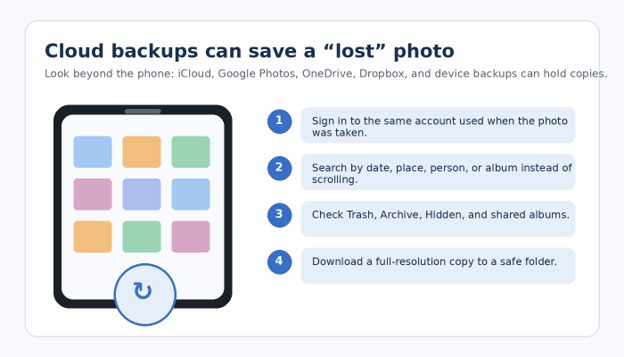
Cloud backup is not limited to Google Photos or iCloud. Microsoft OneDrive can automatically upload camera photos on supported configurations, while Dropbox and other storage apps may have camera-upload features. Search each service using the date, filename, or folder structure, then inspect its recycle bin.
Microsoft says deleted files in personal OneDrive accounts can generally be restored from the recycle bin within 30 days. Work or school accounts may use a different retention period set by the organization.
Official reference: Microsoft OneDrive deleted file recovery
Look for Copies in Messaging, Email, Social Apps, and Editing Apps
A photo can have more copies than you realize. Before installing any recovery software, check the places where images are commonly duplicated: messaging threads, email attachments, social media drafts, photo editors, scanner apps, note apps, design tools, and shared family albums.
WhatsApp or Telegram media folders and chats
Facebook Messenger, Instagram, or other direct-message threads
Gmail or Outlook attachments
Canva, Lightroom, Snapseed, Photoshop Express, or other editing apps
Notes, Google Keep, Microsoft OneNote, or document-scanning apps
A family member’s or colleague’s device if the image was shared
This is one of the highest-value shortcuts in how to recover deleted photos from phone because it searches for legitimate duplicates rather than attempting low-level storage recovery.
Check a Computer, External Drive, NAS, or Old Phone Backup
If you periodically copy phone photos to a laptop or desktop, search there by date and file type. Check Pictures, Downloads, Desktop, Photos libraries, import folders, external drives, and backup software. On Windows, searching for *.jpg, *.jpeg, *.heic, *.png, and *.mp4 within the approximate date range can reveal forgotten copies.
Mac users should check the Photos library, Image Capture import folders, Finder locations, Time Machine backups, and exported folders. If you previously changed phones, power on the old device in airplane mode first and inspect its local library before allowing long-delayed sync changes.
💡 Quick Hack: When searching a computer, sort results by “Date taken” rather than only “Date modified.” Copying or editing an image can change its modified date while preserving the original capture metadata.
Recover Photos From a Removable microSD Card
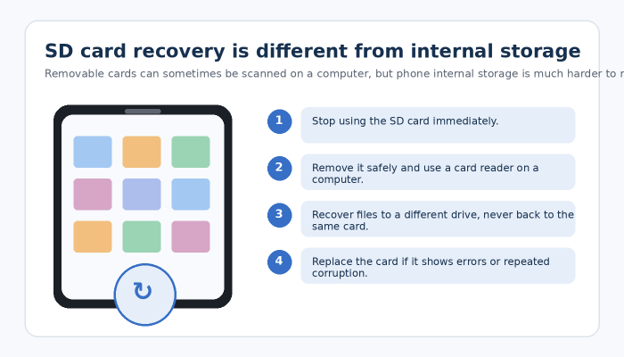
Removable storage is the situation where conventional file-recovery software can be most useful. If the missing image was stored on a microSD card, stop using the card and remove it safely. Put it in a card reader connected to a computer, then use reputable recovery software to scan the card.
The key rule is simple: recover files to a different drive. Never save recovered files back onto the same SD card during the scan. Writing to the source card can overwrite recoverable data and reduce your chances of getting the remaining images back.
If you are researching how to recover deleted photos from phone storage and your device has a removable card, confirm whether the camera was configured to save to Internal Storage or SD Card. Recovery steps differ dramatically between those two locations.
Understand the Limits of Android Internal-Storage Recovery Apps
This is where many online guides become misleading. Modern Android phones use encryption, flash-storage management, app sandboxing, and storage protections that make deleted-file recovery from internal storage much less straightforward than recovering files from an old memory card. An app that promises to “scan everything” may only find thumbnails, cached images, or files that were never actually deleted.
Avoid rooting the phone solely to attempt photo recovery unless you fully understand the risks. Rooting, unlocking a bootloader, flashing firmware, or resetting the phone can itself destroy data, trigger encryption changes, or wipe storage on some devices. If the photo is valuable, built-in trash, cloud copies, exports, and professional advice should come before invasive modifications.
For anyone asking how to recover deleted photos from phone without backup, the realistic answer is: success depends on where the image lived, how it was deleted, the device model, encryption, and how much the device has been used since deletion. No legitimate tool can guarantee recovery in every case.
Method 10: Use a Professional Data-Recovery Service for High-Value Cases
Professional recovery makes sense when the phone is physically damaged, will not boot, has a failed storage component, or contains truly irreplaceable evidence or memories. A competent lab can assess whether the data is logically accessible, whether board-level repair is needed to make the original device boot, or whether encryption makes chip-level extraction impractical without the original hardware and credentials.
Before sending a device away, ask about diagnostic fees, privacy handling, what happens if recovery fails, whether the lab works on the original storage or a clone, and how recovered data is delivered. Do not hand over account passwords unless the service clearly explains why they are required and how credentials are protected.
Pro-Tip: For legal, insurance, or business evidence, document the device condition and avoid casual experimentation. You may need a specialist who can preserve chain-of-custody information rather than a consumer repair shop.
5 Common Photo-Recovery Mistakes to Avoid
Mistake 1: Factory-resetting the phone before checking backups — A reset is not a recovery step. It can remove account state, local files, app caches, and encryption keys. Always inspect trash folders, cloud libraries, exports, and computer backups first.
Mistake 2: Installing random “recovery” apps directly on the phone — Installing software creates new data and can expose private photos to low-quality or deceptive apps. Prefer first-party recovery features and established desktop tools for removable media.
Mistake 3: Emptying Trash to “refresh” the photo app — Emptying Trash or Recently Deleted is destructive. Never clear it until you have confirmed every image you want is safely restored and backed up.
Mistake 4: Assuming sync and backup mean the same thing — Sync mirrors changes between devices; backup preserves copies or history depending on the service. A deletion can sync everywhere. Learn what your service actually retains.
Mistake 5: Recovering files back to the same SD card — When scanning removable storage, save results to a computer or external drive. Writing recovered files back to the card can overwrite other recoverable images.
Advanced Tips and Next-Level Recovery Hacks
Once the obvious recovery locations are exhausted, use a more systematic approach. These techniques are especially useful when you have thousands of photos, multiple cloud accounts, or a long history of device migrations.
Search by metadata, not memory. Filter by date taken, location, camera model, file type, or approximate size. Imported photos can land on unexpected dates if their metadata was modified.
Inspect hidden and archived locations. Google Photos Archive, iPhone Hidden, Secure Folder, Files app locations, app-specific vaults, and shared albums can make images look deleted when they are merely excluded from the default gallery.
Use browser versions of cloud services. A desktop browser often exposes better search, bulk selection, trash controls, and account switching than a mobile app.
Check exported and edited variants. Photo editors may save a new copy with a different filename while the original is gone. Search for cropped, compressed, filtered, or watermarked versions.
Preserve the first recovered copy. Once you recover an important file, duplicate it to at least two locations before opening it in an editor or running repair tools.
A disciplined search is often more successful than aggressive software. That is the central lesson behind how to recover deleted photos from phone devices in 2026: exhaust reversible, account-based recovery methods before doing anything invasive.
Troubleshooting: What to Do When the Photo Is Still Missing
The photo is not in Recently Deleted or Trash.
Check whether the retention period has expired, whether the item was permanently deleted manually, and whether you are signed into the correct account. Then check other cloud services, messaging apps, computers, and old devices.
Google Photos shows the image, but it is not in the phone Gallery.
The photo may be cloud-only. Open it in Google Photos and use the download/save-to-device option if available. Make sure there is enough local storage.
The image is blurry or only a thumbnail was recovered.
Cached thumbnails are not full-resolution originals. Search backups, messages, exports, and cloud copies before accepting a thumbnail as the final result.
Recovered files will not open.
Copy them first. Then try another viewer, verify the file extension, and use a reputable image-repair tool only on duplicates. Corruption can occur when only part of a deleted file remains.
The phone is broken or the screen is dead.
Avoid repeated power cycling if the device has liquid or electrical damage. A repair that restores the original board to working condition may be necessary before encrypted internal storage can be accessed.
The phone was factory reset.
Check cloud backups and external copies first. Modern encrypted internal storage is intentionally designed to make old data inaccessible after reset, so local recovery may be impossible.
💡 Quick Hack: After recovery, create a “Recovered Photos” folder on a computer or cloud drive and copy everything there before reorganizing. Recovery sessions become confusing when restored files immediately mix back into the main library.
How to Prevent Photo Loss Next Time
Enable automatic cloud backup for camera photos and verify it completes regularly.
Keep at least one second copy outside the phone—computer, external drive, NAS, or another cloud provider.
Do not treat phone sync as your only backup strategy.
Review storage before trips, events, or work shoots so the phone is not constantly running at near-zero free space.
Export important documents, receipts, and project photos to organized folders instead of leaving them only in the camera roll.
Test your backup by restoring a non-critical photo once. A backup you have never tested is only an assumption.
Once you know how to recover deleted photos from phone storage, the smarter long-term goal is to make recovery unnecessary. A simple two-copy routine is cheaper, faster, and more reliable than emergency data recovery.
Frequently Asked Questions
Can I recover permanently deleted photos from my phone?
Sometimes a second copy exists in cloud storage, a synced computer, a messaging thread, an old phone, or an SD card. But if a photo has been permanently removed from all backups and deleted from modern encrypted internal storage, recovery may not be possible.
How long do deleted photos stay on iPhone?
Apple says photos and videos in the Recently Deleted album remain recoverable for 30 days. After that, they are permanently deleted from that album.
Can I recover deleted photos from Android without a computer?
Yes, if the images are still in Google Photos Trash, the manufacturer Gallery recycle bin, a cloud backup, a chat, or another app. A computer becomes more useful for SD-card scans, large backup searches, and preserving recovered files.
Can photos be recovered after a factory reset?
Cloud backups and external copies can still be restored. Recovering old files directly from modern encrypted internal storage after a reset is generally far more difficult and may be impossible because reset procedures are designed to make prior data inaccessible.
Do phone photo-recovery apps really work?
Some can find existing files, caches, thumbnails, or removable-media content. Claims of guaranteed recovery from modern encrypted internal storage should be treated cautiously. Use first-party recovery tools and backups before invasive apps.
What should I do immediately after deleting an important photo?
Stop unnecessary phone use, check Recently Deleted or Trash, check all cloud accounts, and save any recovered copy to a second location. Do not factory reset the phone or empty trash folders.
Conclusion: Recover Safely, Then Fix Your Backup Routine
The best recovery path is also the least dramatic: check built-in trash folders, verify every cloud account, search messages and computers for duplicates, and use removable-media recovery only when the photo actually lived on an SD card. That sequence gives you the best chance of finding a clean original without creating new problems.
If you came here searching how to recover deleted photos from phone after an accidental deletion, work through the 10 methods in order and stop as soon as you have a verified copy. Then back that copy up twice.
For anyone bookmarking this guide on how to recover deleted photos from phone, the safest order stays the same: built-in recovery, cloud copies, shared copies, removable storage, then professional help. Which method recovered your photo—Recently Deleted, Google Photos, a cloud backup, a chat, an SD card, or something unexpected? Share your result in the comments so other MyFlexBots readers know which recovery path worked for your device.
editor's pick
latest video
news via inbox
Nulla turp dis cursus. Integer liberos euismod pretium faucibua