How to Convert PDF to Word for Free: 7 Easy Methods 2026
A PDF is perfect when you want a document to look the same everywhere, but it becomes frustrating the moment you need to rewrite a paragraph, reuse a table, update a resume, or correct a price list. If you are searching for how to convert PDF to Word for free, the good news is that you probably do not need paid software at all.
This guide walks through seven practical methods for Windows, Mac, browsers, Google Drive, phones, and scanned documents. You will also learn which method preserves formatting best, when OCR is required, what privacy trade-offs matter, and how to repair the most common conversion problems before you send the finished DOCX to someone else.
Featured Snippet: How to Convert a PDF to Word for Free
The fastest answer to How to convert pdf to word for free is to open a mostly-text PDF directly in Microsoft Word, use Adobe Acrobat’s free online converter, or use Google Drive/Google Docs for OCR on scanned files. After conversion, compare the DOCX against the original PDF and repair tables, fonts, columns, headers, and page breaks before sharing.
What You Need Before You Start
You do not need a toolbox in the physical sense, but a few basics make conversion faster and safer. The right choice depends on whether the PDF contains selectable text, scanned images, complicated layouts, confidential information, or only a few pages you need to edit.
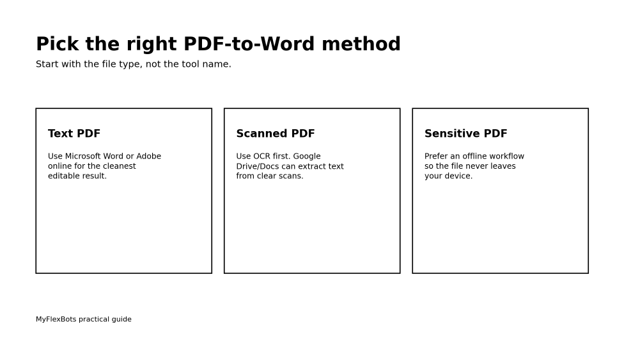
Before uploading anything to a web converter, decide whether the document contains personal records, financial details, contracts, customer data, passwords, or other sensitive information. For confidential files, an offline method is usually the safer default because the file remains on your device.
Open the PDF Directly in Microsoft Word
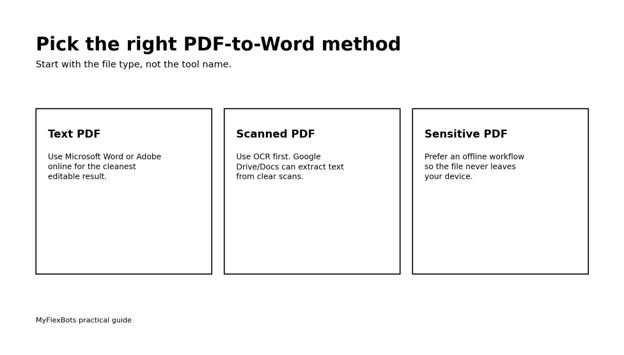
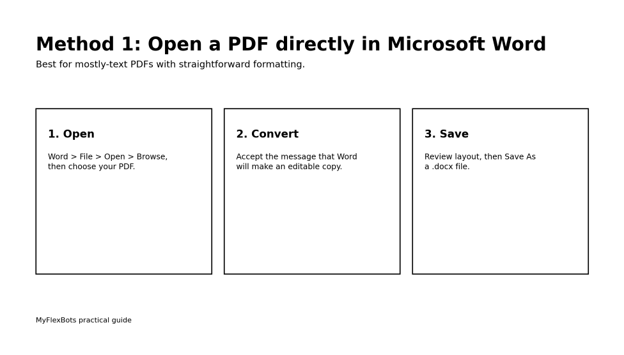
For a normal text-heavy PDF, opening the file in the desktop version of Word is one of the simplest answers to How to convert pdf to word for free. Microsoft says Word makes a copy of the PDF, converts it into a Word document, and attempts to match the original layout. The source PDF remains unchanged.
This method is strongest for reports, letters, simple invoices, essays, policies, and documents with conventional paragraphs. It is less reliable for magazines, brochures, multi-column pages, complex forms, decorative layouts, and pages made mostly from charts or graphics.
Open Microsoft Word and choose File > Open > Browse.
Select the PDF file and click Open.
When Word warns that it will convert the PDF into an editable document, choose OK.
Wait for conversion to finish, then compare the first few pages with the source PDF.
Choose File > Save As and save the result as Word Document (.docx).
💡 Quick Hack: Make a duplicate of the PDF first and give the Word version a different filename, such as ProjectName_EDITABLE.docx. This prevents version confusion later.
Use Adobe Acrobat Online in Your Browser
Adobe offers an official browser-based PDF-to-Word converter. This is useful when Word is not installed, when you are using a Chromebook or Linux machine, or when you want a quick conversion without installing software. Adobe’s online tool can create a DOCX in the browser, although usage limits can apply and repeated conversions may prompt you to sign in.
For many users asking How to convert pdf to word for free on a borrowed or temporary computer, a browser converter is the most convenient option. Upload the file, let the service convert it, download the DOCX, and then open it in Word, LibreOffice Writer, Google Docs, or another compatible editor.
Open Adobe’s official PDF-to-Word online converter.
Choose Select a file or drag the PDF into the upload area.
Wait for the conversion to complete.
Download the Word file and open it in your preferred editor.
Delete local download copies you no longer need, especially on a shared computer.
Pro-Tip: If the PDF has private data, do not use a random converter found through an advertisement. Prefer a known vendor or an offline workflow, and read the service privacy terms before uploading.
Use Google Drive and Google Docs for Scanned PDFs
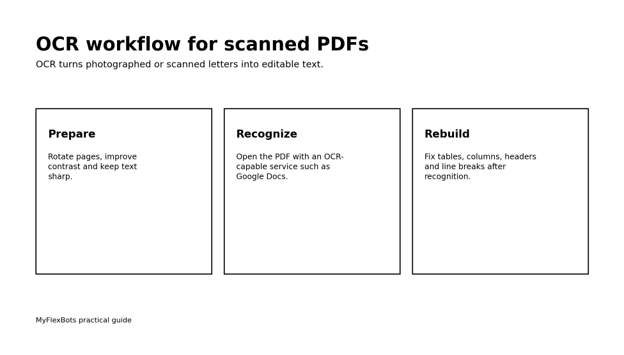
A scanned PDF is different from a normal PDF because each page may be nothing more than a picture. You can often highlight words in a digital PDF; in an image-only scan, you cannot. That is when optical character recognition, or OCR, becomes essential.
Google Drive can convert PDF and image files to text by opening them with Google Docs. Google’s guidance notes that formatting may not transfer perfectly, especially lists, tables, columns, footnotes, and endnotes. That makes Google Docs better for recovering text than for preserving a complex original design.
If your question is How to convert pdf to word for free when the PDF is a scan, this method is one of the most useful because it can recognize text that ordinary copy-and-paste cannot access.
Upload the scanned PDF to Google Drive from a desktop browser.
Right-click the file and choose Open with > Google Docs.
Allow Google to recognize the text and create a new document.
Correct OCR errors, spacing, headings, lists, and tables.
Choose File > Download > Microsoft Word (.docx) if you need a Word file.
💡 Quick Hack: OCR accuracy improves when pages are upright, sharp, evenly lit, and high contrast. Rotate sideways scans before recognition and avoid shadowed phone photos.
Convert with LibreOffice for a Free Desktop Workflow
LibreOffice is a free, open-source office suite and a useful option if you want to work without uploading files to a website. Depending on the PDF, LibreOffice may open it in Draw rather than Writer because PDF is a fixed-layout format. That means this route is best for extracting or editing simpler page elements rather than perfectly rebuilding every PDF as a flowing Word document.
For privacy-sensitive material, however, an offline suite can be valuable. You can open the PDF, copy the usable text and images into Writer, rebuild the document, and save the result as DOCX. It takes more manual cleanup, but you control where the file goes.
Install LibreOffice from the official project website.
Open the PDF and inspect whether text is selectable and editable.
Copy usable sections into a new Writer document if the PDF opens as fixed objects.
Recreate headings, tables, lists, and page breaks where needed.
Save the finished document as Office Open XML Text (.docx).
Pro-Tip: For short confidential PDFs, manual rebuilding in an offline editor can be faster than fixing a badly converted automatic result.
Use Google Docs for a Normal Digital PDF When Formatting Is Simple
Google Docs is not only for OCR. If your PDF is mostly text and your goal is to recover the wording rather than preserve pixel-perfect formatting, opening it through Google Drive can be a practical no-cost workflow. The advantage is that you can edit from any modern browser and export to DOCX afterward.
This is a good fit for school notes, simple letters, meeting notes, basic guides, and documents that will be reformatted anyway. It is a weaker choice for newsletters, legal forms, multi-column reports, or files where pagination must remain exact.
Upload the PDF to Google Drive.
Open it with Google Docs.
Review headings, paragraph breaks and special characters.
Recreate any tables or columns that did not survive conversion.
Download as Microsoft Word (.docx).
Convert PDF to Word on a Phone or Tablet
When you are away from a computer, mobile conversion can be enough for urgent edits. Official browser tools work on modern mobile browsers, and cloud storage apps can help you upload, open, recognize, and export documents. For short files, you can even scan a page with a phone and run OCR before saving the recovered text into a Word document.
People often search How to convert pdf to word for free on mobile because the file arrived through email, WhatsApp, or a cloud link. The key is to avoid editing a tiny, complex document blindly. Convert on the phone if necessary, but perform a final page-by-page quality check on a larger screen whenever the document matters.
Save the PDF to your phone’s Files app or cloud storage.
Open an official conversion tool in the browser or use a trusted document app.
Convert to DOCX and save the new file locally or to cloud storage.
Open the DOCX in Word mobile or Google Docs to make quick corrections.
Later, inspect the document on desktop for page breaks, tables and image positioning.
💡 Quick Hack: If a mobile converter produces a huge file, remove unnecessary full-page images or rescan at a reasonable resolution before converting again.
Copy Only the Content You Actually Need
Sometimes converting the entire PDF is unnecessary. If you only need two paragraphs, one address block, or a short table, copying selected text can be faster and cleaner than converting twenty pages. This is especially true when the rest of the PDF contains decorative graphics that would create layout problems in Word.
For a text-based PDF, select the needed content in your PDF reader and paste it into Word using Keep Text Only when you want a clean start. For an image-only PDF, run OCR on the relevant page first. This minimalist approach is an underrated answer to How to convert pdf to word for free because it avoids repairing content you never needed.
Identify the exact section you need.
Try selecting and copying the text directly.
Paste into Word using a plain-text or destination-format option.
Recreate only the formatting that adds meaning.
Compare names, figures, dates and punctuation with the source.
Pro-Tip: For a single table, it may be faster to rebuild the table manually in Word than to repair dozens of broken cells produced by automatic conversion.
Which Free Method Should You Choose?
When deciding How to convert pdf to word for free, the best method is the one that matches the PDF structure. A clean digital PDF and a crooked smartphone scan are completely different conversion problems, even though both files end in .pdf.
If you remember one rule from this guide, use Word or an established online converter for straightforward digital PDFs, use OCR for scanned files, and use offline workflows for confidential documents. That simple decision tree prevents most wasted time.
How to Preserve Formatting After Conversion
The hard part is often not How to convert pdf to word for free; it is how to make the converted Word document look professional afterward. PDF stores content in a fixed page layout, while Word uses flowing paragraphs, styles, sections, tables and objects. During conversion, software has to guess which PDF elements should become which Word elements.
Start with structure before cosmetics. Fix headings, paragraphs, lists, tables and section breaks first. Then repair fonts, colors, line spacing and image placement. If you obsess over font size while the table structure is still broken, you will redo the same work twice.
Turn on formatting marks in Word so you can see paragraph marks, spaces and page breaks.
Apply Word heading styles instead of manually enlarging every heading.
Rebuild tables when cells are merged incorrectly or columns drift.
Replace repeated spaces with tabs, table cells or paragraph alignment.
Check headers, footers and page numbers separately from body text.
Use Find and Replace to repair recurring OCR errors.
Save a fresh copy after major cleanup stages.
💡 Quick Hack: Use Word styles for Heading 1, Heading 2 and Normal text as early as possible. A styled document is easier to maintain, navigate and repurpose than one built from manual formatting.
Essential Tools and Cost Comparison
Most users can complete the job at zero additional cost. The biggest variable is not money but cleanup time. A five-page plain-text PDF may convert almost perfectly, while a two-page brochure with overlapping graphics can require manual reconstruction.
| Tool / Method | Best For | Estimated Cost | Skill Level | Typical Result |
| Microsoft Word desktop | Mostly text-based PDFs | No extra cost if already installed | Beginner | Good on simple layouts |
| Adobe Acrobat Online | Quick browser conversion | Free with usage limits | Beginner | Often strong for standard files |
| Google Drive + Docs | Scanned PDF / OCR | Free | Beginner | Best for text recovery, not exact layout |
| LibreOffice | Offline/manual workflow | Free | Intermediate | More cleanup, strong privacy control |
| Copy selected text | Small excerpts | Free | Beginner | Excellent when full conversion is unnecessary |
| Mobile browser/app | Urgent phone conversion | Usually free | Beginner | Convenient; verify later on desktop |
Common Mistakes to Avoid
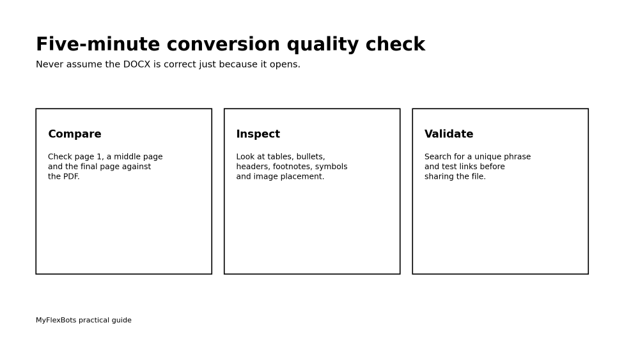
Beginners often judge success by whether a DOCX file was produced. A usable Word file requires a second test: can you edit it cleanly without hidden layout problems? Avoid these five mistakes.
Uploading confidential files to unknown converter sites. Use trusted services or offline tools for sensitive documents.
Assuming a scan contains editable text. If you cannot select words, plan to use OCR.
Expecting exact page-for-page reproduction. Microsoft explicitly warns that page and line breaks can shift during PDF conversion.
Ignoring tables and columns. They are among the first structures to break because PDF does not always store their relationships the way Word does.
Skipping the final comparison. Always compare the DOCX with the source PDF before deleting the original or sending the converted file.
Advanced Tips and Next-Level Hacks
Once you regularly research How to convert pdf to word for free, a repeatable workflow saves more time than hunting for a new converter every week. Keep an original, a converted draft, and a cleaned final copy. Use consistent filenames and do not overwrite the source PDF.
For long documents, fix one category at a time. First repair structure, then tables, then images, then headers and footers, then fonts. This batch approach is faster than perfecting page one while the rest of the document is still unstable.
Use a unique phrase from the PDF as a search test in the DOCX to confirm text recognition.
Compare numeric values separately; OCR mistakes in invoice totals, dates and reference numbers can be costly.
For recurring forms, create a clean Word template once instead of converting each new PDF from scratch.
If one converter destroys a complex table, try a second method before doing hours of manual repair.
For accessibility, replace visual-only headings with real Word heading styles and add alt text to meaningful images.
💡 Quick Hack: Create a three-column QA checklist: Source PDF, Converted DOCX, Verified. For business documents, this simple habit catches missing pages, numbers and signatures before they become real problems.
Troubleshooting: Fix the Most Common Conversion Problems
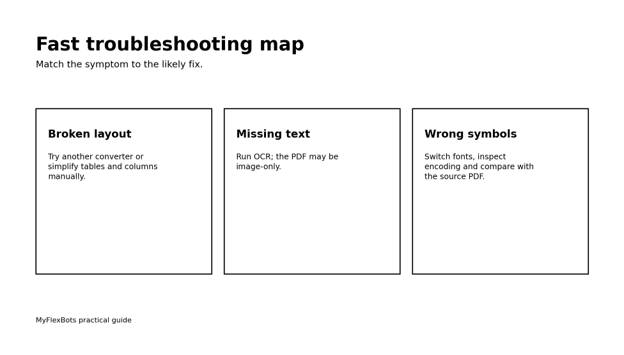
If the output looks wrong, diagnose the symptom instead of immediately starting over. Most problems fall into a few predictable categories.
Problem: The Word File Is Just a Full-Page Image
The source PDF is probably image-based, or Word could not detect editable structures. Run OCR using a trusted OCR-capable tool, then paste or export the recognized text into Word. For complex scanned forms, expect to rebuild the layout manually.
Problem: Lines Break in Strange Places
PDF text may be stored as positioned fragments rather than real flowing paragraphs. Remove manual line breaks carefully, then reapply paragraph formatting. In Word, Find and Replace can help with repeated line-break patterns, but test on a copy first.
Problem: Tables Are Scrambled
If cell boundaries, merged cells or column widths are wrong, manual repair is often faster than trying to force the converted structure to behave. Create a new table with the correct number of rows and columns, then move the verified text into it.
Problem: Fonts or Symbols Are Wrong
The original font may not exist on your computer, or the PDF may use embedded or custom character encoding. Replace unavailable fonts with a close alternative and compare symbols, bullets, equations, currency marks and accented characters with the original.
Problem: OCR Produces Nonsense
Improve the scan before trying again. Rotate the page, crop dark borders, increase contrast, rescan blurry text, and use a language setting that matches the document when the OCR tool provides one. Handwriting and stylized fonts remain much harder than clean printed text.
Problem: The File Is Too Large
Converted files can become bloated when every PDF page is imported as a high-resolution image. Compress pictures in Word, delete duplicate background graphics, crop unused image areas, and save as DOCX rather than an older binary DOC format.
Privacy and Security: What to Check Before Uploading a PDF
A guide to How to convert pdf to word for free should also cover privacy: free online converters are convenient, but convenience should not override document sensitivity. Before uploading, ask whether the file contains identity documents, customer information, bank details, medical data, confidential contracts, unpublished business plans, employee records or access credentials.
For ordinary public material, an established browser tool may be fine. For sensitive material, choose an offline workflow or an organization-approved service. Also remember that a converted Word file can expose text that was difficult to copy from the PDF, so review sharing permissions after conversion.
Frequently Asked Questions
Can I convert a PDF to Word for free without Adobe Acrobat?
Yes. Microsoft Word can open many PDFs directly, Google Drive and Google Docs can recover text and perform OCR in supported workflows, and free desktop suites can help with offline extraction and rebuilding. The best choice depends on whether the PDF contains normal text or scanned images.
How do I convert a scanned PDF into an editable Word document?
Use OCR. Upload the scan to a trusted OCR-capable service such as Google Drive/Google Docs, recognize the text, correct recognition errors, and export or copy the result into Word. Clear, upright, high-contrast scans produce better results.
Why does my converted Word file look different from the PDF?
PDF is fixed-layout, while Word is a flowing document format. Conversion software has to infer paragraphs, tables, columns, images and headings. Complex layouts, unusual fonts, footnotes, forms and graphics can therefore shift during conversion.
What is the best way to convert PDF to Word without losing formatting?
Start with a high-quality text-based PDF and use a converter designed to preserve layout, such as Word’s built-in PDF reflow or Adobe’s official converter. Even then, inspect tables, page breaks, columns, headers and fonts because no method is perfect for every PDF.
Can I do the conversion on iPhone or Android?
Yes. You can use a trusted browser converter or a document app, then open the resulting DOCX in Word mobile or Google Docs. For important documents, perform final quality control on a desktop or laptop.
Is it safe to use a free online PDF converter?
It depends on the service and the document. Avoid unknown sites for confidential files. Prefer official or established providers, read the privacy terms, and use an offline method for sensitive material whenever possible.
Conclusion
You now have several reliable ways to handle How to convert pdf to word for free without paying for a dedicated converter. For text-heavy documents, start with Microsoft Word or an established online service. For scans, use OCR. For confidential material, keep the workflow offline whenever practical.
The final step matters as much as the conversion itself: compare the Word file with the original PDF, verify important numbers and names, repair the document structure, and keep the source PDF as your reference copy. Visit MyFlexBots for more practical software, productivity and file-management guides. Which PDF conversion problem gives you the most trouble: scanned text, tables, fonts, or page layout?
editor's pick
latest video
news via inbox
Nulla turp dis cursus. Integer liberos euismod pretium faucibua