Best Controllers for PC Gaming: 2026 for gamers
Choosing a controller for a PC is deceptively difficult. A cheap pad can feel fine for ten minutes and then reveal mushy buttons, drifting sticks, poor wireless behavior, or software that fights the game instead of helping it. This guide cuts through the spec-sheet noise and focuses on the things that actually change a gaming session: compatibility, latency, stick technology, trigger feel, ergonomics, connectivity, software, durability, and value.
The goal is simple: help readers match a controller to the games they play, the way they connect, and the amount they are willing to spend. This guide compares the best controllers for pc gaming by real-world use case, not by marketing claims. It also explains when a premium controller is genuinely worth the money—and when a much cheaper model is the smarter buy.
Which controller should a PC gamer buy?
For most players, the best controller for PC gaming is one that offers dependable Windows support, comfortable ergonomics, accurate sticks, reliable triggers, and low-friction setup. Xbox-style XInput support remains the easiest route for broad game compatibility, while DualSense and modern third-party pads can add stronger haptics, gyro controls, TMR or Hall-effect sticks, and programmable buttons for specialized use.
Featured Snippet: The best controller choice in one minute
For most PC gamers, choose an Xbox-style XInput controller for broad compatibility and simple setup. Pick a Hall-effect or TMR model if durability and precision matter, DualSense for supported haptics, and a pro controller only if rear buttons, trigger stops, or advanced tuning solve a real problem.
Essential tools and materials for a controller setup
You do not need a complicated toolkit to get a PC controller working properly. The table below covers the practical accessories that may be useful, with typical budget ranges rather than fixed retail prices.
| Item | Why it matters | Typical cost | Skill level |
| PC controller | Primary input device | $30–$200+ | Beginner |
| USB-C data cable | Wired play, firmware updates, testing | $5–$12 | Beginner |
| 2.4 GHz receiver | Low-latency wireless connection when supported | Usually included | Beginner |
| Bluetooth adapter | Adds Bluetooth to PCs that lack it | $10–$20 | Beginner |
| AA batteries | Power for controllers using replaceable cells | $5–$10 | Beginner |
| Charging dock | Convenient storage and charging | $20–$50 | Beginner |
| Microfiber cloth | Routine cleaning | $3–$8 | Beginner |
| Manufacturer software | Firmware, calibration, remapping | Usually free | Beginner |
| USB extension cable | Better receiver placement | $5–$10 | Beginner |
| Gamepad testing utility | Checks buttons, sticks, and triggers | Free–$10 | Beginner |
Buying rule: spend the most on the controller itself, then add accessories only when they solve a specific problem. A $10 cable that makes wired testing easy is more useful than a $40 RGB charging stand that never gets used.
The 2026 shortlist: six controllers worth considering
- GameSir G7 Pro — Best performance-value pick
Among the best controllers for pc gaming, the GameSir G7 Pro is the most interesting choice for players who want enthusiast-level hardware without immediately jumping to a $150–$200 controller. Its current design combines TMR sticks, Hall-effect triggers, extra programmable controls, gyro support, and tri-mode connectivity. On PC, it supports wired and 2.4 GHz operation, with a 1000 Hz polling mode.
The important point is not the specification count. It is how those features solve real problems. TMR sticks target long-term consistency, trigger stops can make shooters faster, and the extra buttons let players move actions such as reload, melee, or abilities away from the face buttons.
It is especially strong for FPS, racing, action games, and players who enjoy tuning their controls. It is less attractive if the buyer wants the absolute simplest plug-and-play experience or has no interest in configuration software.
Best for: performance-focused players who want premium features at a midrange price.
- Xbox Wireless Controller — Best for simple compatibility
For many buyers, the best controllers for pc gaming still start with the standard Xbox Wireless Controller, which remains the safe choice for PC gamers who value familiarity and broad compatibility over a long list of enthusiast features. Microsoft officially supports Windows PC connectivity, including Bluetooth, and the controller uses the familiar Xbox button layout that many PC games display automatically.
Its biggest advantage is ecosystem simplicity. When a game expects XInput, the controller usually behaves exactly as the player expects, with the correct button prompts and little configuration drama.
The drawbacks are equally clear: there are no rear paddles, no TMR sticks, and no premium tuning system. The standard model also uses replaceable AA batteries, which some users like and others see as an extra chore.
Best for: first-time buyers, mixed game libraries, and anyone who wants a controller that generally just works.
- Razer Wolverine V3 Pro 8K PC — Best for competitive play
For competitive players comparing the best controllers for pc gaming, the Razer Wolverine V3 Pro 8K PC is built for players who actually benefit from advanced response and remapping. Razer gives it an 8000 Hz polling rate, TMR thumbsticks, multiple programmable controls, trigger modes, and PC-focused software.
An 8000 Hz polling rate sounds dramatic, but buyers should keep expectations realistic. A higher polling rate does not magically make a game render faster, reduce network latency, or turn an average player into a tournament champion. Its value is most obvious in a low-latency competitive setup where every part of the input chain is already optimized.
The TMR sticks are the more universally useful upgrade. They aim to deliver accurate analog movement while reducing the mechanical wear concerns associated with conventional potentiometer sticks.
Best for: competitive FPS players and enthusiasts who want maximum customization.
- DualSense Wireless Controller — Best for immersion
When comparing the best controllers for pc gaming for immersion, Sony’s DualSense is the controller to consider when haptics and adaptive triggers matter more than universal plug-and-play behavior. On supported PC games, its adaptive triggers can change resistance while haptic feedback can provide more detailed vibration effects.
The catch is game support. The DualSense can work beautifully in one PC title and feel like a fairly ordinary gamepad in another. Some features may also require a wired USB connection depending on the game and implementation.
That makes it a fantastic secondary controller for a player who owns a broad PC library but specifically wants richer feedback in supported games.
Best for: cinematic action games and players who prioritize haptics and adaptive triggers.
- 8BitDo Ultimate 2C — Best budget-minded choice
The 8BitDo Ultimate 2C family is a strong example of why the best controllers for pc gaming do not have to be expensive of where modern budget controllers have improved. The wired version offers Hall-effect sticks and triggers, extra bumpers, customizable mapping, and a 1000 Hz polling rate on compatible systems.
For a buyer who does not need wireless freedom, a wired controller can be a smarter investment than a cheap wireless pad. The money goes toward the parts that affect control instead of a battery, radio hardware, and charging system.
The main trade-off is platform and version selection. 8BitDo sells multiple Ultimate variants, and compatibility differs by model. Check the exact version before buying rather than assuming every Ultimate 2C product supports PC in the same way.
Best for: students, secondary PCs, younger gamers, and anyone trying to keep the budget low.
- Steam Controller (2026) — Best for couch and mouse-heavy games
Valve’s 2026 Steam Controller takes a different approach, giving the best controllers for pc gaming category a useful alternative for couch players. Instead of trying to imitate an Xbox pad, it uses trackpads, gyro functionality, grip sensing, and deep Steam configuration to make controller-style play more flexible.
That matters for strategy games, simulations, older PC titles, and games that were designed around a mouse and keyboard. It can also be an excellent living-room controller because the configuration layer can translate controller inputs into mouse-like commands.
The trade-off is complexity. A conventional gamepad can be picked up and understood immediately. The Steam Controller rewards experimentation and configuration.
Best for: Steam-focused couch gaming and mouse-heavy PC games.
How the controllers compare
| Controller | Best use | Connectivity | Stick technology | Customization | Skill level |
| GameSir G7 Pro | Performance/value | Wired + 2.4 GHz on PC | TMR | High | Intermediate |
| Xbox Wireless Controller | General PC gaming | Bluetooth + wired | Conventional | Moderate | Beginner |
| Razer Wolverine V3 Pro 8K PC | Competitive gaming | Wireless + wired | TMR | Very high | Advanced |
| DualSense | Immersive games | Wired/Bluetooth | Conventional | Moderate | Beginner |
| 8BitDo Ultimate 2C Wired | Budget performance | Wired | Hall effect | Moderate | Beginner |
| Steam Controller 2026 | Couch/legacy/PC games | Wireless + wired | Specialized trackpads/sticks | Very high | Intermediate |
What actually matters when choosing a PC controller
A controller is a hand-operated interface, which is why choosing among the best controllers for pc gaming should start with feel and compatibility rather than a spec sheet., not a spec sheet. The right purchase depends on the friction points the player experiences.
- Compatibility comes before features when evaluating the best controllers for pc gaming
Look for explicit Windows support and, when possible, XInput compatibility. XInput is important because a large number of PC games are designed around Microsoft’s controller API and can automatically recognize Xbox-style inputs.
If the controller uses DirectInput only, some games may need remapping or third-party software. That is not automatically bad, but it adds another layer that can fail.
Pro-Tip: If the controller is mainly for Steam, check the game’s controller-support status and test the controller through Steam before changing multiple settings. Steam’s own support documentation also recommends isolating other input devices when troubleshooting conflicts.
- Wired versus wireless
Wired controllers are still underrated when comparing controller options.
Wireless controllers win on comfort, especially from a sofa. For competitive players, 2.4 GHz dongle connections are generally preferable to Bluetooth when the controller offers both because the dedicated receiver is designed for low-latency input.
Bluetooth is convenient, but it should not be treated as automatically equivalent to every proprietary 2.4 GHz connection.
- Hall effect versus TMR versus conventional sticks
Traditional analog sticks usually rely on potentiometers, so shoppers comparing the best controllers for pc gaming should understand what that means for long-term wear. They are inexpensive and can feel excellent, but the physical sensing components can wear over time, contributing to drift.
Hall-effect sticks use magnetic sensing rather than a conventional resistive contact path. TMR, or tunnel magnetoresistance, is another magnetic sensing approach that has become increasingly common in enthusiast controllers.
Do not buy a controller solely because it says “Hall effect” or “TMR.” Calibration quality, dead-zone tuning, firmware, mechanical design, and software support still matter.
- Trigger design
Racing games benefit from long, smooth analog trigger travel because throttle and brake control depend on fine input. Competitive shooters can benefit from shorter trigger stops because the player is often using triggers as quick digital-like actions.
The best controller for one genre can therefore be the wrong controller for another.
- D-pad quality
Fighting games, platformers, retro games, and menu-heavy titles expose weak D-pads immediately. A D-pad that feels vague in a menu may feel downright frustrating during diagonal inputs or rapid quarter-circle motions.
If fighting games are the priority, treat the D-pad as a primary buying criterion rather than an afterthought.
- Rear buttons and remapping
Extra buttons are useful when they reduce hand movement. They are not useful simply because a controller has them.
Good assignments include:
Jump
Reload
Melee
Sprint
Weapon swap
Ability activation
Push-to-talk
Avoid filling every programmable button just because the software allows it. Too many new mappings can create accidental presses and slow muscle-memory development.
A practical buying process
Step 1: List the games you actually play
Write down the five games played most often. Divide them into categories:
Shooters
Racing
Sports
Platformers
Fighting
RPG/action
Strategy/simulation
If most are racing or sports titles, comfort and trigger control should dominate the decision. If most are competitive shooters, stick precision, trigger stops, paddles, and connection quality matter more.
Step 2: Choose the connection first
For a desktop at arm’s length, wired is perfectly sensible. For a living room, choose wireless. For competitive play, prioritize a low-latency 2.4 GHz connection or a wired mode.
Step 3: Decide whether customization is necessary
If the answer is no, avoid paying for four paddles, profiles, interchangeable sticks, and complex software.
If the answer is yes, decide exactly what will be remapped. A controller with two well-placed rear buttons can be more useful than a complicated model with six controls that are uncomfortable to reach.
Step 4: Check the exact model, not just the brand
This is one of the easiest ways to avoid a bad purchase. Brands often sell several controllers with similar names but different operating modes, button layouts, wireless support, and platform compatibility.
Read the manufacturer’s compatibility list for the exact model.
Step 5: Test the controller before changing anything
Connect it with USB first. Confirm that Windows sees it. Then test each stick, trigger, D-pad direction, face button, bumper, and additional control.
Only after the hardware passes should the player begin tuning software.
Setting up a new controller correctly
A good controller should take minutes to configure, not hours.
Windows setup
Connect the controller through USB or pair it using its supported wireless method.
Allow Windows to finish device detection.
Install the manufacturer’s official firmware or configuration software if needed.
Update the controller firmware.
Restart the PC if the software requests it.
Open the game and verify the button prompts.
Test both sticks at their full range.
Check triggers for a full analog sweep.
Save a basic profile before experimenting.
Steam setup
Open Steam’s controller settings and verify that the device appears. For games purchased outside Steam, adding the game to the Steam library can sometimes make Steam’s controller configuration layer available.
Do not stack multiple remapping systems unless necessary. For example, using manufacturer remapping, Steam Input, and a third-party emulator simultaneously can create double inputs or incorrect button behavior.
Pro-Tip: Change one layer at a time. If the controller stops working after three configuration changes, there is no reliable way to know which change caused the problem.
Common mistakes to avoid
Mistake 1: Buying the most expensive controller
Price is not a performance guarantee. A $200 controller with six programmable buttons is wasteful if the player uses only the standard layout.
Better approach: spend money on the feature that solves a real problem.
Mistake 2: Ignoring stick drift and calibration
A controller can feel perfect in the hand, yet still fail a basic test; this is why buyers of the best controllers for pc gaming should check calibration. while the stick is technically off-center.
Better approach: test the neutral position and adjust dead zones only as much as necessary.
Mistake 3: Choosing Bluetooth because it is convenient
Bluetooth is convenient, but the experience varies by hardware, operating system, interference, and controller implementation.
Better approach: use wired or a dedicated 2.4 GHz receiver when low latency is a priority.
Mistake 4: Running several remappers at once
Multiple input layers can create duplicate commands, wrong button prompts, or inconsistent behavior.
Better approach: use native XInput first, Steam Input second, and third-party emulation only when a game actually needs it.
Mistake 5: Buying based on marketing numbers
An 8000 Hz polling rate sounds impressive, but it is only one part of the input chain.
Better approach: prioritize consistent sticks, comfortable ergonomics, stable connectivity, useful software, and reliable firmware.
Five budget-saving hacks
💡 Quick Hack: Buy wired if the controller stays at the desk
A wired model can redirect money away from batteries and wireless hardware and toward better switches, sticks, or ergonomics.
💡 Quick Hack: Look for Hall-effect or TMR value models
You do not need a premium esports controller to get modern stick technology. Several midrange controllers now offer magnetic sensing.
💡 Quick Hack: Use the controller you already own
Before buying anything, connect an existing Xbox, PlayStation, or compatible third-party controller. If it works comfortably, spend the money only when you can name the problem the new model will solve.
💡 Quick Hack: Buy the previous generation when the layout is right
A controller does not become bad because a newer version launched. Older models can be excellent value when firmware support and compatibility remain solid.
💡 Quick Hack: Keep one controller profile simple
A basic profile is easier to troubleshoot than a heavily customized one. Save an advanced profile separately so it can be restored without rebuilding the entire layout.
Advanced tips for enthusiasts
Tune dead zones conservatively
Dead-zone settings should be a correction, not a crutch. Increasing the dead zone can hide drift, but it also reduces the amount of physical stick movement that produces an in-game response.
Start with the game’s default. Lower the dead zone gradually and stop as soon as the stick becomes stable.
Match stick height to the job
A taller right stick can provide finer camera control because the thumb has more physical travel. A shorter stick can feel faster for broad movements.
Competitive players should experiment rather than copying another player’s settings blindly.
Use trigger stops selectively
Trigger stops are excellent for games that treat triggers as fast actions. They can be counterproductive in racing games where the full analog range is the point.
Keep firmware current—but do not update blindly before an important event
Firmware updates can fix bugs and improve compatibility. Install them before a long gaming session, not five minutes before a tournament or LAN event.
Keep the wireless receiver visible
Do not bury a 2.4 GHz receiver behind a metal PC case, monitor arm, or dense cable cluster. A short USB extension can sometimes improve receiver placement and reduce interference.
Troubleshooting guide
The controller is not detected
Try this sequence:
Disconnect it.
Restart the game.
Reconnect the controller.
Try another USB port.
Test a different cable.
Update firmware.
Restart Steam.
Remove other controllers temporarily.
Test the controller in Windows before blaming the game.
This isolation method matters because controller conflicts can come from another input device or remapping utility.
The game shows keyboard prompts
This usually means the game is not receiving the controller as the expected input type.
Try:
Checking whether the game supports controllers.
Launching through Steam if appropriate.
Enabling the correct Steam Input configuration.
Disconnecting other controllers.
Closing third-party remapping utilities.
The stick drifts
First, confirm whether the drift exists outside the game. If the controller software includes calibration, run the test.
If the drift remains:
Increase the in-game dead zone slightly.
Recalibrate the controller.
Check for firmware updates.
Test on another PC if possible.
Contact the manufacturer if the hardware is still under warranty.
Do not immediately assume that every drift problem requires replacement.
Wireless input feels inconsistent
Move the receiver closer to the controller. Avoid placing it beside high-interference USB devices. If the controller supports both Bluetooth and 2.4 GHz, test the dedicated receiver.
For troubleshooting, Steam also recommends checking signal conditions and moving potential interference sources away from wireless receivers. citeturn7search0
Buttons double-register
A double input can come from a failing switch, a stuck key, or two software layers sending the same command.
Test the controller with all remapping disabled. If the problem disappears, rebuild the configuration one layer at a time.
Battery drains quickly
Reduce unnecessary vibration or lighting where the controller allows it. Keep the firmware updated and avoid leaving the controller awake when it is not being used.
If battery performance suddenly collapses rather than gradually declining, check whether a firmware or software process is keeping the controller active.
Maintenance: make a good controller last
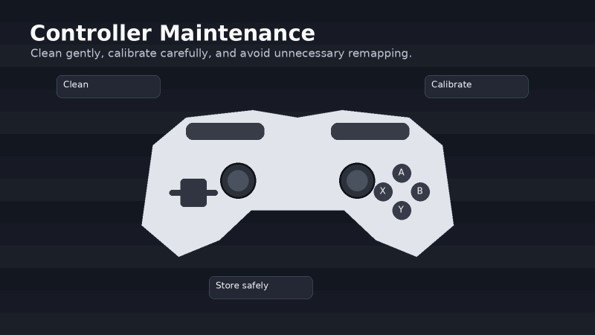
Wipe the controller with a soft, slightly damp microfiber cloth. Do not flood buttons, sticks, or seams with cleaning liquid.
Keep food and drinks away from the controller. Crumbs are especially effective at finding their way beneath D-pads and face buttons.
For wireless models, avoid storing the controller at zero charge for long periods. For replaceable-battery models, remove batteries if the controller will sit unused for an extended period and follow the manufacturer’s storage guidance.
Most importantly, do not pull a wired controller from the cable. Grip the connector when unplugging it.
When a controller is better than mouse and keyboard
Controllers are particularly comfortable for:
Racing games
Sports games
Platformers
Third-person action games
Many action RPGs
Local multiplayer
Couch gaming
Mouse and keyboard generally remain stronger for:
Competitive tactical shooters
Strategy games
Management simulations
Fast inventory-heavy games
Applications designed around precise cursor movement
The choice is not ideological, and that is the final lesson when choosing the best controllers for pc gaming. Use the input method that makes the game easier and more enjoyable.
FAQ
- What is the best controller for PC gaming overall?
For a simple, dependable experience, the Xbox Wireless Controller is difficult to beat because of its familiar layout and broad Windows compatibility. For players who want more advanced hardware and customization, the GameSir G7 Pro is a stronger enthusiast choice.
- Are Hall-effect controllers better?
They can be, especially for players concerned about conventional potentiometer wear and drift. But Hall-effect sensing does not guarantee a perfect controller. Calibration, firmware, mechanical quality, dead-zone behavior, and software still matter.
- Is wired better than wireless for PC gaming?
Wired is simpler and removes battery concerns. Wireless is more convenient. For competitive gaming, a dedicated low-latency 2.4 GHz connection or wired mode is generally the safer choice when available.
- Can a PS5 DualSense controller work on PC?
Yes. The DualSense can be used on PC, and supported games can take advantage of its adaptive triggers and haptic feedback. The exact feature set depends on the game and connection method. Sony documents the controller’s adaptive trigger and haptic capabilities on its official product page. citeturn1search5
- Do PC controllers work with Steam?
Most mainstream USB and wireless controllers can be used with Steam, although support varies by device and game. Steam’s controller system can also provide configuration options, particularly for supported games and non-Steam titles added to the library.
- How often should a controller be replaced?
Replace it when the hardware becomes unreliable or no longer meets the player’s needs—not simply because a new generation launched. A controller with stable sticks, responsive buttons, and working connectivity can remain useful for years.
Conclusion
The right PC controller—and the reason some models earn a place among the best controllers for pc gaming—is not necessarily the most expensive, newest, or most heavily marketed model. It is the one whose connection method, stick technology, trigger behavior, button layout, software, and ergonomics match the games on the hard drive.
For most buyers, the Xbox Wireless Controller remains the low-friction starting point. The GameSir G7 Pro is more compelling for performance-focused players, the 8BitDo Ultimate 2C makes a strong budget case, DualSense wins when supported haptics matter, and the Razer Wolverine V3 Pro 8K PC is aimed squarely at competitive enthusiasts.
editor's pick
latest video
news via inbox
Nulla turp dis cursus. Integer liberos euismod pretium faucibua