
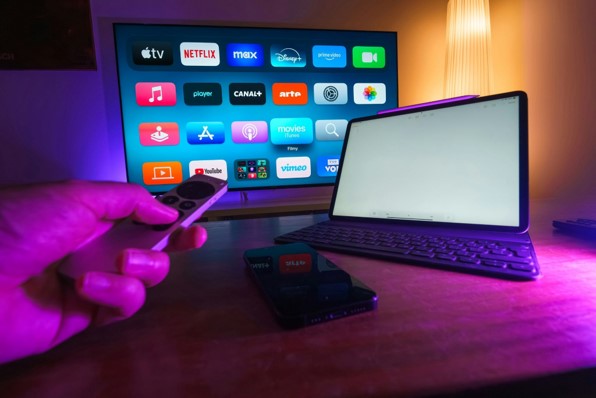
How to Cancel Streaming Subscriptions: Step-by-Step Guide
A forgotten free trial or barely used streaming app can quietly drain money for months. This guide explains how to cancel streaming subscriptions without getting trapped in the wrong app, the wrong account, or the wrong billing portal—and shows you how to prove the renewal is truly switched off.
You will learn how to find every active service, identify who actually collects the payment, cancel direct and third-party subscriptions, handle bundles, request help after a failed cancellation, and build a simple system that prevents surprise charges from returning.
Accuracy note: The cancellation paths and official support links in this article were checked on August 2, 2026. Menu labels, regional options, refund policies, and billing partners can change, so use the linked help page when a screen looks different.
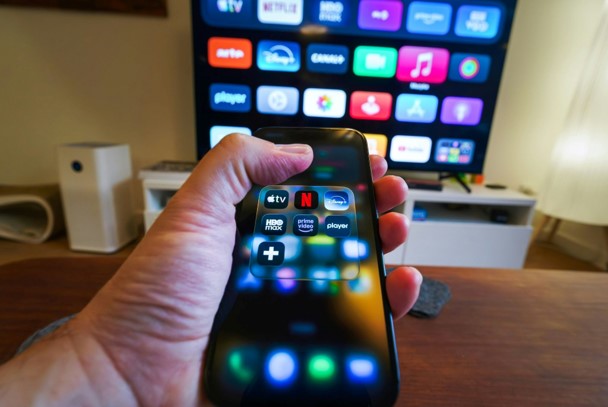
Featured Snippet: What Is the Fastest Way to Cancel?
| Direct answer: To learn how to cancel streaming subscriptions, first identify the company that bills you. Cancel through that provider—such as the streaming service, Apple, Google Play, Amazon, Roku, or a mobile carrier—then save the confirmation email and verify that the account shows an expiration date instead of a renewal date. |
The One Rule That Solves Most Cancellation Problems
The service you watch and the company that bills you are not always the same. You may open Max, Hulu, Disney+, Paramount+, or another app every day, yet the recurring charge may be controlled by Apple, Google Play, Roku, Amazon Prime Video Channels, a cable company, or a mobile provider.
That is why the first practical rule of how to cancel streaming subscriptions is simple: cancel where you pay, not merely where you watch. If the service account does not show a cancellation button, look for a message naming the billing partner or inspect the merchant name on your bank statement.
Deleting an app, removing a TV channel tile, signing out, changing a profile, or closing a device does not normally stop recurring billing. Google Play and Netflix both warn users that uninstalling or signing out is not cancellation. Treat the billing portal as the control panel and the viewing app as the screen.
| 💡 Quick Hack: Search your email for receipt, renewal, subscription, trial ends, and the service name. The most recent receipt usually reveals the billing company, account email, plan name, price, and next renewal date faster than hunting through every device. |
Essential Tools & Materials Breakdown
This is a digital housekeeping project, so you do not need paid software. A few basic tools reduce mistakes and create a paper trail if a charge appears after cancellation.
| Tool / Material | Estimated Cost | Skill Level | Why It Matters |
| Bank or card statements | Existing account; $0 | Beginner | Find merchant names, duplicate charges, amounts, and payment dates. |
| Email search | $0 | Beginner | Locate receipts, renewal notices, trial confirmations, and account emails. |
| Web browser on phone or computer | $0 | Beginner | Most services expose full billing controls more reliably on the web than on a TV app. |
| Password manager | $0–$3/month optional | Beginner | Recover the correct account and avoid repeated password resets. |
| Screenshot or PDF folder | $0 | Beginner | Save the cancellation screen, reference number, and final access date. |
| Calendar app | $0 | Beginner | Set reminders before trial, monthly, or annual renewals. |
| Simple spreadsheet or note | $0 | Beginner | Track service, price, billing source, renewal date, and status. |
| Customer support chat or phone | $0 | Beginner | Escalate missing buttons, account mismatches, or disputed charges. |
Audit Every Streaming Charge
Before canceling anything, create one complete list. A rushed user often remembers Netflix and Disney+ but misses sports add-ons, premium channels inside another app, music streaming, annual plans, free trials, and family subscriptions purchased by someone else.
For a reliable how to cancel streaming subscriptions audit, review at least the last 13 months of card and bank activity. Twelve months may miss an annual renewal that posted a few days outside the exact date range. Mark every recurring entertainment charge, even when the merchant name looks unfamiliar.
Build a Subscription Inventory
List the service name as you recognize it, such as Netflix, Hulu, Max, Peacock, YouTube Premium, Spotify, or a sports package.
Record the merchant name exactly as it appears on the statement. Examples may include Apple, Google, Roku, Amazon, a telecom company, or a parent company rather than the app brand.
Add the amount, last charge date, billing frequency, and payment method.
Write the email address or platform account most likely connected to the charge.
Label each item keep, downgrade, pause, rotate, investigate, or cancel.
Check Every Place a Subscription Can Hide
Apple account subscriptions on each family member’s iPhone, iPad, or Mac.
Google Play subscriptions under every Google account used on Android devices.
Amazon memberships and Prime Video add-on channels.
Roku subscriptions and Premium Subscriptions on The Roku Channel.
Smart-TV app stores, including Samsung or other manufacturer billing where applicable.
Cable, broadband, and mobile plans that include streaming benefits or paid add-ons.
PayPal automatic payments and digital wallets.
Family organizer accounts, student accounts, and old email addresses.
| Pro-Tip: Do not cancel a charge simply because the merchant name is unfamiliar. First match the amount and date to a receipt. Some statements use a parent-company or platform label, and an immediate card dispute can complicate an otherwise normal cancellation. |
Identify the Real Billing Provider
Billing ownership determines the cancellation route. The quickest way to understand how to cancel streaming subscriptions is to answer one question for each charge: Who is authorized to take the next payment?
| Statement Clue | Likely Control Panel | What It Usually Means |
| Streaming service name | Service website or account page | You subscribed directly on the company website. |
| APPLE.COM/BILL or Apple | Apple Subscriptions | The purchase was made through an Apple account. |
| GOOGLE or Google Play | Google Play Subscriptions | The purchase was made through a Google account or Android app. |
| Amazon, Prime Video, or channel name | Amazon Memberships & Subscriptions / Prime Video Channels | The service is an Amazon add-on or membership. |
| Roku, Roku for…, or The Roku Channel | Roku Subscriptions | Roku manages the payment or channel subscription. |
| Mobile carrier, cable, or internet provider | Provider account or support team | The service is bundled, promoted, or added to a telecom bill. |
| PayPal | Merchant plus PayPal automatic payments | Cancel with the merchant; also review the PayPal billing agreement. |
Use the Account Page as a Cross-Check
Open the streaming service in a web browser and look under Account, Subscription, Plan, Billing, or Membership. A direct-billed account usually shows a next billing date and a cancellation control. A partner-billed account often names the provider or gives instructions to manage the plan elsewhere.
Netflix, for example, says that users who do not see a cancellation option should check the Membership section for instructions connected to the payment partner. Max similarly directs users to the provider listed in the Subscription area when another company handles billing.
| 💡 Quick Hack: The last four digits of the payment method can separate two accounts with the same service. Compare the card shown in the account page with the card that received the charge before you cancel the wrong household member’s plan. |
Prepare Account Access Before You Cancel
Cancellation becomes frustrating when the original signup email is forgotten, the phone number changed, or a family member owns the platform account. Fix access first so you can complete the process in one session.
Use a private browser window when multiple family members share a computer. This reduces accidental cancellation under the wrong signed-in account.
Reset the password only through the official service or platform website. Avoid links in unexpected billing emails.
Check saved passwords for old email addresses and usernames.
Ask the family organizer or account owner to sign in when the subscription is under Apple Family Sharing, Google family settings, Amazon Household, or a telecom account.
Keep the payment statement nearby in case support asks for the charge date, amount, or last four card digits.
For security, update a weak or reused password after the cancellation—especially when the service had profiles shared beyond your household. Turn on two-step verification where the provider supports it, then remove devices you no longer recognize.
Cancel Subscriptions Billed Directly by the Streaming Service
When the service bills you directly, use a phone or computer browser rather than a television interface. The browser usually exposes the full account page, makes confirmation text easier to read, and lets you save a screenshot.
The following paths show how to cancel streaming subscriptions on several major direct-billed services. If the account says you are billed by a partner, skip to the marketplace or provider sections below.
Netflix
Open the official Netflix cancellation guide or sign in to the Manage Your Membership page. Choose Cancel, then Finish Cancellation. Netflix says a confirmation email is sent to the account email, and access normally continues until the end of the current billing period.
If no cancellation option appears, check the Membership area for the payment partner. Signing out or deleting the app does not end the membership. Netflix may also offer a temporary pause for eligible accounts, which can be useful when you expect to return soon.
Hulu
Sign in to Hulu on a computer or mobile browser, open the Account page, find Your Subscription, choose Cancel, and follow the prompts. The official Hulu cancellation instructions note that some subscribers must cancel through the billing partner shown on the account.
Read each retention screen carefully. A pause, lower-priced plan, or bundle change is not the same as a completed cancellation. After finishing, the account should clearly state that the subscription is scheduled to end.
Disney+
For a Disney-billed plan, sign in through a browser, select the profile, open Account, choose the subscription under the Subscription or Plans & Billing area, select Cancel Subscription, and finish the confirmation steps. Use the official Disney+ cancellation help when menu wording differs by region.
A Disney Bundle can involve Hulu or other services, so confirm whether you are canceling one component or the entire bundle. If Disney+ says Apple, Google, Amazon, Roku, or another partner bills the account, cancel with that provider instead.
HBO Max / Max
Open the Subscription area in Max or use the official HBO Max cancellation guide. If HBO Max bills you directly, follow the on-screen cancel controls. If another provider is listed, use that provider’s account page. Only an adult profile can normally manage subscription settings.
Do not assume that removing the app from a smart TV cancels the plan. Save the final screen showing the expiration date or canceled status.
Peacock
Sign in to the Peacock account, open the Plans & Payment area, select the cancellation control, and follow the confirmation sequence. The official Peacock cancellation page should be used for the current wording and partner-billing instructions.
Peacock says charges are generally non-refundable, though support may review exceptional cases. That makes cancellation timing important: complete the process before the next renewal rather than relying on a later refund.
YouTube Premium or YouTube Music Premium
Open YouTube, select the profile picture, choose Paid memberships, open the membership, select Deactivate or the cancellation option, continue, choose a reason, and confirm. The official YouTube Premium cancellation instructions provide device-specific steps.
If Apple bills the membership, YouTube may direct you to Apple subscriptions. If Google Play bills it, manage the plan under the correct Google account.
Quick Direct-Billing Checklist
Use the official website, not a search ad or third-party cancellation service.
Check the plan name, account email, and payment method before confirming.
Decline pause or discount offers unless you intentionally want them.
Continue until a final status or expiration date appears.
Save the confirmation email and a screenshot.
Step 5: Cancel Apple, Google Play, Amazon, and Roku Billing
Marketplace billing is one of the most common reasons people cannot find a cancel button inside a streaming app. Once you know the platform, how to cancel streaming subscriptions becomes a short account-management task rather than a search through every service menu.
Cancel Through Apple
On an iPhone or iPad, open Settings, tap your name, choose Subscriptions, select the streaming service, and tap Cancel Subscription. On a Mac, use the App Store account settings and manage subscriptions. Apple also provides web and Windows routes in its official guide: cancel a subscription from Apple.
If there is no Cancel button or an expiration message already appears, Apple says the subscription may already be canceled. Make sure you are signed in with the Apple Account that made the purchase; family members can have separate subscriptions even on shared devices.
Cancel Through Google Play
On Android, open Google Play, switch to the correct Google account, go to Payments & subscriptions and then Subscriptions, select the service, tap Cancel subscription, and follow the instructions. You can also manage subscriptions on the Google Play website. Use the official page to cancel, pause, or change a Google Play subscription.
Uninstalling the streaming app does not cancel the Google Play subscription. Some plans allow a payment pause, but choose it only when a temporary break is your actual goal.
Cancel Amazon Prime Video Channels or Other Amazon Subscriptions
For a Prime Video add-on, open Amazon’s Manage Your Subscriptions or Prime Video Channels controls, find the channel, choose Unsubscribe, and confirm. The official Prime Video add-on cancellation guide provides the current route.
A Prime Video channel and a direct subscription to the same brand can be separate products. Canceling Amazon Prime also does not automatically cancel every independent service, and canceling a channel does not necessarily end the Prime membership. Review the account after each action.
Cancel Through Roku
On the web, sign in at the Roku subscriptions page, choose the active subscription, select Manage subscription, and choose Turn off auto-renew. On a Roku device, highlight the app, press the Star button, choose Manage subscription, and turn off auto-renew. See Roku’s official guide to manage or cancel subscriptions on Roku.
Roku notes that some services—even when a Roku-related charge appears—may require direct contact with the provider. Use the instructions displayed in the Roku account, particularly for services whose billing and subscription management are split between companies.

Cancel Carrier, Cable, Internet, and Bundle Subscriptions
Streaming services increasingly arrive as mobile-plan benefits, broadband add-ons, TV packages, credit-card perks, or promotional bundles. The app may show an active membership but no direct payment method because the provider controls the entitlement.
Sign in to the carrier or cable account and look under Services, Add-ons, Entertainment, Benefits, or Subscriptions. Some included benefits cost nothing while the qualifying plan remains active; others convert to a paid add-on after a promotional period. Read the itemized bill before removing anything.
Ask whether canceling the streaming benefit changes the price of the underlying mobile, internet, or TV plan.
Confirm whether the provider can remove only the streaming add-on or must change the entire bundle.
Request the effective date and a confirmation number in writing or chat transcript.
Check whether the streaming account will revert to direct billing after the bundle ends. Remove any backup payment method when the service instructs you to do so.
If you are moving to a new bundle that includes the same service, follow the provider’s account-linking steps before canceling a working profile and losing watch history.
| 💡 Quick Hack: Ask support one exact question: “Will this account begin billing my saved card directly after the provider benefit ends?” The answer reveals whether you must also change settings inside the streaming account. |
Verify the Cancellation Actually Worked
A cancellation is not complete because you clicked one button. The proof is a changed account status, a final access date, or a written confirmation. This verification step is the most important part of how to cancel streaming subscriptions because retention pages can make a pause, downgrade, or incomplete request look finished.
Look for These Proof Points
The account says Canceled, Expires on, Ends on, Auto-renew off, or similar wording.
The next billing date is replaced by a final access date.
A confirmation email arrives at the account address.
The marketplace subscription moves from Active to Expired, Canceled, or Inactive as appropriate.
The confirmation identifies the exact plan or channel, especially when several add-ons exist.
Save a Cancellation Record
Create a folder called Subscription Cancellations. Save the confirmation email as a PDF, capture the final account screen, and name the file with the service and date. For support-assisted cancellations, save the chat transcript or write down the representative, time, and reference number.
Do not delete the streaming account immediately unless privacy or account closure is your separate goal. Keeping access until the paid period ends lets you check the status and can preserve profiles or watch history if you resubscribe later.
Check the Next Statement
Review the payment account after the expected renewal date. A small authorization, tax adjustment, or delayed posting can look confusing, so compare the transaction date, amount, and merchant label with the cancellation record. Contact the service first when the charge appears to be a billing error.
For U.S. bank-account auto debits, the Consumer Financial Protection Bureau explains how to stop automatic payments by revoking authorization with the company and contacting the bank when necessary. This is a payment-control measure, not a substitute for ending the underlying service contract.
Handle Free Trials, Annual Plans, Add-Ons, and Bundles
Free Trials
Cancel a trial as soon as you decide not to keep it. Many services preserve access until the trial end, but some may end benefits immediately; read the confirmation screen before finishing. The FTC guide to free trials and auto-renewals recommends understanding renewal terms, monitoring statements, and keeping records.
Set two reminders: one several days before renewal and one on the final day. The first gives you time to recover an account; the second catches a forgotten decision.
Annual Plans
Annual billing lowers the monthly equivalent but increases the cost of forgetting. Cancellation normally stops the next annual renewal rather than refunding unused months. Record the expiration date and decide whether the remaining access is worth using or whether account security requires an immediate closure request.
Premium Channels and Add-Ons
A base service and its add-ons may have separate switches. Canceling a sports channel, ad-free upgrade, extra-member slot, or premium network does not necessarily cancel the base subscription. Likewise, canceling the base plan may leave a separate marketplace channel active. Review every line in the subscription page.
Bundles
A bundle can be cheaper than separate subscriptions, but it also makes cancellation consequences harder to see. Confirm which services stop, which account data remains, whether the price of surviving services changes, and whether a promotional rate is lost permanently.
| Pro-Tip: Take a screenshot of the bundle contents before canceling. It gives you a reference when the provider describes the change later using different plan names. |
Common Mistakes to Avoid
Most failed attempts at how to cancel streaming subscriptions come from five predictable errors. Avoiding them saves more time than searching for a secret cancellation link.
- Deleting the App Instead of Canceling Billing
Removing an app only clears software from a device. The subscription remains active in the service account or marketplace. Always open the billing portal and switch off renewal.
- Using the Wrong Account
A household may have several Apple Accounts, Google accounts, emails, or Roku profiles. Match the payment method, receipt, and account email before pressing cancel. If the plan is absent, switch accounts rather than assuming the service is hiding it.
- Accepting a Pause or Discount by Accident
Retention screens are designed to keep the account active. Read the button labels, especially when one option says pause, downgrade, keep plan, or accept offer. Continue until the account gives a final cancellation status.
- Canceling Too Close to Renewal
Payment processing, time zones, customer-support hours, and platform delays can turn a last-minute attempt into another charge. Cancel several days early when possible, particularly for annual plans or trials.
- Assuming Cancellation Includes a Refund
Cancellation usually prevents future renewal; it does not automatically reverse a completed charge. Refund rules differ by service, billing platform, plan, region, and circumstances. Submit a refund request separately and provide the cancellation proof when relevant.
Advanced Tips and Next-Level Hacks
Once you understand how to cancel streaming subscriptions, the bigger opportunity is preventing subscription creep. The following system reduces cost without forcing the household to give up everything at once.
Use a One-In, One-Out Rule
When a new paid service starts, pause or cancel another. This turns the entertainment budget into a fixed container instead of a pile of unrelated monthly decisions.
Rotate Services Around a Watchlist
Keep one primary service and one rotating service. Subscribe when you have a complete season or several films ready, cancel renewal immediately, and use the remaining paid period. MyFlexBots readers can compare options in the Netflix vs Disney Plus comparison before choosing the next rotation.
Replace Idle Paid Services With Legal Free Options
A household does not need a paid plan for every viewing mood. Add ad-supported or library-backed platforms for older movies, live channels, documentaries, and family content. See the MyFlexBots guide to the best legal free streaming sites for safer alternatives.
Set the Reminder at Signup, Not Later
The moment you start a trial or one-show subscription, create a reminder for five days before renewal. Add the account email and billing provider to the reminder notes so future you does not repeat the discovery work.
Use a Dedicated Payment Method
A separate credit card or virtual card for subscriptions creates one clean statement to review. Do not use a card-control feature as a substitute for cancellation, because a failed payment may leave the account in collections, create a balance, or retry on a backup method. Use it as an audit tool, not an escape hatch.
Create a Household Streaming Owner
Assign one adult to maintain the inventory, but let every user contribute a watchlist. Before renewal, ask one question: What will we realistically finish next month? This replaces vague loyalty with a concrete use case.
| 💡 Quick Hack: Before canceling Netflix, review what to watch on Netflix and move any must-see titles into a short final-week list. A deadline often turns an ignored watchlist into useful viewing. |
Troubleshooting: What to Do When Cancellation Goes Wrong
The hardest part of how to cancel streaming subscriptions is not the normal path; it is diagnosing a missing plan, a missing button, or a charge that appears after you thought the process was complete. Work through the problem in this order.
The Subscription Does Not Appear
Switch to every likely Apple Account, Google account, Amazon account, Roku account, and service email.
Search the receipt for the exact account address and order number.
Check whether a family organizer, spouse, parent, child, or former household member owns the billing account.
Review PayPal automatic payments and carrier bills.
Compare the charge amount with current and older plan prices; an annual renewal may not match the amount you remember.
There Is No Cancel Button
First look for an expiration message; the plan may already be canceled. Then look for a billing-partner notice. If neither appears, try a desktop browser, disable aggressive content blockers for the account page, clear cookies, or use a private window.
When the account page still fails, contact official support and state: account email, charge date, amount, billing provider, device used, and the exact missing control. Ask for written confirmation rather than a verbal promise.
You Cannot Access the Original Email or Phone
Use the provider’s account-recovery process. Support may ask for payment details, past invoices, device information, or identity verification. Do not send full card numbers or passwords by ordinary email. Use the secure form or official chat offered by the company.
The Site Keeps Offering Discounts but Never Confirms
Scroll carefully and look for options such as Continue to cancel, No thanks, or Finish cancellation. Take a screenshot before each step if the flow seems confusing. If the final status does not change, repeat in another browser and contact support.
You Were Charged After Canceling
Check whether the transaction date is before or after the cancellation time. A charge can post later than it was authorized.
Confirm the charge belongs to the same plan and not a second account, add-on, or partner channel.
Open the account and verify the plan did not restart. On shared accounts, another user may have resumed service.
Send support the confirmation email, screenshot, charge amount, and date. Ask for the charge explanation and a refund review.
If the merchant will not correct a genuine unauthorized or post-cancellation charge, contact the payment provider and follow its dispute process within the required time limits.
The Account Restarted Without Permission
Change the password, sign out of all devices where supported, remove unknown devices, and enable stronger login protection. Then cancel again and save the new confirmation. Netflix specifically recommends changing the password and signing out of all devices when another user may have restarted the membership.
You Need a Refund
Use the refund process of the company that collected the payment: the streaming service, Apple, Google Play, Amazon, Roku, or another provider. Explain whether the charge followed a documented cancellation, resulted from an accidental purchase, renewed after a trial, or was unauthorized. A clear timeline is more useful than a long complaint.
Do not promise yourself that a refund is guaranteed. Many streaming charges are non-refundable, while platforms may approve requests based on local rules and circumstances. Cancel future renewal even while the refund request is pending.
The Service Is Part of a Deceased or Inaccessible Person’s Account
Contact the provider’s official support and ask for its deceased-account or authorized-representative process. Gather the account email, billing details, and any legally required documentation. Avoid repeatedly guessing passwords, which can lock the account and make support slower.
Ongoing Maintenance: A 10-Minute Quarterly Subscription Check
A clean account today can become cluttered after a few premieres and trials. Schedule a quarterly review so how to cancel streaming subscriptions becomes routine maintenance rather than an emergency after an unexpected charge.
Review 13 months of statements for new annual or duplicate charges.
Check Apple, Google Play, Amazon, Roku, PayPal, and telecom subscriptions.
Compare each service with actual viewing over the last 30 days.
Downgrade plans when 4K, extra streams, or ad-free viewing are not being used.
Remove old devices and update passwords for accounts that remain active.
Set the next review date before closing the spreadsheet or note.
Frequently Asked Questions
Does deleting a streaming app cancel the subscription?
No. Deleting or uninstalling an app normally removes it from the device but leaves the recurring subscription active. Cancel through the company that bills you, then verify the final access date or canceled status.
Can I cancel immediately after starting a free trial?
Often yes, and many services continue access until the trial ends. However, access rules vary, so read the confirmation screen. Set a reminder and save proof that auto-renewal is off.
Why can I not find my subscription in the streaming app?
The service may be billed through Apple, Google Play, Amazon, Roku, a smart-TV platform, a carrier, or another provider. Check the account billing section, receipt, and statement merchant name to identify the correct control panel.
Will I get a refund when I cancel?
Usually cancellation stops the next renewal rather than refunding the current period. Refund eligibility depends on the service, billing provider, region, timing, and reason. Submit a separate refund request to the company that collected the payment.
Can I keep watching after cancellation?
Many monthly and annual subscriptions remain usable until the paid period ends, but some trials, paused plans, promotional benefits, or account closures may behave differently. The final cancellation screen should show the access end date.
What should I do if a streaming charge continues?
Verify that the charge is from the same account and occurred after the cancellation. Contact the merchant with your proof, secure the account if someone restarted it, and use the payment provider’s dispute or stop-payment process only when appropriate.
What is the safest way to manage multiple streaming services?
Keep an inventory with the service, price, billing source, renewal date, and account email. Use one-in, one-out rotation, set reminders at signup, save cancellation confirmations, and audit statements quarterly.
Conclusion: Cancel Cleanly and Keep the Savings
The reliable answer to how to cancel streaming subscriptions is to follow the money: identify the billing provider, use its official account page, continue through every confirmation screen, save proof, and check the next statement. Once the immediate charge is handled, a simple inventory and reminder system keeps streaming useful without letting it rebuild the cable bill.
Which streaming service has been hardest for you to cancel—and was the real problem the app, the billing provider, or finding the correct account? Share your experience in the comments so other MyFlexBots readers know what to watch for.
editor's pick
latest video
news via inbox
Nulla turp dis cursus. Integer liberos euismod pretium faucibua


[…] for a month or two. When you finish the two or three shows you wanted, cancel it using this guide on how to cancel streaming subscriptions and move to the next […]