How to Merge PDF Files:Step-by-Step Guide
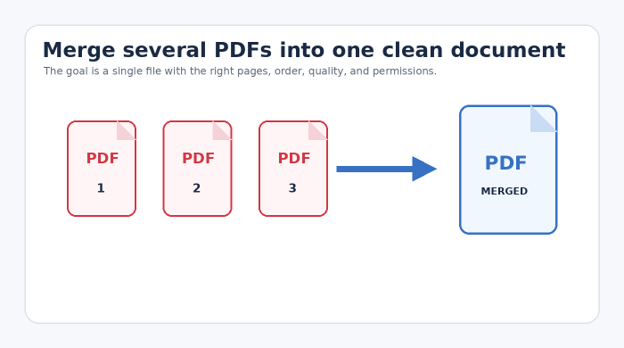
A pile of separate PDFs quickly becomes a problem when you need to email a complete proposal, submit an application, archive invoices, or send a client one polished package. Learning how to merge PDF files gives you a cleaner workflow, fewer attachments, and a document that opens in the exact order you intended.
This guide shows you how to merge PDF files on Windows, macOS, iPhone, Android, and the web. You will also learn how to protect private data, keep page quality sharp, reduce oversized results, repair common errors, and choose the right method for one-time or repeat work.
Direct Answer: What Is the Easiest Way to Combine PDFs?
| To combine PDFs, open a trusted PDF editor or merger, add the source files, drag them into the required order, remove unwanted pages, and select Combine or Merge. Save the result under a new name, then open it and verify page order, clarity, links, forms, and file size before sharing. |
Why Merging PDFs Is More Than Clicking One Button
The button is the easy part. The real work is deciding which pages belong in the final document, arranging them correctly, preserving searchable text, and preventing a private file from being uploaded to the wrong service.
A successful merge should produce one readable, searchable, correctly ordered file. It should not add blank pages, flatten useful form fields without warning, break bookmarks, or create a giant attachment that your email provider rejects.
Use desktop software for confidential records, large batches, or complex page editing. Use built-in Mac tools for quick local work. Use a reputable online service only for low-risk documents when convenience matters more than advanced control.
Essential Tools and Materials Breakdown
| Tool or Resource | Best Use | Estimated Cost | Skill Level | Key Limitation |
| Adobe Acrobat | Frequent business use, mixed file types, page-level control | $0 for limited web tools; paid desktop plan | Beginner to intermediate | Subscription may be required for full desktop features |
| Apple Preview | Fast offline merges on a Mac | $0 | Beginner | Mac only; fewer advanced batch controls |
| Trusted online merger | One-time, non-sensitive documents | $0 to low cost | Beginner | Files leave your device during processing |
| Mobile PDF app | Small jobs while traveling | $0 to low cost | Beginner | Small screen makes page review harder |
| File Explorer/Finder folders | Preparing names, copies, and order | $0 | Beginner | Does not merge files by itself |
| Backup storage | Protecting originals before edits | $0 to existing plan | Beginner | Requires disciplined file naming |
💡 Quick Hack: Put every source PDF in a new working folder and duplicate the originals before editing. A five-second backup prevents an accidental overwrite from becoming a recovery project.
Phase 1: Prepare the Files Before You Merge
Create a clean working folder
Start with one folder containing only the files that belong in the final document. Mixing drafts, signed versions, and old scans in the same folder is the fastest way to include the wrong page.
Copy the source files into the folder rather than moving your only originals. Name the folder for the finished job, such as Client-Proposal-July or Tax-Records-2025, so the merged file remains easy to find later.
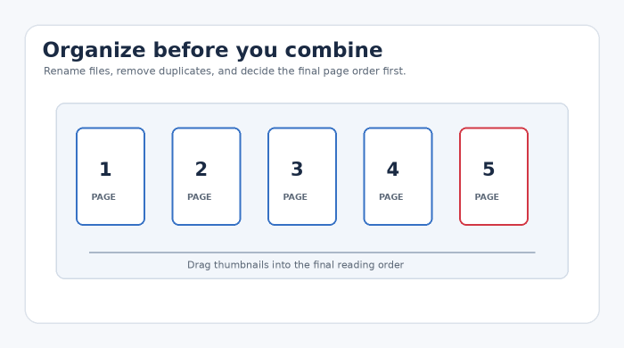
Rename files in the final order
Use leading numbers: 01-Cover.pdf, 02-Proposal.pdf, 03-Pricing.pdf, and 04-Terms.pdf. Numbering makes sorting predictable and reduces drag-and-drop work inside the merger.
Avoid vague names such as scan1-final-new.pdf. Include the document role, version, and date when useful. A clear filename is also a quality-control checklist: you can see what should appear before opening anything.
Inspect every source PDF
Open each file and confirm it is not corrupted.
Check page orientation and rotate sideways scans.
Remove obvious duplicates and blank pages.
Confirm signatures, annotations, and form entries are visible.
Note any password protection or editing restrictions.
Check whether text is searchable or only an image scan.
Phase 2: How to Merge PDF Files with Adobe Acrobat
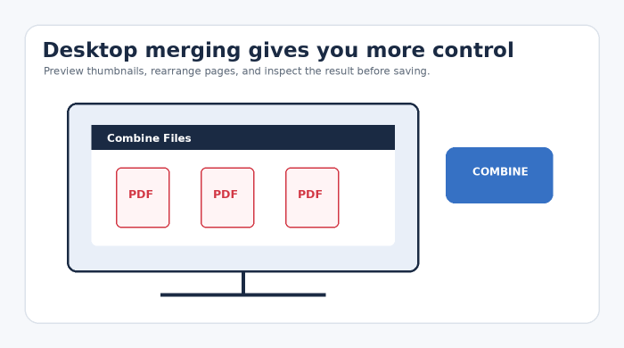
Adobe Acrobat is the most flexible choice when you combine PDFs often, need to mix PDFs with Office files or images, or want to rearrange individual pages before saving. Menu names can vary slightly by version, but the workflow remains consistent.
Open Acrobat and choose the Combine Files tool. Add the documents from your working folder, then switch to thumbnail view so you can inspect the sequence rather than trusting filenames alone.
Open Adobe Acrobat and select Menu > Combine files on Windows, or File > Combine files on macOS.
Select Add Files, then choose every document required for the final package.
Drag file tiles left or right to set the broad document order.
Expand a file when you need to inspect or rearrange individual pages.
Remove duplicate, blank, outdated, or confidential pages that do not belong.
Select Combine and wait for Acrobat to build the new PDF.
Choose Save As and use a new filename rather than replacing a source document.
Open the saved file from beginning to end and test links, forms, bookmarks, and signatures.
For the current menu path and official workflow, see the Adobe Acrobat combine files guide.
💡 Quick Hack: Add all files at once, then reorder them in the thumbnail panel. Repeatedly adding one file at a time is slower and makes it easier to miss a document.
Phase 3: How to Merge PDF Files on a Mac with Preview
Preview is built into macOS and can combine complete PDFs or selected pages without uploading anything. It is ideal for quick local jobs and sensitive documents that do not require advanced batch automation.
Apple notes that Preview changes may save automatically, so duplicate important originals first. That small precaution is especially important when you drag pages from one document into another.
Open the first PDF in Preview.
Choose View > Thumbnails so page previews appear in the sidebar.
Open the second PDF in another Preview window and show its thumbnails too.
Drag the complete thumbnail group, or selected individual pages, into the sidebar of the first PDF.
Watch the insertion line carefully; it shows where the new pages will land.
Repeat for additional documents, then drag thumbnails to correct the final order.
Choose File > Export as PDF or Save As, depending on your macOS version, and create a new output file.
Close and reopen the result to confirm that the saved file contains every page.
Apple provides the official steps in its guide to combine PDFs in Preview on Mac.
Pro-Tip: Hold Command while clicking thumbnails to select non-adjacent pages. This is useful when you need pages 2, 5, and 8 from a longer PDF without importing the rest.
Phase 4: Merge PDFs on Windows Without Guesswork
Windows includes strong PDF viewing and printing features, but it does not provide the same simple page-dragging merge workflow as Preview. For a true merge, use Acrobat, a reputable desktop PDF editor, or a carefully selected online service.
Microsoft Print to PDF can create a PDF from a printable document, but printing several PDFs does not reliably preserve bookmarks, clickable links, form fields, layers, or original metadata. Treat print-to-PDF as a conversion fallback, not the best general merger.
Recommended Windows workflow
Prepare and number all source files in File Explorer.
Open a trusted PDF editor with a Combine or Merge function.
Add the files and verify their thumbnail order.
Remove unwanted pages and rotate scans before combining.
Save the result to the working folder with a descriptive name.
Check the output in a second viewer, such as a browser or Adobe Reader, to catch viewer-specific problems.
When Microsoft Print to PDF is useful
Use it when you need to turn a Word document, spreadsheet, image, or webpage into a PDF before adding it to the merge. Microsoft’s official instructions explain how Office apps can export or publish files as PDFs.
Save or convert Office files to PDF before placing them in your numbered merge folder.
💡 Quick Hack: Export Office files directly to PDF instead of printing them when possible. Direct export usually preserves text quality, links, headings, and accessibility information better than a virtual printer.
Phase 5: How to Merge PDF Files Online Safely
Online mergers are fast because they work in a browser and require no installation. They are best for ordinary documents such as public handouts, school notes, product sheets, and non-confidential forms.
The trade-off is privacy. Your files are uploaded to another company’s server, even when the site promises automatic deletion. Never assume a free tool is suitable for passports, medical records, payroll files, legal evidence, bank statements, client contracts, or documents controlled by a confidentiality agreement.
Safe online merging checklist
Use a well-known provider with a clear privacy policy and deletion schedule.
Confirm the page uses HTTPS and the domain name is spelled correctly.
Avoid sites that demand unnecessary browser extensions or software downloads.
Do not upload files containing passwords, identity numbers, financial data, or private client information.
After downloading, open the result and scan it with your normal security tools.
Delete temporary downloads and clear the browser download list on shared computers.
Open the merger in a private browser window if you are on a shared device.
Upload the numbered files from your working folder.
Drag the tiles into order and rotate pages if the service supports it.
Select Merge, Combine, or Create PDF.
Download the result once; do not click misleading advertisement buttons.
Open the file locally and verify every page before deleting the source folder copy.
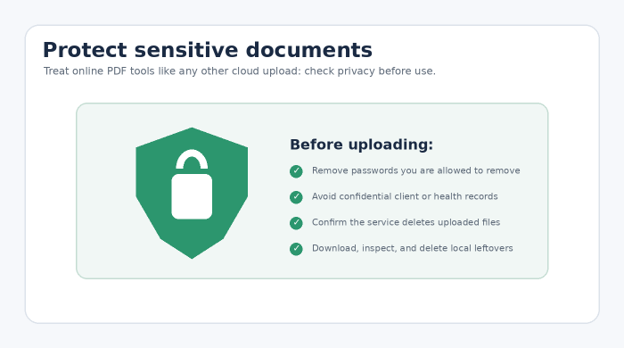
Pro-Tip: Redact sensitive information before an online merge only when the redaction is permanent. Drawing a black rectangle over text may hide it visually while leaving the underlying text searchable or copyable.
Phase 6: Merge PDFs on iPhone or Android
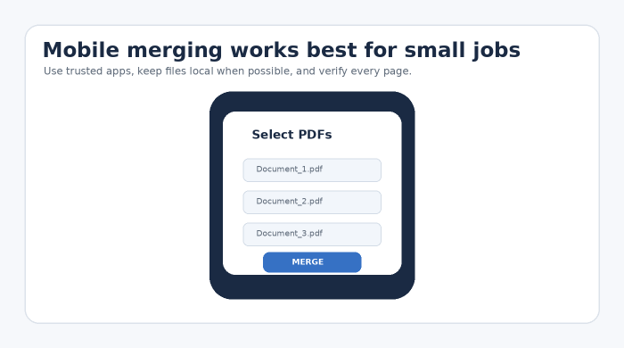
Mobile merging is useful when you receive scans through email, capture receipts with a phone, or need to submit a file away from your computer. Keep the job small because page ordering and quality inspection are harder on a narrow screen.
Choose a reputable PDF app, your cloud-storage provider’s document tools, or a trusted browser service. Review app permissions before granting access to all photos, files, contacts, or cloud folders.
Mobile workflow
Save each PDF to one folder in the Files app, device storage, or a trusted cloud drive.
Rename files with 01, 02, 03 prefixes so the app imports them in a sensible order.
Open the app’s Combine, Merge, or Organize tool.
Select the files and rearrange thumbnails with a long press and drag.
Export the merged PDF under a new filename.
Use Share to send it, but first open the exported copy and scroll through every page.
💡 Quick Hack: For photographed receipts, scan all pages into one multi-page PDF from the start. That avoids creating many one-page files that must be merged later.
Phase 7: Quality-Control the Finished PDF
Knowing how to merge PDF files is incomplete without a final inspection. A merger can finish successfully while still producing the wrong order, missing pages, broken links, blurry scans, or an oversized attachment.
The 10-point inspection
Confirm the filename clearly identifies the document and version.
Check the total page count against your source checklist.
Read the first and last page of every source section.
Look for blank, duplicated, upside-down, or cropped pages.
Zoom to 150–200% and inspect small text and signatures.
Search for a known word to confirm text remains searchable.
Click important links and bookmarks.
Test form fields if recipients must complete the PDF.
Check file size against email or portal limits.
Open the document in a second viewer or on another device.
Save one final copy and one editable working copy when the software supports it. Put the approved file in a read-only or shared location so later drafts do not replace it accidentally.
Common Mistakes to Avoid
Merging before deciding the order
When files are added with random names, users often trust the software’s import order. Number the filenames first, then verify thumbnails.
Overwriting the originals
Some apps save changes automatically. Work from copies and use Save As for the merged result.
Using an online tool for confidential records
Convenience does not cancel privacy obligations. Keep sensitive work local unless your organization has approved the service.
Ignoring page sizes and orientation
A mixed document may jump between portrait, landscape, Letter, A4, and receipt sizes. Rotate, crop, and normalize pages before the final merge when presentation matters.
Sending without opening the output
A successful download is not proof of a correct document. Reopen the file, inspect it, and test the features the recipient will use.
Advanced Tips and Next-Level Hacks
Build a repeatable naming system
For recurring work, use a consistent pattern such as YYYY-MM-DD_Client_Project_Document-Version.pdf. The date sorts naturally, the client and project identify the job, and the version prevents final-final-v3 confusion.
Create a reusable cover and table of contents
Long reports feel more professional when they begin with a branded cover and a linked table of contents. Add those pages after the source documents are stable, then update page numbers before the final save.
Preserve searchable text
Do not convert clean digital PDFs into images before merging. Image-only pages are larger, harder to search, and less accessible. Run optical character recognition on scans when the document must be searchable.
Automate recurring batches
Teams that merge the same document types every week should use watched folders, standardized export names, or approved command-line tools. Automation is valuable only after the manual order and quality checks are well defined.
Use a two-stage process for huge files
Merge documents into logical sections first, such as Exhibits A–F and Exhibits G–L. Inspect and compress each section, then combine the sections. Smaller intermediate files are easier to troubleshoot than one massive job.
💡 Quick Hack: Add a one-page separator between major sections. A clearly titled divider makes navigation easier and helps reviewers spot where one source document ends and the next begins.
Troubleshooting and Maintenance Guide
The pages are in the wrong order
Return to the Organize Pages or thumbnail view and drag pages into place. If the app cannot edit the result, rebuild from the numbered source files rather than repeatedly printing the merged PDF.
The merged file is too large
Remove duplicate pages, compress oversized images, downsample high-resolution scans, and use an optimized-save feature. Keep a high-quality archive copy before aggressive compression.
Text looks blurry
The source may already be a low-resolution scan, or the merger may have rasterized pages. Re-export the source from the original application or scan again at a practical resolution, typically 300 dpi for documents.
A file will not merge
Open it separately. Re-save or export it as a new PDF, then retry. Corruption, unsupported encryption, unusual embedded media, or incomplete downloads are common causes.
The PDF is password protected
Enter the authorized password in a trusted local editor. Do not use tools that claim to bypass protection. If you lack permission, request an unlocked copy from the owner.
Links, forms, or bookmarks disappeared
Avoid print-to-PDF workflows. Use a true combine function that preserves interactive features, and test the output before distributing it.
The upload stalls online
Check connection stability, reduce file size, disable an interfering extension, or switch to an offline tool. Never keep retrying confidential files across unknown services.
The recipient cannot open the PDF
Rename the file with simple letters, numbers, hyphens, and underscores. Re-save it using a standard PDF compatibility setting and test it in another viewer.
Long-Term File Maintenance
Keep source files and the approved merged file in separate folders.
Use version numbers instead of words such as final2 or newest.
Back up important business, legal, and tax documents in at least two locations.
Retain an uncompressed archival copy when image detail or signatures matter.
Periodically test old PDFs in a current viewer and migrate damaged storage media.
Document who approved the final file and when it was sent.
For regulated or business-critical records, follow your organization’s retention, encryption, and access-control rules. A merged PDF is easier to share, but it can also concentrate more sensitive information in one file.
Frequently Asked Questions
Can I merge PDFs for free?
Yes. Mac users can use Preview, and many online or mobile tools offer free merging. Free tools may limit file count, file size, daily use, or advanced page editing. Privacy matters more than price when the documents contain sensitive data.
Does merging PDFs reduce quality?
A true combine operation normally keeps the original page content. Quality loss usually occurs when pages are printed, converted to images, or heavily compressed. Compare a detailed page before and after merging if image quality matters.
Can I combine signed PDFs?
Often yes, but changing a digitally signed PDF can invalidate its signature because the file content changes. Confirm the signature requirements before combining. Visible handwritten signatures may remain visible even though cryptographic validation changes.
How do I merge only selected pages?
Use thumbnail or Organize Pages view, select the exact pages, and drag or insert them into the destination PDF. On a Mac, Preview allows selected thumbnails to be dragged between open documents.
Can I merge a Word file and a PDF?
Convert the Word file to PDF first, or use software such as Acrobat that can combine mixed file types. Direct Office export generally preserves quality better than printing.
What is the safest method for private documents?
Use approved offline software on a trusted device, work from copies, and save the result to encrypted storage with limited access. Avoid public online mergers for confidential, financial, health, identity, or legal records.
Conclusion
Once you know how to merge PDF files, the task becomes a simple document-management routine: prepare clean sources, choose the right tool, arrange pages deliberately, save under a new name, and inspect the finished file.
editor's pick
latest video
news via inbox
Nulla turp dis cursus. Integer liberos euismod pretium faucibua