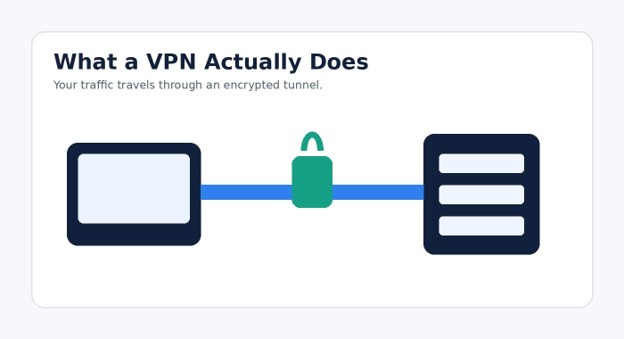
How to Set Up a VPN: Step-by-Step Guide
A VPN can look technical until you realize that most modern services need only an app, an account, and one careful settings check. The real challenge is not pressing Connect. It is choosing safe defaults, avoiding weak protocols, confirming that the connection works, and knowing what to do when speed drops.
This guide explains how to set up a vpn on Windows, macOS, iPhone, Android, and a compatible home router. You will learn what information to collect, how to choose a server and protocol, how to test the tunnel, and how to fix the problems beginners face most often.
Featured Snippet: How Do You Set Up a VPN?
To set up a VPN, choose a trustworthy provider, install its official app, sign in, approve the VPN configuration, select a nearby server, and connect. Confirm that your public IP changed, enable the kill switch, and test normal browsing before relying on the VPN for public Wi-Fi or sensitive work.
Essential Tools and Materials Breakdown
| Item | Estimated Cost | Priority | Skill Level | Purpose |
| VPN subscription or approved work account | $0-$15 per month | Essential | Beginner | Provides servers, credentials, and apps |
| Compatible computer, phone, or router | Already owned | Essential | Beginner | Creates the encrypted connection |
| Stable internet connection | Existing plan | Essential | Beginner | Required before the VPN can connect |
| Password manager | $0-$5 per month | Recommended | Beginner | Stores unique credentials safely |
| IP and DNS test website | Free | Recommended | Beginner | Confirms the tunnel is working |
| Manual configuration file | Usually free | Optional | Intermediate | Used for OpenVPN, WireGuard, or work profiles |
| VPN-capable router | $60-$250+ | Optional | Intermediate | Protects devices without VPN apps |
A paid plan is not automatically safer, and a free plan is not automatically unsafe. The useful question is whether the provider has a clear business model, modern apps, transparent security practices, and reasonable limits.
Before You Begin: Know Which VPN You Are Setting Up
There are two common situations. A consumer VPN routes internet traffic through the provider’s server for privacy and safer use of untrusted networks. A workplace VPN connects an employee to private company systems and may use certificates, managed profiles, or credentials supplied by an IT team.
Do not mix these instructions. For a work connection, use only the server address, app, profile, and security method approved by your organization. For personal use, install the provider’s official app rather than copying settings from an unknown tutorial.
Information to Collect
Your VPN account email and unique password.
The official app download page or verified app-store listing.
The recommended protocol, usually WireGuard, OpenVPN, or IKEv2/IPsec.
Any server address, certificate, shared secret, or configuration file supplied by an employer.
Whether the tunnel should run constantly or only on untrusted networks.
💡 Quick Hack: Check the plan’s device limit before paying. One household subscription that covers laptops, phones, and tablets is often cheaper than separate accounts.
Choose a Trustworthy VPN Service
The VPN provider becomes part of your trust chain. Your local network and internet service provider can see less detailed traffic after the tunnel starts, but the VPN company operates the server that receives it. Ownership, app quality, security practices, and transparency matter more than a flashy “free forever” promise.
Look for a clear privacy policy, modern protocols, regular app updates, responsive support, and independent security assessments. Avoid unknown services that demand excessive permissions, inject ads, or promise complete anonymity.
A reputable service should explain what it logs, why it collects diagnostic data, how long data is retained, and how customers can close an account. It should also support multi-factor authentication or another strong account-protection method.
For remote work, follow your employer’s rules. NIST explains that VPN gateways can support authentication, access control, and other remote-access protections. Company settings should take priority over personal preferences.
Pro-Tip: Start with a monthly plan. Test local server availability, speed, support, and compatibility before committing to a long contract.
Create and Secure the Account
Create the account through the official website or verified app. Use a password that you do not reuse for email, banking, social media, or the home router.
Turn on multi-factor authentication when available. Store recovery codes in a password manager or another protected location.
A strong tunnel does not help if an attacker can sign in to the account, register another device, or change security settings. Review active sessions after replacing or losing a phone or laptop.
Install the Official VPN App
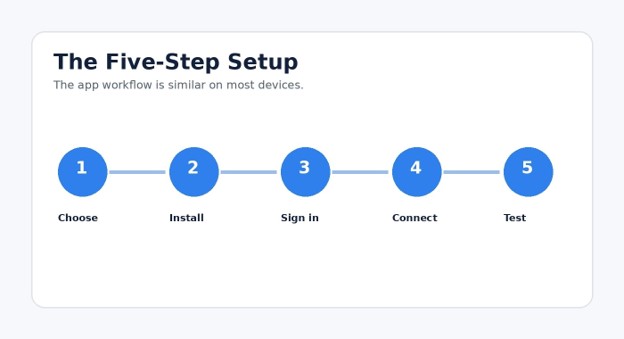
For most people, the official app is the safest and fastest setup method. It manages certificates, server lists, protocol changes, DNS settings, automatic updates, and the kill switch in one place.
Windows Setup
Open the provider’s official download page and select the current Windows app.
Run the installer and confirm the publisher name before approving the security prompt.
Open the app, sign in, and allow it to install the required network adapter.
Choose a nearby server and click **Connect**.
Open **Settings > Network & internet > VPN** to confirm that Windows recognizes the connection.
Microsoft also supports built-in profiles through Settings > Network & internet > VPN > Add VPN. Use that method when an employer gives you a server name, VPN type, and sign-in method.
When learning how to set up a vpn manually in Windows, copy every server name and authentication field exactly. One missing character can prevent the connection.
macOS Setup
Download the signed Mac app from the provider or Mac App Store.
Move it to Applications when requested.
Sign in and approve the request to add a VPN configuration.
Select a server and connect.
Check **System Settings > VPN** or **Network** to confirm status.
Apple also supports manual profiles. Open System Settings > Network, choose the action menu, select Add VPN Configuration, choose the connection type, and enter the approved details.
💡 Quick Hack: Pin the app to the Windows taskbar or Mac Dock. Fast access makes it more likely that you will connect before joining airport, hotel, or café Wi-Fi.
Set Up a VPN on iPhone or iPad
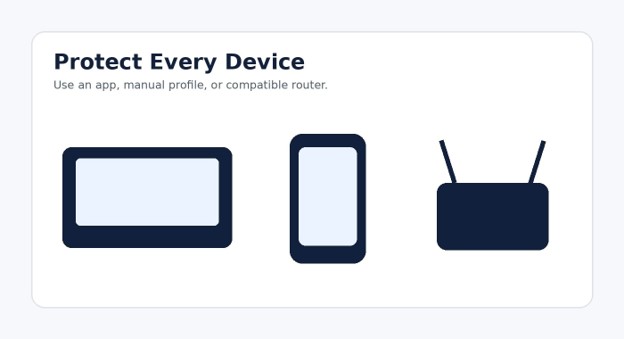
The simplest route is the provider’s iOS app. Install it from the App Store, sign in, tap Connect, and approve the iOS request to add a VPN configuration. Face ID, Touch ID, or the device passcode may be required.
After connecting:
Open Settings.
Look for the VPN indicator or open **General > VPN & Device Management**.
Confirm that the expected profile appears.
Return to the app and enable auto-connect or on-demand protection.
Test a website, email, messaging, and one frequently used app.
A workplace may provide a mobile-device-management profile. Install only profiles supplied by an administrator you recognize, because profiles can control certificates, network behavior, and other settings.
People searching how to set up a vpn on an iPhone should avoid downloading configuration files from forums or file-sharing pages. Use the service dashboard, official app, or employer portal.
Set Up a VPN on Android
Android menu names vary by phone maker, but the app method is consistent. Install the verified app from Google Play, sign in, tap Connect, and approve the system connection request.
For manual setup, search Settings for VPN. On many phones the path is Settings > Network & internet > VPN. Tap Add VPN, then enter the server, protocol, and credentials supplied by the service or workplace.
Android can support an always-on tunnel and an option to block connections without the VPN. These features are useful, but they can make the phone appear completely offline when the service fails.
💡 Quick Hack: Test the VPN for a full day before enabling always-on blocking. Confirm calls, messages, banking, navigation, and background sync first.
Knowing how to set up a vpn on Android also means knowing how to remove an old profile. Delete expired profiles so the phone does not reconnect to an obsolete server.
Choose the Best Server
Server choice affects speed, latency, website behavior, and access to local services. Start with Fastest, Recommended, or the nearest location.
Use a nearby server for everyday browsing, video calls, uploads, and gaming. Use a home-country server while traveling when you need familiar search results or account checks.
Specialty servers may support multi-hop routing, obfuscation, peer-to-peer traffic, or dedicated addresses. Use them only when their purpose matches your need.
Do not assume that a distant server adds meaningful security. Encryption quality comes from the protocol and implementation, not from sending traffic on a longer trip.
Pro-Tip: Save two nearby servers as favorites. When one becomes crowded, switching takes seconds.
Pick the Right VPN Protocol
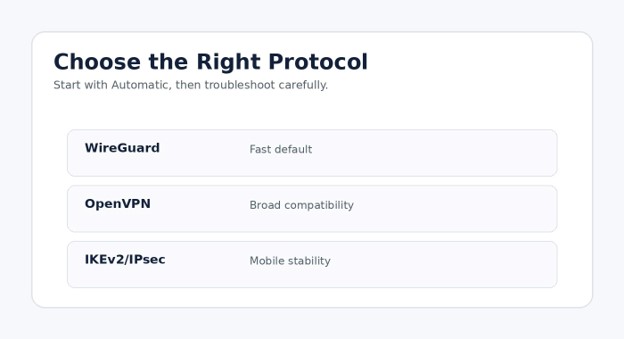
A protocol controls how the encrypted tunnel is created and maintained. Most users should leave the app on Automatic until a speed, compatibility, or reliability problem appears.
WireGuard
WireGuard is usually the best first choice for personal devices because it is modern, efficient, and quick to reconnect. It performs well when a phone moves between Wi-Fi and cellular data.
OpenVPN
OpenVPN remains useful when broad compatibility matters. UDP mode is generally faster. TCP mode can work on restrictive networks, although it may feel slower because it adds more checking and retransmission.
IKEv2/IPsec
IKEv2/IPsec is a strong mobile option and often handles network changes well. It is also common in built-in operating-system profiles and business environments.
Protocols to Avoid
Avoid obsolete choices such as PPTP. Do not lower encryption, accept an unverified certificate, or disable authentication merely to make the connection succeed.
CISA recommends strong cryptography and disabling unused algorithms and features on VPN gateways. That advice matters for businesses and also reflects a useful consumer rule: do not keep weak compatibility options enabled when modern choices work.
Pro-Tip: On hotel or office Wi-Fi, switch from WireGuard or OpenVPN UDP to OpenVPN TCP or another approved fallback. Change one setting at a time.
Enable the Essential Safety Settings
Kill Switch
A kill switch blocks internet access if the tunnel drops. It prevents apps from quietly returning to the normal connection during a server failure or Wi-Fi change.
Auto-Connect
Set the app to connect automatically on untrusted Wi-Fi. Some users prefer full-time protection, while others exclude the home network to avoid printer or smart-device conflicts.
DNS Leak Protection
DNS translates domain names into network addresses. Use the provider’s protected DNS option so those requests travel inside the tunnel rather than going directly to the local network.
Split Tunneling
Split tunneling allows selected apps to bypass the VPN. It can restore access to printers, banking apps, streaming devices, or services that reject VPN traffic.
The trade-off is simple: excluded apps are not protected by the tunnel. Keep browsers, email, cloud storage, and work tools inside when privacy or company rules matter.
Test the Connection
After learning how to set up a vpn, do not stop at a green button. A quick test confirms that the route, DNS behavior, speed, and everyday apps work.
Before connecting, search “what is my IP” and note the address and approximate location.
Connect and repeat the check. The public address should change.
Run a DNS leak test from a reputable testing site.
Open normal websites, play a short video, and send a message.
Disconnect and reconnect once to test the kill switch and auto-connect rules.
Run a speed test on the same server at least twice.
A public IP location may be approximate, so a neighboring city is not automatically a problem. What matters is that the address belongs to the VPN route rather than the normal provider.
💡 Quick Hack: Record the fastest two servers and their usual latency in a note. This creates a reliable fallback list.
Manual VPN Configuration
Manual configuration is useful when an employer supplies a profile, a router cannot run the provider’s app, or a standard OpenVPN, WireGuard, or IKEv2 client is required.
It is less convenient because server changes, certificates, credentials, and updates may require manual work.
Manual Setup Checklist
Download configuration files only from the official dashboard or IT administrator.
Verify the server hostname and protocol.
Import the file into the approved client.
Store private keys and certificates securely.
Remove expired profiles.
Revoke lost devices.
Name profiles by location and purpose.
Never paste private keys into a web form, public support post, or chat room. A private key, client certificate, or shared secret may grant access to the tunnel or a private network.
A reliable guide on how to set up a vpn manually should always explain how to remove and revoke the profile, not only how to import it.
How to Set Up a VPN on a Router
A router-level connection protects devices behind it, including smart TVs, consoles, and connected devices that cannot install apps. It can simplify household coverage, but one bad setting can affect the entire network.
First confirm that the router supports VPN client mode. A VPN server is different: it lets you connect back into the home network, while a client sends home devices through an outside service.
Update router firmware.
Back up the current configuration.
Open the administration page over Ethernet when possible.
Find the VPN client section.
Select the supported protocol.
Import the official configuration file or enter the server details.
Add credentials and certificates exactly as supplied.
Connect and test the public IP from a computer on the network.
Create routing rules when only selected devices should use the tunnel.
Router VPNs can reduce speed because consumer routers have limited processors. Use WireGuard when supported, upgrade to stronger hardware, or protect only the devices that need it.
💡 Quick Hack: Put the VPN on a separate guest network or secondary router. Move a device between normal Wi-Fi and VPN Wi-Fi without changing its app settings.
Learning how to set up a vpn on a router takes more care because every connected device depends on the router’s processing power, DNS rules, and routing table.
Common Mistakes to Avoid
- Downloading a Look-Alike App
Search ads and app stores can contain similar names. Start from the provider’s official website and follow its app-store link. Confirm the developer and update history.
- Using the VPN Without a Kill Switch
A brief tunnel failure can expose the normal route. Enable the kill switch before relying on the VPN for public Wi-Fi, file transfers, or remote work.
- Choosing the Farthest Server
A distant server usually increases latency and lowers speed. Start nearby and move only when a specific region is required.
- Ignoring Account Security
Reused passwords and missing multi-factor authentication can undermine an otherwise secure service. Protect the account and review registered devices.
- Assuming a VPN Makes Everything Safe
A VPN does not block phishing, repair an infected computer, stop unsafe downloads, or prevent a user from sharing personal information. Keep the operating system, browser, and security tools updated.
A clear how to set up a vpn checklist should include these limitations so readers do not treat the tunnel as a complete security product.
Advanced Tips and Next-Level Hacks
Create Location-Based Profiles
Save one profile for the closest low-latency server, one for travel, and one fallback that works on restrictive networks.
Measure the Real Speed Cost
Run three tests without the VPN and three with the same nearby server. Compare median download, upload, and latency instead of trusting one unusually good result.
Use Split Tunneling Carefully
Exclude only apps that genuinely need local routing. Too many exceptions create a confusing setup that is hard to audit.
Protect the Account Itself
Review active sessions every few months. Remove old devices, rotate credentials after a lost device, and install updates promptly.
Use a Separate Browser Profile
Create one browser profile for VPN-sensitive work and another for local services. This reduces cookie and location confusion when switching regions.
Pro-Tip: Document the final settings in a secure note. Include the protocol, auto-connect rule, kill-switch state, and favorite server names.
The best way to remember how to set up a vpn is to keep a small, accurate record rather than relying on memory months later.
Troubleshooting and Maintenance Guide
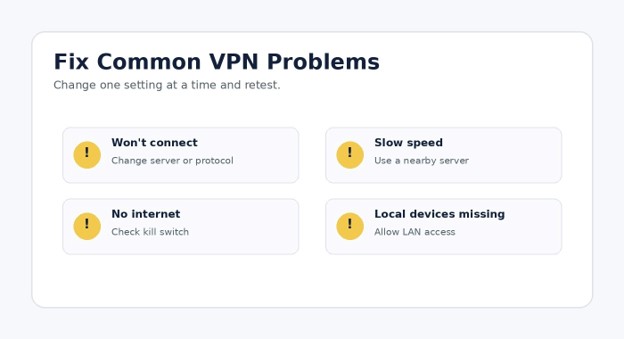
The VPN Will Not Connect
Confirm normal internet access after disconnecting the VPN.
Restart the app.
Try a different nearby server.
Switch to another supported protocol.
Check the device date and time.
Disable another VPN or proxy.
Update the app and operating system.
Contact IT before changing a managed work device.
The VPN Connects but There Is No Internet
Disconnect, verify the base connection, and reconnect. If the kill switch remains stuck, exit the app completely or restart the device.
Check custom DNS, proxy settings, split-tunnel rules, and security software. Reset only one item at a time.
Speed Is Much Slower
Choose a physically closer server.
Switch from OpenVPN TCP to WireGuard or OpenVPN UDP when allowed.
Try Ethernet instead of weak Wi-Fi.
Pause cloud backups and large downloads.
Test at another time.
Compare the router setup with a device app to identify a router CPU bottleneck.
A Website Blocks the VPN
Change servers, clear the site’s cookies, or use split tunneling. Banking, shopping, ticketing, and streaming services may flag shared addresses as a fraud-control measure.
Local Printers or Smart Devices Disappear
Enable local-network access, exclude the device-management app with split tunneling, or disconnect briefly. A work VPN may intentionally block local access.
Maintenance Schedule
**Monthly:** Install app and operating-system updates.
**Quarterly:** Review devices, auto-connect rules, and split-tunnel exceptions.
**After travel:** Remove temporary profiles and forget untrusted Wi-Fi.
**After a lost device:** Revoke the session and change credentials.
**Yearly:** Review provider performance, renewal price, and protocol support.
Anyone researching how to set up a vpn should test both security and daily usability before trusting it for important work.
Frequently Asked Questions
Is It Difficult to Learn How to Set Up a VPN?
No. The normal app process takes about five to ten minutes: install, sign in, approve the configuration, connect, and test. Router and workplace setups require more details but use the same basic logic.
Can I Set Up a VPN for Free?
Some reputable providers offer limited free tiers, and employers may supply access at no direct cost. Avoid unknown free services with aggressive advertising, broad tracking, or unclear ownership.
Should I Leave It On All the Time?
Full-time use reduces the chance of forgetting it on public Wi-Fi. You may disconnect for local printers, low-latency gaming, banking apps, or services that reject VPN traffic.
Does a VPN Hide Everything From My Internet Provider?
The provider can usually see that a VPN connection exists and how much data moves, but the tunnel hides detailed contents and destinations from ordinary local inspection. The VPN operator and destination websites still remain part of the trust chain.
Which Protocol Should a Beginner Use?
Choose Automatic first. WireGuard is a strong default for speed, OpenVPN offers broad compatibility, and IKEv2/IPsec works well for many mobile and built-in profiles.
Why Does Internet Speed Drop?
Encryption adds processing and the VPN server adds routing distance. Congestion, weak Wi-Fi, an overloaded server, or an underpowered router can make the difference larger.
Can One VPN Account Protect a Whole Family?
Many plans allow several simultaneous devices. A router connection can cover the household, but separate apps often provide better speed, server choice, and troubleshooting.
Conclusion
Knowing how to set up a vpn is less about technical jargon and more about building a reliable routine: choose a trustworthy service, install the official app, use modern protocols, enable protective settings, and test the result.
Once the basics work, improve the setup with auto-connect, split tunneling, saved servers, and a simple maintenance schedule. Which device will you secure first: your laptop, phone, or entire home router?
editor's pick
latest video
news via inbox
Nulla turp dis cursus. Integer liberos euismod pretium faucibua