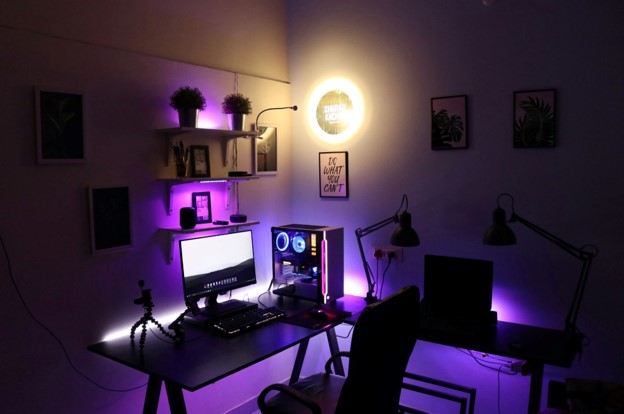
Best Games for Low End PC in 2026
A weak laptop should not force you into browser games or endless loading screens. The best games for low end pc deliver strong mechanics, memorable stories, or competitive depth while respecting limited RAM, integrated graphics, slower storage, and older processors.
This guide shows which games are genuinely worth installing in 2026, how to match them to your hardware, and which settings produce the biggest performance gains. You will also get a practical test routine, common mistakes to avoid, troubleshooting steps, and a maintenance plan that keeps an aging computer playable.
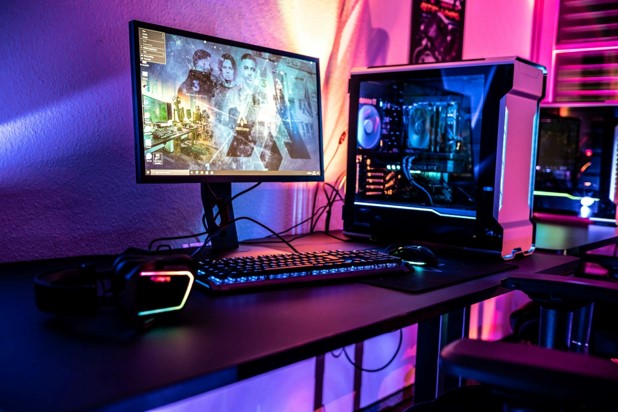
What Are the Best Games for a Low-End PC?
| Featured snippet answer: The best games for low end pc are lightweight, well-optimized titles such as Stardew Valley, Terraria, Balatro, Vampire Survivors, Celeste, Portal 2, Brawlhalla, FTL, Papers, Please, Undertale, and Slay the Spire. Start at 720p, reduce shadows, and cap frame rate for smoother play. |
How This Guide Defines “Low End” in 2026
“Low end” is not one specification. It may mean a school laptop with 4GB of RAM, an office desktop with Intel HD Graphics, an old gaming PC with a failing hard drive, or a newer budget machine that lacks a dedicated graphics card. The useful question is not whether a computer is low end; it is which component becomes the bottleneck first.
Ultra-low tier: 2GB–4GB RAM, older dual-core CPU, Intel HD 2000/3000-class graphics, and a hard drive. Favor 2D games, turn-based games, and titles under 2GB.
Basic low-end tier: 4GB–8GB RAM, Intel HD 4000/5000 or later integrated graphics, and preferably an SSD. Many indie games and older Source-engine 3D games become realistic at 720p.
Entry gaming tier: 8GB RAM with modern integrated graphics or an older dedicated card such as a GT 1030-class GPU. More demanding indie action games and esports titles may work with careful settings.
Publisher-listed minimum requirements are only a starting point. Background apps, heat, driver condition, available storage, memory configuration, and laptop power limits can make two apparently identical machines perform very differently. Use the official requirement pages linked throughout this guide, then test one game at a time.
| 💡 Quick Hack: Press Windows + R, type dxdiag, and save the report. It gives you the CPU, memory, DirectX version, and display-adapter name in one place, which is faster than guessing from the laptop sticker. |
Essential Tools and Materials Breakdown
Gaming on a modest PC is closer to troubleshooting than shopping. Most of the useful tools are built into Windows or provided free by the hardware manufacturer. The optional costs below are for practical accessories or upgrades, not mandatory purchases.
| Tool or Material | Purpose | Estimated Cost | Skill Level |
| DirectX Diagnostic Tool (dxdiag) | Identify CPU, RAM, DirectX version, and graphics adapter. | Free | Beginner |
| Task Manager | Find startup apps and background processes consuming CPU, memory, disk, or network. | Free | Beginner |
| Built-in storage cleanup | Create enough free space for game files, shader caches, updates, and virtual memory. | Free | Beginner |
| Official GPU driver tool | Update Intel, AMD, or NVIDIA graphics drivers from the hardware maker. | Free | Beginner |
| Steam/GOG/Epic/itch.io account | Install games from legitimate sources and receive updates. | Free | Beginner |
| FPS counter or frame-time overlay | Measure performance instead of judging by feel alone. | Free | Beginner |
| Wired mouse or controller | Reduce input and wireless-battery problems on older machines. | $0–$35 | Beginner |
| Laptop stand or hard, flat surface | Improve airflow and reduce thermal throttling. | $0–$25 | Beginner |
| Compressed air and soft brush | Remove visible dust from vents and filters with the system powered off. | $5–$15 | Beginner |
| SSD upgrade, when compatible | Reduce boot, loading, patching, and asset-streaming delays. | $30–$100+ | Intermediate |
| RAM upgrade, when compatible | Reduce swapping and improve multitasking when 4GB is the bottleneck. | $20–$80+ | Intermediate |
| Pro-Tip: Do not install “game booster” utilities that promise one-click miracles. Many simply close background apps, change power mode, or add their own startup services. Use Task Manager and Windows settings so every change is visible and reversible. |
Quick Comparison: 21 Excellent Low-Spec Games
The table below is a fast screening tool, not a performance guarantee. Memory and storage figures are based on publisher-listed minimums where available; live-service updates and workshop content can increase disk use. Always check the linked official page before installing.
| Game | Genre | Minimum RAM | Base Storage | Best For |
| Stardew Valley | Farming RPG | 2GB | 500MB | Relaxed long-term play |
| Terraria | 2D sandbox action | 2.5GB | 200MB | Exploration and crafting |
| Balatro | Poker roguelike | 1GB | 150MB | Short strategic runs |
| Vampire Survivors | Action roguelite | 1GB | 2.5GB | One-stick action |
| Celeste | Precision platformer | 2GB | 1.2GB | Tight controls and story |
| Slay the Spire | Deck-building strategy | 2GB | 1GB | Turn-based depth |
| Papers, Please | Narrative puzzle | 2GB | 100MB | Short sessions and choices |
| FTL: Faster Than Light | Space strategy roguelike | Very light | Small | Tactical decision-making |
| Undertale | Story-driven RPG | 2GB | 200MB | Characters and replay value |
| Brawlhalla | Platform fighter | 2GB | 800MB | Free online competition |
| Team Fortress 2 | Class-based FPS | 512MB listed | 15GB | Free multiplayer shooter |
| Portal 2 | First-person puzzle | 2GB | 8GB | Polished 3D single-player |
| Left 4 Dead 2 | Co-op zombie FPS | 2GB listed | 13GB+ | Four-player co-op |
| HoloCure | Free action roguelite | Lightweight | Small | No-cost solo action |
| Hotline Miami | Top-down action | Very light | Small | Fast arcade challenge |
| Don’t Starve | Survival sandbox | 1GB class | Small | Offline survival |
| Into the Breach | Turn-based tactics | Lightweight | Small | Compact strategy maps |
| Dead Cells | Action roguelite | 2GB class | Under 1GB base | Responsive combat |
| Hollow Knight | Metroidvania | 4GB class | 9GB | Atmosphere and exploration |
| Age of Empires II: DE | Real-time strategy | 4GB | 15GB+ | Classic campaigns and skirmishes |
| Among Us | Social deduction | Lightweight | Small | Groups and cross-platform play |
| Important: Older game pages may list Windows versions that the current Steam client no longer supports. In 2026, treat Windows 10 or Windows 11 as the practical Steam baseline, then verify the game and launcher requirements before buying. |
The Best Ultra-Light Games for 2GB–4GB RAM PCs
This is the safest category for truly weak hardware. The best games for low end pc in this tier use simple 2D rendering, turn-based systems, small maps, or deliberately compact art styles. They also tend to load quickly from slower drives and remain playable when the frame rate is not perfectly steady.
- Stardew Valley — Best all-round recommendation Official store page
Stardew Valley is easy to recommend because its value does not depend on visual spectacle. Farming, fishing, mining, relationships, crafting, and seasonal planning create a long progression loop, while the publisher-listed minimum asks for 2GB of RAM and a modest graphics adapter. It is also compact enough for small drives.
Start at the display’s native resolution because the pixel art is light. If the laptop stutters during busy areas or multiplayer, close browser tabs and disable unnecessary overlays first; lowering resolution usually is not the first fix for this game.
- Terraria — Best for crafting and exploration Official store page
Terraria looks simple, but it offers enormous depth: procedural worlds, building, bosses, gear progression, biomes, and optional multiplayer. Its listed storage requirement is tiny, though large worlds, mods, and tModLoader can raise memory and disk demand sharply.
For a basic installation, use the unmodded game, medium or small worlds, and conservative lighting settings. Avoid installing large texture packs until the base game runs smoothly. Terraria is an excellent example of why content depth and graphical weight are not the same thing.
- Balatro — Best for short strategic sessions Official store page
Balatro combines poker hands with roguelike deck building. The minimum listing calls for 1GB of RAM, integrated graphics support, and only about 150MB of storage. That makes it ideal for office laptops, travel machines, and PCs where storage is nearly as limited as graphics performance.
Because the game is turn-based, a momentary frame dip does not ruin the experience. Players who dislike rapid inputs but want deep replayability should start here.
- Vampire Survivors — Best for effortless action Official store page
Vampire Survivors is easy to control and hard to stop playing. Most attacks trigger automatically, so the challenge comes from movement, upgrade choices, positioning, and build synergy. Its listed memory requirement is only 1GB, although late-game enemy density can become more demanding than the simple visuals suggest.
Disable damage numbers or extra effects when available, keep the window resolution modest, and cap the frame rate if the machine becomes hot. A stable 30 FPS is better than an unstable 60 FPS on a weak CPU.
- Papers, Please — Best narrative puzzle game Official store page
Papers, Please turns document inspection into a tense moral and time-management game. It asks for only 2GB of RAM and about 100MB of storage, yet every workday introduces new rules, personal consequences, and difficult choices. The fixed presentation is especially friendly to integrated graphics.
- Undertale — Best story-driven RPG Official store page
Undertale uses intentionally simple visuals, but its writing, characters, music, and unusual combat choices make it memorable. The listed minimum is 2GB of RAM, 128MB graphics, and about 200MB of storage. It is a strong choice when the computer struggles with 3D games but the player still wants a complete narrative adventure.
- FTL: Faster Than Light — Best lightweight strategy game Official store page
FTL is a compact spaceship-management roguelike in which the player allocates power, manages crew, handles fires and hull damage, and makes route decisions under pressure. Pausing is built into the design, so weak hardware does not turn the game into an input-timing problem. It is also one of the strongest offline options for travel.
| 💡 Quick Hack: Create a “Low-Spec Library” collection in Steam and add only games under your RAM and storage limits. This prevents sale prices and screenshots from pulling you toward titles your machine cannot run comfortably. |
Best Low-End Action, Platform, and Exploration Games
These titles ask more from input timing and graphics than the ultra-light group, but they remain realistic for many Intel HD 4000-class systems or newer integrated graphics. Start with 720p or a smaller window, turn off expensive effects, and test the busiest area you can reach—not only the opening menu.
- Celeste — Best precision platformer Official store page
Celeste lists Intel HD 4000 graphics, 2GB of RAM, and roughly 1.2GB of storage. Its responsive controls and generous assist options make it suitable for both challenge-focused players and people who primarily want the story. Because timing matters, prioritize consistent frame pacing over visual extras.
- Hotline Miami — Best fast arcade action Official store page
Hotline Miami is a top-down action game built around quick movement, instant restarts, and aggressive room clearing. Its stylized 2D presentation is light, but the flashing effects and intense visual design may not suit every player. Use the accessibility and display options available on the current version, and take breaks during longer sessions.
- Dead Cells — Best combat-first roguelite Official store page
Dead Cells is more demanding than Balatro or FTL because smooth animation and responsive combat are central to the experience. It can still work well on many older systems when particles, resolution, and background applications are controlled. Test it early in the store’s refund window rather than assuming that attractive pixel art always means low CPU demand.
- Hollow Knight — Best atmospheric exploration Official store page
Hollow Knight offers a large hand-drawn world, precise combat, and excellent music. It is a “basic low-end” rather than an “anything runs it” recommendation. Machines with 4GB of RAM and older integrated graphics may need 720p, reduced effects, and a clean background workload. The result is worthwhile for players who want a long exploration game.
- HoloCure — Best free solo pick Official store page
HoloCure is a free fan game inspired by the survivor-style action formula. It is useful for budget readers because the cost of testing is zero and the controls are approachable. Download it only from its official Steam or itch.io pages; third-party download sites add unnecessary security risk.
| Pro-Tip: For action games, enable a 30 FPS cap before lowering every visual option. A stable cap reduces heat, fan noise, power spikes, and uneven frame delivery, and it often feels better than a fluctuating 35–60 FPS. |
Best Multiplayer Games for Old Laptops and Budget Desktops
The best games for low end pc are not limited to single-player. Multiplayer adds two more bottlenecks: internet stability and background communication apps. A game may render smoothly but still feel terrible when Wi-Fi is weak, Windows is downloading updates, or Discord is streaming video.
- Brawlhalla — Best free competitive fighter Official store page
Brawlhalla lists 2GB of RAM and a small installation. Its 2D presentation is friendly to modest graphics, while short matches make it easy to test latency and input response. Use Ethernet when possible, close cloud-sync tools, and avoid downloading updates during online play.
- Team Fortress 2 — Best free classic shooter Official store page
Team Fortress 2 has very old published minimums, but the modern installation, community content, servers, and current operating-system environment are heavier than the original listing suggests. It remains a good low-spec shooter because the Source engine scales well, but storage and CPU load can be more important than the simple minimum table implies.
Use 720p, low shadows, low model detail, and a sensible frame-rate cap. Avoid random configuration packs from untrusted sources. Make one change at a time and keep a copy of the original settings file.
- Left 4 Dead 2 — Best cooperative shooter Official store page
Left 4 Dead 2 is heavier than Portal 2 during large infected waves, but it remains one of the most scalable cooperative shooters. The official page lists 2GB of RAM and older DirectX 9-class graphics, while the practical installation requires much more storage than the smallest indie games.
For weak CPUs, reduce effect detail, shader detail, and ragdoll-related load before sacrificing texture quality. Textures mostly pressure video memory; large enemy groups and effects pressure the CPU.
- Among Us — Best social game for groups Official store page
Among Us is less about reflexes and more about communication, observation, and deception. It is a practical choice for mixed-device friend groups because sessions are short and the visual workload is modest. Use headphones to prevent microphone echo, and disable camera video in voice chat when bandwidth is limited.
| 💡 Quick Hack: When online games stutter, open Task Manager and sort by Network. Pause OneDrive, browser downloads, game updates, and cloud backups before changing graphics settings; network congestion often looks like low FPS. |
Best 3D Classics That Still Scale Well
- Portal 2 — Best low-spec 3D game Official store page
Portal 2 remains a standout because it delivers polished first-person presentation, excellent writing, physics puzzles, and a separate cooperative campaign without modern blockbuster requirements. The official minimum lists 2GB of RAM, 128MB graphics with Pixel Shader 2.0b support, and Intel HD Graphics 2000 or better.
Use 1280×720, low or medium shadows, no anti-aliasing, and bilinear or trilinear filtering if the GPU is extremely weak. Texture detail can often stay medium on a system with enough shared or dedicated graphics memory.
- Half-Life 2 — Best story-driven classic FPS Official store page
Half-Life 2 uses the same broadly scalable Source-engine family and remains a strong choice for older machines. Its levels are more action-focused than Portal 2 but still lighter than modern open-world shooters. It is particularly suitable for players who want a complete offline campaign instead of a live-service grind.
Best Low-Spec Strategy Games
- Slay the Spire — Best deck-building strategy Official store page
Slay the Spire offers deep turn-based decisions without real-time pressure. It lists 2GB of RAM and about 1GB of storage. Because combat is turn-based, even a modest frame rate does not damage the core experience. It is ideal for touchpads, travel, and short sessions.
- Into the Breach — Best compact tactics game Official store page
Into the Breach presents small tactical maps where enemy actions are shown in advance. The player solves each turn like a puzzle, balancing civilian protection, unit health, objectives, and future positioning. Small maps and clean visuals make it a natural fit for lightweight hardware.
- Age of Empires II: Definitive Edition — Best classic real-time strategy Official store page
Age of Empires II: Definitive Edition is the heaviest strategy recommendation here. It can run on Intel HD 4000-class graphics with 4GB of RAM according to its published minimums, but large battles, high-resolution texture packs, and multiplayer matches increase the load. Skip the enhanced graphics pack, start with small maps, and reduce population limits if late-game battles slow down.
Step-by-Step: Make a Low-End PC Ready for Gaming
Finding the best games for low end pc is only half the job. The other half is preparing the computer so the game receives as much CPU time, memory, storage bandwidth, and cooling capacity as the hardware can provide. Follow this sequence and test after each phase.
Record the Real Hardware
Press Windows + R, type dxdiag, and press Enter.
Write down the processor model, installed memory, Windows version, DirectX version, and display-adapter name.
Open Task Manager > Performance and check whether the main drive is an HDD or SSD.
Confirm free space in Settings > System > Storage. A game that needs 8GB should not be installed when only 9GB is free; updates and caches need breathing room.
Readers with Intel integrated graphics can use Intel’s official guide to identify the Intel graphics controller. The exact model matters: Intel HD 2000, HD 4000, UHD 620, and Iris Xe are not interchangeable labels.
Remove Background Competition
Restart the computer rather than waking it from weeks of sleep mode.
Open Task Manager and close heavy browsers, video editors, launchers, cloud-sync jobs, and unused chat apps.
Disable non-essential startup apps, but leave security software, touchpad tools, audio drivers, and graphics components alone.
Pause Windows Update downloads while playing, then resume them afterward.
For a deeper cleanup, link readers to MyFlexBots’ guide on how to speed up a slow computer. Microsoft also provides official tips to improve PC performance in Windows covering updates, Storage Sense, startup apps, and system health.
Update Drivers Safely
Install graphics drivers from the laptop manufacturer or the GPU maker. Intel, AMD, and NVIDIA provide official detection or download tools. Avoid third-party driver-updater programs; they may install incorrect packages, add advertising, or create restore problems.
Create a restore point before a major driver change on an unstable machine.
Restart after installation even when the installer does not insist.
If performance becomes worse, use Device Manager or the manufacturer installer to roll back to the previous stable driver.
Install One Game and Establish a Baseline
Do not download ten games and change twenty settings at once. Install one title, run the tutorial or first level, and record the baseline. Test for at least ten minutes because heat and shader compilation problems may not appear immediately.
Note the resolution, preset, frame-rate cap, and whether the laptop is plugged in.
Observe the lowest frame rate during action, not the highest number in an empty room.
Listen for fan changes and feel whether the chassis becomes unusually hot near the vents.
| 💡 Quick Hack: Take phone photos of every graphics menu before changing it. If the game becomes blurry, unstable, or slower, you can restore the original combination without relying on memory. |
Change Settings in the Right Order
Lowering every option to “Low” is quick, but it often produces an ugly image without targeting the real bottleneck. Change settings in this order and test after each group:
Resolution or render scale: move from 1080p to 1600×900, then 1280×720. This is the largest GPU-saving lever.
Shadows: reduce quality or disable dynamic shadows. Shadows can pressure both CPU and GPU.
Anti-aliasing: disable MSAA first. FXAA or a light post-process option is cheaper.
Reflections, ambient occlusion, volumetric effects, and motion blur: turn these off on very weak graphics.
View distance and crowd density: lower these when the CPU is the bottleneck.
Texture quality: reduce only when video memory is full, textures pop in, or the game stutters while turning.
Frame-rate cap: choose 30 FPS for stability or 60 FPS only when the system can maintain it consistently.
Control Heat and Power
A laptop can run well for five minutes and then slow down because the processor or graphics chip reduces clock speed to control heat. Put the laptop on a hard surface, keep vents clear, and plug in the charger. Use Balanced or Best Performance mode only when temperatures remain reasonable.
Do not play on a bed, blanket, sofa cushion, or lap that blocks intake vents.
Clean visible vent dust with the machine shut down. Avoid spinning fans at extreme speed with compressed air.
If the fan grinds, stops, or the laptop shuts down, stop gaming and arrange hardware service.
Decide Whether the Game Passes
A low-end machine does not need perfect benchmark numbers. It needs a consistent experience. Keep the game when controls feel responsive, frame pacing is stable, temperatures remain safe, and the visual quality is acceptable. Refund or uninstall when the game repeatedly freezes, crashes, or demands settings that make important text and objects unreadable.
Common Mistakes to Avoid
Beginners often lose performance by following aggressive “optimization” videos instead of diagnosing the real problem. These five errors can make even the best games for low end pc run worse.
Mistake 1: Trusting Minimum Requirements as a Promise
Minimum requirements usually mean the game can launch under a developer-defined condition. They may not describe the frame rate, resolution, busiest level, multiplayer load, or modern operating-system overhead. Treat them as a filter, then test real gameplay.
Mistake 2: Using Cracked or Modified Installers
Untrusted installers may include malware, cryptominers, broken files, outdated builds, or aggressive background services. They also remove access to reliable updates and support. Use legitimate stores, official free releases, and publisher pages.
Mistake 3: Lowering Textures Before Expensive Effects
Low textures can make a game ugly without fixing a CPU bottleneck or expensive shadows. Lower resolution, shadows, ambient occlusion, reflections, anti-aliasing, and crowd density first. Reduce textures when video-memory pressure is visible.
Mistake 4: Gaming While Updates and Sync Jobs Run
Windows Update, antivirus scans, cloud backups, browser downloads, and launcher patches compete for disk, network, CPU, and memory. Schedule them before or after the session. Do not disable security permanently; pause only trusted tasks for a controlled period.
Mistake 5: Chasing 60 FPS at Any Cost
A stable 30 FPS with readable visuals is better than a frame rate that jumps between 25 and 70. Frame-time consistency affects how smooth a game feels. Use a cap that the machine can hold during the busiest scenes.
Advanced Tips and Next-Level Hacks
Once the basic setup is stable, these techniques can improve the experience without turning the computer into an unreliable experiment. They help extract more value from the best games for low end pc while keeping changes reversible.
Use Exclusive Fullscreen When It Behaves Better
Some older games perform better in exclusive fullscreen, while others behave more reliably in borderless windowed mode. Test both. Exclusive fullscreen may reduce desktop-compositing overhead; borderless mode may improve alt-tabbing and scaling.
Match the Display to a Stable Frame Rate
If the laptop panel is 60Hz and the game can hold only 30 FPS, cap at 30 rather than allowing constant fluctuation. When available, use half-refresh V-sync or an in-game limiter. External limiters should come from trusted GPU tools, not unknown downloads.
Separate Online and Offline Profiles
Create one Windows power and startup routine for offline games and another for competitive sessions. For online play, prioritize Ethernet, close sync apps, and keep voice chat lightweight. For offline games, network traffic matters less, so comfort and battery life may take priority.
Prefer Small, Native Mods
Mods can improve interfaces or fix bugs, but high-resolution texture packs, huge world expansions, and script-heavy overhauls can destroy low-end performance. Add one mod at a time, read its requirements, and keep a clean save backup.
Upgrade Storage Before Chasing a New GPU
On older desktops and serviceable laptops, replacing a mechanical hard drive with an SSD can transform loading, patching, boot time, and general responsiveness. It will not raise raw GPU frame rates dramatically, but it removes many stalls that feel like a slow computer. More RAM is the next logical upgrade when memory usage is constantly full.
When the CPU, battery, display, keyboard, cooling system, and storage all need work, replacement may be smarter. MyFlexBots’ guide to the best laptops for everyday use can help readers evaluate a new system without overpaying for unnecessary specifications.
| 💡 Quick Hack: Before buying RAM or an SSD, search the exact laptop model plus “service manual.” Manufacturer manuals often reveal supported capacities, drive sizes, screw locations, and whether memory is soldered. |
Troubleshooting and Maintenance Guide
When performance changes, match the symptom to the likely bottleneck. Avoid reinstalling Windows or buying hardware until simpler causes have been ruled out.
The game will not launch
Verify files in the launcher, install pending Windows updates, update the graphics driver, and confirm the required DirectX or Visual C++ components. Remove overlays and mods for the first test.
The game launches to a black screen
Wait for initial shader compilation, press Alt + Enter to switch display mode, reset the configuration file, and try a lower resolution. Disconnect unnecessary external displays.
Frame rate starts well and drops after ten minutes
Suspect heat or power limits. Clear vents, use a hard surface, plug in the charger, cap FPS, and reduce CPU-heavy settings. Persistent overheating needs service.
The game stutters while the average FPS looks fine
Check frame-time spikes, storage activity, low memory, shader compilation, antivirus scans, and texture-memory pressure. An SSD and more RAM can help when the bottleneck is confirmed.
Online play lags but offline play is smooth
Test Ethernet, restart the router, stop downloads, pause cloud sync, reduce voice-chat video, and choose a nearby server. Graphics settings do not fix network latency.
Controls feel delayed
Disable heavy V-sync modes, test fullscreen, use a wired controller or mouse, close overlays, and cap FPS at a level the system can maintain. Wireless interference and weak batteries also matter.
Audio crackles during gameplay
Update audio drivers, close CPU-heavy apps, reduce the game’s audio quality if available, and test a wired headset. Crackling can indicate CPU saturation or driver conflicts.
Save files disappear or corrupt
Enable cloud saves only when sync is stable, keep local backups, close the game normally, and avoid moving save folders while the launcher is open.
A Simple Maintenance Schedule
Before each session: restart if the PC has been sleeping for days, close heavy apps, and check storage space.
Weekly: install game updates, then restart and test before an important online match.
Monthly: review startup apps, clear temporary files, update the browser, and check graphics-driver releases.
Every three months: clean accessible vents, inspect cables, back up save files, and remove games you no longer play.
Yearly: check drive health, battery condition, fan noise, and whether repair costs still make sense.
| Pro-Tip: Keep a small text file named Game Settings Log. Record the date, driver version, resolution, preset, FPS cap, and any unusual fixes. When an update changes performance, you have a working baseline to restore. |
Frequently Asked Questions
- Can I play PC games with 4GB of RAM?
Yes. Many 2D indie games, turn-based titles, older 3D games, and lightweight multiplayer games can run with 4GB of RAM. Close browsers and background apps, keep virtual memory enabled, and avoid memory-heavy mods. Windows itself uses a meaningful portion of 4GB, so an 8GB upgrade can improve consistency when supported.
- What games run without a dedicated graphics card?
Stardew Valley, Terraria, Balatro, Papers, Please, Undertale, FTL, Brawlhalla, Celeste, and many older Source-engine games can run on supported integrated graphics. The exact Intel, AMD, or Apple integrated GPU matters, so compare the model—not only the phrase “integrated graphics”—with the official minimum.
- Is 720p still acceptable for gaming in 2026?
Yes, especially on smaller laptop screens. A clean 1280×720 image with stable frame pacing is more enjoyable than unstable 1080p. Use native aspect ratio, turn on a light anti-aliasing method only when performance allows, and keep interface scaling readable.
- Which free games are good for a weak PC?
Brawlhalla, Team Fortress 2, and HoloCure are strong starting points, while Among Us may be inexpensive rather than free on some PC stores. MyFlexBots also has a dedicated guide to the best free games to play in 2026 for readers who want a broader no-cost list.
- Does an SSD increase FPS?
An SSD usually does not produce a large increase in average FPS when the graphics chip is the bottleneck. It can dramatically improve boot time, game loading, patching, texture streaming, and stutter caused by a slow hard drive. The result often feels faster even when the FPS counter barely changes.
- How do I know whether my CPU or GPU is the problem?
Lower resolution sharply. If performance improves a lot, the GPU is likely limiting. If performance barely changes, the CPU, memory, storage, or game engine may be the bottleneck. Watch Task Manager and an FPS overlay, but remember that total CPU usage can hide one fully loaded core.
For most readers, the best games for low end pc are the ones that remain enjoyable at modest settings, fit comfortably on the drive, and do not require hours of risky tweaking. Start with one lightweight title, establish a stable baseline, and expand the library only after the machine proves what it can handle.
Conclusion: Build a Better Library, Not a Bigger Spec Sheet
A limited computer can still be an excellent gaming machine when the library is chosen intelligently. Stardew Valley, Terraria, Balatro, Vampire Survivors, Portal 2, Brawlhalla, Celeste, FTL, Undertale, Papers, Please, and Slay the Spire prove that strong design lasts longer than demanding graphics.
The practical formula is simple: identify the hardware, choose a game below the limit, close background work, start at 720p, reduce expensive effects, cap the frame rate, control heat, and keep notes. That method turns the best games for low end pc from a random list into a reliable personal library. Which game runs surprisingly well on your older laptop or desktop? Share the model and settings in the comments so other readers can compare results.
editor's pick
latest video
news via inbox
Nulla turp dis cursus. Integer liberos euismod pretium faucibua