
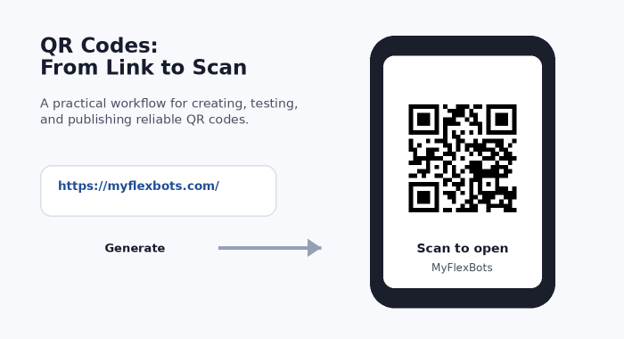
A QR code looks simple: a square of black modules, three big corner markers, and a quick scan. The frustrating part comes later, when the code opens the wrong page, becomes unreadable after printing, or stops working because the destination changed.
This guide shows how to create a QR code from start to finish, including choosing the right QR type, preparing the destination, generating the code, customizing it safely, testing it on multiple devices, exporting it for print, and troubleshooting failures. You will also learn the difference between static and dynamic QR codes so you do not lock yourself into the wrong setup.
The goal is not merely to produce a scannable square. It is to build a QR code that still works when it is printed on a menu, displayed on a poster, placed on packaging, sent in a PDF, or viewed on another screen.
What Is the Fastest Way to Make a QR Code?
To learn how to create a QR code, choose the content you want to share, open a reputable QR generator, select the QR type, paste the destination, generate the code, test it with at least two devices, then download it as PNG for digital use or SVG for sharp printing. Keep strong contrast and a clear white margin.
Essential Tools & Materials Breakdown
You can make a basic code with nothing more than a browser and a phone. The extra tools below become useful when you are designing for print, running campaigns, or creating codes for a business rather than a one-time personal use.
| Tool / Material | What It Does | Required? | Estimated Cost | Skill Level |
| Web browser | Opens a QR generator and landing page | Yes | $0 | Beginner |
| Smartphone camera | Scans and verifies the finished code | Yes | Use an existing phone | Beginner |
| QR code generator | Encodes a URL, text, Wi-Fi, contact, or file link | Yes | $0 for basic static codes | Beginner |
| Vector export / SVG | Keeps edges sharp at large print sizes | Recommended for print | $0–optional paid tool | Beginner |
| Image editor | Adds layout, spacing, labels, and brand treatment | Optional | $0–paid | Beginner–Intermediate |
| Short URL / redirect | Lets campaigns use a controlled destination | Optional | $0–subscription | Intermediate |
| Printer / proof sheet | Checks real-world scan size and contrast | For print testing | Existing printer or local print cost | Beginner |
💡 Quick Hack: If you only need a permanent website link, a plain static QR code is usually enough. Do not pay for analytics, templates, or “dynamic” features unless you actually need to change destinations or measure scans later.
Decide What the QR Code Should Do
Before you open a generator, write down the exact action you want after the scan. This small decision prevents most QR-code mistakes because the code itself is only a carrier; the useful part is what happens next.
Website URL: send readers to a homepage, article, booking page, product page, form, or checkout.
Wi-Fi access: encode the network name, security type, and password so guests can connect with fewer taps.
Contact details: create a vCard-style experience for a phone number, email, company, and website.
Plain text: show a short message, serial number, reference number, or instructions without requiring internet access.
Email or SMS: prefill a recipient and message so a user can contact you quickly.
PDF, menu, brochure, or file: point the QR code to a public file URL rather than trying to stuff a large file into the code itself.
App or social profile: link to a landing page that routes people to the correct platform when possible.
If your goal is a webpage, open that destination on your phone before generating anything. Confirm it loads quickly, does not require an unexpected login, and has a mobile-friendly layout. A perfectly designed QR code is useless if the landing page is slow or confusing.
Pro-Tip: For printed material, use a destination you control on your own domain whenever possible. A short branded redirect such as yoursite.com/go/menu is easier to maintain than a long third-party URL and gives you a path to change the final destination later.
Choose Static or Dynamic Before You Generate
This is the decision that matters most for long-term use. Static QR codes store the final data directly in the code. If the data is a URL, the QR code continues pointing to that exact URL. To change it, you normally create and print a new code.
A “dynamic QR code” usually works differently: the QR graphic contains a redirect URL controlled by a service or by your own redirect system. That redirect can be updated later, and some services add scan analytics. The tradeoff is dependency. If the redirect service, account, or subscription disappears, the printed code may become less useful or fail.
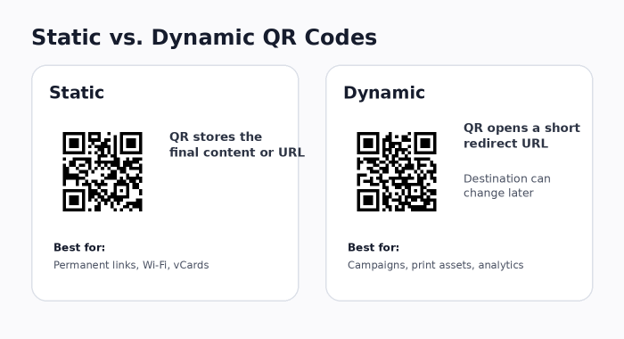
Choose static when the content is unlikely to change: a Wi-Fi password card, a permanent website URL, contact data, or a stable reference page. Choose a dynamic approach when the code will be printed in volume, used in advertising, attached to long-lived packaging, or measured as part of a campaign.
💡 Quick Hack: You can create a “dynamic-like” setup without a proprietary QR platform by putting a short URL on your own domain in the code and managing the redirect yourself. That preserves control while keeping the printed QR image unchanged.
Prepare the Destination for a Clean Scan Experience
When people search how to create a qr code, they often focus on the black-and-white graphic and forget the destination. Treat the landing page as part of the QR code. The scan should lead to one obvious next action, not a cluttered homepage with five menus and a pop-up blocking the screen.
Use HTTPS so the browser does not warn users about an insecure connection.
Remove unnecessary tracking parameters from the encoded URL unless you need them.
Prefer a short, readable path when the URL is under your control.
Make the destination mobile-first: large tap targets, readable text, and a clear CTA.
Avoid linking directly to a file that requires special permissions or a company login unless the audience expects that.
If the destination is a cloud file, test it in a private/incognito browser to make sure a stranger can actually open it.
For restaurants, events, and printed instructions, consider a lightweight landing page rather than a raw PDF. A webpage can be updated without forcing users to pinch and zoom, and it can provide a backup button if a file download fails.
Generate the QR Code
Now you are ready to use a generator. The interface differs from service to service, but the core process is nearly identical. You do not need a complex app for a basic code.
- Open a reputable QR code generator in your browser.
- Select the correct content type: URL, text, Wi-Fi, email, contact, or another supported format.
- Paste or enter the final data carefully. For a URL, include the full https:// address.
- Generate the QR code and keep the default square proportions.
- Before customizing anything, scan the plain version once. This gives you a known-good baseline.
- Download a copy of the unmodified QR code as a backup.
That baseline scan is important. If the code works before you add a logo or change the design, but fails afterward, you know the problem is visual customization rather than the encoded data.
💡 Quick Hack: Copy the destination URL into a plain-text note before generating. When you later troubleshoot the QR code, you can compare the decoded result with the original URL character by character instead of relying on memory.
Customize the Design Without Breaking It
Customization is where attractive QR codes often become unreliable. The three large finder patterns in the corners help scanners orient the code, while the surrounding white “quiet zone” separates the code from nearby text, photos, or borders. Those functional areas deserve more respect than the logo.
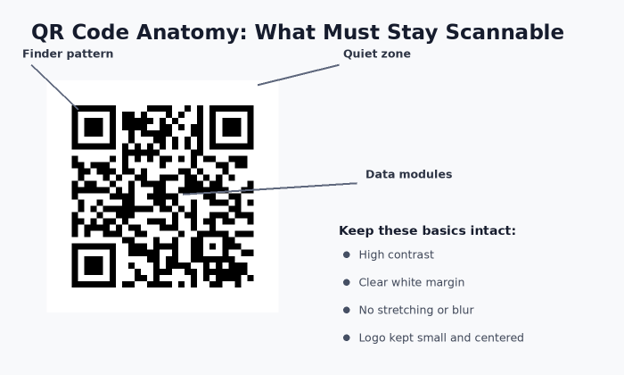
Keep the background light and the code dark. Black on white remains the most robust baseline.
Do not stretch the QR code into a rectangle. Resize proportionally.
Avoid busy photographic backgrounds directly behind the code unless the code sits on a solid light panel.
If you add a logo, keep it centered and relatively small. Test more aggressively after adding it.
Do not crop the white margin tightly. Give the scanner visual breathing room.
Avoid gradients or low-contrast brand colors that make modules blend together.
QR codes include error-correction features that can tolerate some damage or obstruction, but that is not permission to cover large parts of the code. The more data you encode and the more design elements you add, the denser the symbol can become, which makes small print sizes less forgiving.
Pro-Tip: If branding matters, brand the space around the QR code instead of the code itself. Put the code inside a clean card with your logo, a short instruction such as “Scan for the menu,” and a clear CTA. This usually looks better and scans more reliably than aggressive recoloring.
Test the QR Code Like a Real User
Testing is not a final courtesy; it is part of the build. A code that scans from your large desktop preview may fail when printed at two inches, placed under glass, viewed on a dim display, or scanned from an angle.
If you want a dependable answer to how to create a qr code for public use, use a repeatable test routine instead of a single successful scan.
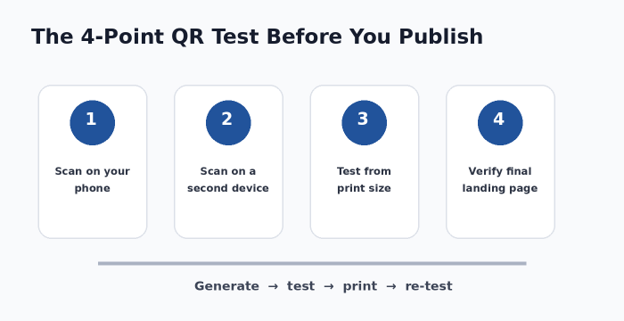
- Scan it with your primary phone camera.
- Scan it with a second phone if available, ideally a different platform or an older device.
- Test the exported file, not only the generator preview.
- Print a proof at the intended physical size and scan it from a natural distance.
- Test in the lighting where the code will actually be used, especially glossy menus, windows, signs, or event displays.
- Tap through to the final destination and complete the intended action: submit the form, open the menu, save the contact, or join the Wi-Fi network.
When a QR code opens a URL, read the browser preview before tapping whenever your phone shows one. This is a useful habit for your own QA and for general security. The Federal Trade Commission warns that malicious QR codes can hide phishing or malware links, so users should be cautious with unexpected codes.
For a consumer-safety reference, see the FTC QR code scam guidance.
Export the Right File for Digital or Print Use
A QR code can be technically correct and still look poor because of the file format. The right export depends on where the code will appear.
PNG: best for websites, social posts, presentations, email graphics, and most screen use. Export at a generous resolution.
SVG: best for print layouts, signage, packaging, and large-format design because the edges stay crisp when scaled.
PDF or EPS: useful in professional print workflows when supported by your generator and design software.
JPEG: usually a second choice for QR codes because compression can soften high-contrast edges. Use PNG or vector when possible.
For print, do not resize a tiny PNG upward inside Canva, PowerPoint, or another layout tool and assume it will remain sharp. A vector file is safer because the geometry remains crisp at different sizes.
💡 Quick Hack: Save three master files together: the raw QR code, the final branded artwork, and a text file containing the encoded destination. Six months later, that tiny bundle can save hours of detective work.
Choose the Right Physical Size and Placement
There is no single perfect print size because scan distance, camera quality, code density, lighting, and surface finish all matter. The practical rule is simple: the farther away people will scan, the larger the code should be. A code on a business card can be small; a code on a wall poster needs much more size.
Start with a conservative size, print a proof, and scan it at the distance a real user will stand. Do not judge the file only on your monitor. Dense codes with long URLs or lots of data generally need more space than simple codes.
Keep it away from folds, binding edges, trimming zones, and curved surfaces that distort the square.
Avoid placing it where hands, product seals, price stickers, or display stands will cover it.
On glossy material, test for reflections under real lighting.
Give the QR code a clear CTA so users know what they will get after scanning.
For outdoor signs, test after lamination or protective coating because glare can change scan behavior.
How to Make a QR Code on a Phone
You do not need a computer. The same process works from a phone browser: open the destination first, copy the URL, open a QR generator, paste the link, generate the code, and save the image to your device. Then scan it using a second device or display the QR code on another screen for testing.
If you are researching how to create a qr code entirely from mobile, remember that testing becomes the awkward part. A phone cannot easily scan a QR code that is displayed full-screen on that same phone unless the operating system or photo app can detect QR codes from saved images. Using a second phone, tablet, or laptop is the simplest QA method.
Related MyFlexBots guide: how to take a screenshot — helpful when saving generator settings, scan results, or errors for later troubleshooting.
How to Create QR Codes for Common Use Cases
QR Code for a Website
For a website, how to create a qr code correctly starts with the final canonical HTTPS URL. If the page may move later, consider a branded redirect under a domain you control. This is especially important for posters, brochures, stickers, and packaging that may remain in circulation for years.
QR Code for Wi-Fi
For Wi-Fi, how to create a qr code correctly means using a generator that supports Wi-Fi data, then entering the network name (SSID), security type, and password. Test with a guest device before printing. If you later change the Wi-Fi password or network name, a static code must also change.
QR Code for a PDF or Menu
Upload the file to a stable public location and create the QR code from its share URL. Test the link in a private browser window to verify that it does not depend on your own login session. For a restaurant menu or frequently updated document, linking to a landing page is often more maintainable than linking directly to a versioned file.
QR Code for a Business Card
Keep the code visually simple and pair it with a human-readable website or email address. If you encode contact information, verify every field before ordering cards. A typo in a static vCard code becomes a printing problem, not just a website edit.
QR Code for Marketing Campaigns
This is where analytics and editable destinations become valuable. Campaign codes may appear on flyers, direct mail, product inserts, event booths, or outdoor media, so changing the final destination without replacing the printed code can save money. Use campaign-specific landing pages and track downstream conversions, not only scan counts.
For retail and connected product experiences, the GS1 ecosystem uses QR codes with standardized digital-link concepts to connect identifiers with online information. Businesses working with product packaging should review the GS1 Digital Link standard before designing a production labeling system.
Five Common QR Code Mistakes to Avoid
- Encoding the Wrong or Temporary URL
One lesson in how to create a qr code safely is to verify the destination before printing. The most expensive mistake is sending a code to production first. Copy the URL from the final live page, open it in a private browser, and scan the generated code before sending artwork to a printer.
- Making the Code Too Small
A code that works on a laptop screen may fail on a small print proof. Do not use the generator preview as your size test. Print the code at the actual dimensions and scan it from the expected distance.
- Removing the Quiet Zone
Designers sometimes crop the white margin because it looks like wasted space. That margin helps a scanner distinguish the code from surrounding graphics. Keep breathing room around all sides.
- Over-Customizing the Modules and Finder Patterns
Round dots, gradients, logos, transparent backgrounds, and unusual corner shapes can look impressive in a mockup but reduce reliability. Make one visual change at a time and scan after each change.
- Assuming One Successful Scan Is Enough
If a customer cannot scan your menu, ticket, or sign, the failure is theirs to solve in the moment. Test before they have to. Multiple devices, print proofs, and real lighting are cheap compared with reprinting a batch of materials.
💡 Quick Hack: Create a tiny preflight checklist for every printed QR job: destination verified, code scanned twice, final export scanned, proof printed, CTA included, and backup URL visible. It takes less than two minutes once it becomes routine.
Advanced Tips and Next-Level QR Hacks
Use a Branded Redirect You Control
A redirect on your own domain is one of the best upgrades for serious QR use. The QR graphic points to a stable short path, while your server sends visitors to the current destination. You can change that destination later without altering the printed artwork.
Use UTM Parameters Carefully
Marketing teams can add UTM parameters to measure traffic in analytics platforms. However, long URLs make the QR symbol denser. A branded redirect can keep the encoded URL short while applying tracking on the destination or redirect layer.
Design the CTA Around the Scan
“Scan me” is vague. Tell users what they receive: “Scan for today’s menu,” “Scan to book,” “Scan for setup video,” or “Scan to save contact.” The CTA reduces uncertainty and improves the chance that a passerby will bother to use the code.
Keep a QR Code Inventory
Businesses quickly lose track of which code appears on which asset. Maintain a simple spreadsheet with a code name, encoded URL, final destination, creation date, asset location, owner, and last test date. Add a thumbnail of the code if the team manages many campaigns.
Use Error Correction Strategically
Some generators expose QR error-correction settings. Higher correction can improve tolerance to damage or a small logo, but it can also make the code denser. For ordinary use, start with the generator default and only increase correction when the design or environment requires it, then re-test at final size.
The QR Code format was developed by DENSO WAVE in the 1990s and later standardized internationally. Readers who want the background can explore the DENSO WAVE QR Code history.
Troubleshooting: Why Your QR Code Will Not Scan
When a code fails, isolate the cause instead of regenerating random versions. Start with the simplest possible test: open the exported image on a bright screen at a large size and scan it. If that works, the encoded data is probably fine and the failure is related to size, contrast, print quality, glare, or placement.
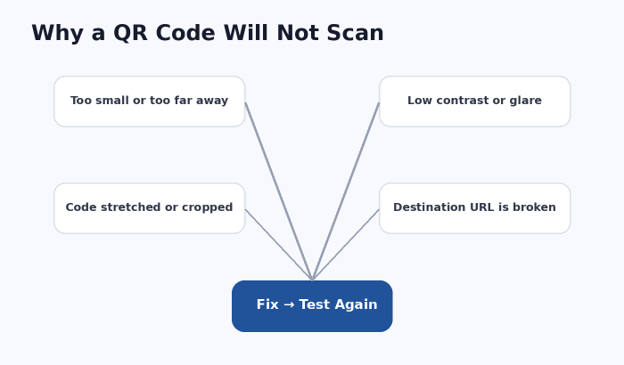
Problem: The Camera Does Not Recognize the Code
Increase the displayed or printed size.
Move the camera farther away, then closer, to help it focus.
Improve lighting without creating glare.
Restore a solid light background behind the code.
Check that the image was not stretched, blurred, or heavily compressed.
Remove decorative elements and test the plain baseline version.
Problem: The Code Scans, but the Link Fails
Open the decoded URL manually and check for a typo.
Confirm the page is public and not restricted to your account.
Check whether the page was moved, deleted, or redirected incorrectly.
Verify the domain and SSL certificate still work.
If a third-party dynamic QR service is involved, confirm the account and redirect are still active.
Problem: It Works on Screen but Not on Paper
This usually points to print size, low-resolution export, low contrast, ink spread, or a glossy surface. Export a higher-resolution PNG or an SVG, enlarge the code, and print on plain matte paper as a control test. If the matte proof works, the production material or finish is contributing to the failure.
Problem: It Works Up Close but Not at Normal Distance
Increase the physical size of the code. A user should not have to walk unusually close to a poster or sign to scan it. Test at the real viewing distance instead of using a desk test as a substitute.
Maintenance: Keep Long-Lived QR Codes Healthy
Long-term maintenance is part of how to create a qr code that stays useful. Static QR images do not need software maintenance, but the destination behind them does. For any code used on signage, packaging, business cards, product manuals, or recurring campaigns, schedule a periodic scan test.
Check the destination after website migrations or URL changes.
Retest important codes after redesigning a landing page or changing redirect rules.
Keep old redirect paths alive when printed materials are still circulating.
Review analytics for sudden drops that might indicate a broken destination or deployment issue.
Replace damaged physical labels where scratches, fading, or dirt obscure the modules.
For a small site, quarterly checks may be enough. For high-value campaigns, tickets, payments, or operational signage, test more frequently and immediately after any website or infrastructure change.
Frequently Asked Questions
Can I create a QR code for free?
Yes. Basic static QR codes can be generated with free tools. The paid features people commonly encounter are editable destinations, scan analytics, campaign management, templates, team access, or hosted file services. For a stable website URL, text string, or Wi-Fi credential, a free static code may be all you need.
Do QR codes expire?
A static QR code does not have a built-in expiration date. It will keep encoding the same data. What can fail is the destination: a webpage can be removed, a domain can expire, or a third-party redirect service can stop working. Dynamic QR services may also depend on an active account or plan.
What is the best format for printing a QR code?
SVG is usually the safest choice when your design software and printer support it because it scales without softening the module edges. A high-resolution PNG also works well for many small and medium print jobs. Avoid enlarging a tiny raster image.
Can I put a logo in the middle of a QR code?
Usually, yes, if the generator and error-correction level can tolerate it, but the logo should remain modest in size and centered. Test the final code on multiple devices and at the real print size. A branded frame around the QR code is often safer than a large logo covering modules.
How do I make a QR code for a PDF?
Upload the PDF to a stable public web location, copy its share URL, create a URL-based QR code, and test the link in a private browser. If the PDF changes often, point the QR code to a landing page or stable redirect instead of a version-specific file URL.
How to create a QR code that I can change later?
Use a dynamic QR service or, preferably when you control a website, encode a short URL on your own domain and make that URL redirect to the current destination. The printed QR graphic remains the same while the redirect target can be updated. Always keep the redirect active for as long as the printed material is in circulation.
Conclusion: Build the Scan Experience, Not Just the Square
The reliable way to approach how to create a qr code is to think beyond the generator. Pick the right destination, decide whether you need static or editable behavior, preserve the code’s contrast and quiet zone, export it in the right format, and test the exact version people will see.
For most personal uses, the simplest static QR code is the best choice. For business campaigns and long-lived print materials, a controlled redirect, documented destination, and routine testing can prevent expensive reprints and broken customer journeys.



Leave A Comment