How to Mirror Your Phone to a PC: Step-by-Step Guide 202
tutorial, or control an Android phone without constantly picking it up. This guide explains how to mirror your phone to a PC using the most dependable Windows methods available in 2026, with separate instructions for Android and iPhone.
The key is choosing the right connection before installing random software. Some Android phones work beautifully with Microsoft Phone Link, some can cast with Miracast, and almost any modern Android phone can use scrcpy. iPhones need a different path because Windows is not a native AirPlay receiver.
Quick Answer: How Do You Mirror a Phone to a PC?
| Featured Snippet Answer To understand how to mirror your phone to a pc, start with the phone type. On a supported Android device, use Microsoft Phone Link or Windows Wireless Display/Miracast. For broader Android compatibility and low latency, use scrcpy over USB or Wi-Fi. For iPhone, use a reputable AirPlay receiver app or compatible HDMI capture hardware. |
Essential Tools and Materials
You do not need a complicated setup. In many cases, the total cost is zero because Windows already includes the software or the best Android tool is free and open source.
| Tool or requirement | Best for | Estimated cost | Skill level | Important note |
| Windows 11 PC | All Windows methods | Existing hardware | Beginner | Keep Windows updated for the best Phone Link and Wireless Display support. |
| Same Wi-Fi network | Phone Link, Miracast, wireless S-Connect, iPhone receiver apps | $0 | Beginner | A 5 GHz or 6 GHz local network usually gives lower latency than congested 2.4 GHz Wi-Fi. |
| USB data cable | Screepy and stable wired mirroring | $0-$15 | Beginner | A charge-only cable can power the phone but will not carry ADB data. |
| Phone Link + Link to Windows | Supported Android phones | $0 | Beginner | Full Phone screen support is limited to eligible Android devices. |
| Windows Wireless Display feature | Miracast-capable Android phones | $0 | Beginner | Both the PC and phone must support the necessary wireless display technology. |
| scrcpy | Android screen mirroring and control | $0 | Intermediate | Free, open source, no root required; USB debugging is normally required. |
| AirPlay receiver software | iPhone to Windows | $0-$30+ | Beginner | Windows itself is not a native AirPlay receiver. |
| HDMI adapter + capture device | Stable iPhone or Android presentation capture | $20-$80+ | Intermediate | Useful when Wi-Fi is unreliable or very low latency matters. |
Best starting point: If the Android phone shows the Phone screen feature inside Phone Link, use that first. If it does not, try Miracast if the handset supports it. If you want the most predictable Android result, especially for recording, demonstrations, or troubleshooting, move straight to Scrcpy. If the computer itself is the bottleneck, see MyFlexBots’ how to choose a laptop guide before upgrading.
| 💡 Quick Hack: Before buying anything, test the USB cable you already own by connecting the phone to the PC and checking whether Windows can see files on it. If Windows only charges the phone, the cable may not carry data. |
Choose the Right Mirroring Method Before You Start
The fastest way to learn how to mirror your phone to a PC is to match the method to the job rather than forcing one tool to do everything.
Use Phone Link when convenience matters most
Phone Link is the easiest option for supported Android phones because it integrates with Windows and can expose phone content, notifications, messages, apps, and—in supported cases—the full phone screen. Microsoft says the Phone screen feature requires a supported Android device and a compatible PC, and both devices should be on the same Wi-Fi network.
Use it when you want a clean, everyday workflow with minimal setup.
Use Windows Wireless Display when your Android phone supports Miracast-style casting.
Windows can be configured to receive a wireless projection through the Wireless Display optional feature. Android manufacturers label their transmitting feature differently: Smart View, Cast, Screen Cast, Screencast, Wireless Display, or a similar name.
This method is quick when it works, but it is not universal. Some Android phones do not support Miracast transmission, so the PC may never appear as a target even if Wireless Display is installed correctly.
Use Scrcpy when you want speed, control, and broad Android compatibility.
Screepy is one of the strongest tools for Android users who want low-latency mirroring and PC control. The official project supports Windows, macOS, and Linux, works over USB or TCP/IP, does not require root access, and does not install a permanent app on the Android device.
For a technical user, developer, content creator, support agent, or anyone who records phone demos, Scrcpy is often the best long-term solution.
Use an AirPlay receiver or capture hardware for iPhone
Apple’s official AirPlay instructions list Apple TV, compatible smart TVs, and Mac as mirroring destinations. A Windows PC therefore needs receiver software that makes Windows behave like an AirPlay target, or it needs hardware that captures the iPhone’s video output.
Microsoft Phone Link supports useful iPhone functions such as calls, messages, notifications, and file-related workflows, but it does not provide the same full Phone screen mirroring experience described for supported Android devices.
Mirror a Supported Android Phone with Microsoft Phone Link
For many people researching how to mirror your phone to a PC, Phone Link is the best first attempt because it is built around normal Windows use instead of developer tools.
What you need
A Windows PC with current updates installed.
A supported Android phone, generally Android 10 or later for the phone screen experience.
Link Windows to the Android device.
The phone and PC connected to the same Wi-Fi network.
A Microsoft account and the permissions requested during pairing.
Microsoft maintains a current supported-device list. This matters because seeing notifications or photos in Phone Link does not automatically mean the phone supports full screen mirroring.
Update Windows and Phone Link
On the PC, open Settings > Windows Update and install available updates. Then open Microsoft Store, go to Library, and update Phone Link if an update is offered.
On the Android phone, update the link to Windows through the Play Store or Galaxy Store when applicable.
Put both devices on the same local network.
Connect the phone and PC to the same Wi-Fi network. If the router separates 2.4 GHz and 5 GHz bands into different network names, put both devices on the same faster band when possible.
Corporate, school, hotel, and guest Wi-Fi networks can block device-to-device discovery. A home network is easier to troubleshoot.
Pair the phone with Phone Link.
- Open Phone Link on Windows.
- Choose Android.
- Sign in if requested.
- Follow the QR code or pairing instructions on screen.
- Approve the requested permissions on the phone.
Do not deny permissions automatically. Phone Link needs specific permissions to expose messages, notifications, photos, and screen-related features.
Open Phone screen
After pairing, look for the Phone screen in Phone Link. Select it and accept any phone-side permission prompt.
If the option opens successfully, the Android display appears in a Windows window, and supported interactions can be performed with a mouse, keyboard, touchpad, or touchscreen.
Improve responsiveness
Close large downloads, cloud backups, game updates, and 4K streaming on the same network. Move closer to the router if the mirrored screen freezes or updates slowly.
| 💡 Quick Hack: If Phone Link feels laggy even though internet speed is fast, test local Wi-Fi conditions rather than your ISP speed. Screen mirroring mostly depends on the quality of the connection between your phone, router, and PC, not how fast your broadband plan is. |
If the phone screen is missing
Do not reinstall Windows immediately. First, check Microsoft’s current supported devices for Phone Link experiences list. A phone can pair with Phone Link and still lack the full-screen-mirroring capability.
If your device is not eligible, skip to the Scrcpy method instead of wasting time on repeated resets.
Mirror Android with Windows Wireless Display and Miracast
Another answer to how to mirror your phone to a pc is Windows’ built-in receiving mode. It is especially convenient with Android phones that expose a manufacturer casting feature such as Samsung Smart View.
Install the Wireless Display optional feature.
On Windows 11:
- Open Settings.
- Go to System > Projecting to this PC.
- Follow the link to add the Wireless Display optional feature if it is not installed.
- Search for Wireless Display from the Start menu and open the app.
- Leave the receiver screen open while connecting the phone.
Microsoft notes that the Wireless Display app is used on Windows 11 version 22H2 and later for this receiving workflow.
Make the PC discoverable.
In Projecting to this PC, choose a discovery setting appropriate for your environment. On a private home network, allowing projection when requested is usually the simplest choice.
Avoid making a work laptop broadly discoverable on untrusted networks. Mirroring is a display function, but discoverability is still something to manage deliberately.
Open the phone’s cast menu.
The location varies by manufacturer:
Samsung: Quick Settings > Smart View.
Motorola / some Android devices: Settings or Quick Settings > Cast.
Xiaomi / Redmi / POCO: Look for Cast or wireless display.
Other brands: Search Settings for cast, screen cast, screencast, or wireless display.
Choose the PC when it appears, then approve the connection on Windows if prompted.
If the PC never appears, verify Miracast support.
The most common beginner mistake is assuming every Android phone transmits Miracast. That is not true. If Windows is configured correctly but the handset never lists the PC, confirm the phone’s casting technology in the manufacturer’s documentation.
Some phones prioritize Google Cast/Chromecast instead of Miracast. Google Cast receivers and Miracast receivers are not the same thing.
| 💡 Quick Hack: Keep the Wireless Display app open before opening the phone’s cast menu. Discovery is often more reliable when Windows is already waiting as a receiver. |
Mirror and Control Android with scrcpy over USB
If you want a dependable answer to how to mirror your phone to a pc that works across a much wider range of Android devices, scrcpy is the method to learn.
The official Genymobile scrcpy project describes the tool as a way to mirror Android video and audio over USB or TCP/IP and control the phone with a computer keyboard and mouse. As of this guide, the official project is on the 4.x generation and explicitly warns users to download it only from the official Genymobile repository.
Why USB is usually the best first scrcpy setup
A wired connection avoids Wi-Fi discovery problems and usually delivers lower, more consistent latency. It is also ideal for recording app tutorials or presenting a phone during a live call because network congestion has less effect.
Install scrcpy from the official source
The easiest Windows package-manager command is:
winget install –exact Genymobile.scrcpy
You can also download the current Windows release from the official scrcpy GitHub repository. Avoid third-party download mirrors that repackage the software.
Enable Android Developer options
On most Android phones:
- Open Settings > About phone.
- Find Build number or the software-information screen containing it.
- Tap Build number seven times.
- Enter the phone PIN when requested.
- Return to Settings and open Developer options.
The exact menu names differ across brands, but Android’s official developer documentation confirms that USB debugging lives under Developer options.
Enable USB debugging
Turn on USB debugging. Read the warning and confirm only if this is your own trusted PC.
USB debugging gives the computer deeper access than ordinary file transfer, so it should not be approved casually on public or shared computers.
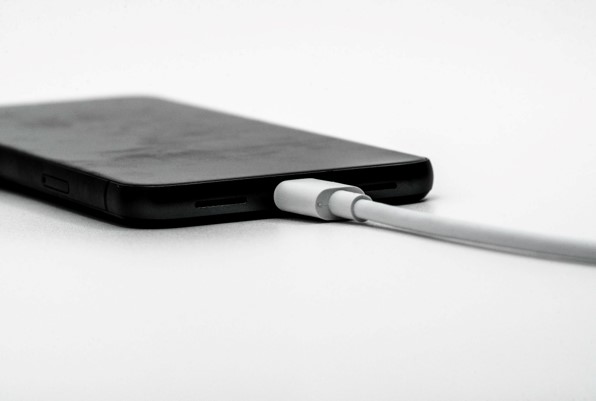
Connect with a real data cable
Plug the Android phone into the PC. When the phone asks whether to allow USB debugging from this computer, verify that you recognize the machine and tap Allow.
If you expect to use the same personal PC repeatedly, you may choose the option to always allow it. On a borrowed computer, do not save the authorization.
Launch scrcpy
Open Terminal, Command Prompt, or PowerShell and run:
scrcpy
If the device is authorized and ADB can see it, the phone screen should open in a desktop window within seconds.
Make scrcpy faster on an older PC
The default image quality is usually excellent, but very high resolutions can waste resources when you only need to demonstrate an app. The official scrcpy documentation suggests lowering the maximum size to improve performance.
Try:
scrcpy -m1024
This reduces the transmitted resolution and can make weak laptops, slow USB controllers, and remote meeting workflows feel much smoother.
| 💡 Quick Hack: For a presentation, test both the normal command and scrcpy -m1024 before the meeting. The lower-resolution mode is often more stable in video-conferencing software because the PC has fewer pixels to encode twice—once from the phone and again for the meeting stream. |
Useful scrcpy shortcuts and commands
Alt + f toggles fullscreen in the current scrcpy documentation.
scrcpy –turn-screen-off mirrors while turning the physical Android display off on supported setups.
scrcpy –record=phone-session.mp4 can record a session directly.
scrcpy –new-display=1920×1080 can create a virtual display on current versions, useful for separating a demo workspace from the phone’s normal screen.
Treat advanced flags as optional. The basic scrcpy command is all most people need.
Mirror Android Wirelessly with scrcpy
Once USB mirroring works, how to mirror your phone to a pc without a cable becomes much easier because you already know the PC, drivers, ADB, and phone permissions are correct.
There are two practical wireless approaches: let scrcpy configure TCP/IP after a USB connection, or use Android’s modern Wireless debugging pairing workflow.
Option A: Let scrcpy switch an existing USB connection to TCP/IP
Connect the phone by USB and put the phone and PC on the same Wi-Fi network. Then run:
scrcpy –tcpip
The official scrcpy connection documentation says this mode can automatically find the device address, enable TCP/IP as needed, connect, and start mirroring. Once the wireless connection is established, the USB cable can be removed.
Option B: Pair with Android Wireless debugging
Android 11 and later supports pairing a device to a workstation over Wi-Fi with ADB. On recent Android versions:
- Enable Developer options.
- Open Wireless debugging.
- Choose Pair device with pairing code.
- Note the pairing IP address, port, and six-digit code.
- On the PC, run adb pair IP_ADDRESS:PAIRING_PORT.
- Enter the displayed pairing code.
- Connect to the device’s connection address if needed with adb connect IP_ADDRESS:PORT.
- Run scrcpy.
Android’s official ADB documentation notes that the phone and workstation must be on the same wireless network for this pairing process.
When wireless scrcpy is worth it
Wireless scrcpy is excellent when the phone must stay in your hand while the audience watches the PC display. It is also useful for app testing, classroom demonstrations, remote support sessions, and recording workflows where a dangling cable gets in the way.
It is less suitable for a crowded conference Wi-Fi network where devices cannot see each other or packet loss is high.
| 💡 Quick Hack: Pair wireless ADB only on networks you trust. When a demo is over, turn Wireless debugging off if you do not need it. That removes an unnecessary listening service and reduces the chance of confusing future ADB connections. |
Mirror an iPhone to a Windows PC
For iPhone owners asking how to mirror your phone to a pc, the biggest thing to understand is that Windows and iOS do not provide a built-in, full-screen mirroring path equivalent to AirPlay-to-Mac.
Option 1: Use a reputable AirPlay receiver app for Windows
An AirPlay receiver app makes the Windows PC advertise itself as a destination that the iPhone can see in Control Center.
The general workflow is:
- Install the receiver app from its official publisher or Microsoft Store listing.
- Connect the iPhone and PC to the same private Wi-Fi network.
- Open the receiver app on Windows.
- On iPhone, open Control Center.
- Tap Screen Mirroring.
- Choose the PC receiver name.
- Enter an on-screen code if the receiver requires one.
Because receiver apps vary in price, privacy practices, resolution limits, recording features, and ad behavior, choose software from a known vendor and read its current permissions before installing it.
Option 2: Use HDMI output and a capture device
A hardware capture path is more work, but it can be excellent for live demonstrations and recordings.
You need a video-output adapter compatible with the iPhone model, an HDMI cable when required, and a USB HDMI capture device connected to the PC. Open the capture device in OBS, a camera app, or another video-preview program.
This approach treats the iPhone like an external video source. It can avoid Wi-Fi lag, but protected streaming apps may intentionally block or black out captured video because of content protection.
What Phone Link can do with iPhone
Phone Link can still be useful even though it is not full iPhone screen mirroring. Microsoft’s current support pages document iPhone integration for calls, messages, notifications, and connected-device features through Bluetooth and Windows 11.
Use Phone Link when your real goal is reducing how often you reach for the iPhone. Use an AirPlay receiver or capture hardware when you specifically need the entire display on the PC.
| 💡 Quick Hack: If an iPhone sees other AirPlay devices but not the Windows receiver, disable a VPN temporarily and confirm that Windows Firewall allows the receiver app on your Private network. VPNs and guest Wi-Fi often block the local discovery traffic AirPlay-style receivers need. |
Common Mistakes to Avoid
Even a good guide to how to mirror your phone to a pc can fail if one small compatibility detail is missed. These are the five problems that waste the most time.
- Using a charge-only USB cable
A cable can charge at full speed and still lack working data lines. If scrcpy shows no device, test another cable before reinstalling drivers or changing developer settings.
Prevention: Keep one short, known-good data cable labeled for PC work.
- Assuming every Phone Link feature works on every Android phone
Phone Link has several layers of compatibility. Notifications, photos, messages, apps, and Phone screen do not necessarily share the exact same eligibility list.
Prevention: Check the official supported-device list specifically for Phone screen before troubleshooting for an hour.
- Assuming every Android casting button uses Miracast
A phone may say Cast but only look for Google Cast/Chromecast targets. A Windows Wireless Display receiver may use a different protocol.
Prevention: Confirm the phone manufacturer’s supported wireless display standard.
- Leaving debugging enabled forever without thinking about trust
USB and wireless debugging are powerful tools. The convenience of permanent authorization should be balanced against the fact that ADB provides deeper access than normal phone-to-PC file transfer.
Prevention: Revoke debugging authorizations when you stop using a shared PC, and disable Wireless debugging when it is not needed.
- Testing protected video and assuming the mirroring tool is broken
Banking apps, enterprise apps, password screens, and licensed streaming services may deliberately block screenshots, capture, or external playback. A black rectangle can be a security or DRM restriction rather than a bad cable or bad Wi-Fi.
Prevention: Test mirroring first with the home screen, Settings, Photos, or another ordinary app.
Advanced Tips and Next-Level Hacks
Once you know how to mirror your phone to a pc, the basic connection is only the beginning. A few refinements can turn a casual setup into a reliable production workflow.
Build a low-latency presentation setup
For live demos, prioritize consistency in this order:
- USB scrcpy for Android.
- Wired capture for iPhone when available.
- 5/6 GHz Wi-Fi on a clean private network.
- Standard 2.4 GHz Wi-Fi only when range matters more than speed.
Close cloud backup tools and large downloads before presenting. Also disable automatic phone rotation if you do not want the mirrored window to jump between portrait and landscape.
Create a clean demo environment
Hide notification previews before sharing the screen. On Android, use Do Not Disturb or a work profile if appropriate. On iPhone, enable a Focus mode that suppresses private banners.
For scrcpy users on a recent release, a virtual display can be especially useful because it can open selected apps in a separate display instead of exposing the everyday phone screen.
Record the phone without recording the entire desktop
With scrcpy, use the built-in recording option when you need a clean Android recording without cropping a desktop screen capture later.
Example:
scrcpy –record=phone-demo.mp4
This is usually cleaner than recording the entire desktop and editing out the surrounding Windows interface afterward. After creating important recordings, follow a proper backup routine; MyFlexBots also covers how to back up your computer.
Reduce resolution before increasing bitrate
When a wireless mirror stutters, many people try to improve quality first. That often makes the problem worse.
Lower the phone-stream resolution or max size, test stability, and only then raise quality. A smooth 720p or 1080p demo is more useful than a frozen ultra-high-resolution one.
Keep a wired backup for important meetings
Wireless mirroring is convenient, but meeting-room Wi-Fi is unpredictable. Put a tested USB cable or capture adapter in the laptop bag before a client demo, training session, or webinar. For inexpensive add-ons, the best tech gadgets under $50 roundup is a natural supporting internal link.
| Pro-Tip: Create a small folder called Phone Mirror Kit on the PC with a text file containing your preferred scrcpy commands, the official download link, and your troubleshooting checklist. The next time you change laptops, you can rebuild the setup in minutes. |
Troubleshooting: Fix the Most Common Mirroring Problems
Troubleshooting how to mirror your phone to a pc becomes much faster when you identify whether the failure is discovery, authorization, video transport, or app-level protection.
The PC does not appear in the Android cast list
Check these items in order:
Is Wireless Display installed on Windows?
Is the Wireless Display receiver app open?
Is Wi-Fi enabled on both devices?
Are both devices on the same local network?
Does the Android phone actually support Miracast-style wireless display output?
Is a VPN or guest network isolating devices?
If the phone does not support Miracast, use scrcpy instead of repeatedly resetting the PC.
Phone Link connects, but Phone screen is missing
This usually points to feature eligibility rather than a broken Windows installation. Confirm that the Android model appears on Microsoft’s supported-device page for Phone screen.
Also update Phone Link, Link to Windows, Windows, and the phone’s operating system before retesting.
scrcpy says the device is unauthorized
Look at the Android phone for the Allow USB debugging? prompt. If the prompt never appears:
- Disconnect the cable.
- Open Developer options.
- Tap Revoke USB debugging authorizations.
- Reconnect the phone.
- Accept the new computer fingerprint prompt.
Only authorize a computer you trust.
adb devices shows no phone
Try another USB port and another data cable. Avoid a flaky hub during troubleshooting; connect directly to the laptop if possible.
On some Windows systems, the phone manufacturer may require a USB driver. Start with Windows Update and the manufacturer support page rather than installing driver packs from unknown sites.
Wireless scrcpy disconnects after a few minutes
Check whether the phone switched Wi-Fi networks, entered an aggressive power-saving state, or changed from the trusted network used for wireless debugging.
For an important session, fall back to USB. Reliability is more valuable than cable-free convenience.
The mirror is laggy but does not disconnect
Reduce stream resolution, move closer to the router, switch both devices to a faster Wi-Fi band, and stop other high-bandwidth local traffic.
For scrcpy, test scrcpy -m1024. For a wireless receiver app, lower its resolution or frame-rate setting if available.
The screen is black only inside one app
Test the phone home screen and Settings. If those display normally, the affected app may block capture for security or DRM reasons.
There is usually no legitimate mirroring setting that overrides an app’s deliberate secure-screen restriction.
iPhone Screen Mirroring cannot find the Windows PC
Confirm that the AirPlay receiver app is actively running. Then check:
iPhone and PC are on the same network.
The network allows devices to communicate with each other.
A VPN is not intercepting local traffic.
Windows Firewall permits the receiver app on the private network.
The receiver app version supports your current iOS release.
Restart the receiver app before restarting the entire PC.
Audio is missing
Audio behavior depends on the method. Current scrcpy supports Android audio forwarding on supported Android versions, while Miracast and receiver-app audio support varies by device and implementation.
If you only need the image during a meeting, it can be simpler to keep microphone and presentation audio on the PC rather than routing phone audio through multiple layers.
Maintenance and Security for a Reliable Setup
After setting up phone-to-PC mirroring, spend five minutes making the workflow repeatable and safe.
Keep Windows 11 updated. Microsoft is actively developing Phone Link and connected-device features.
Update phone-side companion apps. Link to Windows and receiver apps can lose compatibility after major OS updates if they are old.
Revoke old ADB authorizations. Do this before selling a PC or phone, or after using a shared computer.
Turn off Wireless debugging when unused. Convenience does not require leaving a developer service active all the time.
Save a known-good USB cable. It is the fastest diagnostic tool when wireless methods fail.
Use private Wi-Fi. Avoid exposing discovery services on public networks where possible.
Test before presentations. OS updates, firewall changes, and router changes can alter a setup that worked last month.
| Pro-Tip: For a business or classroom that mirrors phones often, standardize one method per device type. For example, use scrcpy over USB for Android demonstration units and a dedicated capture or vetted AirPlay receiver setup for iPhones. Consistency saves more time than having six different mirroring apps installed. |
Frequently Asked Questions
Can I mirror my phone to a PC without Wi-Fi?
Yes. Android users can use scrcpy over a USB data cable, which does not require Wi-Fi or internet access for the screen connection. iPhone users can use compatible wired video-output and capture hardware. A wired setup is often the better choice for low latency and unstable networks.
Can I control my Android phone from the PC after mirroring it?
Yes, with the right method. Phone Link can provide interaction on supported devices, and scrcpy is specifically designed to mirror and control Android with a keyboard and mouse. Basic Miracast-style casting may be display-focused and may not offer full control.
Can I mirror an iPhone to Windows with Phone Link?
Phone Link supports useful iPhone connectivity, including calls, messages, notifications, and other connected-device functions, but Microsoft documents the full Phone screen mirroring feature for supported Android devices. For full iPhone display mirroring to Windows, use a trusted AirPlay receiver or wired capture method.
Why does my Android phone charge but scrcpy cannot see it?
The most likely causes are a charge-only or damaged cable, USB debugging being disabled, an unapproved ADB authorization prompt, a problematic USB port, or a missing device driver. Start by changing the cable and connecting directly to the PC before making deeper system changes.
Does phone mirroring use the internet?
Not always. USB scrcpy can work without internet. Wireless scrcpy, Phone Link, Miracast, and local AirPlay receiver setups mainly rely on the local network for the screen path, although accounts, updates, or certain app features may still use internet services. Some third-party mirroring products may use cloud servers, so review how a specific app works.
What is the best method for recording an Android phone screen on a PC?
For most technical users and creators, scrcpy is a strong choice because it can mirror, control, and record from the same tool. A wired USB connection reduces network variables, and the recording command can save a clean phone video without capturing the entire Windows desktop.
Conclusion
There is no single universal answer to how to mirror your phone to a pc because Android manufacturers, Windows features, and iPhone protocols do not all use the same technology. The simplest route is Phone Link on a supported Android phone; the most flexible Android route is scrcpy; Miracast is useful when both devices support it; and iPhone users should plan on AirPlay receiver software or a wired capture setup.
editor's pick
latest video
news via inbox
Nulla turp dis cursus. Integer liberos euismod pretium faucibua