How to Speed Up a Slow Laptop Windows 11: 15 Proven Fixes
A laptop that takes two minutes to become usable, stutters when you open a browser, or freezes every time Windows updates can turn a five-minute task into a half-hour headache. If you are searching for How to speed up a slow laptop windows 11, the answer is not a single magic switch: the fastest results come from identifying the bottleneck, fixing software waste first, and only then deciding whether the hardware needs help.
This guide walks through 15 fixes in the order I would actually test them on a slow Windows 11 laptop. You will learn how to measure CPU, memory, disk, startup, storage, malware, power, thermals, and hardware limits, with clear stop points so you do not waste time or money on changes that cannot solve your specific problem.
Quick Answer: How Do You Make a Slow Windows 11 Laptop Faster?
| To learn How to speed up a slow laptop windows 11, start by restarting the PC, checking Task Manager for CPU, memory and disk bottlenecks, disabling unnecessary startup apps, freeing storage, installing Windows and driver updates, scanning for malware, and improving cooling. If performance is still poor, consider more RAM or a compatible SSD. |
Essential Tools & Materials Breakdown
Most fixes cost nothing. The table below separates free Windows tools from optional hardware so you can diagnose first and buy later.
| Tool / Material | What It Is For | Estimated Cost | Skill Level |
| Task Manager | Find CPU, RAM, disk and startup bottlenecks | $0 | Beginner |
| Windows Settings / Storage Sense | Startup, storage, power and cleanup controls | $0 | Beginner |
| Windows Security | Malware scanning | $0 | Beginner |
| Windows Update | OS and optional driver updates | $0 | Beginner |
| Compressed air / soft brush | External vent and accessible fan cleaning | 5–15 | Beginner–Intermediate |
| Laptop stand | Improves underside airflow on some designs | 10–30 | Beginner |
| RAM upgrade (optional) | Reduces memory pressure if laptop supports it | 20–100+ | Intermediate |
| SSD upgrade (optional) | Major speed gain for HDD-based laptops; more capacity | 30–150+ | Intermediate |
| Small screwdriver set | Opening serviceable laptops | 10–25 | Intermediate |
- Start With a Clean Restart and a Baseline
The first step in How to speed up a slow laptop windows 11 is deliberately boring: restart the laptop, then measure the problem before changing anything. A true restart clears stuck processes, completes many pending updates, and gives you a clean baseline. Shutting the lid or using Sleep does not do the same job.
After the restart, wait two or three minutes before opening your usual apps. Time how long it takes to reach the desktop, open your browser, launch File Explorer, and start one application you use every day. These rough timings become your before-and-after test.
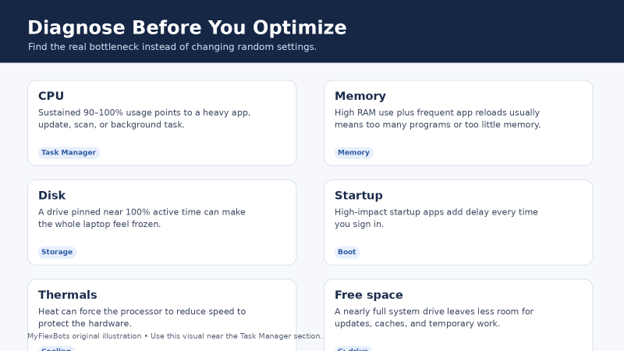
Press Ctrl + Shift + Esc to open Task Manager. On the Processes tab, click the CPU, Memory, and Disk column headers to sort by usage. Look for a process that stays unusually high for several minutes, not a process that spikes for a second while opening.
Use the Performance tab to see the bigger picture. If memory remains above roughly 80–90% during normal work, RAM pressure is likely. If the system drive spends long periods near 100% active time, storage can be the bottleneck. If CPU stays maxed while the laptop is doing almost nothing, find the process responsible before changing visual effects or buying parts.
💡 Quick Hack: Take a screenshot of Task Manager when the laptop feels slow. Compare it with a screenshot taken after your fixes. It is a much better troubleshooting record than trying to remember whether the machine ‘felt faster.’
Need a quick way to save your before-and-after Task Manager screen? See MyFlexBots’ how to take a screenshot guide.
- Disable Unnecessary Startup Apps
One of the highest-return answers to How to speed up a slow laptop windows 11 is cutting the number of programs that launch the moment you sign in. Startup apps consume CPU, RAM, disk activity, and network bandwidth at exactly the time you want the desktop to become responsive.
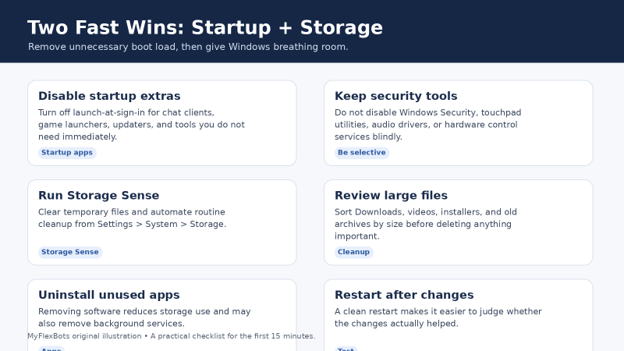
Open Settings > Apps > Startup, or open Task Manager and choose Startup apps. Task Manager is especially useful because Windows shows a startup-impact rating for many entries. Disable software you recognize but do not need immediately: game launchers, music apps, meeting tools, printer utilities you rarely use, cloud clients you do not need at boot, and vendor updaters that can be opened manually.
Do not turn off entries blindly. Leave Windows Security components, touchpad or hotkey utilities, audio services, graphics control components, and business security tools alone unless you understand their purpose. Disabling the wrong item may not damage Windows, but it can remove useful hardware features or create a new troubleshooting problem.
Restart after making a small batch of changes and retest boot time. If startup improves significantly, you have found a major source of the delay.
Pro-Tip: Start with items marked High impact, then work downward. This gives you the largest likely gain with the fewest changes.
Microsoft documents the available methods and startup-impact ratings in its startup applications guide.
- Free Up Space on the Windows Drive
Low storage can make a slow Windows 11 laptop feel impossible to fix because a nearly full C: drive leaves Windows less room for temporary files, updates, caches, browser data, and application working space. Microsoft also notes that low disk space can reduce performance and interfere with updates.
Go to Settings > System > Storage. Review the categories before deleting anything. Temporary files are usually the safest place to begin, but read the checkboxes carefully: the Downloads folder can contain files you still need, and a previous Windows installation can be useful briefly if you need to roll back after an upgrade.
Turn on Storage Sense if you want Windows to automate routine cleanup. You can control when it runs and what it removes. Then open Cleanup recommendations to review large or unused files and apps.
Aim for practical headroom rather than chasing an arbitrary percentage. On a small 128 GB drive, freeing 15–25 GB can make updates and everyday use easier. On a larger SSD, keeping tens of gigabytes free gives applications room to breathe.
💡 Quick Hack: Sort your Downloads folder by Size. Old ISO files, duplicate installers, video exports, phone backups, and ZIP archives often reclaim more space in five minutes than deleting thousands of tiny temporary files.
For current behavior and settings, use Microsoft’s official Storage Sense documentation.
- Uninstall Apps You No Longer Use
Unused apps are not only a storage problem. Many install background services, scheduled tasks, update agents, browser extensions, tray icons, or startup processes that continue consuming resources long after you forget the program exists.
Open Settings > Apps > Installed apps and sort by size or installation date. Remove software you recognize and no longer need. If an app is unfamiliar, search the publisher and purpose before uninstalling it; some drivers and hardware-control packages have generic names.
Be especially suspicious of so-called registry cleaners, driver boosters, RAM cleaners, and one-click optimizer suites. Windows already includes safe tools for startup management, storage cleanup, malware scanning, updates, and drive optimization. Adding another always-running ‘cleaner’ can make the machine slower, not faster.
Pro-Tip: Uninstall one category at a time—old games, trial software, duplicate media tools, then utilities—and restart. That makes it easier to identify which removal produced a meaningful gain.
- Install Windows Updates and Optional Driver Updates
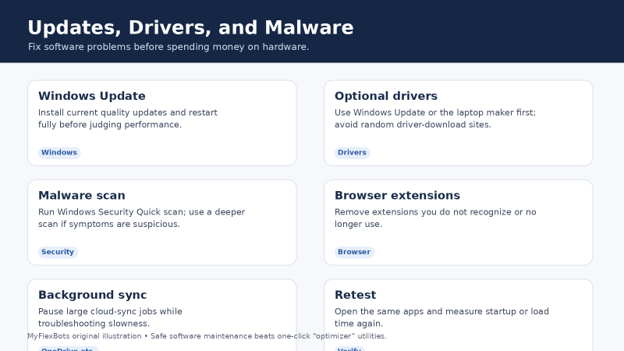
A practical guide to How to speed up a slow laptop windows 11 must include updates because performance problems are sometimes bugs rather than hardware limits. Microsoft says Windows updates can include fixes and performance improvements, and optional updates may include non-critical drivers.
Open Settings > Windows Update > Check for updates. Install available updates, then restart even if Windows does not force you to do it immediately. Afterward, go to Windows Update > Advanced options > Optional updates and review driver updates.
For graphics, chipset, Wi-Fi, and laptop-specific firmware, prefer Windows Update and your laptop manufacturer’s official support page. If you have Intel hardware, Intel Driver & Support Assistant can identify many supported Intel driver updates. Avoid random driver-download sites that bundle installers or claim every driver is ‘outdated.’
If the laptop became slow immediately after a specific driver or Windows update, do not assume newer is always better. Check the laptop maker’s support notes and Windows update history; rolling back a problematic driver can be more appropriate than installing three more utilities.
💡 Quick Hack: After a large Windows update, let the laptop remain plugged in and idle for 10–20 minutes. Search indexing, app updates, Defender work, and update cleanup can temporarily make a healthy PC feel slower than normal.
Microsoft’s current PC performance guidance recommends Windows and optional driver updates among its troubleshooting steps.
For supported Intel hardware, the official Intel Driver & Support Assistant can identify many Intel driver and software updates.
- Scan for Malware and Unwanted Browser Extensions
Malware can consume CPU, disk, memory, and network resources, so security checks belong in any trustworthy answer to How to speed up a slow laptop windows 11. Open Windows Security > Virus & threat protection and run a Quick scan. If you have suspicious pop-ups, unknown processes, browser redirects, or persistent high usage, run a deeper scan.
Also inspect your browser. Extensions can run on every page you open and may consume surprising amounts of memory. Remove extensions you no longer use, did not intentionally install, or cannot identify. Resetting the browser is a last resort, not the first move, because it may sign you out and change settings you care about.
Do not install multiple real-time antivirus products. Two security suites scanning the same files can create conflicts and heavy disk activity. On a normal personal PC, one reputable real-time security solution is enough.
Pro-Tip: If the laptop is slow only when the browser is open, press Shift + Esc in Chromium-based browsers such as Chrome or Edge to open the browser task manager and identify the tab or extension consuming resources.
- Stop Resource-Hungry Background Processes
Task Manager is where you separate a slow computer from a slow application. Sort the Processes tab by CPU, Memory, Disk, and Network while the slowdown is happening. A cloud sync, game update, video encoder, browser tab, antivirus scan, or backup job may be using most of the machine without being visible on screen.
End a task only when you know what it is and you are comfortable closing it. Do not terminate random Windows processes. If an app repeatedly returns and consumes resources, change its own background or startup settings, repair it, update it, or uninstall it instead of killing it after every boot.
For persistent issues, open Task Manager > Details or Resource Monitor for deeper inspection. Resource Monitor can show which processes are reading or writing heavily to disk and which apps are opening network connections.
💡 Quick Hack: Pause OneDrive, Dropbox, Google Drive, Steam, Epic, or large browser downloads for ten minutes. If responsiveness returns immediately, the laptop may be fine; it was simply busy doing background work.
- Change Power Mode When You Need Maximum Speed
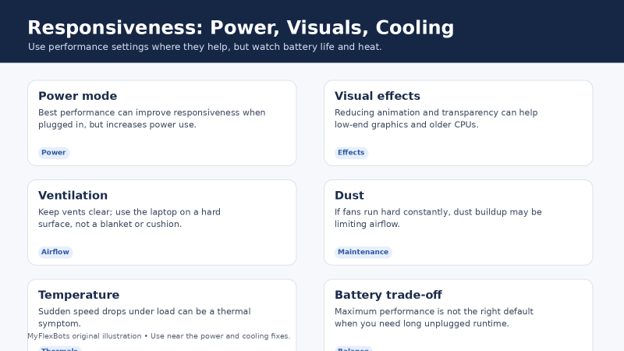
If you want How to speed up a slow laptop windows 11 while the laptop is plugged in, power mode is an easy test. Go to Settings > System > Power & battery and choose Best performance when maximum responsiveness matters. Microsoft warns that this can increase power consumption, heat, and battery drain, so it is not automatically the best everyday setting.
Use Best performance for demanding work such as video editing, code compilation, large spreadsheets, or gaming while connected to AC power. Switch back to Balanced when you need quiet fans and longer battery life.
If the laptop remains extremely slow even in Best performance, do not keep increasing power settings. That points back to storage, memory, thermal throttling, or a specific background process.
Pro-Tip: Compare performance while plugged in and on battery. A huge difference can reveal an aggressive battery profile, a weak charger, or a battery-management issue rather than a Windows problem.
- Reduce Visual Effects on Older or Low-End Laptops
Windows 11 uses animation, transparency, shadows, and other visual effects that look polished but consume some graphics and CPU resources. On a modern laptop the impact is small, but on entry-level or older hardware every bit of responsiveness can matter.
Press Start and search for ‘Adjust the appearance and performance of Windows.’ Open the result and test Adjust for best performance. If the result feels too plain, use Custom and re-enable the features you value, such as smooth screen fonts and thumbnail previews.
Also consider turning off transparency in Settings > Accessibility > Visual effects. These changes will not transform a severely underpowered laptop, but they can make menus, windows, and task switching feel more immediate.
💡 Quick Hack: Optimize for perceived speed, not benchmark bragging rights. Disabling animation can make a 0.5-second operation feel much faster because Windows stops spending part of that time drawing a transition.
- Optimize Storage Correctly—Do Not Manually Defrag an SSD
Storage maintenance is another area where How to speed up a slow laptop windows 11 advice often becomes outdated. Windows 11’s Optimize Drives tool handles different drive types appropriately. For a hard disk, optimization can include defragmentation; for an SSD, Windows uses SSD-appropriate maintenance such as TRIM rather than treating it like an old mechanical drive.
Search Start for ‘Defragment and Optimize Drives.’ Check that scheduled optimization is enabled and run Optimize if needed. You do not need a third-party defragmenter, and repeatedly forcing old-style defragmentation on an SSD provides no useful speed benefit.
If Task Manager shows the drive at 100% active time for long periods while transfer speeds remain very low, inspect what is using the disk. A failing hard drive, heavy antivirus scan, update process, indexing activity, or low-RAM paging can all create the same symptom.
Pro-Tip: If your laptop still boots from a mechanical hard drive, skip hours of micro-optimization. A compatible SSD upgrade is usually the single most dramatic hardware improvement you can make.
- Check for Overheating and Thermal Throttling
A laptop can be perfectly configured and still run slowly because it is too hot. Modern processors automatically reduce clock speed when thermal limits are reached. The user experiences this as a fast laptop that becomes sluggish after several minutes of heavy work.
Use the laptop on a hard, flat surface so the intake vents are not blocked. Check whether the exhaust is weak, the fan runs at maximum speed constantly, or the chassis becomes unusually hot. Dust buildup in the fan and heatsink can reduce airflow over time.
If your warranty and laptop design allow user maintenance, carefully clean accessible vents and fans using methods recommended by the manufacturer. Do not spin a fan to extreme speed with compressed air, and do not open a sealed device if doing so violates service terms or you are not comfortable working around a lithium battery.
💡 Quick Hack: Raise the rear of the laptop by a few millimeters with a stable stand. On models that draw air from the underside, the extra clearance can improve airflow without buying an expensive cooling pad.
- Reduce Browser Memory Use
For many people, How to speed up a slow laptop windows 11 really means ‘my browser gets slower as the day goes on.’ Modern browsers can consume several gigabytes of RAM when dozens of tabs, web apps, video calls, and extensions remain open.
Use built-in sleeping-tab or memory-saver features. Close tabs you do not need, especially web-based email, social media dashboards, collaborative documents, and video sites. Remove duplicate extensions and keep only one ad blocker or security extension rather than stacking several that inspect the same pages.
If a single website causes problems, test it in a private window with extensions disabled. If performance improves, an extension or corrupted site data may be responsible. If every browser is slow, return to system-level checks for memory, CPU, and disk use.
Pro-Tip: Bookmark a group of research tabs and close the whole window at the end of a work session. Restoring 40 tabs every time Windows starts defeats the benefit of cleaning startup apps.
- Repair System Files When Windows Behaves Abnormally
Corrupted Windows components can cause errors, failed updates, unstable apps, and performance problems. System file repair is not a routine ‘speed hack,’ but it is useful when slowness appears alongside crashes, missing components, or Windows features that fail to open.
Open Terminal or Command Prompt as Administrator. Run `DISM /Online /Cleanup-Image /RestoreHealth`, let it complete, then run `sfc /scannow`. DISM repairs the Windows component image that System File Checker relies on; SFC then checks protected system files and replaces damaged copies when possible.
Restart after the commands finish. If errors keep returning, check drive health and recent system changes rather than running repair commands every day.
💡 Quick Hack: Copy the final DISM and SFC messages into a notes file. If you later need professional support, knowing whether Windows found and repaired corruption can save a full round of troubleshooting.
- Upgrade RAM When Memory Is the Bottleneck
If Task Manager repeatedly shows memory near full during normal work, hardware may be the cleanest answer to How to speed up a slow laptop windows 11. More RAM helps when you multitask, keep many browser tabs open, run creative software, use virtual machines, or work with large datasets.
First confirm that the laptop’s RAM is upgradeable. Many thin laptops use soldered memory with no removable slots. Search the exact model number—not just the product family—and verify supported memory type, maximum capacity, number of slots, and whether an existing module must be replaced.
For general Windows 11 use, 8 GB can still handle light tasks, but 16 GB is a more comfortable target for modern multitasking. Heavier creative, development, and virtual-machine workloads may benefit from 32 GB or more if the laptop supports it.
Do not buy RAM based only on physical appearance. DDR4 and DDR5 are not interchangeable, and speed, form factor, capacity, and laptop compatibility matter.
Pro-Tip: Before buying memory, check Task Manager > Performance > Memory for installed capacity, speed, and slots used. Then verify the same details against the laptop manufacturer’s service documentation.
- Upgrade to an SSD—or Replace a Failing Drive
For an older laptop with a mechanical hard drive, an SSD is often the most noticeable solution to How to speed up a slow laptop windows 11. Boot time, app launching, file search, updates, and paging all become dramatically more responsive because solid-state storage has much lower access latency than a spinning disk.
Confirm whether the laptop accepts a 2.5-inch SATA SSD, an M.2 SATA drive, an M.2 NVMe drive, or more than one format. M.2 describes a physical form factor; it does not guarantee that every M.2 drive works in every slot. Check the service manual and, when useful, a model-specific repair guide before ordering.
Back up important files before changing the system drive. Decide whether you want to clone the existing installation or perform a clean Windows install. Cloning is faster when the current system is healthy; a clean install is better when years of software clutter or corruption are part of the problem.
If you already have an SSD but Task Manager shows persistent 100% active time, freezes, read errors, or disappearing drives, back up immediately and run the manufacturer’s health diagnostics. A failing SSD should be treated as a data-safety problem first and a speed problem second.
💡 Quick Hack: If you cannot afford a full hardware refresh, moving from a hard drive to even a modest SATA SSD often provides a bigger everyday improvement than buying a slightly faster CPU generation in a used laptop.
Before opening a laptop, compare the exact model with a trusted repair reference such as iFixit’s general M.2 SSD installation guide and the manufacturer’s service manual.
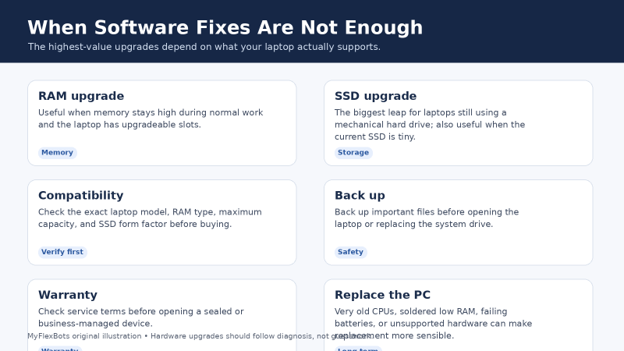
If the hardware is too old or too limited to justify upgrades, compare replacement options in MyFlexBots’ best laptops for work in 2026 guide.
Common Mistakes to Avoid
- Installing ‘PC booster’ software
Most optimizer suites duplicate Windows features, add background services, show exaggerated warnings, or encourage risky registry changes. Use Windows’ built-in tools and official vendor utilities instead.
- Disabling every startup entry
Aggressive disabling can break touchpad gestures, hotkeys, security, audio enhancements, docking features, or business management tools. Disable recognized nonessential apps in small batches.
- Deleting files without a backup
Storage cleanup can become data loss when Downloads, Desktop, project folders, or old Windows installations are removed without checking. Back up irreplaceable files first.
- Buying RAM or an SSD before checking compatibility
Thin laptops may have soldered RAM; M.2 slots vary; and some models support only specific lengths or interfaces. Verify the exact model and service manual before spending.
- Changing ten things at once
You will not know what fixed the problem—or what caused a new problem. Change one category, restart, and retest against the same baseline tasks.
Advanced Tips / Next-Level Hacks
Once the obvious bottlenecks are under control, these higher-level habits make performance improvements last instead of disappearing after the next month of installs and updates.
Create a repeatable 10-minute benchmark: boot to desktop, open the same five apps, load the same browser tab set, copy the same large file, and record the times. Consistency is more valuable than a synthetic score for everyday troubleshooting.
Use Task Manager’s efficiency mode selectively on noncritical background processes when appropriate, rather than trying to slow the entire system. Do not use it on a foreground app you expect to run at full speed.
Keep the system drive lean by moving large video archives, installers, VM images, and finished projects to a secondary drive or external SSD. Separating active work from cold storage reduces clutter and backup complexity.
On laptops used for video editing or development, watch sustained performance rather than a 30-second burst. A machine that starts fast but throttles after five minutes often needs cooling attention more than another registry tweak.
When replacing hardware, price the total platform: battery condition, charger, screen, keyboard, repairability, Windows support, and CPU age. Sometimes a $70 upgrade extends a good laptop by years; sometimes it only postpones an inevitable replacement.
If you use Windows as a hub for phone workflows, MyFlexBots also has a practical guide on how to mirror your phone to a PC without adding unnecessary background software.
Troubleshooting & Long-Term Maintenance Guide
Laptop is slow only for the first 10–20 minutes after boot
Check Windows Update, Defender, search indexing, cloud sync, and app updaters. Let maintenance finish, then reduce unnecessary startup tasks.
Disk stays at 100%
Sort Task Manager by Disk, check free space, inspect Windows Update/Defender activity, verify drive health, and consider RAM pressure that is causing heavy paging.
Memory is always above 90%
Close heavy apps, reduce browser tabs, disable unnecessary startup software, and consider a RAM upgrade if the hardware supports it.
CPU is high at idle
Sort by CPU and identify the process. Update, repair, reconfigure, or remove the responsible app. Scan for malware if the process is unknown or suspicious.
Laptop gets slower as it heats up
Improve airflow, clean dust safely, check fan behavior, and use manufacturer diagnostics. Sustained thermal throttling can make a capable CPU feel underpowered.
Windows is fast but one app is slow
Focus on that app: update it, reset its cache, review extensions/plugins, check its files or database, and confirm network performance if it is cloud-based.
Everything is still slow after a clean install
Hardware is now the main suspect: weak CPU, too little non-upgradeable RAM, slow or failing storage, thermal problems, or an aging platform. At this point, replacement may be the economical choice.
A Simple Monthly Maintenance Routine
Restart the laptop fully at least occasionally instead of relying only on Sleep for weeks.
Review Startup apps after installing new software.
Check Windows Update and restart after major updates.
Keep useful free space on the system drive and review Storage Sense.
Uninstall programs and browser extensions you no longer use.
Check vents for dust and make sure the laptop is used on a surface that allows airflow.
Back up important files so a failing drive becomes an inconvenience rather than a disaster.
Frequently Asked Questions
Why is my Windows 11 laptop suddenly so slow?
Sudden slowdowns are commonly caused by Windows or app updates, a stuck background process, low free storage, malware, cloud syncing, a browser tab or extension, thermal throttling, or a drive beginning to fail. Restart first, then check Task Manager while the slowdown is happening.
How much free space should I keep on Windows 11?
There is no single magic percentage for every drive size, but Windows needs working space for updates, temporary files, caches, and applications. If the C: drive is nearly full or shows a low-space warning, free tens of gigabytes where practical and turn on Storage Sense.
Does disabling startup apps make Windows 11 faster?
Yes, when nonessential applications launch at sign-in. Reducing startup load can shorten the time until the desktop becomes responsive and lower background RAM/CPU use. Disable recognized apps selectively rather than turning off security or hardware utilities.
Will more RAM speed up my laptop?
More RAM helps when the system is already running short of memory. If Task Manager shows consistently high memory use during your normal workload, an upgrade can reduce paging and app reloads. If RAM use is low, more memory alone will not fix a slow CPU or failing drive.
Is an SSD upgrade worth it for Windows 11?
If the laptop still uses a mechanical hard drive, yes—an SSD is usually one of the biggest everyday speed improvements available. If the laptop already has a healthy SSD, diagnose CPU, memory, storage capacity, software load, and thermals before replacing it.
Should I reset Windows 11 to make my laptop faster?
A reset or clean install can help when software corruption, years of clutter, or persistent configuration problems are the cause. It should come after simpler fixes and a full backup. It cannot overcome an underpowered processor, non-upgradeable low RAM, overheating, or failing hardware.
Conclusion: Fix the Bottleneck, Not the Symptom
The smartest way to approach How to speed up a slow laptop windows 11 is to work from evidence: restart, measure, remove startup and storage waste, update and scan, then test power, visuals, cooling, and browser load. Only after those checks should you spend money on RAM, an SSD, or a replacement laptop.
A slow PC is rarely improved by changing everything at once. Make one category of change, restart, rerun the same test, and keep the fixes that produce a measurable improvement. Which symptom is slowing your laptop most right now—startup time, 100% disk usage, high memory, overheating, or one specific app? Share it in the comments and use the checklist above to narrow it down.
editor's pick
latest video
news via inbox
Nulla turp dis cursus. Integer liberos euismod pretium faucibua